🖤 BLACK FRIDAY SALE: 50% OFF Windows & Office with BLACK26 + 30% OFF Autodesk with BK26 Shop the sale →


Digital Licence vs Product Key: Linking Windows 11 to Your Microsoft Account

A Windows digital license is an activation record that Microsoft stores against your PC’s hardware, so Windows 11 activates without you typing a key. A product key is the 25-character code that creates or proves that licence. Link the digital licence to your Microsoft account and you can reactivate after a reinstall or hardware change far more easily.
Key takeaways
- A digital licence (Microsoft also calls it a digital entitlement) is tied to your hardware; a product key is a 25-character code in the format XXXXX-XXXXX-XXXXX-XXXXX-XXXXX.
- Once a product key activates a PC, that PC normally also holds a digital licence, so a clean reinstall of the same edition reactivates on its own.
- Link the licence via Settings > System > Activation by signing in with a Microsoft account as an administrator.
- A linked licence lets you use the Activation troubleshooter after a motherboard change. Keep your product key safe anyway.
- Retail licences can generally be moved to another PC; OEM licences stay with the first device they activate.
In this guide
- Digital licence vs product key: what’s the difference?
- How do I know if I have a digital license or a product key?
- How to link your Windows licence to a Microsoft account
- Reactivating a digital licence after a hardware change
- Reinstalling or moving Windows 11: which licence type helps?
- Common digital licence problems and fixes
- Frequently asked questions
- The bottom line
- Useful links
| Digital licence | Product key | |
|---|---|---|
| What it is | Activation record on Microsoft’s servers, tied to your hardware | 25-character code you enter or that is stored in firmware |
| Typical sources | Free upgrade from genuine Windows 10, Pro upgrade or Windows bought in the Microsoft Store app | New PCs, boxed or digital copies from retailers, Microsoft Store online orders, volume licensing |
| Need to type anything on reinstall? | No, if you reinstall the same edition | Usually no, once that PC has been activated; keep the key for new hardware |
| Can link to Microsoft account? | Yes | Yes, after activation the PC holds a digital licence you can link |
| Helps after motherboard change? | Yes, through the Activation troubleshooter when linked | Yes, re-enter a retail key; OEM keys usually do not move |
Digital licence vs product key: what’s the difference?
A product key is the code; a digital licence is the result. When Windows 11 activates, Microsoft’s activation servers record a hardware ID for that PC alongside the edition it is entitled to. From then on, the PC can reactivate by recognising its own hardware, with no key needed.
Microsoft’s Activate Windows page sets out how each purchase route activates. Upgrades and purchases made inside the Microsoft Store app create a digital licence directly. PCs that ship with Windows, boxed copies and keys bought from retailers activate with a product key.
In practice the two overlap. A retail key you enter today becomes a digital licence on that PC the moment activation succeeds. The difference matters mainly when you change hardware or move Windows to another machine.
Where does an OEM key live?
Most laptops and pre-built desktops store their key in the UEFI firmware, which Windows reads automatically during installation. Our guide on how to find your Windows 11 product key covers how to read it. For the wider picture, see OEM vs retail vs volume keys.
How do I know if I have a digital license or a product key?
Open Settings > System > Activation and read the activation state. “Windows is activated with a digital license” means Microsoft holds a licence for this hardware. “Windows is activated with a digital license linked to your Microsoft account” means it is also linked. “Windows is activated” alone usually means a product key, often a volume or organisation key.
| Message on the Activation page | What it means | What to do |
|---|---|---|
| Windows is activated with a digital license linked to your Microsoft account | Activated and linked | Nothing. Note your product key somewhere safe if you have one. |
| Windows is activated with a digital license | Activated, not linked | Link your Microsoft account (next section) |
| Windows is activated | Activated with a key, often through an organisation | On a work PC, speak to IT; personal PCs can still link an account |
| Windows is not activated | No valid licence for this edition and hardware | Run the troubleshooter or enter a valid key |
For more ways to check, including the slmgr /dli command, see our guide on how to check if Windows 11 is activated. Microsoft’s slmgr reference explains that /dli shows summary licence information and /dlv shows the detailed version.
How to link your Windows licence to a Microsoft account
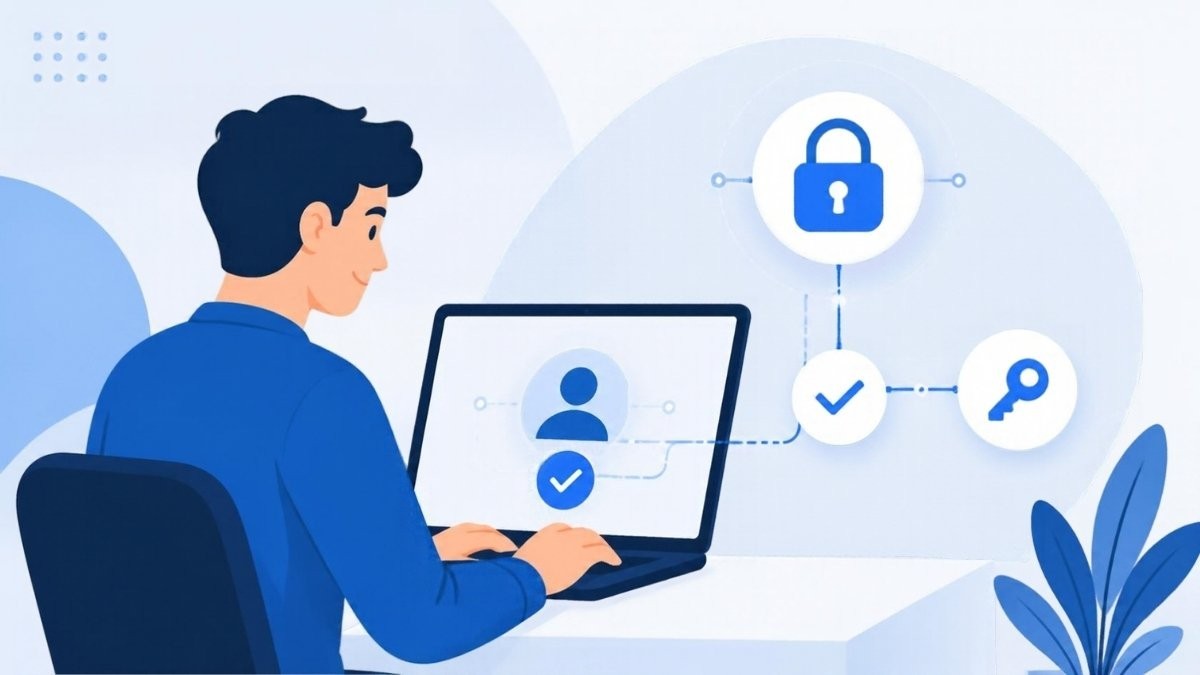
Sign in to Windows 11 as an administrator, open Settings > System > Activation, select Add an account and sign in with your Microsoft account. When the page shows “linked to your Microsoft account”, the digital licence is attached to that account and the Activation troubleshooter can find it later.
- Check you are an administrator: go to Settings > Accounts > Your info. “Administrator” should appear under your name.
- Open Settings > System > Activation and expand Activation state.
- If you use a local account, select Add an account, then enter your Microsoft account email and password and select Sign in.
- If you already sign in to Windows with a Microsoft account, the link usually happens automatically. Reopen the Activation page to confirm.
- Confirm the status reads “Windows is activated with a digital license linked to your Microsoft account”.
Linking does not mean you must keep using a Microsoft account to sign in day to day. You can switch back to a local account afterwards; the licence link stays on Microsoft’s side.
Linking only works on an activated PC
You cannot link a licence that does not exist. If the page says Windows is not activated, fix activation first. Then link the account straight away, before you upgrade any hardware.
Reactivating a digital licence after a hardware change
A new motherboard changes the hardware ID that Microsoft uses, so Windows 11 may show as not activated. If you linked your licence beforehand, open Settings > System > Activation > Troubleshoot, choose I changed hardware on this device recently, sign in and pick the current device.
- Connect to the internet and sign in as an administrator.
- Go to Settings > System > Activation and select Troubleshoot. The button only appears when Windows is not activated.
- Select I changed hardware on this device recently, then Next.
- Sign in with the Microsoft account linked to the licence.
- Find your device in the list, tick This is the device I’m using right now and select Activate.
Microsoft’s hardware change guidance notes the edition must match before and after the change, Home for Home and Pro for Pro. If you never linked an account but activated with a retail key, re-enter that key under Change product key instead.
Our full guide to Windows activation after a hardware change covers OEM limits and what to do when the troubleshooter refuses.
Reinstalling or moving Windows 11: which licence type helps?
On the same PC, both types behave the same way: reinstall the same edition, skip the product key prompt with I don’t have a product key, and Windows reactivates once online. Moving to a different PC is where they differ, because retail licences can generally be moved while OEM licences belong to the first device.
Reinstalling on the same PC
Whether you use Reset this PC or a clean install from USB, the digital licence stays on Microsoft’s servers. Our factory reset guide explains what a reset removes, and the Windows 11 Pro installation guide walks through a clean install. Pick the edition you were activated with, or activation will fail.
Moving to a new PC
A retail licence can generally be moved, provided you remove it from the old machine first. An OEM licence stays with the PC it first activated. We cover the process in detail in how to transfer a Windows licence to a new PC.
| Scenario | Retail key / digital licence | OEM key / digital licence |
|---|---|---|
| Reinstall same edition, same PC | Reactivates automatically | Reactivates automatically |
| Replace hard drive or SSD | Usually reactivates automatically | Usually reactivates automatically |
| Replace motherboard | Troubleshooter (if linked) or re-enter key | Often treated as a new PC; may need a new licence |
| Move to a different PC | Allowed once removed from the old PC | Not permitted under OEM terms |
Planning upgrades or a future PC move?
If you expect to replace your motherboard or move Windows to a new machine, a transferable retail licence saves you buying again. Our Windows 11 Pro retail key activates online, and once linked to your Microsoft account it reactivates through the troubleshooter after major hardware changes.
Common digital licence problems and fixes
Most digital licence problems come down to an edition mismatch, a hardware change on an unlinked PC, or signing in with the wrong Microsoft account. The fix is usually to install the correct edition, use the troubleshooter with the account that holds the licence, or enter your original key.
- Device missing from the troubleshooter list: you may be signed in with a different Microsoft account. Sign in with the one shown on the old Activation page.
- Activated as Home, but you bought Pro: you installed the wrong edition. Enter the Pro key under Change product key, or see our guide to upgrading Windows 11 Home to Pro.
- Error 0xC004F213: Windows found no licence for this hardware, typically after a motherboard swap. Use the troubleshooter or a retail key.
- “Your Windows licence will expire soon”: usually a volume or organisation licence on a PC that has left its network. Our guide to that licence expiry warning explains the fixes.
Unofficial activators sometimes promise to “convert” a PC to a digital licence. They are unsafe, breach Microsoft’s licence terms and can leave you with no legitimate licence at all.
Frequently asked questions
Is a digital license better than a product key?
Neither is better; they work together. A product key is the code that proves your entitlement, and a digital licence is what Microsoft records once activation succeeds. A digital licence is more convenient for reinstalls, while keeping your product key gives you a backup if you move a retail licence or the troubleshooter fails.
Does a Windows digital license expire?
No. Retail and OEM activations for Windows 11 do not expire. Microsoft’s slmgr documentation notes that MAK and retail activation is perpetual, while KMS activation in organisations must renew periodically. A digital licence can stop working only if the hardware changes significantly or the licence was not valid in the first place.
Can I use one digital license on two PCs?
No. A standard Windows 11 Home or Pro licence covers one device at a time. Activating the same licence on a second PC will typically deactivate one of them or fail. If you need Windows on several computers, buy a licence for each, or a multi-PC pack where one is offered.
Do I need a Microsoft account to keep my digital license?
No. The digital licence is stored against your hardware, so it works without any account. Linking a Microsoft account simply makes reactivation after a motherboard change much easier, because the Activation troubleshooter can find the licence. You can link once and then go back to a local account.
What happens to my digital license if I reinstall Windows 11?
Nothing changes. The licence stays on Microsoft’s activation servers. Reinstall the same edition, choose I don’t have a product key when asked, and Windows 11 activates automatically once it connects to the internet. If you install a different edition, such as Home instead of Pro, it will not activate.
How do I find my product key if I only have a digital license?
You may not need one. If Windows was upgraded for free or bought through the Microsoft Store app, there may be no personal key to find, and Windows shows a generic key. For keys bought from a retailer, check the order email or your account on the seller’s website.
The bottom line
Your product key creates the licence; the digital licence is what keeps Windows 11 activated on your hardware. Link it to a Microsoft account today, keep your key somewhere safe, and hardware upgrades and reinstalls become routine. If you still have questions about a key you bought from us, our Help & Support Centre is the place to start.
Useful links
| Resource | Why it helps |
|---|---|
| Microsoft Support: Activate Windows | Official list of which purchase routes give a digital licence or a key |
| Microsoft Support: Reactivating after a hardware change | Activation troubleshooter steps |
| Microsoft Learn: slmgr options | Command-line licence checks |
| Find your Windows 11 product key | Locate firmware or retail keys |
| OEM vs retail vs volume keys | Which licence types can move |
| Windows activation after a hardware change | Detailed hardware-change scenarios |
| Transfer a Windows licence to a new PC | Moving a retail licence correctly |
| Windows 11 Pro retail key | Transferable licence for upgraders |


