

Windows 11 Pro – Download, Install & Activation Guide (Updated 2026)

Windows 11 Pro is Microsoft’s most capable desktop OS — built for performance, security, and productivity. Whether you’re doing a fresh clean installation, upgrading from Windows 11 Home, or migrating from Windows 10, this complete guide walks you through every step. Once you have your Windows 11 Pro key from WinCDKey, simply follow the method that matches your situation below.
Don’t have a license yet? Browse our full range of Windows 11 licenses — genuine keys with instant digital delivery.
Windows 11 Pro System Requirements
Before starting, confirm your PC meets Microsoft’s minimum hardware requirements. Windows 11 is stricter than Windows 10 — particularly around TPM 2.0 and Secure Boot.
| Requirement | Minimum Specification |
|---|---|
| Processor | 1 GHz or faster, 2+ cores, 64-bit compatible |
| RAM | 4 GB |
| Storage | 64 GB or more |
| Firmware | UEFI, Secure Boot capable |
| TPM | Trusted Platform Module (TPM) version 2.0 |
| Graphics | DirectX 12 compatible / WDDM 2.0 driver |
| Display | 720p HD, 9″ or larger, 8 bits per colour channel |
| Internet | Required for setup and activation |
TPM check: Press Windows key + R, type
tpm.msc, and press Enter. If it shows “TPM 2.0”, you’re ready. If your PC doesn’t meet requirements, you may still be able to install using the Media Creation Tool workaround or consider staying on Windows 10 Pro.
Windows 11 Pro vs Home: What’s the Difference?
Upgrading to Pro is worth it if you need any of the following features not available in Home:
| Feature | Home | Pro |
|---|---|---|
| BitLocker Drive Encryption | ✗ | ✓ |
| Remote Desktop (host) | ✗ | ✓ |
| Group Policy Management | ✗ | ✓ |
| Hyper-V Virtualization | ✗ | ✓ |
| Windows Sandbox | ✗ | ✓ |
| Azure AD & Domain Join | ✗ | ✓ |
| Assigned Access (Kiosk mode) | ✗ | ✓ |
| Windows Update for Business | ✗ | ✓ |
If you only need the Pro upgrade key, we also offer a dedicated Windows 11 Home to Pro upgrade license.
Option 1: Clean Installation of Windows 11 Pro
Use this method if:
- You’re setting up a new PC with no operating system
- You’re replacing Windows 10 or an older version
- You want a completely fresh start free of old files
Step 1 – Download the Windows 11 Media Creation Tool
Go directly to Microsoft’s official page: 👉 https://go.microsoft.com/fwlink/?linkid=2156295
Click Download now under “Create Windows 11 Installation Media” and save the file.
Step 2 – Create Your Installation USB or DVD
- Run the MediaCreationToolW11.exe you downloaded.
- Accept the license terms.
- Select “Create installation media (USB flash drive, DVD, or ISO file) for another PC”.
- Choose your language, edition (Windows 11 — includes both Home and Pro), and architecture (64-bit).
- Select USB flash drive (minimum 8 GB, all data will be erased) or ISO file to burn to DVD.
- Let the tool download files and write to your media — this takes 15–45 minutes depending on your internet speed.
Step 3 – Boot from Your Installation Media
- Plug the USB drive (or insert DVD) into the target PC.
- Restart and enter BIOS/UEFI — press F2, F10, F12, Del, or Esc at startup (varies by manufacturer).
- Make sure Secure Boot is enabled and UEFI mode is active.
- Set your USB/DVD as the first boot device.
- Save and exit — the PC will boot into the Windows 11 installer.
Step 4 – Run the Windows 11 Installer
- Select your language, time format, and keyboard layout, then click Next.
- Click Install now.
- When prompted for a product key, enter your Windows 11 Pro key from WinCDKey. (To activate later, click “I don’t have a product key” — you can enter it after installation.)
- Select Windows 11 Pro from the edition list.
- Accept the license agreement.
- Choose “Custom: Install Windows only (advanced)” for a clean install.
- Delete existing partitions on the target drive to wipe it clean, then select the unallocated space and click Next. ⚠️ This erases all data on that drive — back up important files first.
- Windows will install and restart your PC several times automatically. Do not power off during this process.
Step 5 – Complete Setup & Activate
After installation, Windows 11 will guide you through the initial setup (region, keyboard, Microsoft account, etc.). Once at the desktop:
- Go to Settings → System → Activation.
- If not already activated, click Change product key.
- Enter your WinCDKey Windows 11 Pro key and click Next.
- Windows activates online — you’ll see “Windows is activated” when done.
✅ Activation confirmed — your Windows 11 Pro is fully licensed.
Option 2: Upgrade Windows 11 Home to Pro (GUI Method)
Use this method if:
- You’re already running Windows 11 Home
- You want to add Pro features without reinstalling
Steps:
- Press Windows key + R, type
slui.exe 3, and press Enter. - Enter your Windows 11 Pro product key from WinCDKey and click Next.
- If the key isn’t accepted immediately, enter the generic switch key first:
VK7JG-NPHTM-C97JM-9MPGT-3V66T - Then go to Settings → System → About → Change product key or upgrade your edition of Windows.
- Enter your actual WinCDKey license key here to complete the upgrade and activate.
- Close all open applications, save your work, then click Start to begin the upgrade.
The upgrade takes approximately 5–15 minutes and will restart your PC. All your existing files, apps, and settings are preserved.
Error 0x800f0805? Ensure you have at least 20 GB of free disk space and that Windows Update is fully current. If the problem persists, use the clean installation method (Option 1).
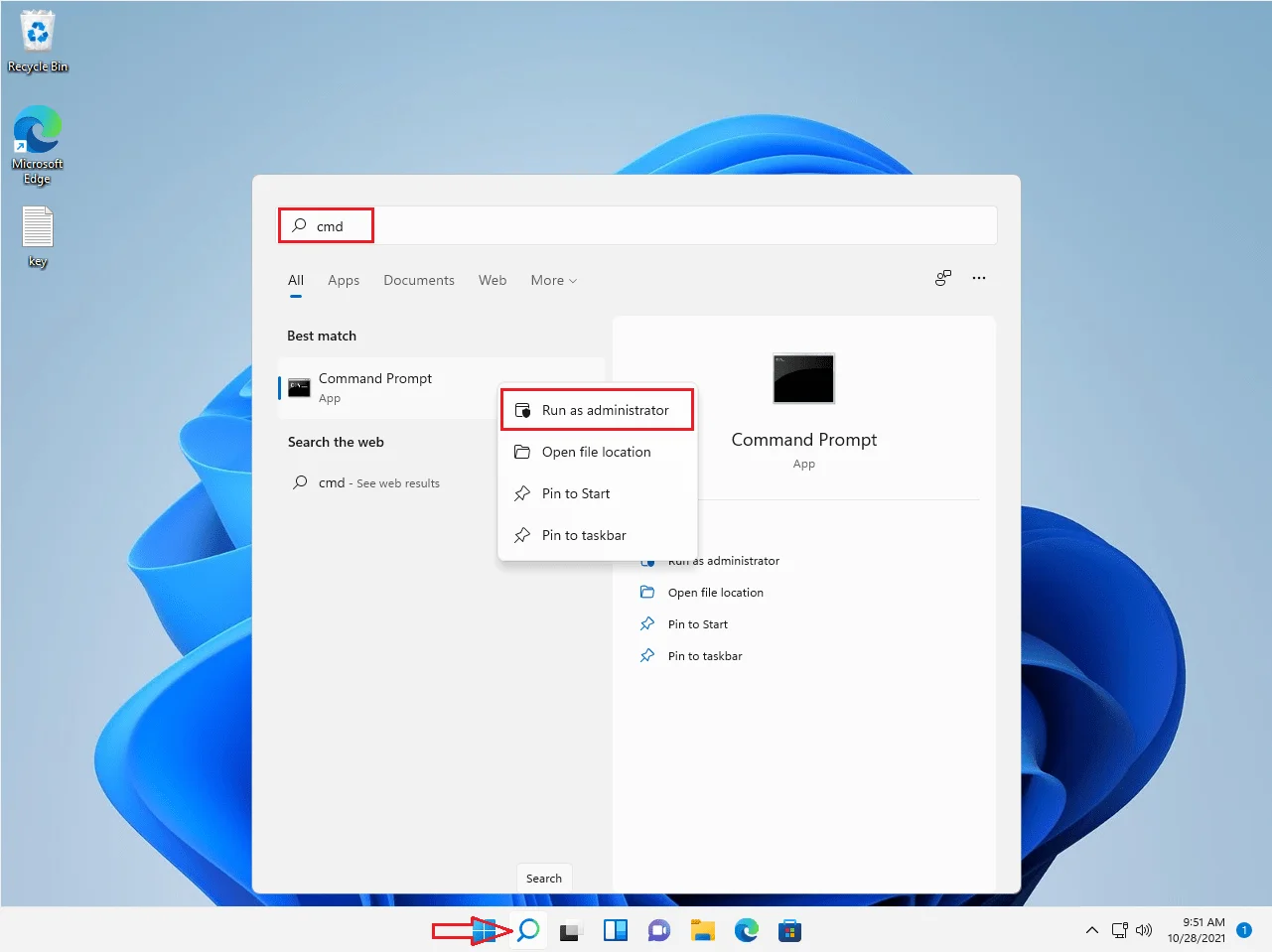
Step 2: Copy pest this code
slmgr.vbs /upk
Then you enter
Then you copy and paste this code:
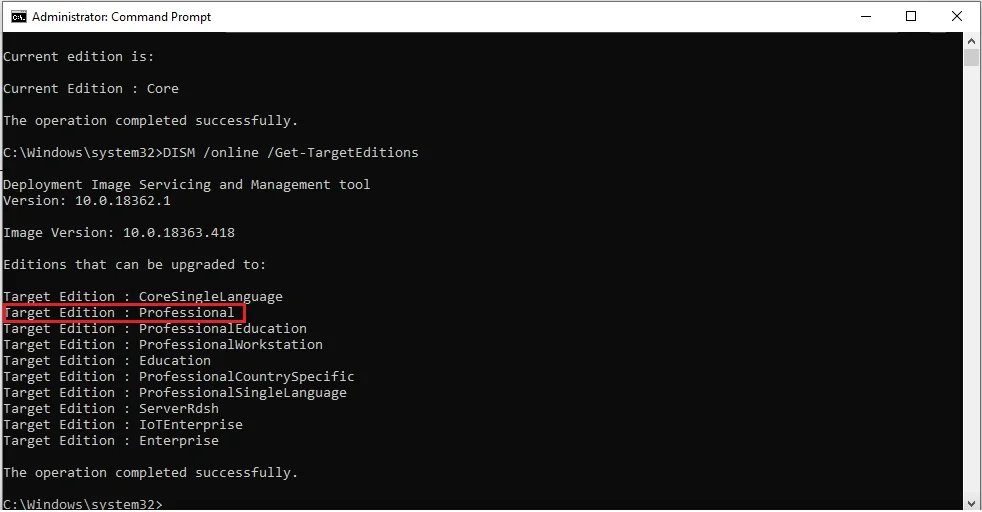
DISM /online /Get-TargetEditions
Then you enter
If you see Target edition: Professional, your Windows 11 Home can upgrade to Windows 11 Pro
Step 3: You copy and paste these codes in cmd
sc config LicenseManager start= auto & net start LicenseManager
sc config wuauserv start= auto & net start wuauserv
changepk.exe /productkey VK7JG-NPHTM-C97JM-9MPGT-3V66T
exit
Then you enter and wait for a moment.
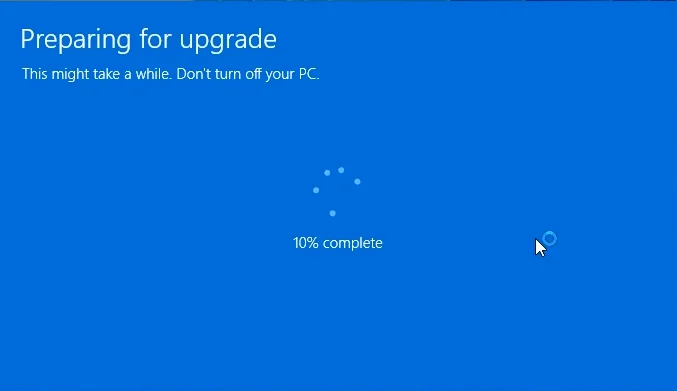
Replace the X’s with your actual product key. A dialog will confirm successful activation.
“Windows upgrade failed” message? Simply restart your PC — the upgrade completes on reboot in most cases.
Option 4: Free Upgrade from Windows 10 Pro to Windows 11 Pro
If you’re running a genuine, activated copy of Windows 10 Pro, you may be eligible for a free upgrade to Windows 11 Pro via Windows Update — provided your hardware meets the requirements.
- Go to Settings → Windows Update.
- Click Check for updates.
- If your PC is eligible, you’ll see “Windows 11 is ready — and it’s free”.
- Click Download and install and follow the prompts.
If your PC isn’t eligible due to hardware (TPM, CPU), you can still get Windows 11 Pro with a fresh license key. Check our Windows 11 Pro key options.
Activation Troubleshooting
| Error Code | Meaning | Fix |
|---|---|---|
| 0xC004F074 | Cannot reach activation servers | Check internet; try phone activation |
| 0x800f0805 | Upgrade blocked | Free disk space + run Windows Update |
| 0x80070005 | Access denied during activation | Restart PC and try again |
| 0xC004C003 | Product key blocked | Contact WinCDKey support |
| 0x803F7001 | No valid license found | Re-enter product key in Activation settings |
Phone Activation: If online activation fails, Microsoft offers telephone activation. WinCDKey also provides a Phone Activation (CID) Tool to help generate your Confirmation ID quickly.
Frequently Asked Questions
Does Windows 11 Pro require TPM 2.0?
Yes — TPM 2.0 is a hard requirement for Windows 11. You can check your TPM status by running tpm.msc. Some older PCs can enable TPM 2.0 in BIOS/UEFI settings.
Can I keep my files and apps when upgrading from Home to Pro?
Yes. The upgrade methods (Options 2 and 3) preserve all your existing files, applications, and settings.
Can I use a Windows 10 Pro key to activate Windows 11 Pro?
In most cases, yes — Windows 11 uses the same licensing as Windows 10. A genuine Windows 10 Pro key will typically activate Windows 11 Pro.
How many PCs can I install one key on?
Standard retail keys from WinCDKey activate on one PC. For multiple devices, see our Windows 11 Pro 5-device pack or contact us for volume/enterprise licensing.
Is Windows 11 Pro better for gaming?
Windows 11 Pro and Home offer the same gaming performance. Pro adds business and security features on top. If you mainly game, Windows 11 Home is a cost-effective option.
What’s the difference between Windows 11 Pro and Pro for Workstations?
Pro for Workstations supports more RAM (up to 6 TB), ReFS file system, and multi-processor configurations. If you need those features, we offer Windows 11 Pro for Workstations.
Get Your Windows 11 Pro License from WinCDKey
WinCDKey is a verified Microsoft partner offering genuine, instant-delivery Windows 11 licenses at competitive prices. All keys are globally compatible and backed by our support team.
- 🔑 Windows 11 Pro (1 Device)
- 🔑 Windows 11 Pro License
- 🔑 Windows 11 Pro OEM
- 🔑 Windows 11 Pro 5-Device Pack
- 🔑 Upgrade Windows 11 Home to Pro
- 🔑 Windows 11 Pro for Workstations
Looking to bundle? Save more with our Office 2024 Pro Plus + Windows 11 Pro bundle or the Windows 11 Pro + Office 365 Pro Plus bundle.


