🎃 HALLOWEEN SALE: 50% OFF best-selling Windows, Office, Autodesk & Server keys — use code GHOST50 Shop the sale →


Factory Reset Windows 11: What It Deletes and Will Activation Survive?

A factory reset of Windows 11 reinstalls the operating system and, depending on the option you choose, removes your apps, settings and personal files. It does not normally cost you activation: if Windows 11 was activated before the reset, it should reactivate on its own once the PC is back online, because the licence is tied to your hardware rather than to the files on the drive.
Key takeaways
- Go to Settings > System > Recovery > Reset PC to factory reset Windows 11.
- Keep my files removes apps and settings but keeps documents; Remove everything wipes personal files too.
- Every option removes your installed desktop programs, so note your software and licence keys first.
- A digital licence reactivates automatically after a reset on the same hardware, as long as the edition stays the same.
- Have your BitLocker recovery key ready if the drive is encrypted.
In this guide
- What does a factory reset do in Windows 11?
- Keep my files vs Remove everything
- What to do before you factory reset Windows 11
- How to factory reset Windows 11 from Settings
- How to reset a PC that won’t start or sign in
- Will you lose Windows activation after a reset?
- Frequently asked questions
- The bottom line
- Useful links
What does a factory reset do in Windows 11?
A factory reset, which Microsoft calls Reset this PC, reinstalls Windows 11 over your existing installation. It always removes the apps you installed yourself and returns Windows settings to their defaults. Whether your personal files survive depends on the option you pick at the start.
People also call this a “hard reset”, although strictly that term describes forcing a frozen laptop to power off. In Windows terms, the reset is a full reinstall without needing a USB stick or ISO file.
It is the right tool when Windows is unstable, riddled with leftover software, or you are passing the PC to someone else. If the problem is a few corrupted system files, try a lighter repair first: our guide to repairing Windows 11 with DISM /RestoreHealth fixes many faults without touching your apps.
What a reset removes and keeps
| Item | Keep my files | Remove everything |
|---|---|---|
| Documents, photos, desktop files | Kept | Deleted |
| Desktop programs you installed (Office, games, utilities) | Removed | Removed |
| Windows settings and personalisation | Reset to default | Reset to default |
| User accounts | Kept | Deleted (you set up Windows again) |
| Windows edition and activation | Kept | Kept (reactivates online) |
| Manufacturer apps and drivers | Optional (“Restore preinstalled apps”) | Usually restored on OEM PCs |
Keep my files vs Remove everything: which should you choose?
Choose Keep my files if you are fixing a slow or misbehaving PC you will carry on using. Choose Remove everything if you are selling, donating or recycling the PC, or if you want a completely clean start. Both reinstall Windows; the difference is your personal data and user accounts.
Keep my files (refresh)
Microsoft describes this as a refresh. Windows is reinstalled, your apps and settings go, and your documents, photos and other personal data remain. Windows saves a list of removed apps to your desktop so you know what to reinstall.
On manufacturer PCs you may see Restore preinstalled apps. Leave it on to bring back the maker’s tools and customisations, or turn it off for a plainer Windows.
Remove everything (full reset)
This deletes personal files, apps, settings and user accounts. Under Additional settings, the Clean data option also cleans the drive so removed files are harder to recover. It takes longer, but use it before the PC leaves your hands.
Microsoft notes that this data erasure is aimed at consumers and does not meet government or industry data-sanitisation standards. Businesses with formal disposal policies should follow those instead.
Cloud download vs Local reinstall
You will also be asked where the Windows files come from. Cloud download fetches a fresh copy from Microsoft, which helps if local system files are damaged, but it uses several gigabytes of data. Local reinstall uses files already on the PC; it is quicker on a slow connection but may need more updates afterwards.
What to do before you factory reset Windows 11
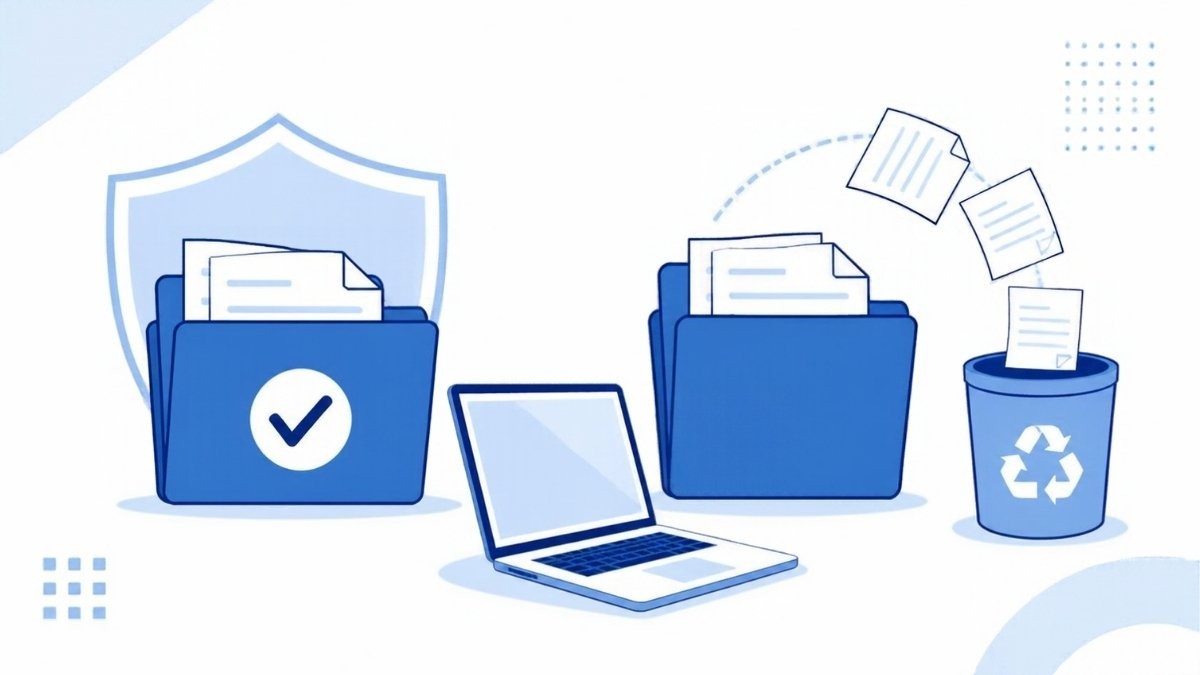
Before you reset, back up your files, write down the programs and licence keys you will need to reinstall, confirm your Windows activation status, and locate your BitLocker recovery key. Ten minutes of preparation prevents most of the problems people report after a reset.
- Back up personal files. Even with Keep my files, copy anything important to an external drive or cloud storage. Resets occasionally fail part-way.
- List your software and keys. Every desktop program will need reinstalling. Find your Office product key or the Microsoft account it is linked to, plus keys for utilities and antivirus.
- Check activation. Open
Settings > System > Activationand confirm it says Windows is activated. Our guide on how to check if Windows 11 is activated explains each status message. - Link your Microsoft account. If the Activation page says “activated with a digital license” but not “linked to your Microsoft account”, sign in with a Microsoft account to link it. This helps if you later change hardware.
- Find your BitLocker recovery key. If device encryption or BitLocker is on, you may be asked for the 48-digit key. Microsoft’s page on finding your BitLocker recovery key lists where it is usually stored.
- Plug in the charger. A laptop that runs out of battery mid-reset can leave Windows unbootable.
A common support ticket we see is from someone who reset a PC and then could not find the Office key they bought years ago. If your licence is tied to a Microsoft account, it will show in your account’s Services & subscriptions page; our guide to moving Office to another computer covers both key types.
How to factory reset Windows 11 from Settings
To factory reset Windows 11, open Settings, go to System > Recovery, select Reset PC, choose Keep my files or Remove everything, pick Cloud download or Local reinstall, review the summary and select Reset. The PC restarts several times and the process usually takes from around 30 minutes to a couple of hours.
- Open Settings (
Windows key + I). - Select System > Recovery.
- Under Recovery options, next to Reset this PC, select Reset PC.
- Choose Keep my files or Remove everything.
- Choose Cloud download or Local reinstall.
- On Additional settings, select Change settings if you want to turn on Clean data, delete files from all drives, or change the preinstalled apps option.
- Select Next, read the list of what will happen, then select Reset.
- Leave the PC alone until you reach the Windows setup screens.
Microsoft warns that the screen can stay black for a long time, occasionally more than 15 minutes, and that the device may restart itself. Do not switch it off manually during this stage, or the reset can fail.
How to reset a PC that won’t start or sign in
If you cannot reach Settings, reset from the Windows Recovery Environment. At the sign-in screen, hold Shift and select Power > Restart, then choose Troubleshoot > Reset this PC. If Windows will not load at all, it usually opens recovery itself after repeated failed starts.
- On the sign-in screen, hold
Shiftwhile you select Power > Restart. - On the blue Choose an option screen, select Troubleshoot.
- Select Reset this PC and follow the same choices as above.
- Enter your BitLocker recovery key if prompted.
If Windows fails to start twice in a row, Microsoft’s Windows Recovery Environment guide explains how it should open Automatic Repair on the third attempt. When recovery itself is damaged, boot from installation media instead; see our guide to creating a Windows 11 bootable USB.
Forgotten your password? Resetting from the sign-in screen works without it, but Remove everything is the only safe choice in that case, because Keep my files keeps the account you cannot open.
Will you lose Windows activation after a factory reset?
Usually not. Windows 11 activation is stored as a digital licence linked to your PC’s hardware on Microsoft’s activation servers, so a reset on the same hardware reactivates automatically once you connect to the internet. Problems appear when the edition changes, the motherboard has been replaced, or the original activation was never genuine.
Why activation survives a reset
When Windows first activates, Microsoft records a hardware fingerprint for the device. After a reset, Windows checks that fingerprint again and finds the existing licence, so you are not asked for a key. PCs sold with Windows also carry an OEM key in the firmware, which setup reads automatically.
When you might need your product key
- Edition mismatch. If you reinstall Home on a PC licensed for Pro, or the other way round, activation fails. Microsoft states that a licence reactivates only if the edition stays the same.
- Hardware change. A new motherboard makes Windows think it is a different PC. Linking your Microsoft account first lets you use the Activation troubleshooter; see our guide to Windows activation after a hardware change.
- Unofficial activation. If Windows was “activated” with an unofficial tool, a reset removes that. Such tools are unsafe and breach the licence terms, so the honest fix is a genuine licence.
Reset done and Windows says it isn’t activated?
If the Activation page still shows an error after the troubleshooter, the PC may never have had a valid licence for that edition. A Windows 11 Pro retail key can be entered at Settings > System > Activation > Change product key, and a retail licence can be moved to another PC later.
Frequently asked questions
How long does a factory reset take on Windows 11?
Most resets take between about 30 minutes and two hours. Time depends on drive speed, the amount of data, and whether you chose Cloud download or the Clean data option. Cleaning the drive adds considerable time on large hard disks. Keep the PC plugged in and avoid switching it off while the screen is black.
Does a factory reset remove viruses?
A Remove everything reset deletes the installed programs and files where most malware lives, so it clears the vast majority of infections. Keep my files is less thorough because infected documents survive. After any reset, run a full scan with Microsoft Defender or your antivirus before restoring backups, and scan the backups themselves too.
Will a factory reset remove Windows 11 and go back to Windows 10?
No. Reset this PC reinstalls the version of Windows currently on the device, so a Windows 11 PC stays on Windows 11. Going back to Windows 10 is a separate option that is only offered for a short period after upgrading, and it is not part of a reset.
Do I need my product key after resetting Windows 11?
Normally you do not. If Windows was activated before the reset, it reactivates automatically from its digital licence once online. Keep your product key safe anyway, because you will need it if the edition changes, the motherboard is replaced, or automatic activation fails and you need to enter it manually.
Does a factory reset delete files on other drives?
By default it only touches the drive where Windows is installed. In the Remove everything flow there is a separate setting to delete files from all drives. Leave it off if a second drive holds data you want to keep, and disconnect external drives before you start, just in case.
Is “hard reset” the same as a factory reset?
Not exactly. A hard reset usually means forcing a frozen PC to switch off by holding the power button. A factory reset reinstalls Windows and removes apps and possibly files. People often use the phrases interchangeably, so check which one a guide actually means before you follow it.
The bottom line
A factory reset is a clean reinstall built into Windows 11: Keep my files for a fresh start on your own PC, Remove everything with Clean data before it leaves your hands. Activation normally comes back by itself, and if it doesn’t, our guide to installing and activating Windows 11 Pro covers the next steps.
Useful links
| Resource | Why it helps |
|---|---|
| DISM /RestoreHealth guide | Try a repair before a full reset |
| Check if Windows 11 is activated | Confirm activation before and after resetting |
| Move Office to another computer | Reinstall Office with the right key or account |
| Windows 11 bootable USB | Reinstall when recovery won’t load |
| Activation after a hardware change | Fix activation after a motherboard swap |
| Windows 11 Pro retail key | Genuine licence if the PC was never activated |
| Find your BitLocker recovery key (Microsoft) | Where encrypted PCs store the key |
| Windows Recovery Environment (Microsoft) | Ways to reach recovery on a PC that won’t boot |


