🖤 BLACK FRIDAY SALE: 50% OFF Windows & Office with BLACK26 + 30% OFF Autodesk with BK26 Shop the sale →


How to Check and Upgrade RAM in Windows 11 (Type, Speed and Slots)

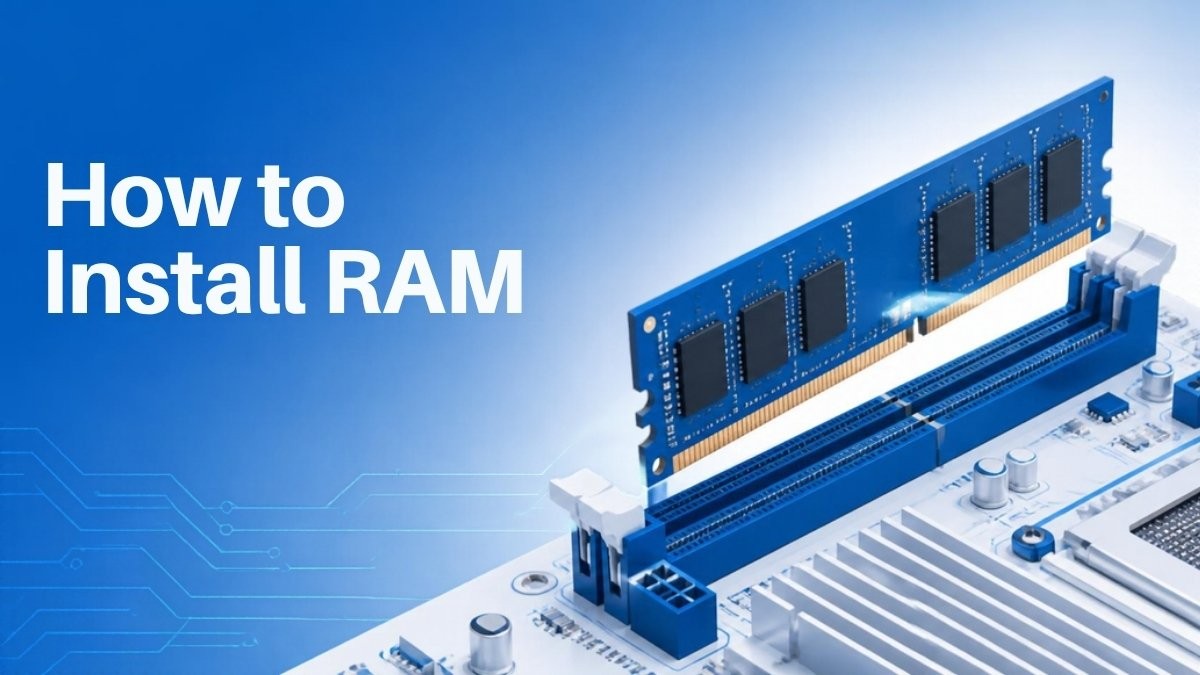
To install RAM, first check what your PC already has in Task Manager (type, speed and free slots), buy matching modules, then power down, unplug, discharge static and press the new sticks firmly into the slots until the clips lock. Windows 11 detects the new memory on its own; no driver or setting is needed.
Key takeaways
- Task Manager > Performance > Memory shows total RAM, speed, slots used and form factor (DIMM or SODIMM).
- DDR4 and DDR5 are not interchangeable; match the type your motherboard uses.
- Windows 11 needs at least 4 GB, but 16 GB is a comfortable figure for most people in 2026.
- Many thin laptops have RAM soldered to the board and cannot be upgraded; check before you buy.
- Upgrading RAM does not affect Windows activation.
In this guide
How do I check RAM in Windows 11?
The quickest way to check RAM in Windows 11 is Task Manager. Press Ctrl + Shift + Esc, open the Performance tab and select Memory. You’ll see total installed memory, current usage, speed, slots used, form factor and hardware reserved. For the DDR generation and per-stick detail, use PowerShell.
Method 1: Task Manager
- Press
Ctrl + Shift + Esc. - Select Performance (the graph icon), then Memory.
- Note the total at the top right, plus Speed, Slots used (for example “2 of 4”) and Form factor.
Recent Windows 11 builds show speed in MT/s rather than MHz. MT/s is the figure printed on most modern RAM packaging, so it’s the one to match.
Method 2: Settings
Open Settings > System > About. Installed RAM shows the total and how much is usable. That’s enough to answer “how much do I have?” but nothing more.
Method 3: PowerShell for type and individual sticks
Microsoft has removed the old wmic tool from current Windows 11 versions, so older “wmic memorychip” guides no longer work. Use this in PowerShell or Windows Terminal instead:
Get-CimInstance Win32_PhysicalMemory | Format-Table BankLabel, DeviceLocator, Capacity, Speed, SMBIOSMemoryType, FormFactor, Manufacturer, PartNumber -AutoSize
Each row is one physical stick. SMBIOSMemoryType tells you the generation: 24 is DDR3, 26 is DDR4 and 34 is DDR5. FormFactor 8 means a desktop DIMM; 12 means a laptop SODIMM. The PartNumber is worth copying, because searching it shows the exact module to match.
How much RAM do I need for Windows 11?
Windows 11 needs at least 4 GB of RAM to install, but that’s a floor, not a target. For everyday browsing, email and Office, 8 GB works; 16 GB is the comfortable choice in 2026 for multitasking and light creative work; 32 GB or more suits video editing, large spreadsheets, virtual machines and CAD.
| How you use the PC | Suggested RAM | Notes |
|---|---|---|
| Web, email, streaming | 8 GB | Works, but many browser tabs will slow it |
| Office work and multitasking | 16 GB | The sensible default for a new or upgraded PC |
| Gaming | 16–32 GB | Newer games increasingly benefit from 32 GB |
| Photo/video editing, CAD, VMs | 32–64 GB | Check your software’s own requirements |
| Copilot+ PC features | 16 GB minimum | Microsoft specifies 16 GB DDR5/LPDDR5 |
Your edition also sets a ceiling. According to Microsoft’s memory limits documentation, Windows 11 Home supports up to 128 GB, Pro and Education up to 2 TB, and Pro for Workstations and Enterprise up to 6 TB. Very few home users will hit 128 GB, but workstation builders should note it.
A tip from our support desk: if Task Manager shows memory constantly above 80–90% in use, more RAM will help. If it sits at 40%, the slowdown is elsewhere, often an old hard drive. Our guide to speeding up Windows 11 covers the other common causes.
How do I know which RAM type my PC takes?
Your motherboard decides the RAM type, not Windows. Check the current sticks with PowerShell (SMBIOSMemoryType 26 for DDR4, 34 for DDR5), then confirm on the motherboard or laptop maker’s support page, which lists supported generations, speeds and the maximum capacity per slot. Buy the same generation and form factor.
The four things to match
- Generation: DDR4 and DDR5 have differently placed notches and won’t fit each other’s slots. Never force a stick.
- Form factor: desktops use full-length DIMMs; laptops and mini PCs use shorter SODIMMs.
- Speed: faster sticks usually run at the speed of the slowest module or the board’s limit, so mixing is possible but wasteful.
- Capacity per stick: for dual-channel performance, install matching pairs (for example 2 x 8 GB rather than 1 x 16 GB plus your old 1 x 4 GB).
Can I mix old and new RAM?
Often yes, if the generation matches, but mixed kits are the most common cause of instability we hear about after an upgrade. Buying a matched kit and replacing the old sticks is the least troublesome route, especially with DDR5.
If your PC turns out to be too old to take modern memory, it may also fail other Windows 11 checks. The Windows 11 system requirements guide explains TPM 2.0, Secure Boot and the supported CPU list.
How to install RAM in a desktop PC
Installing RAM in a desktop takes about ten minutes. Shut down, switch off at the wall, remove the side panel, touch bare metal to discharge static, open the slot clips, line up the notch and press each stick down firmly until the clips snap shut. Then close the case and power on.
- Shut down fully and switch off the power supply, then unplug the mains cable. Press the power button once to drain residual charge.
- Ground yourself by touching an unpainted metal part of the case, or wear an anti-static wrist strap.
- Remove the side panel and find the slots next to the CPU cooler.
- Check the manual for slot order. With two sticks on a four-slot board, makers usually specify the second and fourth slots from the CPU (often labelled A2 and B2) for dual channel.
- Open the clips at one or both ends of the slot.
- Line up the notch on the stick with the key in the slot. Hold the module by its edges, not the gold contacts.
- Press down evenly with both thumbs until the clips click into place. It takes more force than most people expect.
- Close the case, reconnect power and switch on.
The first boot after a RAM change can take longer than usual, and the screen may stay black for a minute while the motherboard trains the memory. Don’t power off during this step.
Upgrading more than the memory?
A RAM upgrade won’t touch your Windows licence, but replacing the motherboard counts as a new PC for activation. If you’re rebuilding or reinstalling, a Windows 11 Home retail key or a Windows 11 Pro OEM key covers the new build.
How to upgrade RAM in a laptop
Laptop RAM can only be upgraded if the machine has SODIMM slots. Many thin-and-light models, and most with LPDDR memory, have RAM soldered to the motherboard and can’t be upgraded at all. Check the maker’s specifications or service manual first; if slots exist, the process is similar to a desktop but with smaller screws.
- Confirm the model has a free or replaceable SODIMM slot (PowerShell
FormFactor12 is a clue, but the service manual is definitive). - Shut down, unplug the charger and, where the manual says so, disconnect the internal battery.
- Remove the base panel screws and lift the panel carefully with a plastic pry tool.
- Release the side clips on the existing module; it will pop up at an angle.
- Insert the new SODIMM at about 30 degrees, notch aligned, then press it down flat until the clips lock.
- Refit the panel and power on.
Opening some laptops may affect the warranty, so check the maker’s terms first. If yours turns out to be soldered, a faster SSD is often the better upgrade; see our guide to cloning an HDD to an SSD.
After the upgrade: check, test and troubleshoot
After installing RAM, open Task Manager again and confirm the new total and slot count. Then run Windows Memory Diagnostic to test the sticks. If the PC won’t boot or shows less memory than expected, reseat the modules, check slot order in the manual and update the BIOS/UEFI.
- Check Task Manager > Performance > Memory for the new total and “Slots used”.
- Press
Win + R, typemdsched.exeand choose Restart now and check for problems. Results appear after you sign back in. - If the motherboard supports XMP or EXPO profiles, enable them in the BIOS/UEFI to run the RAM at its rated speed. Leave this off if the system becomes unstable.
Common problems
- No display or beeping: a stick isn’t fully seated. Power off and press each one down again until both clips lock.
- Less RAM shown than installed: check “Hardware reserved” in Task Manager (integrated graphics borrow some), and make sure you’re running 64-bit Windows.
- Random crashes: test one stick at a time, and avoid mixing different kits.
Will new RAM affect Windows activation? No. Activation is tied mainly to the motherboard, so memory, drives and graphics cards can change freely. Only a motherboard swap usually triggers reactivation, which our guide to Windows activation after a hardware change covers. Crucial’s guide to why Windows may not recognise all your memory is useful if the total still looks wrong.
Frequently asked questions
How do I check how much RAM I have in Windows 11?
Open Settings, System, About and read Installed RAM, or press Ctrl + Shift + Esc and go to Performance, Memory in Task Manager. Task Manager also shows speed, slots used and form factor. For the DDR generation and each stick’s part number, run Get-CimInstance Win32_PhysicalMemory in PowerShell.
Is 8 GB of RAM enough for Windows 11?
For light use such as web browsing, email and documents, 8 GB is usable on Windows 11. It becomes a bottleneck with many browser tabs, Teams calls or photo editing running together. For a new PC or an upgrade in 2026, 16 GB is the more comfortable choice and gives headroom for future updates.
Can I put DDR5 RAM in a DDR4 slot?
No. DDR4 and DDR5 have their notches in different positions, so a DDR5 module physically won’t fit a DDR4 slot and the reverse is also true. The memory controller is designed for one generation. Check your motherboard’s specification and buy the generation it lists, and never force a stick into a slot.
Do I need to do anything in Windows after installing RAM?
Usually not. Windows 11 detects new memory automatically at the next boot, with no drivers or settings required. It’s worth confirming the new total in Task Manager and running Windows Memory Diagnostic once. Optionally, enable the XMP or EXPO profile in the BIOS/UEFI so the RAM runs at its rated speed.
Will upgrading RAM deactivate Windows 11?
No. Windows activation is tied mainly to the motherboard, so adding or swapping RAM, drives or a graphics card doesn’t affect it. A motherboard replacement is the change that usually triggers reactivation. Linking your licence to a Microsoft account makes reactivating after a bigger hardware change much easier.
Why does Windows 11 show less usable RAM than installed?
Part of your memory is often reserved for integrated graphics or firmware, shown as Hardware reserved in Task Manager. A larger gap can mean a stick isn’t seated properly, the board doesn’t support that capacity, or the BIOS needs updating. Reseat the modules and check the motherboard manual’s supported memory list.
The bottom line
Check first, buy second: Task Manager and one PowerShell command tell you the type, speed and free slots, and matching those is most of the job. If you’re upgrading because an older PC feels slow, pair the new memory with the steps in our Windows 11 speed-up guide.
Useful links
| Resource | Why it helps |
|---|---|
| Microsoft: memory limits for Windows releases | Maximum RAM per Windows 11 edition |
| Crucial: Windows doesn’t recognise all memory | Troubleshooting missing RAM after an upgrade |
| Speed up Windows 11 | Other fixes when a PC feels slow |
| Windows 11 system requirements | Check the rest of your hardware |
| Clone HDD to SSD | The best upgrade for laptops with soldered RAM |
| Activation after a hardware change | What does and doesn’t trigger reactivation |
| Windows 11 Home retail key | A licence for a rebuilt or new PC |


