🎃 HALLOWEEN SALE: 50% OFF best-selling Windows, Office, Autodesk & Server keys — use code GHOST50 Shop the sale →


Excel Formulas for Beginners: 15 Essential Functions (Part 2)

Excel formulas for beginners come down to a small set of functions that handle most everyday work: SUM, AVERAGE, COUNT, IF, COUNTIF, SUMIF and XLOOKUP. Every formula starts with an equals sign, names a function, and puts its inputs in brackets. Learn the 15 below and you can total, analyse, look up and tidy almost any spreadsheet.
This is Part 2 of our beginner series. If you haven’t read it yet, Excel tips for beginners, Part 1 covers cells, data entry, formatting, AutoFill and your first SUM. Here we build on that with real formulas, using one small sales sheet as the example throughout.
Key takeaways
- Every Excel formula begins with
=; functions take arguments in brackets, separated by commas. - Add
$signs (press F4) to lock a cell reference when you copy a formula. - IF, COUNTIF and SUMIF let you calculate based on conditions, which is where Excel starts saving real time.
- XLOOKUP and UNIQUE need Excel 2021, Excel 2024 or Microsoft 365; Excel 2019 users can use VLOOKUP instead.
- Wrap risky formulas in IFERROR so a missing value shows a friendly message rather than #N/A.
In this guide
- How do Excel formulas work?
- Excel formulas for beginners: which functions should you learn first?
- How do you use the IF function in Excel?
- How do COUNTIF and SUMIF work?
- What is XLOOKUP, and should you use it instead of VLOOKUP?
- Which text and list functions save the most time?
- How do you put these formulas together in a real sheet?
- Frequently asked questions
- The bottom line
- Useful links
How do Excel formulas work?
An Excel formula is an instruction that starts with = and returns a result in the cell where you type it. It can use plain maths operators (+, -, *, /), cell references such as A2, ranges such as A2:A11, and functions such as SUM. When any referenced cell changes, the result updates automatically.
A function is a ready-made formula. In =SUM(D2:D11), SUM is the function, and D2:D11 is its argument: the input it works on. Some functions need several arguments, separated by commas, and Excel shows a tooltip listing them as you type.
Relative and absolute references
When you copy a formula down a column, Excel shifts the references with it. That is usually what you want. When one cell must stay fixed, such as a VAT rate in G1, add dollar signs: =D2*$G$1. Click the reference and press F4 to cycle through the options.
Forgetting the $ is the most common reason a copied formula suddenly returns zeros or wrong totals.
The example sheet
Every example below uses a simple sales list in rows 2 to 11: column A holds the date, B the salesperson, C the region, and D the sale amount in pounds.
Excel formulas for beginners: which functions should you learn first?
Start with the seven functions that summarise numbers: SUM, AVERAGE, MIN, MAX, COUNT, COUNTA and ROUND. They work in every version of Excel, need only one or two arguments, and answer the questions people ask of almost any list: how much, how many, the highest, the lowest and the typical value.
| # | Function | What it does | Example |
|---|---|---|---|
| 1 | SUM | Adds numbers | =SUM(D2:D11) |
| 2 | AVERAGE | Mean of numbers | =AVERAGE(D2:D11) |
| 3 | MIN | Smallest value | =MIN(D2:D11) |
| 4 | MAX | Largest value | =MAX(D2:D11) |
| 5 | COUNT | Counts cells containing numbers | =COUNT(D2:D11) |
| 6 | COUNTA | Counts non-empty cells | =COUNTA(B2:B11) |
| 7 | ROUND | Rounds to set decimal places | =ROUND(AVERAGE(D2:D11),2) |
1 to 4: SUM, AVERAGE, MIN and MAX
These four share the same pattern: the function name and a range. You met SUM in Part 1; the others work identically. Select a cell under your data and press Alt + = to insert SUM automatically, then edit the function name if you want an average or a maximum instead.
5 and 6: COUNT and COUNTA
COUNT only counts cells holding numbers, so it ignores text and blanks. COUNTA counts anything that isn’t empty. If COUNT on a column of figures returns fewer than you expect, some “numbers” are probably stored as text, a common problem with data pasted from websites or exported from other systems.
7: ROUND
ROUND takes a value and the number of decimal places: =ROUND(D2*1.2,2) adds 20% and rounds to pence. Formatting a cell to two decimals only changes what you see. ROUND changes the stored value, which matters when you add rounded figures together.

How do you use the IF function in Excel?
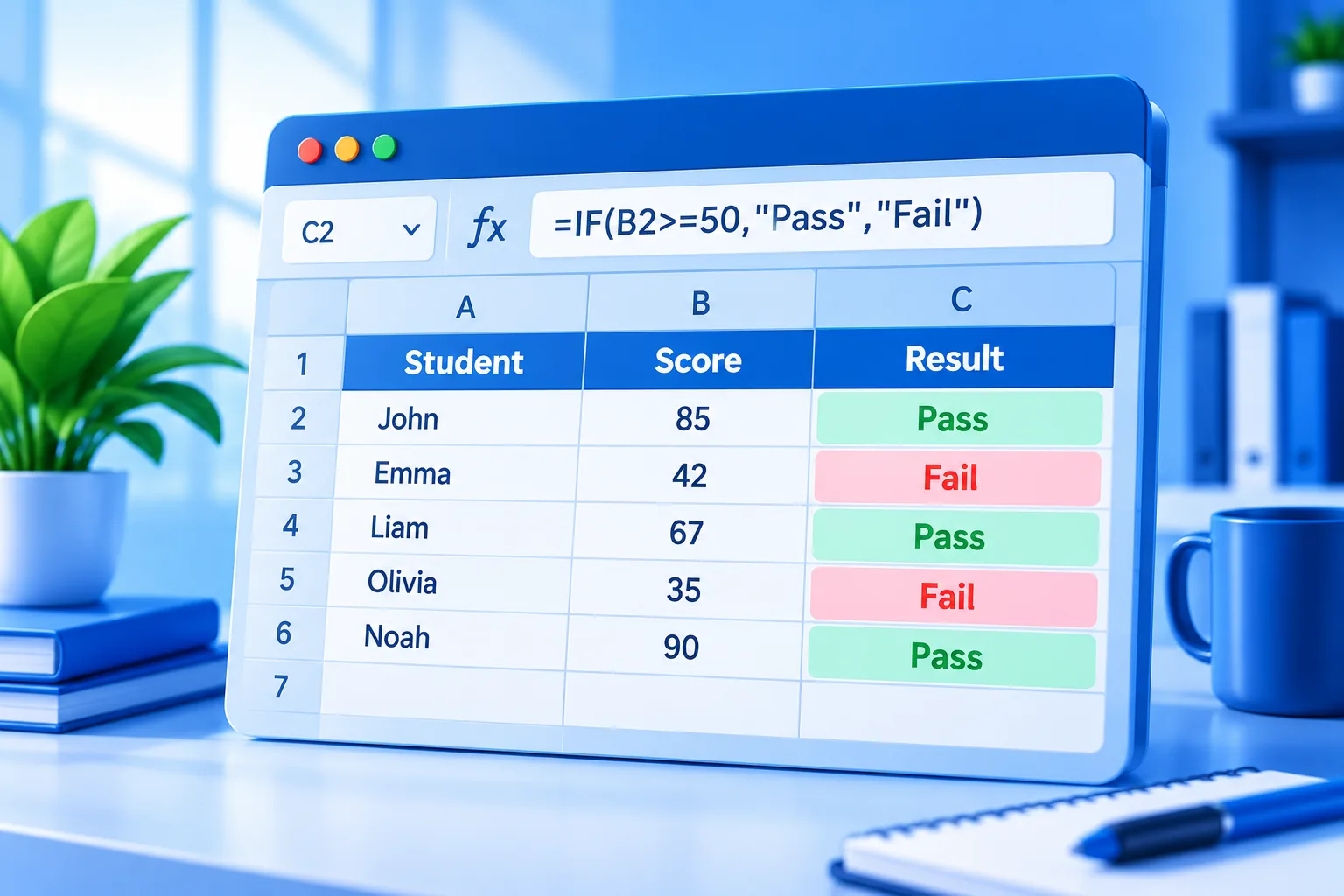
IF checks a condition and returns one value when it’s true and another when it’s false. The syntax is =IF(test, value_if_true, value_if_false). For example, =IF(D2>=500,"Target met","Below target") labels each sale. IF is the function that turns a static list into a sheet that makes decisions.
8: IF
Text results go in double quotes; numbers and cell references don’t. You can calculate inside IF too: =IF(D2>=500,D2*0.05,0) works out a 5% commission only on qualifying sales.
For more than two outcomes, Excel 2019 and later include IFS, which checks conditions in order: =IFS(D2>=1000,"Gold",D2>=500,"Silver",TRUE,"Bronze"). It’s easier to read than several IFs nested inside each other. Microsoft’s IF function reference has more patterns, including combining IF with AND and OR.
9: IFERROR
IFERROR catches any error a formula throws and replaces it with something sensible: =IFERROR(D2/E2,0) returns 0 instead of #DIV/0! when E2 is empty. Use it around lookups and divisions, but don’t wrap everything by habit. Hiding errors you didn’t expect can hide real mistakes in your data.
How do COUNTIF and SUMIF work?
COUNTIF counts the cells in a range that meet one condition, and SUMIF adds up values in one range where another range meets a condition. They answer questions such as “how many sales did Priya make?” and “what were total sales in the North?” without filtering or sorting the data first.
10: COUNTIF
=COUNTIF(B2:B11,"Priya") counts Priya’s sales. Conditions can be comparisons in quotes, such as =COUNTIF(D2:D11,">=500"), or a cell reference, such as =COUNTIF(B2:B11,G2), so you can change the name in G2 and watch the count update.
11: SUMIF
=SUMIF(C2:C11,"North",D2:D11) totals column D wherever column C says North. The order is: where to look, what to look for, and what to add up. When you need two or more conditions, such as North and over £500, use COUNTIFS or SUMIFS, which take pairs of ranges and criteria.
What is XLOOKUP, and should you use it instead of VLOOKUP?
XLOOKUP finds a value in one column and returns the matching value from another, in either direction. Use it if you have Excel 2021, Excel 2024 or Microsoft 365, because it’s simpler and safer than VLOOKUP. Microsoft confirms XLOOKUP isn’t available in Excel 2016 or 2019, so those users still need VLOOKUP.
12: XLOOKUP
Suppose a second sheet lists salespeople in column A and their phone extensions in column B. To pull Priya’s extension: =XLOOKUP("Priya",A2:A20,B2:B20,"Not found"). The arguments are: what to find, where to look, what to return, and what to show if there’s no match.
The equivalent in older versions is =VLOOKUP("Priya",A2:B20,2,FALSE). VLOOKUP can only look to the right, counts columns by number, and defaults to an approximate match unless you add FALSE, which is a frequent source of wrong answers. Microsoft’s XLOOKUP function page covers the optional match and search modes.
Which text and list functions save the most time?
TRIM, TODAY and UNIQUE are the three that save beginners the most time. TRIM cleans stray spaces that break lookups and counts, TODAY inserts the current date so ages and deadlines update themselves, and UNIQUE produces a list of distinct values without copying and removing duplicates by hand.
13: TRIM
=TRIM(B2) removes spaces at the start and end of a cell and reduces double spaces to single ones. If COUNTIF says “Priya” appears three times but you can see four, one entry probably has a trailing space. TRIM the column, then copy and paste the results as values.
14: TODAY
=TODAY() returns today’s date and needs no arguments. Subtract dates to get days: =TODAY()-A2 shows how many days ago each sale happened. Format the result as a number rather than a date if Excel displays something odd.
15: UNIQUE
=UNIQUE(C2:C11) lists each region once. The results “spill” into the cells below automatically, so leave space underneath. UNIQUE is a dynamic array function, available in Excel 2021, 2024 and Microsoft 365. Pair it with SUMIF to build a quick region summary.
| Function | Excel 2016 | Excel 2019 | Excel 2021 | Excel 2024 / Microsoft 365 |
|---|---|---|---|---|
| SUM, AVERAGE, MIN, MAX, COUNT, COUNTA, ROUND, IF, IFERROR, COUNTIF, SUMIF, TRIM, TODAY | Yes | Yes | Yes | Yes |
| IFS | No | Yes | Yes | Yes |
| XLOOKUP | No | No | Yes | Yes |
| UNIQUE | No | No | Yes | Yes |
If you’re on Excel 2021, every function here works, but bear in mind that Office 2021 reached end of support on 13 October 2026; our article on Office 2021 end of support explains what that means. Excel 2024 adds newer functions such as TEXTSPLIT and VSTACK, listed in our overview of what’s new in Office 2024.
How do you put these formulas together in a real sheet?
Combine them in a small summary next to your data. List each region with UNIQUE, total each one with SUMIF, count sales with COUNTIF, and flag performance with IF. In five formulas you have a live report that updates the moment you add a new sale.
- In G2, type
=UNIQUE(C2:C11)to list the regions. - In H2, type
=SUMIF($C$2:$C$11,G2,$D$2:$D$11)and copy it down beside each region. - In I2, type
=COUNTIF($C$2:$C$11,G2)to count the sales per region. - In J2, type
=IF(H2>=2000,"On track","Needs attention")to flag each total. - Select G1:H5 and choose Insert > Recommended Charts to turn the totals into a column chart.
Notice the dollar signs in steps 2 and 3: they keep the data ranges fixed while the region reference moves down. To stop typing errors creeping into the source data, select the Region column, choose Data > Data Validation, set Allow to List, and type the permitted regions. Users then pick from a drop-down, and your SUMIF totals stay accurate.
When a workbook starts to hold thousands of related records, such as customers, orders and products in separate lists, a database may suit it better. Our sibling guide on what Microsoft Access is used for explains where that line sits.
Need a version of Excel with XLOOKUP?
Excel 2024 for Windows is a one-time purchase that includes XLOOKUP, UNIQUE and the other dynamic array functions. If you’d rather have the full suite, see our Office 2024 range, or browse all Excel versions.
Frequently asked questions
What are the most basic Excel formulas for beginners?
The most useful starting set is SUM, AVERAGE, MIN, MAX and COUNT, because they summarise any list of numbers. After those, learn IF for decisions, COUNTIF and SUMIF for conditional totals, and XLOOKUP for finding values. Together they cover the large majority of everyday spreadsheet tasks at home and work.
What is the difference between a formula and a function in Excel?
A formula is anything you type that starts with an equals sign, such as =A1+A2. A function is a named, built-in calculation used inside a formula, such as SUM or IF. So =SUM(A1:A10) is a formula that uses the SUM function. Most useful formulas combine one or more functions.
Why does my Excel formula show as text instead of a result?
The cell is probably formatted as Text, or the formula has a space or apostrophe before the equals sign. Change the format to General, click into the cell, press Enter, and Excel will calculate it. If every formula shows as text, Show Formulas may be switched on; press Ctrl + ` to toggle it.
Is XLOOKUP available in Excel 2019?
No. Microsoft states XLOOKUP isn’t available in Excel 2016 or Excel 2019. It works in Excel 2021, Excel 2024, Microsoft 365 and Excel for the web. A workbook using XLOOKUP will show errors when opened in Excel 2019, so use VLOOKUP or INDEX with MATCH when sharing with older versions.
What does the $ sign mean in an Excel formula?
The dollar sign locks part of a cell reference so it doesn’t change when you copy the formula. $A$1 locks both column and row, $A1 locks only the column, and A$1 locks only the row. Press F4 while editing a reference to switch between the options quickly.
How do I see all the functions available in Excel?
Click the fx button beside the formula bar to open Insert Function, where you can search by description or browse by category. Microsoft also publishes an alphabetical list of Excel functions online, with notes on which versions support each one, which is useful before sharing workbooks.
The bottom line
Fifteen functions are enough to make Excel genuinely useful: seven for summarising numbers, two for decisions, two for conditional totals, one for lookups, and three for cleaning and listing data. Practise them on a small sheet of your own, then build them into reports. For the basics behind these formulas, revisit Part 1 of our Excel tips.
Useful links
| Resource | Why it helps |
|---|---|
| Excel tips for beginners, Part 1 | Cells, formatting, AutoFill and your first SUM |
| IF function (Microsoft Support) | More IF patterns, including AND and OR |
| XLOOKUP function (Microsoft Support) | Full syntax and version availability |
| Excel functions, alphabetical (Microsoft) | Every function with version notes |
| What is Microsoft Access used for? | When a database beats a spreadsheet |
| Excel 2024 for Windows | One-time purchase with XLOOKUP and UNIQUE |
| Office 2024 range | Excel as part of a full Office suite |
| What’s new in Office 2024 | Newer Excel functions and features |
| Office 2021 end of support | What changes for Excel 2021 users |


