

Excel Tips for Beginners — Spreadsheets Don’t Have to Be Scary (Part 1)

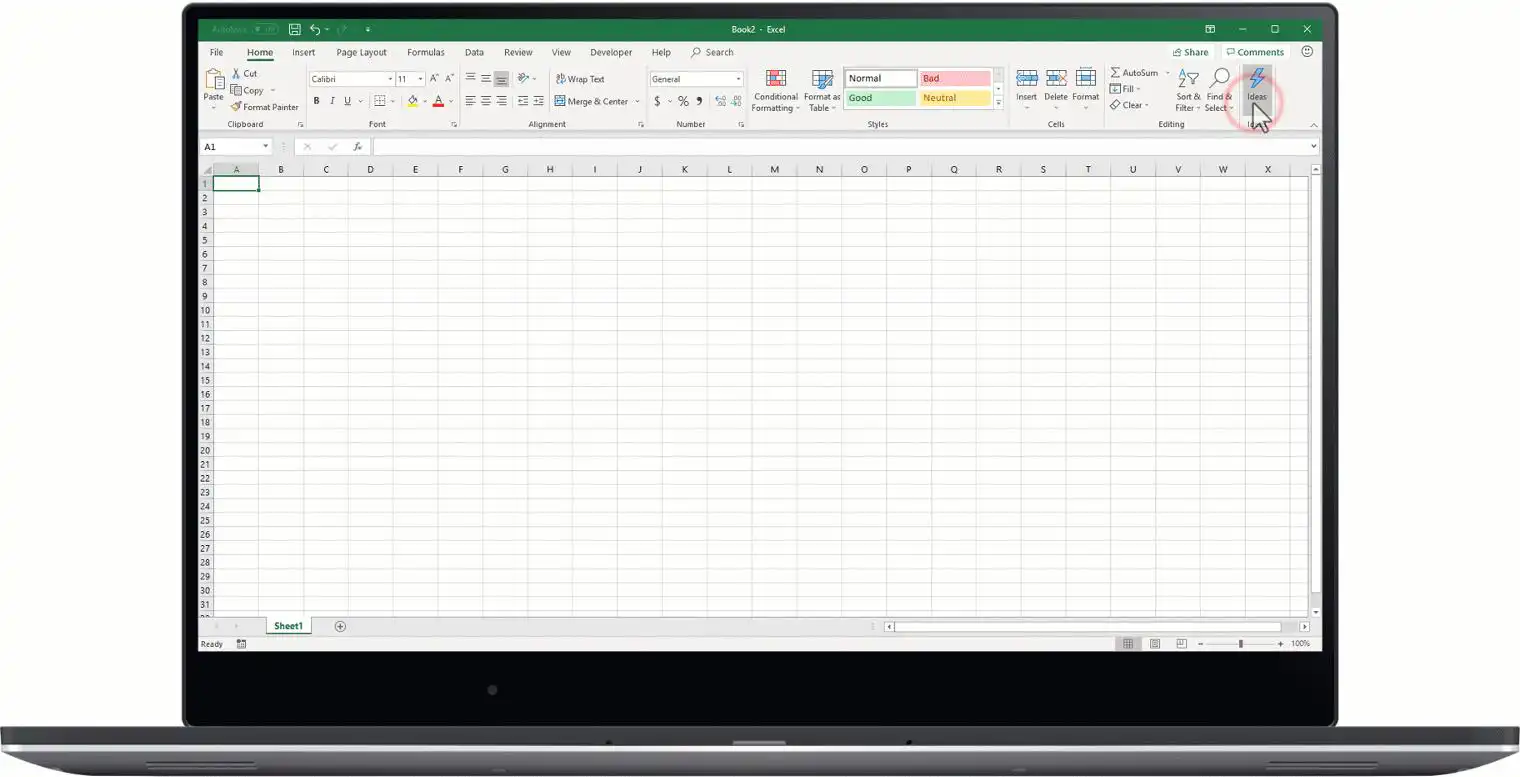
If you’ve ever opened Microsoft Excel and immediately felt overwhelmed — you’re not alone.
Those endless rows, columns, and formulas can look intimidating at first. But here’s the truth: Excel is one of the easiest tools to master once you understand the basics.
In this beginner-friendly guide (Part 1), you’ll learn simple tricks to get comfortable with Excel — no tech background needed.
1. Understand the Basics (Without Overthinking It)


Let’s simplify Excel:
- Rows = Numbers (1, 2, 3…)
- Columns = Letters (A, B, C…)
- Cell = Where they meet (like A1, B2)
👉 Think of Excel like a digital notebook table.
💡 Pro Tip:
Click any cell and start typing — that’s it. You’re already using Excel.
2. Enter Data Like a Pro
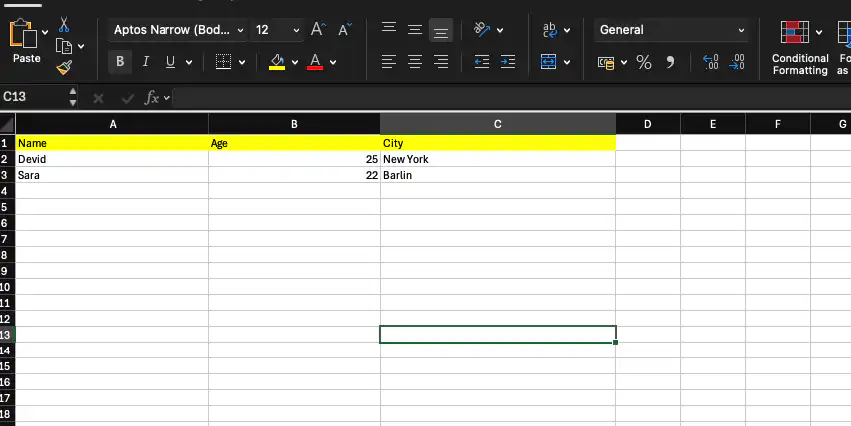
Start with something simple:
| Name | Age | City |
|---|---|---|
| devid | 25 | New York |
| Sara | 22 | Barlin |
Quick Tricks:
- Press Enter → moves down
- Press Tab → moves right
- Double-click cell → edit instantly
👉 Keep it simple — Excel shines when your data is clean.
3. Make Your Spreadsheet Look Clean

A messy sheet = confusing data.
Make it readable:
- Bold headers
- Add borders
- Use colors (light, not too flashy)
💡 Shortcut:
- Ctrl + B → Bold text
- Ctrl + 1 → Open formatting options
👉 Good formatting = better understanding.
4. Learn Your First Formula (Super Easy)

Formulas are where Excel becomes powerful — but don’t worry, we’ll start easy.
Try this:
- Type numbers in A1 to A5
- Then type:
👉 Boom! Excel calculates instantly.
💡 Rule:
- Every formula starts with =
5. AutoFill = Your Best Friend

Instead of typing repeatedly:
- Enter “1” and “2”
- Select both
- Drag the corner down
👉 Excel continues the pattern automatically.
You can use this for:
- Numbers
- Dates
- Formulas
6. Use Filter to Find Data Fast

Have a long list? No problem.
- Select your table
- Click Filter
- Use dropdown arrows
👉 Instantly find what you need.
Beginner Mindset Tip
You don’t need to learn everything at once.
Start with:
- Data entry
- Basic formatting
- One or two formulas
👉 That alone covers 80% of everyday Excel use.
What’s Coming in Part 2
In Part 2, you’ll learn:
- IF formulas (smart logic)
- Charts & graphs
- Data validation tricks
- Real-world use cases


