🎃 HALLOWEEN SALE: 50% OFF best-selling Windows, Office, Autodesk & Server keys — use code GHOST50 Shop the sale →


Office 2021 End of Support: The 13 October 2026 Deadline Explained

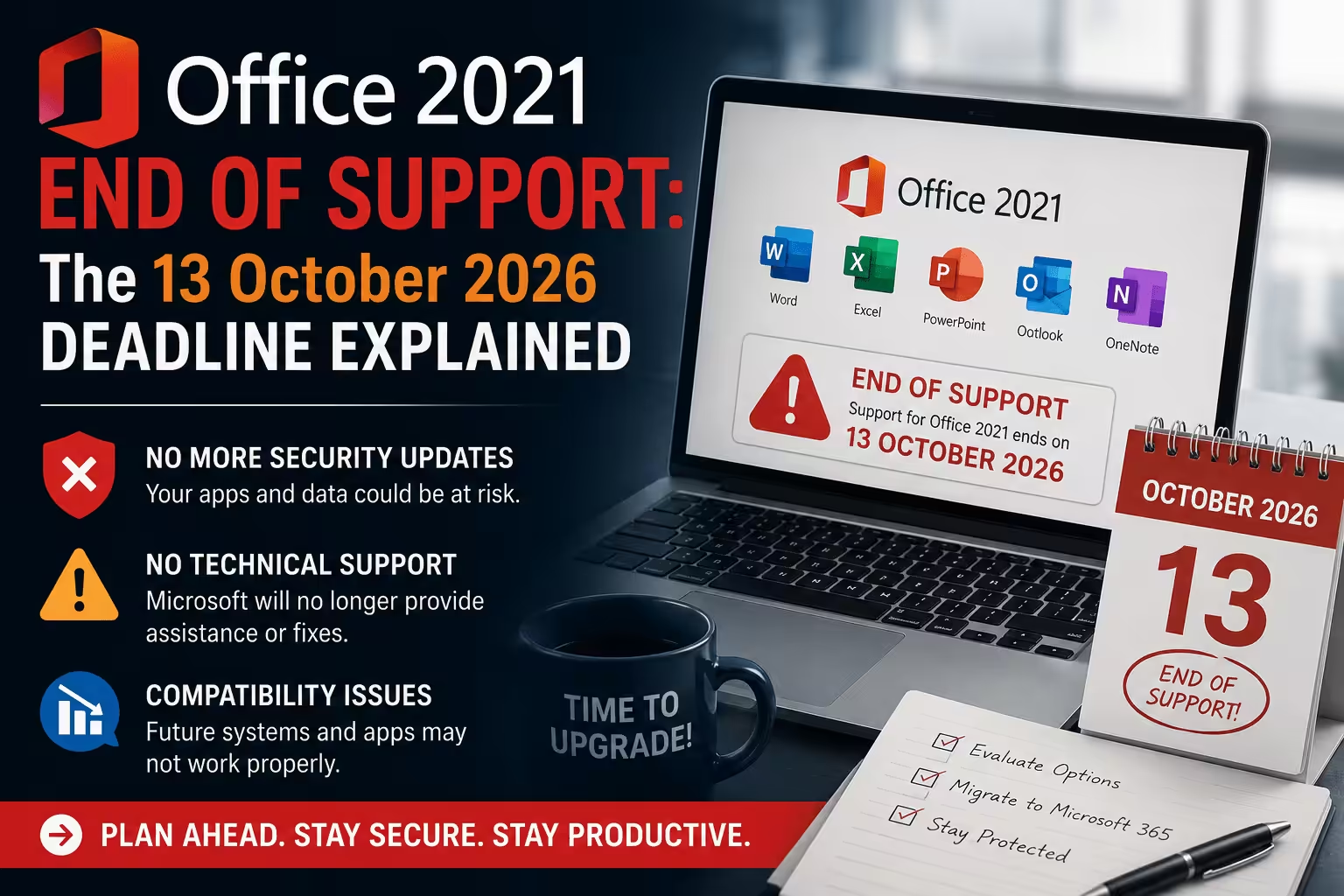
Microsoft Office 2021 reaches end of support on 13 October 2026. From that date, Word, Excel, PowerPoint and Outlook 2021 stop receiving security updates, bug fixes and official Microsoft technical support. The apps keep opening and your perpetual licence does not expire — but every vulnerability discovered after that date stays unpatched permanently, because Office 2021 has no Extended Security Updates programme.
That last detail is the one most guides skip. Windows 10 users got a paid and free ESU bridge after their deadline. Office 2021 users get nothing. 13 October 2026 is a hard stop, not a soft one.
This guide covers what actually changes, which editions are affected (including Mac and LTSC), the Microsoft Publisher problem nobody warns buyers about, and a realistic migration plan you can run in an afternoon or across a fleet. If you already know you need to move, browse Office 2024 licence keys or read our Office 2024 edition comparison first.
The short version
- Deadline: 13 October 2026 — retail Office 2021 and Office LTSC 2021, Windows and Mac.
- No extension: Microsoft has confirmed there is no ESU programme for Office 2021.
- Your key still works: a perpetual licence does not expire or deactivate on that date.
- Supported perpetual successor: Office 2024 / Office LTSC 2024, supported to October 2029.
- Publisher ends entirely on the same date and is not included in Office 2024.
Contents
- When exactly does Office 2021 support end?
- What end of support actually means
- Which Office 2021 editions are affected
- How to check which Office version you have
- Will Office 2021 still work after the deadline?
- Why there is no Extended Security Updates option
- The real risks of staying on Office 2021
- The Publisher problem — and what to do about .pub files
- If you are also still on Windows 10
- Your five options, compared
- Office 2021 vs Office 2024 vs Microsoft 365
- Which Office 2024 edition should you buy?
- A month-by-month migration timeline
- How to migrate from Office 2021 to Office 2024
- Pre-deadline checklist
- Frequently asked questions
When exactly does Office 2021 support end?
Microsoft Office 2021 reaches end of support on 13 October 2026. The same date applies to Office LTSC 2021, the commercial fixed-feature release, and to both the Windows and Mac versions of the suite.
Office 2021 launched in October 2021, so this is a five-year lifecycle. That is worth pausing on: older perpetual releases such as Office 2013 and Office 2016 received five years of mainstream support followed by five years of extended support — ten years in total. Starting with Office 2019 and 2021, Microsoft removed the extended phase entirely. Perpetual Office now gets five years, then nothing.
| Product | Support ends | Extended security updates? |
|---|---|---|
| Office 2016 (all editions) | 14 October 2025 — already ended | No |
| Office 2019 (all editions) | 14 October 2025 — already ended | No |
| Office 2021 & Office LTSC 2021 | 13 October 2026 | No |
| Microsoft Publisher (all versions) | 13 October 2026 — end of life | No |
| Office 2024 & Office LTSC 2024 | October 2029 | No |
| Microsoft 365 Apps | Continuous — supported while subscribed | Not applicable |
If you are still on Office 2016 or Office 2019, you are already past your deadline. Those suites stopped receiving security updates in October 2025 and should be replaced as a priority, not as a plan for next year.
What end of support actually means
End of support is a maintenance decision, not a kill switch. Microsoft does not remotely disable Office 2021, revoke your product key or lock your documents. What stops is the flow of fixes.
From 14 October 2026 onwards, four things end:
- Security updates. Newly discovered vulnerabilities in Word, Excel, PowerPoint, Outlook and Access 2021 will not be patched.
- Bug and stability fixes. If a future Windows update breaks something in Office 2021, Microsoft will not fix it.
- Official technical support. Phone and chat support for Office 2021 ends. Existing knowledge-base articles may stay online for a while, then get retired.
- Compatibility maintenance. Office 2021 will not be updated to work with new file format changes, new authentication methods or new cloud service endpoints.
The last point is the sleeper issue. A common pattern we see in support tickets is not a dramatic failure but a slow erosion — an add-in stops loading after a Windows update, then a mail connector deprecates an older authentication method, then a supplier sends a file that renders incorrectly. Each is small. Together they turn a working suite into a daily irritation with nobody to escalate to.
Which Office 2021 editions are affected
All of them. There is no edition of Office 2021 that continues past 13 October 2026.
Consumer and retail editions:
- Office Home & Student 2021 (Windows)
- Office Home & Business 2021 (Windows)
- Office Professional 2021 (Windows)
- Office Home & Student 2021 for Mac
- Office Home & Business 2021 for Mac
Commercial and volume editions:
- Office Professional Plus 2021 and Office LTSC Professional Plus 2021
- Office Standard 2021 and Office LTSC Standard 2021
- Standalone 2021 applications — Word, Excel, Outlook, Access, Publisher, Project 2021 and Visio 2021
A point of confusion worth clearing up: LTSC does not mean longer support here. Long-Term Servicing Channel describes the update model — a frozen feature set that does not change under your users — not an extended lifecycle. Office LTSC 2021 ends on exactly the same day as Office Home & Student 2021. Organisations that chose LTSC specifically for stability sometimes assume they have until the 2030s. They do not.
You can see every Office 2021 SKU we still list on the Office 2021 category page, split into Office 2021 for PC and Office 2021 for Mac.
How to check which Office version you have
Before you plan anything, confirm what is actually installed. Many people who think they are on Office 2021 are on Office 2019, and a surprising number of “Office 2021” installs turn out to be Microsoft 365 Apps.
On Windows:
- Open Word or Excel.
- Go to File > Account.
- Under Product Information you will see the product name (for example “Microsoft Office Professional Plus 2021”), the activation status and the licensed owner.
- Click About Word to see the exact build number and whether the install is 32-bit or 64-bit.
On Mac: open Word, then choose Word > About Word from the menu bar. The version and licence type appear there.
Write down three things for every machine: the edition, the activation method (online key, phone/confirmation-ID key, or Microsoft-account bound), and 32-bit versus 64-bit. All three affect your upgrade path. If you have phone-activation keys and need a confirmation ID during the move, our Confirmation ID tool and the phone activation guide walk through the process.
Will Office 2021 still work after the deadline?
Yes. Office 2021 will continue to launch, open your files and print on 14 October 2026 exactly as it did the day before. A perpetual licence is a permanent right to use the version you bought; it is not a subscription that lapses.
What you lose is the safety net. There is no visible event on the deadline — no warning banner, no countdown, no forced uninstall. The risk builds quietly over the following months as the world around Office 2021 keeps moving and Office 2021 does not.
If you want to keep using it for a while, that is a legitimate choice for some situations — see the five options below — but it should be a decision you make deliberately, not a deadline you drift past.
Why there is no Extended Security Updates option
This is the single biggest difference between the Office 2021 deadline and the Windows 10 deadline that preceded it, and it is where most coverage gets it wrong by analogy.
When Windows 10 reached end of support in October 2025, Microsoft offered an Extended Security Updates programme — free for consumers who met certain conditions, paid for organisations — giving affected devices a bridge of continued critical patches. That programme created a genuine “do nothing for now, safely” option.
Office 2021 has no equivalent. Microsoft has stated there will be no extension and no extended security updates for Office 2021 or Office LTSC 2021. There is no consumer bridge, no paid enterprise year-one, no volume-licensing add-on. On 14 October 2026 the patch stream simply stops.
Practically, that means the “wait and see what Microsoft does” strategy that worked for a lot of Windows 10 holdouts is not available here. There is nothing to wait for.
The real risks of staying on Office 2021
Risk is not uniform. A retired user writing letters in Word on a machine that rarely leaves the house is in a different position from a five-person accountancy practice running Outlook and macro-heavy Excel workbooks all day. Be honest about which one you are.
Security exposure
Office documents are one of the most heavily targeted attack surfaces in business computing, because Word and Excel files are things people are trained to open. Macros, embedded objects, external links and OLE content have all been exploited repeatedly. Outlook adds a second front: it processes untrusted content from outside your organisation every hour of the working day.
Antivirus helps, but it is a different layer. Endpoint protection catches known malicious payloads; a security patch closes the door the payload walks through. Losing the patch stream and keeping antivirus is not equivalent protection, whatever a vendor’s marketing suggests.
The exposure is meaningfully higher if you regularly open attachments from outside your organisation, download documents from the web, run Excel macros or VBA, exchange files with customers and suppliers, or handle financial, health or personal data.
Compatibility drift
Everything else keeps being developed against supported products. Over the following two or three years, Office 2021 may run into problems with document management systems, accounting and CRM integrations, Outlook connectors and modern authentication, cloud storage clients, third-party Word and Excel add-ins, and printer or scanner software.
None of these will break on a scheduled date. They break when a supplier ships an update that no longer accommodates an unsupported client.
Compliance and insurance
Plenty of organisations are contractually or contractually-adjacent obliged to run supported, patched software — through internal security policy, customer security questionnaires, cyber-insurance conditions or sector regulation. Running Office 2021 after October 2026 does not automatically breach any specific regulation, and we would be careful about anyone who tells you it does. But it makes it materially harder to demonstrate reasonable security controls when someone asks, and cyber-insurance renewal questionnaires increasingly ask directly.
If your organisation faces this kind of scrutiny, that alone usually settles the timing question. For multi-seat migrations, our enterprise licensing team can price a volume move — you can also request a B2B quote directly.
The cost that is easy to miss
Keeping old software looks free because there is no invoice. The cost shows up as staff time lost to workarounds, IT hours spent maintaining a machine nobody else supports, and — occasionally — a single bad afternoon when an integration fails during a busy period and there is no vendor to call. A planned migration you schedule is almost always cheaper than an unplanned one that schedules you.
The Publisher problem — and what to do about .pub files
Here is the detail that catches Office 2021 Professional and Professional Plus users off guard, and that most upgrade guides omit entirely.
Microsoft Publisher reaches end of life on 13 October 2026 — and it is not included in Office 2024 at all. This is not the usual “old version stops getting patches” situation. Publisher is being retired as a product. There is no Publisher 2024 to upgrade to.
The same applies to InfoPath. If you are moving from Office 2021 Professional Plus to Office 2024 Professional Plus, you get Word, Excel, PowerPoint, Outlook, Access, OneNote and Teams-adjacent components — but not Publisher and not InfoPath.
If you have .pub files that matter, act before you uninstall Office 2021:
- Inventory them. Search your drives and network shares for
*.pub. Most organisations find far more than they expected — old newsletters, certificates, flyers, labels. - Export what you need to keep. Publisher can export to PDF, which preserves the layout permanently and opens anywhere. Do this while you still have a working Publisher install.
- Decide what needs to stay editable. For anything you will genuinely revise again, rebuild it in Word (fine for text-led documents), PowerPoint (surprisingly good for single-page layouts, flyers and certificates), or a dedicated design tool.
- Keep one Office 2021 machine, briefly. If you have a large .pub archive, it is reasonable to retain one offline, isolated machine with Publisher installed purely for conversion work while you migrate the rest of the fleet. Do not use it for email or general browsing.
Do not leave this until October. Converting a decade of Publisher files is a project, not a task.
If you are also still on Windows 10
A lot of the machines running Office 2021 are also running Windows 10, which reached end of support on 14 October 2025. If that describes your estate, you have two overlapping problems and it is usually cheaper to solve them together.
The Windows 10 consumer Extended Security Updates programme was designed as a one-year bridge running from October 2025, and Microsoft has since adjusted the consumer timeline.
What is not in dispute is the direction of travel: Windows 10 is on a managed wind-down, and Office 2024 is developed and tested primarily against Windows 11. If you are buying new Office licences for Windows 10 machines that will need replacing anyway, price the operating system into the same decision rather than paying for the migration twice.
Our Windows 11 Pro upgrade guide covers the hardware requirements and the in-place upgrade path, and Windows plus Office bundles such as Office 2024 Pro Plus with Windows 11 Pro price the pair together.
Your five options, compared
Most guides give you two choices, because most guides are written by people selling one of them. There are realistically five.
1. Upgrade to Office 2024 (perpetual)
The closest like-for-like replacement. One payment, locally installed apps, fixed feature set, supported to 2029. Best if you liked Office 2021 and want the same arrangement with the clock reset. Browse Office 2024 for PC or Office 2024 for Mac.
2. Move to Microsoft 365 (subscription)
Ongoing payment, continuous feature updates, cloud storage, multi-device coverage, real-time co-authoring, and access to Copilot features that perpetual Office does not include. Best if you work across several devices or collaborate on shared documents constantly. See Microsoft 365 and Office 365 options.
3. Migrate to Office LTSC 2024
The commercial fixed-feature route for managed and restricted environments — controlled deployment, no feature churn, no dependence on constant cloud connectivity. Best for regulated sectors, air-gapped or limited-connectivity sites, and IT teams who need the interface to stay still. Our Office 2024 LTSC deployment guide covers the Office Deployment Tool process.
4. Keep Office 2021 on an isolated machine
Legitimate for a narrow use case: legacy macros that will not port, Publisher conversion work, or an offline machine with no email and no external files. Not a fleet strategy. If you do this, take it off email, restrict its network access and treat it as a specialist appliance rather than a workstation.
5. Move to a non-Microsoft suite
LibreOffice, Google Workspace and similar alternatives are free or cheaper and handle straightforward documents well. The friction shows up with complex Excel formulas, VBA macros, PivotTable-heavy models, precise layout fidelity in shared documents, and Outlook replacement — which is usually the hardest part. Worth testing honestly if your document needs are simple; worth testing before committing if they are not.
Office 2021 vs Office 2024 vs Microsoft 365
| Office 2021 | Office 2024 | Microsoft 365 | |
|---|---|---|---|
| Licence model | One-time purchase | One-time purchase | Subscription |
| Support ends | 13 Oct 2026 | October 2029 | Continuous while subscribed |
| Security updates after Oct 2026 | No | Yes | Yes |
| New features added | No | No — fixed feature set | Yes, continuously |
| Copilot / AI features | No | No | Yes, on eligible plans |
| Publisher included | Yes (Pro / Pro Plus) | No — discontinued | No — discontinued |
| Cloud storage included | No | No | Yes, on eligible plans |
| Devices per licence | Varies by SKU | Varies by SKU | Multiple, plan-dependent |
| Best for | Existing installs only | One-off buyers who want to own it | Multi-device users and collaborative teams |
To be clear about one thing marketing copy frequently gets wrong: Copilot and the AI features are exclusive to Microsoft 365 subscriptions. Office 2024, including LTSC, does not include them. If a listing claims otherwise, treat it as a signal about the seller.
For a deeper feature-by-feature breakdown, read what’s new in Microsoft Office 2024.
Which Office 2024 edition should you buy?
Work backwards from the applications you actually use, not from the edition names.
- Word, Excel, PowerPoint only, home use → Office 2024 Home. No Outlook, no Access.
- You need Outlook → Office 2024 Home & Business. Adds Outlook to the Home apps and covers PC or Mac.
- You need Access, or you are deploying at scale → Office 2024 Professional Plus, or Professional Plus for 3 devices for a small household or office.
- Standardised business suite without Access → Office 2024 Standard, or Standard for 3 PCs.
- Phone-activation SKU required → Office 2024 Pro Plus phone activation, paired with our CID tool.
- Only one app matters → standalone Outlook 2024 or Access 2024 can be cheaper than a full suite.
If Office 2021 sat alongside Project or Visio in your setup, those move on the same schedule — see Project 2024 and Visio 2024, or the specific SKUs for Project 2024 Professional and Visio 2024 Professional.
A month-by-month migration timeline
If you are reading this in the second half of 2026, here is a realistic schedule that does not require heroics. Compress it if you are late; do not skip the testing step.
| When | What to do |
|---|---|
| Now | Inventory every machine: Office edition, 32/64-bit, activation type. Find and count your .pub files. |
| Within 2 weeks | Decide the destination — Office 2024, LTSC 2024, or Microsoft 365. Get pricing for the full seat count. |
| Within 4 weeks | Pilot on one or two non-critical machines. Test macros, templates, add-ins, printers and Outlook profiles. |
| Within 6 weeks | Convert Publisher files to PDF and rebuild anything that must stay editable. |
| 6–10 weeks | Roll out in waves. Back up Outlook data files and signatures before each wave. |
| By 30 September 2026 | Complete the fleet. Leave two clear weeks of buffer before the deadline for stragglers. |
How to migrate from Office 2021 to Office 2024
There is no in-place upgrade. Office 2021 to Office 2024 is a product replacement: a new licence, a fresh install, and a clean removal of the old one. A perpetual Office 2021 licence carries no free upgrade entitlement to Office 2024.
- Back up first. Documents, spreadsheets and presentations; Outlook .pst and .ost data files; email signatures; custom templates and Normal.dotm; Excel macros and personal macro workbooks; custom dictionaries; locally stored contacts and calendars; ribbon and Quick Access Toolbar customisations. Do not rely on a cloud sync folder as your only backup.
- Confirm system requirements. Check the Windows or macOS version on each machine against Office 2024’s requirements, and confirm available disk space.
- Test macros and add-ins on a pilot machine. This matters most when you are changing between 32-bit and 64-bit Office, which is where legacy VBA and older third-party add-ins tend to break.
- Deactivate and remove Office 2021. Different Office versions, architectures and installation technologies frequently cannot coexist. Our guides on removing an Office 2021 licence from a device and completely uninstalling Office cover the clean-removal process, including leftover registry and licence-token cleanup.
- Download Office 2024 from Microsoft. Always source the installer from Microsoft directly — see Office 2024 direct download from Microsoft. For LTSC deployments, use the Office Deployment Tool as covered in our LTSC 2024 guide.
- Install and activate. Follow the Office 2024 Pro Plus install and activation walkthrough, or the general Windows and Office installation and activation guide.
- Restore and verify. Reconnect Outlook accounts, restore signatures and templates, reinstall add-ins, open a representative sample of real working files, test printing, and run Windows Update to pull the latest Office patches.
If activation does not go smoothly, our Help & Support Centre and the ticket system are staffed by people who do this daily. You can also check the FAQs or track a recent purchase via order tracking.
Pre-deadline checklist
- ☐ Confirmed the Office edition on every machine (File > Account)
- ☐ Recorded 32-bit vs 64-bit for each install
- ☐ Recorded activation type — online key, phone/CID, or account-bound
- ☐ Listed which applications each user genuinely needs
- ☐ Searched for and inventoried all .pub Publisher files
- ☐ Exported critical Publisher files to PDF
- ☐ Backed up Outlook data files, signatures, templates and macros
- ☐ Checked system requirements on every target machine
- ☐ Tested macros and add-ins on a pilot install
- ☐ Chosen the destination: Office 2024, LTSC 2024, or Microsoft 365
- ☐ Confirmed licence quantities and, if applicable, requested a volume quote
- ☐ Scheduled removal of Office 2021 and installation of the replacement
- ☐ Verified activation and applied all available updates post-install
- ☐ Completed the migration before 13 October 2026
Buying your replacement licence
WinCDKey is a UK-registered software licence retailer and a verified Microsoft AppSource partner. We have served 400,000+ regular customers across 600,000+ orders, with 2,500+ verified reviews on Trustpilot.
- Instant digital delivery — keys are emailed after payment clears, so a migration is not held up waiting for post.
- Genuine, activatable licences sourced through our authorised distribution channel, with activation support included.
- Free installation and activation help via the Help & Support Centre — including phone-activation confirmation IDs.
- Clear refund terms set out in our refund and returns policy and terms and conditions.
- EU resale compliance explained on our EU law authentication page.
- Volume pricing for fleet migrations through wholesale and enterprise licensing.
Start browsing at the full catalogue or read more about us.
Frequently asked questions
When does Office 2021 end of support happen?
Office 2021 reaches end of support on 13 October 2026. From that date Microsoft stops issuing security updates, bug fixes and official technical support for all Office 2021 editions on both Windows and Mac.
Does Office LTSC 2021 end on the same date?
Yes. Office LTSC 2021 ends on 13 October 2026, the same day as the retail editions. LTSC refers to a frozen feature set, not a longer support lifecycle — a distinction that catches out a lot of organisations who chose LTSC for stability.
Will my Office 2021 product key stop working?
No. A perpetual Office 2021 licence does not expire on 13 October 2026. The key remains valid, the software keeps launching, and you can generally still reinstall and reactivate. What ends is Microsoft’s maintenance of the product, not your right to use it.
Is there an Extended Security Updates programme for Office 2021?
No. Unlike Windows 10, Office 2021 has no ESU programme — free or paid, consumer or commercial. Microsoft has confirmed there is no extension. The security update stream simply stops on 13 October 2026.
Can I upgrade from Office 2021 to Office 2024 for free?
No. A perpetual Office 2021 licence includes no upgrade entitlement to Office 2024. Moving between them means buying a new licence, uninstalling Office 2021 and performing a fresh install of Office 2024.
Is it safe to keep using Office 2021 after October 2026?
It will keep working, but the risk increases steadily. The exposure is highest for users who open external attachments, run macros, use Outlook for business email, or handle personal and financial data. For an offline machine used for simple local documents, the risk is much lower — though it never decreases over time.
What happens to Microsoft Publisher?
Publisher reaches end of life on 13 October 2026 and is not included in Office 2024 or Microsoft 365. There is no successor version. Export any .pub files you need to PDF while you still have a working Publisher install, and rebuild anything that must remain editable in another application.
Does Office 2024 include Copilot or AI features?
No. Copilot and the generative AI features are exclusive to Microsoft 365 subscriptions. Office 2024 and Office LTSC 2024 are perpetual, fixed-feature releases and do not include them.
How long will Office 2024 be supported?
Office 2024 and Office LTSC 2024 are supported until October 2029 — a five-year lifecycle with no extended support phase, matching the pattern Microsoft applied to Office 2019 and Office 2021.
Should I choose Office 2024 or Microsoft 365?
Choose Office 2024 if you want a one-time purchase, locally installed apps and an interface that does not change under you. Choose Microsoft 365 if you work across multiple devices, need cloud storage and real-time collaboration, or want Copilot features. Compare both on our Microsoft 365 category page.
I am on Office 2016 or Office 2019 — where does that leave me?
Both reached end of support on 14 October 2025 and are already unsupported. If you are still running either, you are further behind than Office 2021 users and should treat the replacement as a current priority rather than a 2026 project.
What is the single most common migration mistake?
Uninstalling Office 2021 before backing up Outlook data files, email signatures and custom templates. These do not live with your documents, they are easy to overlook, and recovering them after a clean removal is far harder than exporting them beforehand.
Last updated: 19 August 2026. Support lifecycle dates are set by Microsoft and are accurate at the time of writing — confirm current dates on Microsoft Learn before making licensing decisions. WinCDKey is an independent software licence retailer and is not affiliated with Microsoft Corporation. All trademarks are the property of their respective owners.


