🎃 HALLOWEEN SALE: 50% OFF best-selling Windows, Office, Autodesk & Server keys — use code GHOST50 Shop the sale →


Windows 11 Pro vs Enterprise vs Pro for Workstations Compared

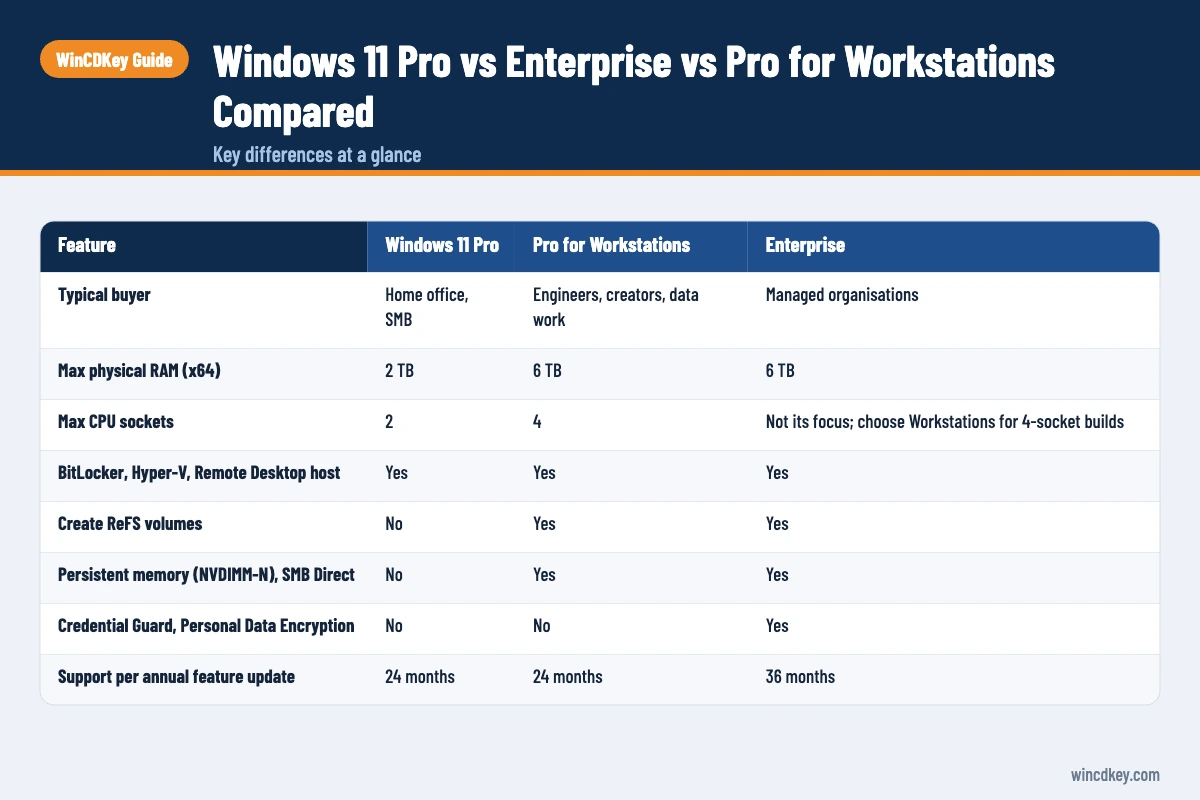
In the Windows 11 Pro vs Enterprise choice, Pro covers what most individuals and small businesses need: BitLocker, Remote Desktop, Hyper-V and domain join. Enterprise adds organisation-grade security such as Credential Guard and a longer servicing window, licensed through Microsoft’s commercial channels. Pro for Workstations sits between them, built for high-end hardware rather than management.
This guide compares all three side by side, explains who each edition is really for, and points out where buyers commonly pay for features they’ll never switch on.
Key takeaways
- Pro is the right edition for most home offices, freelancers and small businesses.
- Pro for Workstations raises hardware limits to 4 CPUs and 6 TB RAM and adds ReFS, persistent memory and SMB Direct support.
- Enterprise adds Credential Guard, Personal Data Encryption and 36 months of support per annual release, against 24 months for Pro.
- Enterprise LTSC 2024 is a separate, volume-licensed long-term edition supported until 9 October 2029.
- All three use the same core Windows 11; your licence decides the edition.
| Feature | Windows 11 Pro | Pro for Workstations | Enterprise |
|---|---|---|---|
| Typical buyer | Home office, SMB | Engineers, creators, data work | Managed organisations |
| Max physical RAM (x64) | 2 TB | 6 TB | 6 TB |
| Max CPU sockets | 2 | 4 | Not its focus; choose Workstations for 4-socket builds |
| BitLocker, Hyper-V, Remote Desktop host | Yes | Yes | Yes |
| Create ReFS volumes | No | Yes | Yes |
| Persistent memory (NVDIMM-N), SMB Direct | No | Yes | Yes |
| Credential Guard, Personal Data Encryption | No | No | Yes |
| Support per annual feature update | 24 months | 24 months | 36 months |
| Long-term servicing (LTSC) option | No | No | Yes (separate licence) |
| How it’s licensed | Retail or OEM | OEM workstations or edition upgrade key | Commercial licensing (volume or E3/E5), usually as an upgrade from Pro |
In this guide
- What does Windows 11 Pro include?
- What is Windows 11 Pro for Workstations?
- What does Windows 11 Enterprise add over Pro?
- What is Windows 11 Enterprise LTSC?
- Windows 11 Pro vs Enterprise: which should you choose?
- Can you switch between these editions?
- Frequently asked questions
- The bottom line
- Useful links
What does Windows 11 Pro include?
Windows 11 Pro includes everything in Home plus BitLocker drive encryption, the Remote Desktop host, Hyper-V virtualisation, Windows Sandbox, Group Policy, and joining an Active Directory domain or Microsoft Entra ID. It also supports Windows Update for Business controls, so a small IT team can manage update timing without Enterprise.
For most of the business questions we answer, Pro is the honest recommendation. It handles encrypted laptops, remote access to an office PC and test virtual machines, and it can be managed with Intune. Microsoft’s licensing documentation lists features such as Windows Autopatch, Universal Print and Microsoft Connected Cache as available on Pro, too.
If you’re still deciding whether a home PC needs Pro at all, our Windows 11 Home vs Pro comparison covers that step. Pro is supported for 24 months per annual feature update, which is fine as long as Windows Update is allowed to move you to each new version.
What is Windows 11 Pro for Workstations?
Windows 11 Pro for Workstations is a Pro variant for high-end hardware. It raises the limits to four CPU sockets and 6 TB of RAM, and adds ReFS (Resilient File System) volume creation, persistent memory (NVDIMM-N) support and SMB Direct for RDMA network adapters. It doesn’t add Enterprise’s management or security features.
The four workstation features in plain terms
- ReFS: a file system designed for very large volumes and mirrored Storage Spaces, where integrity streams can detect and repair corrupted data from a healthy copy. Pro can read ReFS but can’t create it.
- Persistent memory: support for NVDIMM-N modules, which keep data when power is off while working at near-RAM speed.
- SMB Direct: uses RDMA-capable network cards for high-throughput, low-latency file transfers with less CPU load, useful when editing large media or datasets on a file server.
- Expanded hardware: up to 4 CPUs (Pro allows 2) and 6 TB of memory (Pro allows 2 TB), according to Microsoft’s memory limits documentation.
Who actually benefits? Dual- or quad-socket Xeon or EPYC workstations, machines with over 2 TB of RAM, and studios with RDMA networking. A single-socket gaming or CAD PC with 64 GB of RAM gains very little over Pro. A frequent question we get is whether Workstations makes Revit or AutoCAD faster on ordinary hardware; it doesn’t, because those apps run within Pro’s limits.
What does Windows 11 Enterprise add over Pro?
Windows 11 Enterprise adds security and control features aimed at managed organisations: Credential Guard, Personal Data Encryption, Windows Experience customisation, organisational messages, the option of LTSC releases, and 36 months of support for each annual feature update. Microsoft licenses it through commercial channels, generally as a step-up from Pro.
Security features exclusive to Enterprise
- Credential Guard: uses virtualisation-based security to isolate credentials, making pass-the-hash style attacks much harder. Microsoft states it requires Enterprise or Education.
- Personal Data Encryption: encrypts individual files to the user’s Windows Hello sign-in, adding protection on top of BitLocker.
- Experience control: lets IT lock down and customise Start, taskbar and other user-facing elements by policy.
Licensing reality
Microsoft’s Windows licensing overview describes Enterprise E3 and E5 as per-user subscriptions sold through commercial licensing. E3 lets a user run Windows Enterprise on up to five devices; E5 adds Microsoft Defender for Endpoint Plan 2. With subscription activation, Pro devices step up to Enterprise automatically when the user signs in.
Enterprise keys sold individually are typically volume-licence keys. If you buy one, check the listing for the key type and activation method, and remember that Enterprise features only pay off when someone configures them through Intune or Group Policy.
What is Windows 11 Enterprise LTSC?
Windows 11 Enterprise LTSC (Long-Term Servicing Channel) is a volume-licensed edition that receives security updates for years without feature updates. The current release, LTSC 2024, is based on version 24H2 and is supported until 9 October 2029; the IoT Enterprise LTSC 2024 variant is supported until 10 October 2034.
LTSC is designed for fixed-function devices such as medical equipment, kiosks, factory controllers and point-of-sale terminals, where change is a risk. It leaves out many inbox apps, including the Microsoft Store, and doesn’t get new features until the next LTSC release.
For general office PCs, Microsoft recommends the regular General Availability Channel instead. LTSC on a daily-use laptop means missing app and feature improvements that users expect.
Windows 11 Pro vs Enterprise: which should you choose?
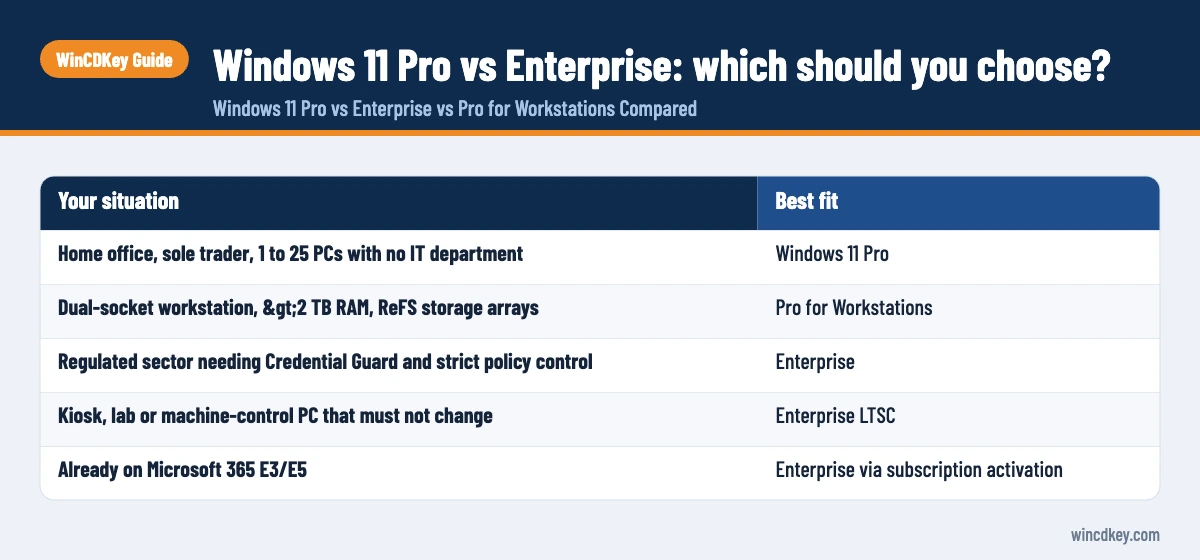
Choose Pro if you are an individual, freelancer or small business without dedicated IT staff. Choose Pro for Workstations only if your hardware exceeds Pro’s limits or you use ReFS, NVDIMM-N or RDMA networking. Choose Enterprise when an IT team will actively enforce Credential Guard, policies and longer update cycles across many devices.
| Your situation | Best fit |
|---|---|
| Home office, sole trader, 1 to 25 PCs with no IT department | Windows 11 Pro |
| Dual-socket workstation, >2 TB RAM, ReFS storage arrays | Pro for Workstations |
| Regulated sector needing Credential Guard and strict policy control | Enterprise |
| Kiosk, lab or machine-control PC that must not change | Enterprise LTSC |
| Already on Microsoft 365 E3/E5 | Enterprise via subscription activation |
Before buying any key, it helps to understand the difference between OEM, retail and volume Windows keys, because that decides whether a licence can move to a replacement PC.
Pick the edition that fits the hardware and the team
For most buyers a Windows 11 Pro retail key is the sensible choice. If your workstation exceeds Pro’s limits, see Windows 11 Pro for Workstations; organisations with IT management in place can review Windows 11 Enterprise and check its key type before ordering.
Can you switch between these editions?
Yes, moving up is generally done without reinstalling. Pro can be upgraded to Pro for Workstations or Enterprise by entering the new edition’s product key in Settings, or for Enterprise, by subscription activation. Moving down, for example Enterprise back to Pro, normally requires a reinstall or reset with Pro media.
- Open Settings > System > Activation.
- Select Change product key next to “Change product key”.
- Enter the Pro for Workstations or Enterprise key and select Next.
- Let Windows apply the edition upgrade and restart when prompted.
- Check Settings > System > About to confirm the new edition.
If the key is rejected with an edition mismatch, our guide to fixing error 0xc004f050 covers the usual causes. Volume keys that can’t reach Microsoft online may need phone activation, which our Confirmation ID tool can help with.
Frequently asked questions
Is Windows 11 Enterprise better than Pro for gaming?
No. Games run the same on Pro and Enterprise because the core Windows 11 engine, DirectX and drivers are identical. Enterprise only adds management and security features for organisations. If anything, an Enterprise install configured with strict policies can be less convenient on a personal gaming PC, so Pro or even Home is the better choice.
Can a home user buy Windows 11 Enterprise?
Microsoft designs and licenses Enterprise for organisations through commercial channels, usually as an upgrade from Pro with E3 or E5 subscriptions or volume agreements. A home user gains little from it, because its extra features need central management to configure. Windows 11 Pro gives individuals BitLocker, Hyper-V and Remote Desktop without that complexity.
Is Pro for Workstations worth it for a single-CPU PC?
Rarely. Its main benefits are support for four CPU sockets, up to 6 TB of RAM, ReFS creation, persistent memory and SMB Direct networking. A single-socket PC with under 2 TB of memory and ordinary NTFS drives uses none of those, so standard Windows 11 Pro performs the same at a lower cost.
What is the difference between Windows 11 Enterprise and Enterprise LTSC?
Standard Enterprise receives an annual feature update with 36 months of support for each. Enterprise LTSC stays on one release, LTSC 2024 based on version 24H2, and receives only security and quality fixes until 9 October 2029. LTSC omits apps such as the Microsoft Store and targets fixed-purpose devices rather than office laptops.
Does Windows 11 Pro support 2 CPUs?
Yes. Windows 11 Pro supports up to two physical CPU sockets and up to 2 TB of RAM on x64 hardware. Systems with three or four sockets need Pro for Workstations, which supports four sockets; both Pro for Workstations and Enterprise support up to 6 TB of RAM.
Do Pro, Enterprise and Pro for Workstations use different installation media?
Pro and Pro for Workstations install from Microsoft’s standard multi-edition Windows 11 media, and the product key decides the edition. Enterprise is usually deployed by upgrading Pro through a key or subscription activation. LTSC uses its own separate media available to volume licence customers.
The bottom line
Pro is enough for almost every individual and small business, Pro for Workstations only matters on genuinely high-end hardware, and Enterprise earns its place when an IT team will use its security controls. Match the edition to the hardware and the people managing it, not to the longest feature list. Browse our help and support centre if you need guidance on activating any of them.
Useful links
| Resource | Why it helps |
|---|---|
| Microsoft Windows licensing overview | Official Pro vs Enterprise feature and licensing details |
| Memory limits for Windows releases | RAM limits by edition |
| Windows 11 Home vs Pro | Decide whether you need Pro at all |
| OEM vs retail vs volume keys | Understand licence types before buying |
| Windows 11 Pro retail key | Licence for most users |
| Windows 11 Pro for Workstations | For high-end multi-CPU hardware |
| Windows 11 Enterprise | For managed organisations |
| Fix error 0xc004f050 | Resolve key or edition mismatch errors |
| Activate Windows via phone | Activation when online activation fails |


