🎃 HALLOWEEN SALE: 50% OFF best-selling Windows, Office, Autodesk & Server keys — use code GHOST50 Shop the sale →


50 Essential AutoCAD Commands and Keyboard Shortcuts (Cheat Sheet)

These 50 AutoCAD commands cover most everyday drafting, and each has a short alias you can type instead of the full name, such as L for LINE, TR for TRIM and Z for ZOOM. Below you will find them grouped by task in a printable cheat sheet, followed by the function keys, Ctrl shortcuts and steps to create your own aliases.
Key takeaways
- Type an alias at the command line and press Enter or Spacebar to run the command.
- Pressing Enter or Spacebar on an empty command line repeats the last command.
- Aliases live in acad.pgp (AutoCAD) or acadlt.pgp (AutoCAD LT) and can be customised.
- F3 (object snap), F8 (ortho) and F12 (dynamic input) are the toggles most drafters use constantly.
- All the aliases in this guide are Autodesk defaults and work in both AutoCAD and AutoCAD LT unless noted.
In this guide
- How do AutoCAD commands and aliases work?
- AutoCAD draw commands
- AutoCAD modify commands
- Text, dimension and annotation commands
- Layer, property and block commands
- View, inquiry and file commands
- AutoCAD keyboard shortcuts: function keys and Ctrl combinations
- How do you create your own AutoCAD shortcuts?
- Frequently asked questions
- The bottom line
- Useful links
How do AutoCAD commands and aliases work?
An AutoCAD command alias is a short abbreviation for a full command name. You type the alias at the command line, such as C instead of CIRCLE, then press Enter or Spacebar to start the command. Aliases are defined in a text file called acad.pgp (acadlt.pgp in AutoCAD LT), so you can change them or add your own.
Aliases are different from keyboard shortcuts. A keyboard shortcut is a key combination, such as Ctrl+1 for the Properties palette, while an alias is something you type. Experienced drafters use both: the left hand types aliases while the right hand stays on the mouse.
Command line habits that save time
- Spacebar works like Enter for starting commands and accepting prompts (except inside text).
- Enter or Spacebar on an empty prompt repeats the previous command.
- Esc cancels the current command.
- Up and down arrows scroll through recently used commands.
- Underlined or bracketed letters at a prompt are command options; type the letter to choose one.
The full alias list is on Autodesk’s AutoCAD keyboard shortcuts page. The tables below pick the 50 commands that matter most in daily drafting.
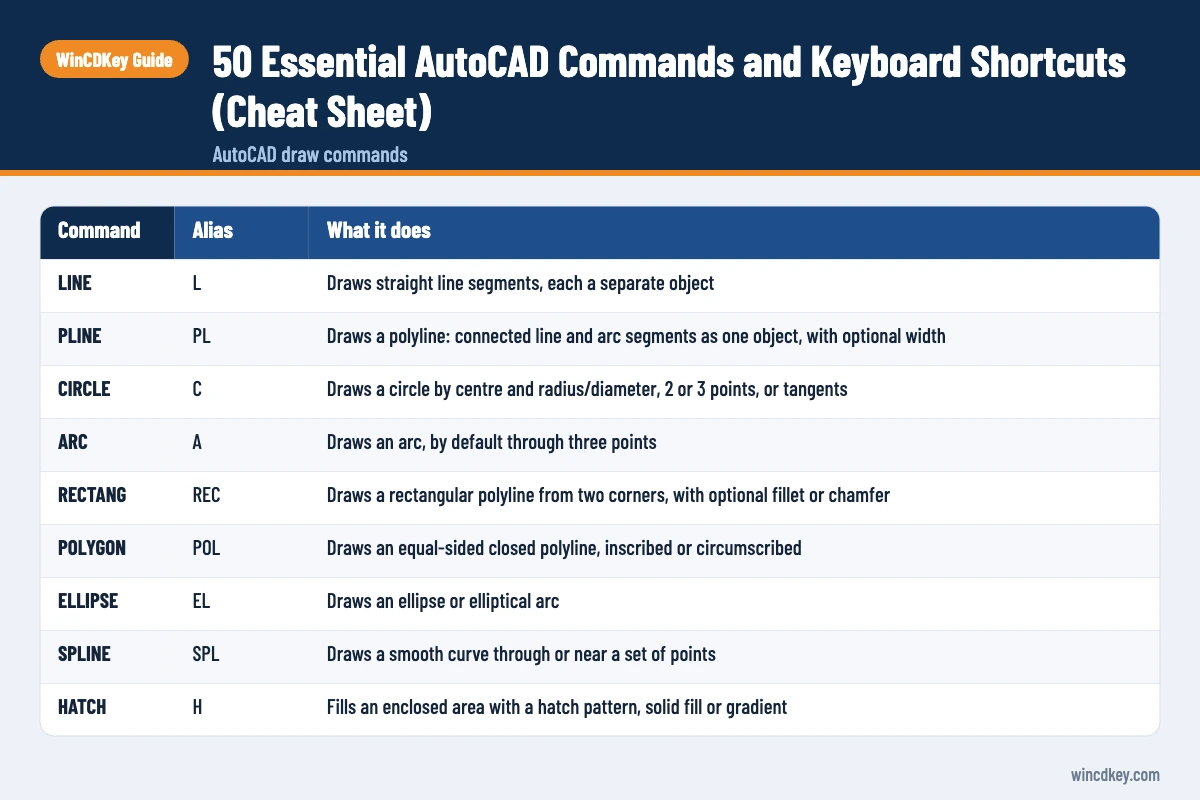
AutoCAD draw commands
Draw commands create new geometry. The nine below cover nearly every 2D drawing, from floor plans to schematics. Learn these aliases first: they are mostly one or two letters and become muscle memory within a week of daily use.
| Command | Alias | What it does |
|---|---|---|
| LINE | L |
Draws straight line segments, each a separate object |
| PLINE | PL |
Draws a polyline: connected line and arc segments as one object, with optional width |
| CIRCLE | C |
Draws a circle by centre and radius/diameter, 2 or 3 points, or tangents |
| ARC | A |
Draws an arc, by default through three points |
| RECTANG | REC |
Draws a rectangular polyline from two corners, with optional fillet or chamfer |
| POLYGON | POL |
Draws an equal-sided closed polyline, inscribed or circumscribed |
| ELLIPSE | EL |
Draws an ellipse or elliptical arc |
| SPLINE | SPL |
Draws a smooth curve through or near a set of points |
| HATCH | H |
Fills an enclosed area with a hatch pattern, solid fill or gradient |
AutoCAD modify commands
Modify commands change existing objects, and they are where most drafting time is spent. TRIM, OFFSET, FILLET and MOVE alone account for a large share of keystrokes in a typical session. Most modify commands work on a selection set, so you can select first and then type the alias, or the other way round.
| Command | Alias | What it does |
|---|---|---|
| MOVE | M |
Moves objects from a base point to a second point |
| COPY | CO or CP |
Copies objects, repeatedly by default, from a base point |
| ROTATE | RO |
Rotates objects about a base point, by angle or by reference |
| SCALE | SC |
Enlarges or reduces objects by a factor or reference length |
| MIRROR | MI |
Creates a mirrored copy about a line, optionally deleting the source |
| OFFSET | O |
Creates parallel lines or concentric arcs and circles at a set distance |
| TRIM | TR |
Cuts objects back to where they meet other objects |
| EXTEND | EX |
Lengthens objects to meet other objects |
| FILLET | F |
Rounds a corner with an arc; radius 0 makes a clean sharp corner |
| CHAMFER | CHA |
Bevels a corner by distances or distance and angle |
| ARRAY | AR |
Copies objects in a rectangular, polar or path pattern |
| STRETCH | S |
Stretches objects selected with a crossing window, moving only the enclosed vertices |
| ERASE | E |
Deletes selected objects (the Delete key also works) |
| EXPLODE | X |
Breaks a block, polyline, hatch or dimension into its component objects |
| JOIN | J |
Joins lines, arcs and polylines end to end into a single object |
| MATCHPROP | MA |
Copies layer, colour, linetype and other properties from one object to others |
One tip from years of support questions: if TRIM or EXTEND behaves unexpectedly, check its mode. Recent releases default to a Quick mode that trims to all nearby geometry; type O for Mode during the command to switch to Standard if you prefer selecting cutting edges first.
Two more modify aliases worth adding once the basics stick are BR (BREAK), which splits an object between two points, and PE (PEDIT), which joins lines into polylines and changes their width.
Text, dimension and annotation commands
Annotation commands add the text, dimensions, leaders and tables that turn geometry into a usable drawing. Set up text and dimension styles first with STYLE and DIMSTYLE, then the creation commands below will produce consistent results across every sheet.
| Command | Alias | What it does |
|---|---|---|
| TEXT | DT |
Creates single-line text objects |
| MTEXT | T or MT |
Creates a multiline text paragraph with formatting |
| Edit text | ED |
Edits existing text, dimension text or attribute definitions |
| DIMLINEAR | DLI |
Creates a horizontal or vertical linear dimension |
| DIMALIGNED | DAL |
Creates a dimension aligned with the object being measured |
| DIMSTYLE | D |
Opens the Dimension Style Manager to create and modify dimension styles |
| MLEADER | MLD |
Creates a multileader: an arrow, leader line and note |
| TABLE | TB |
Inserts a table, optionally linked to Excel data |
Other dimension aliases worth knowing are DCO (DIMCONTINUE), DBA (DIMBASELINE), DRA (DIMRADIUS), DDI (DIMDIAMETER) and DAN (DIMANGULAR). The newer all-in-one DIM command has no default alias, which is a good candidate for a custom one.
Layer, property and block commands
Layers and blocks keep a drawing organised and editable. Layer commands control how objects look and print, while block commands turn repeated content such as doors, symbols and title blocks into reusable definitions. Good layer and block discipline is the difference between a drawing that is easy to revise and one that is not.
| Command | Alias | What it does |
|---|---|---|
| LAYER | LA |
Opens the Layer Properties Manager |
| PROPERTIES | PR (also CH, MO, Ctrl+1) |
Opens the Properties palette for selected objects |
| LTSCALE | LTS |
Sets the global linetype scale so dashed lines display correctly |
| BLOCK | B |
Creates a block definition from selected objects |
| INSERT | I |
Inserts a block or drawing via the Blocks palette |
| BEDIT | BE |
Opens a block in the Block Editor |
| WBLOCK | W |
Writes objects or a block to a new drawing file |
| XATTACH | XA |
Attaches another DWG as an external reference (xref) |
View, inquiry and file commands
These commands control what you see, measure what you have drawn and keep files healthy. ZOOM and PAN are used constantly, though most people drive them with the mouse wheel. DIST, AREA and MEASUREGEOM answer the “how big is it?” questions, and PURGE keeps file sizes under control.
| Command | Alias | What it does |
|---|---|---|
| ZOOM | Z |
Changes magnification; Z then E zooms to extents |
| PAN | P |
Moves the view without changing magnification |
| REGEN | RE |
Regenerates the drawing to refresh curves and display |
| DIST | DI |
Measures distance and angle between two points |
| AREA | AA |
Calculates area and perimeter of objects or picked points |
| MEASUREGEOM | MEA |
Quick measure of distance, radius, angle, area or volume |
| PURGE | PU |
Removes unused layers, blocks, styles and other clutter |
| OSNAP | OS |
Sets running object snap modes (endpoint, midpoint and so on) |
| PLOT | PRINT (or Ctrl+P) |
Plots or prints the current layout or model view |
Mouse-wheel tip: roll to zoom, hold the wheel to pan and double-click the wheel to zoom to extents.
Practise on a current release
These aliases work in every recent version. If you need a licence, WinCDKey offers AutoCAD 2026 for Windows, AutoCAD 2027 for Windows and AutoCAD LT for Windows or Mac as 1-year or 3-year subscription licences.
AutoCAD keyboard shortcuts: function keys and Ctrl combinations
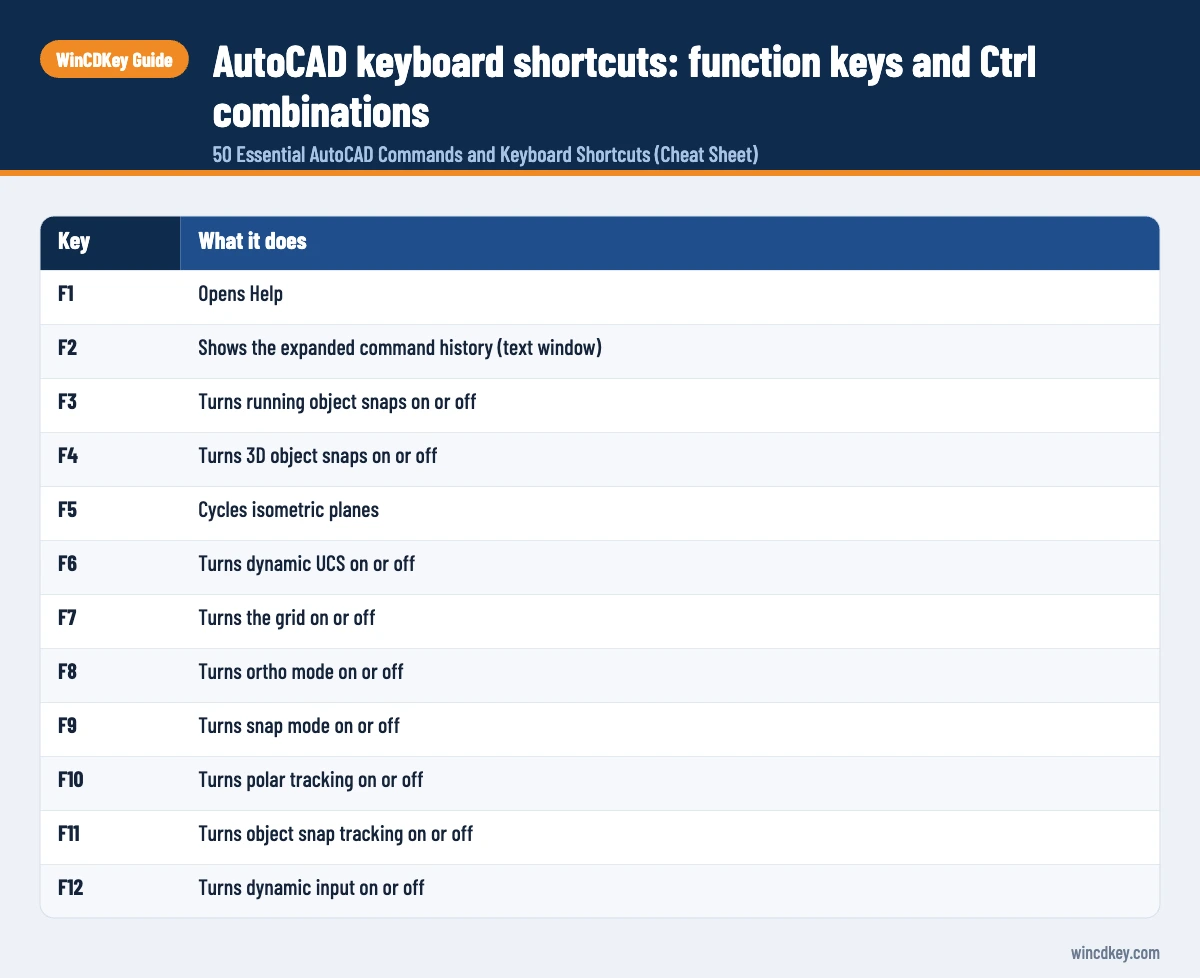
AutoCAD’s function keys toggle drafting aids on and off, and its Ctrl shortcuts open palettes and manage files. The most used are F3 for object snaps, F8 for ortho mode, F10 for polar tracking, F12 for dynamic input and Ctrl+1 for the Properties palette. These are Autodesk defaults on Windows; Mac versions use Command-key equivalents.
Function keys
| Key | What it does |
|---|---|
F1 |
Opens Help |
F2 |
Shows the expanded command history (text window) |
F3 |
Turns running object snaps on or off |
F4 |
Turns 3D object snaps on or off |
F5 |
Cycles isometric planes |
F6 |
Turns dynamic UCS on or off |
F7 |
Turns the grid on or off |
F8 |
Turns ortho mode on or off |
F9 |
Turns snap mode on or off |
F10 |
Turns polar tracking on or off |
F11 |
Turns object snap tracking on or off |
F12 |
Turns dynamic input on or off |
Ctrl shortcuts
| Shortcut | What it does |
|---|---|
Ctrl+1 |
Properties palette |
Ctrl+2 |
DesignCenter |
Ctrl+3 |
Tool Palettes |
Ctrl+8 |
QuickCalc calculator |
Ctrl+9 |
Shows or hides the command line |
Ctrl+0 |
Clean screen (hides ribbon and palettes) |
Ctrl+Z / Ctrl+Y |
Undo / redo |
Ctrl+Shift+C |
Copy to clipboard with a base point |
Ctrl+Shift+V |
Paste clipboard contents as a block |
Ctrl+N / Ctrl+O / Ctrl+S |
New / open / save drawing |
Ctrl+P |
Plot dialog |
Ctrl+Tab |
Switch to the next open drawing |
Ctrl+A |
Select all objects |
A common panic moment is a missing command line. Press Ctrl+9 to bring it back, or type COMMANDLINE.
How do you create your own AutoCAD shortcuts?
You create your own AutoCAD shortcuts by editing the program parameters file: open it from Manage > Customization > Edit Aliases, add a line such as RV, *REVCLOUD at the end of the user-defined section, save the file, then run REINIT to reload it. The new alias works immediately in the current session.
- On the ribbon, click Manage > Customization panel > Edit Aliases > Edit Aliases. The acad.pgp file opens in Notepad (acadlt.pgp in AutoCAD LT).
- Scroll to the User Defined Command Aliases section at the end of the file.
- Add one alias per line in the format
ALIAS, *COMMAND, for exampleRV, *REVCLOUDorDD, *DIM. - Save and close the file. Because AutoCAD uses the last definition it finds, entries at the end override earlier ones.
- Type
REINIT, tick PGP file and click OK to reload aliases without restarting.
In full AutoCAD you can also use the Express Tools Alias Editor (ALIASEDIT), which provides a dialog instead of a text file; Autodesk notes it is not available in AutoCAD LT. If you often mistype commands, the AutoCorrect option in INPUTSEARCHOPTIONS can learn your typos. Autodesk’s guide to command aliases, shortcut keys and AutoCorrect covers the details.
Back up your edited PGP file. A reinstall or a move to a new PC resets it, and copying your PGP across is the fastest way to restore your custom shortcuts. The same applies when moving between products; our AutoCAD vs AutoCAD LT guide explains what else differs between them.
Frequently asked questions
What is the difference between an AutoCAD command and an alias?
A command is the full name of an AutoCAD function, such as CIRCLE or DIMLINEAR. An alias is a shorter abbreviation defined in the PGP file, such as C or DLI, that starts the same command. Aliases do exactly the same job as the full command; they simply save keystrokes. You can rename, add or remove aliases.
Do AutoCAD shortcuts work in AutoCAD LT?
Yes, for the 2D commands both products share. AutoCAD LT reads its aliases from acadlt.pgp, which uses the same defaults for drawing, modify, annotation and layer commands. Aliases for 3D, rendering and other full-AutoCAD-only features are absent in LT because those commands do not exist there. Function keys and Ctrl shortcuts are the same.
Why is my AutoCAD alias not working?
The usual causes are a typing error in the PGP file, a later duplicate entry overriding yours, or the file not being reloaded. Check the line uses the format ALIAS, *COMMAND, move your entry to the end of the file, then run REINIT and tick PGP file. Also confirm you edited the PGP file AutoCAD actually loads.
How do I zoom to extents in AutoCAD?
Type Z, press Enter, then type E and press Enter to zoom to extents and show every object in the drawing. A faster method is to double-click the mouse wheel. If extents look far too large, stray objects may sit far from your drawing; erase them and run ZOOM Extents again.
What is the AutoCAD shortcut for copy?
The default alias for COPY is CO, and CP also works. Type it, select objects, press Enter, pick a base point and then pick destination points; COPY repeats until you press Enter or Esc. For copying between drawings, Ctrl+C copies to the clipboard, and Ctrl+Shift+C lets you choose a base point.
How do I get the command line back in AutoCAD?
Press Ctrl+9 to show or hide the command line, or type COMMANDLINE if you can still see a prompt anywhere. If the command line is floating off-screen, drag it back or dock it at the bottom of the drawing area. Ctrl+0 (clean screen) can also hide interface elements, so press it again to restore them.
The bottom line
Learn the one- and two-letter aliases for drawing and modifying first, add the F3, F8 and F12 toggles, and then customise your PGP file for the commands you use most. If you are setting up a new machine, our AutoCAD 2026 installation guide gets you drafting quickly.
Useful links
| Resource | Why it helps |
|---|---|
| Autodesk: AutoCAD keyboard shortcuts | Autodesk’s complete list of default aliases and shortcuts |
| Autodesk Help: command aliases and AutoCorrect | Official steps for editing PGP files and AutoCorrect |
| AutoCAD 2026 for Windows | 1-year and 3-year AutoCAD 2026 licences |
| AutoCAD 2027 for Windows | The current AutoCAD release |
| AutoCAD LT for Windows or Mac | 2D drafting licence that uses the same aliases |
| AutoCAD vs AutoCAD LT | What differs between the two products |
| AutoCAD 2026 install guide | Download, install and activation steps |
| AutoCAD LT install guide | Setting up AutoCAD LT |
| Autodesk category | All Autodesk licences in one place |


