🎃 HALLOWEEN SALE: 50% OFF best-selling Windows, Office, Autodesk & Server keys — use code GHOST50 Shop the sale →


Windows 11 Home vs Pro: The Differences That Actually Matter in 2026

Windows 11 Home vs Pro comes down to control, not speed. Both editions run the same apps and games at the same performance, but Pro adds BitLocker drive encryption, Hyper-V, Windows Sandbox, Remote Desktop hosting and business management tools. If you need none of those, Home is enough; if you need even one, Pro is worth it.
Key takeaways
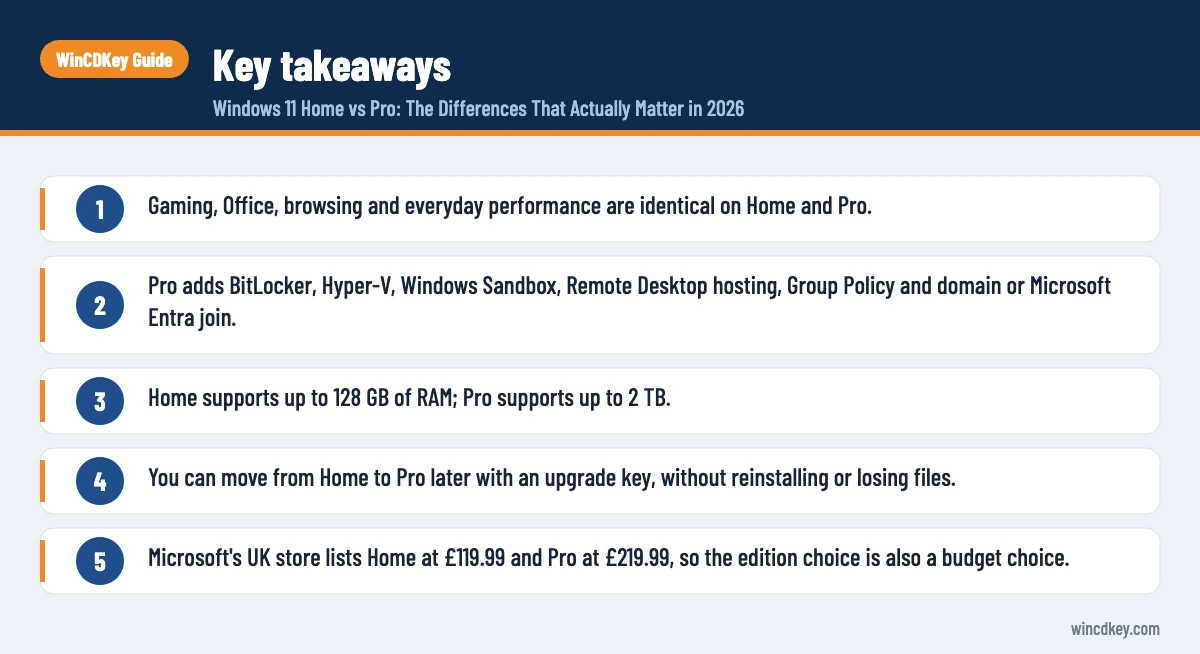
- Gaming, Office, browsing and everyday performance are identical on Home and Pro.
- Pro adds BitLocker, Hyper-V, Windows Sandbox, Remote Desktop hosting, Group Policy and domain or Microsoft Entra join.
- Home supports up to 128 GB of RAM; Pro supports up to 2 TB.
- You can move from Home to Pro later with an upgrade key, without reinstalling or losing files.
- Microsoft’s UK store lists Home at £119.99 and Pro at £219.99, so the edition choice is also a budget choice.
| Feature | Windows 11 Home | Windows 11 Pro |
|---|---|---|
| Everyday apps, Microsoft Store, gaming (DirectX 12, Auto HDR) | Yes | Yes |
| Windows Security, firewall, Secure Boot, Windows Hello | Yes | Yes |
| Device encryption (on supported hardware) | Yes | Yes |
| BitLocker Drive Encryption and BitLocker To Go | No | Yes |
| Hyper-V virtual machines | No | Yes |
| Windows Sandbox | No | Yes |
| Remote Desktop host (others connect to this PC) | No (client only) | Yes |
| Group Policy Editor | No | Yes |
| Active Directory domain or Microsoft Entra join | No | Yes |
| Maximum RAM (64-bit) | 128 GB | 2 TB |
| Microsoft UK store price | £119.99 | £219.99 |
In this guide
- Windows 11 Home vs Pro: what does Pro actually add?
- Does Windows 11 Home have BitLocker?
- Can Windows 11 Home run virtual machines or Remote Desktop?
- Which edition does a small business need?
- Is Windows 11 Pro faster or better for gaming?
- How much does each edition cost, and can you upgrade later?
- Frequently asked questions
- The bottom line
- Useful links
Windows 11 Home vs Pro: what does Pro actually add?
Pro adds four groups of features on top of Home: stronger encryption (BitLocker), virtualisation (Hyper-V and Windows Sandbox), remote access (Remote Desktop hosting) and management (Group Policy, domain and Entra join, business update controls). The desktop, Start menu, apps and core security are the same in both editions.
That is the part most comparison articles blur. Windows 11 Home is not a cut-down or slower version of Windows. It uses the same kernel, receives the same monthly security updates and gets feature updates on the same schedule.
Both editions also follow the same support cycle. Microsoft’s Windows 11 Home and Pro lifecycle page lists each annual release with roughly 24 months of support, so neither edition gets updates for longer than the other.
Who each edition is built for
- Home: personal laptops, family PCs, students and gaming rigs that are signed in with a personal Microsoft account.
- Pro: freelancers, small offices, developers, IT enthusiasts and anyone who carries client or financial data on a laptop.
Does Windows 11 Home have BitLocker?
No. Windows 11 Home does not include BitLocker Drive Encryption, but it does include a simpler feature called device encryption on hardware that supports it. Device encryption protects the system drive automatically, while full BitLocker in Pro adds manual control, encryption of extra internal drives and BitLocker To Go for USB sticks.
According to Microsoft’s device encryption support article, device encryption needs a working TPM, Secure Boot and the Windows Recovery Environment. It switches on automatically when you set up the PC with a Microsoft account, and the recovery key is saved to that account.
Why this matters in practice
A common support ticket we see is a Home user who replaced a motherboard or changed a BIOS setting and was then asked for a recovery key they never knew existed. With BitLocker in Pro you choose where the key is stored, which drives are encrypted and whether a startup PIN is required.
If you travel with a laptop that holds client files, payroll data or anything covered by UK GDPR, the extra control in Pro is the single strongest reason to choose it.
Can Windows 11 Home run virtual machines or Remote Desktop?
Windows 11 Home cannot install Hyper-V, cannot run Windows Sandbox and cannot act as a Remote Desktop host. It can still run third-party virtualisation software and connect out to other PCs with the Remote Desktop app. Pro is needed only if you want Microsoft’s built-in virtualisation or want to connect into your own PC remotely.
Hyper-V
Microsoft’s Hyper-V installation guide states that the role can’t be installed on Windows 11 Home. On Pro you get full virtual machines for testing software, running older Windows builds or keeping a separate work environment.
Windows Sandbox
Sandbox opens a disposable, clean copy of Windows in a window. Anything you run inside it is wiped when you close it, which makes it a practical way to test an unfamiliar installer before letting it near your real system. It is available on Pro, Enterprise and Education, not Home.
Remote Desktop
Microsoft only allows a Pro (or higher) PC to be the machine you connect to. A Home PC can connect out to a Pro PC or a server, but nobody can use Remote Desktop to reach a Home machine. If you want to log in to your office PC from home, the office PC needs Pro.
Which edition does a small business need?
Most small businesses should use Windows 11 Pro. It can join an Active Directory domain or Microsoft Entra ID, accepts Group Policy and Intune management, and lets IT control when updates install. Windows 11 Home cannot join a work domain, so it is awkward to manage once you have more than a couple of staff.
Business-relevant features that only Pro provides include:
- Group Policy Editor for setting password rules, USB restrictions and update deferrals.
- Domain and Microsoft Entra join so staff sign in with work accounts and lost devices can be wiped.
- Assigned Access for turning a PC into a single-app kiosk or reception screen.
- Update controls that let you delay feature updates until you’ve tested line-of-business software.
Larger organisations sometimes need more than Pro offers, such as Credential Guard or longer feature-update support. Our comparison of Windows 11 Pro vs Enterprise vs Pro for Workstations covers where those editions start to make sense.
Is Windows 11 Pro faster or better for gaming?
No. Windows 11 Pro is not faster than Home and offers no gaming advantage. Frame rates, load times, DirectStorage, Auto HDR and Xbox app features are the same on both editions. The only hardware difference is the memory ceiling: Home supports up to 128 GB of RAM and Pro up to 2 TB.
Those limits come from Microsoft’s memory limits for Windows releases. Even a high-end gaming PC rarely goes past 64 GB, so the Home ceiling is a non-issue for players.
The ceiling matters only for workstation work such as large simulations, heavy virtualisation or big data sets. Those users usually need Pro for Hyper-V anyway.
How much does each edition cost, and can you upgrade later?
Microsoft’s UK store lists Windows 11 Home at £119.99 and Windows 11 Pro at £219.99. You don’t have to choose for life: an activated Home PC can move to Pro at any time by entering a Pro key, which keeps your files and apps and needs only a restart.
That flexibility changes the decision. If you are unsure, start on Home and move to Pro when a real need appears. Our step-by-step guide to upgrading Windows 11 Home to Pro without reinstalling covers the process and the errors to watch for.
Retail or OEM?
Whichever edition you choose, the licence type matters as much as the edition. A retail licence can normally be moved to a new PC, while an OEM licence stays with the first computer it activates. If you rebuild or replace PCs often, a Windows 11 Pro retail key gives you more room than a Windows 11 Pro OEM key, which suits a single new build.
Already on Home and need one Pro feature?
You don’t need to reinstall. An upgrade key from Windows 11 Home to Pro switches the edition in place, and a full Windows 11 Home retail key remains the lower-cost option if Home covers everything you use.
Frequently asked questions
Is Windows 11 Pro worth it for home users?
For most home users, no. If you browse, stream, game and use Office, Windows 11 Home does everything Pro does at the same speed. Pro becomes worth the extra cost when you need BitLocker for a laptop with sensitive files, Remote Desktop into your own PC, Hyper-V or Windows Sandbox.
Can I upgrade from Windows 11 Home to Pro without losing data?
Yes. Upgrading from Home to Pro is an in-place edition change, not a reinstall. You enter a Pro product key under Settings, System, Activation, Windows adds the Pro features and restarts, and your files, apps and settings stay where they are. Backing up first is still sensible practice.
Does Windows 11 Home have Group Policy Editor?
No. The Local Group Policy Editor (gpedit.msc) is included only in Windows 11 Pro, Enterprise and Education. Home users can change some of the same settings through the Settings app or the registry, but there is no supported way to add the full Group Policy Editor to Home.
Can Windows 11 Home join a work or school domain?
No. Windows 11 Home cannot join an Active Directory domain or perform a full Microsoft Entra join. You can add a work account for apps such as Outlook and Teams, but if your employer manages devices centrally, the PC needs Windows 11 Pro or a higher edition.
Can I go back from Windows 11 Pro to Home?
Not in place. Microsoft’s edition upgrade documentation lists no supported downgrade path to Home, so moving from Pro back to Home means a clean installation of Windows 11 Home with a Home licence. Back up your files first, because a clean install removes apps and personal data.
Is Windows 11 Pro more secure than Home?
Both editions share the same core security: Windows Security, Microsoft Defender Antivirus, firewall, Secure Boot and Windows Hello. Pro adds full BitLocker control, Windows Sandbox and management tools that make security policies enforceable. For a single personal PC the gap is small; for a business laptop it is significant.
The bottom line
Choose Windows 11 Home if you use your PC for personal tasks and gaming; choose Pro if you need BitLocker, virtualisation, Remote Desktop hosting or business management. Because Home can be upgraded in place, starting on Home carries little risk. When you are ready, our Windows 11 Pro download, install and activation guide walks through a fresh setup.
Useful links
| Resource | Why it helps |
|---|---|
| Upgrade Windows 11 Home to Pro | Step-by-step in-place upgrade and error fixes |
| Windows 11 Pro vs Enterprise vs Pro for Workstations | When a business outgrows Pro |
| Windows 11 Pro install and activation guide | Clean install and activation walkthrough |
| Windows 11 Home to Pro upgrade key | Switch editions without reinstalling |
| Windows 11 Pro retail key | Transferable Pro licence for new builds or replacements |
| Microsoft Learn: Install Hyper-V | Official edition requirements for Hyper-V |
| Microsoft Support: Device encryption | How encryption works on Windows 11 Home |
| Microsoft Learn: Memory limits | Official RAM ceilings per edition |


