🎃 HALLOWEEN SALE: 50% OFF best-selling Windows, Office, Autodesk & Server keys — use code GHOST50 Shop the sale →


Windows Server 2025 Licensing Explained: Cores, CALs and RDS CALs

Key takeaways
- Standard and Datacenter are licensed per physical core: minimum 8 cores per processor and 16 cores per server.
- Every user or device accessing the server needs a Windows Server 2025 CAL (User or Device). 2022 CALs do not cover a 2025 server.
- Remote Desktop users need an RDS CAL on top of the base CAL — never instead of it.
- Standard covers 2 VMs per fully licensed host; Datacenter covers unlimited VMs. Datacenter becomes cheaper at roughly 12 or more VMs per host at Microsoft list price.
- Essentials needs no CALs but is capped at 25 users and 50 devices.
How is Windows Server 2025 licensed?
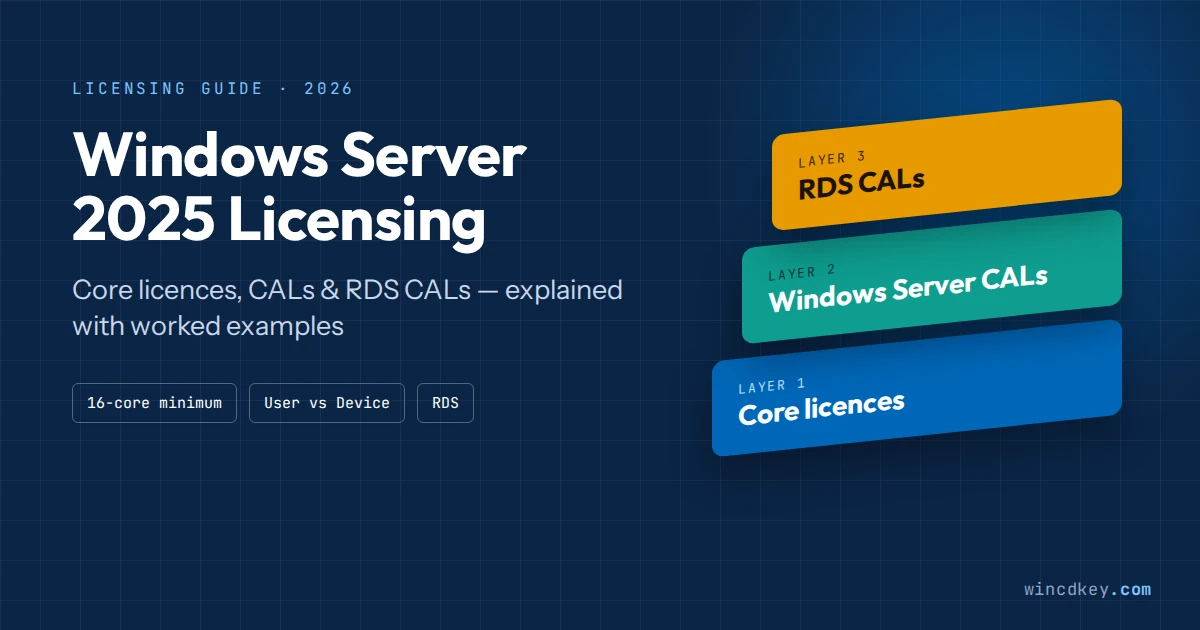
Windows Server 2025 uses a “core + CAL” model. You license the physical processor cores of the server with Standard or Datacenter core licences, then license access with a Windows Server CAL for each user or device. Remote Desktop session access needs a third licence, the RDS CAL.
Think of it as a building. Core licences pay for the building, CALs are the entry passes, and RDS CALs are the extra pass for the room where people work remotely.
| Licence layer | What it covers | Counted per | Who needs it |
|---|---|---|---|
| Core licence (Standard or Datacenter) | Running Windows Server on the hardware, plus VM rights | Physical core (min. 16 per server) | Every physical server running Windows Server |
| Windows Server CAL | Accessing the server’s services: files, print, Active Directory, DNS/DHCP, apps | User or device | Every user or device that connects, directly or indirectly |
| RDS CAL | Running a Remote Desktop session or RemoteApp on a session host | User or device | Only people or devices using Remote Desktop Services |
| External Connector (optional) | Access for external users such as customers or partners | Server | Organisations serving large external user groups |
Which Windows Server 2025 edition do you need?
Most businesses choose between Standard and Datacenter. Standard suits physical servers or hosts running a few virtual machines; Datacenter suits heavily virtualised hosts. Microsoft also lists Datacenter: Azure Edition and Essentials under the same Windows Server 2025 lifecycle.
| Edition | Licensing model | Virtualisation rights | CALs required? | Best for |
|---|---|---|---|---|
| Windows Server 2025 Standard | Per core + CAL | 2 VMs (or 2 Hyper-V isolated containers) per fully licensed host | Yes | Physical servers, small hosts, file/print/AD servers |
| Windows Server 2025 Datacenter | Per core + CAL | Unlimited VMs on the licensed host | Yes | Dense virtualisation hosts, clusters, private cloud |
| Datacenter: Azure Edition | Per core + CAL / Azure billing | Unlimited | Yes | Workloads running in Azure or on Azure Local |
| Essentials | Per server (sold with hardware) | Limited | No — up to 25 users / 50 devices | Very small businesses with one server |
Standard and Datacenter share the same core features, including the higher memory ceiling Microsoft lists for 2025. The practical differences are virtualisation rights and Storage Replica limits, which Microsoft details on its Windows Server pricing and editions page.
How many core licences do you need for Windows Server 2025?
You license every physical core in the server, with two minimums: at least 8 core licences per processor and at least 16 per server. A single-socket server with a 4-core CPU still needs 16 core licences. Hyper-threading and logical processors are not counted.
Core licences are sold in packs — commonly 16-core packs, with 2-core packs to top up larger servers. A 24-core server, for example, needs one 16-core pack plus four 2-core packs.
Step-by-step: calculating core licences
- Count physical cores per processor. Check the CPU model’s specification sheet or run
Get-CimInstance Win32_Processor | Select NumberOfCoresin PowerShell. - Round each processor up to 8 if it has fewer than 8 cores.
- Add the processors together, then round the server total up to 16 if it is lower.
- Choose Standard or Datacenter based on how many VMs the host will run (see the next section).
- Add CALs for every user or device, and RDS CALs if anyone uses Remote Desktop.
| Server hardware | Physical cores | Core licences required | Why |
|---|---|---|---|
| 1 CPU × 4 cores | 4 | 16 | 8-per-processor minimum, then 16-per-server minimum |
| 1 CPU × 16 cores | 16 | 16 | Matches the server minimum exactly |
| 2 CPUs × 6 cores | 12 | 16 | Each CPU rounds to 8 → 16 |
| 2 CPUs × 12 cores | 24 | 24 | Above both minimums — license every core |
| 2 CPUs × 32 cores | 64 | 64 | License every core |
Watch out: the licence attaches to the physical server, not to a VM’s virtual CPU count. A 2-vCPU VM on a 32-core host is licensed through the host’s 32 cores, unless you use the separate “licensing by VM” option, which carries its own minimum of 8 core licences per VM and requires Software Assurance or subscription licences.
Standard vs Datacenter: when is Datacenter cheaper?
At Microsoft’s list price, Datacenter becomes cheaper than Standard once a host runs about 12 or more Windows Server VMs. Standard covers 2 VMs per full licensing of the host, so each extra pair of VMs means licensing all cores again (“stacking”). Datacenter covers unlimited VMs for a single price.
Microsoft’s suggested MSRP for a 16-core licence is $1,176 for Standard and $6,771 for Datacenter. Divide one by the other and Datacenter costs about 5.8 Standard “stacks” — or roughly 11–12 VMs’ worth of Standard rights.
| Windows Server VMs on a 16-core host | Standard licensing needed | Standard cost (MSRP) | Datacenter cost (MSRP) | Cheaper option |
|---|---|---|---|---|
| 2 | 16 cores × 1 | $1,176 | $6,771 | Standard |
| 6 | 16 cores × 3 | $3,528 | $6,771 | Standard |
| 10 | 16 cores × 5 | $5,880 | $6,771 | Standard |
| 12 | 16 cores × 6 | $7,056 | $6,771 | Datacenter |
| 20+ | 16 cores × 10+ | $11,760+ | $6,771 | Datacenter |
Prices are Microsoft’s US list prices and vary by region and channel; WinCDKey prices are lower, so check the current Standard and Datacenter listings and rerun the sum. The ratio between the two is what decides the crossover point.
One nuance most guides skip: if you run Hyper-V clusters and move VMs between hosts, license each host for the peak number of VMs it could run, not the average. That is often what tips clusters towards Datacenter.
What is a Windows Server 2025 CAL?
A Windows Server 2025 CAL (Client Access Licence) is the right for one user or one device to access a Windows Server 2025 server’s services — file shares, printing, Active Directory sign-in, DNS, DHCP or a line-of-business app. It is required for Standard and Datacenter, in addition to the core licences.
Access counts even when it is indirect. If 40 staff use a web app that reads from your server through a single service account, that is still 40 users accessing the server. Microsoft calls this “multiplexing”, and it does not reduce the CAL count.
When you do not need a CAL
- Server administration: up to two users or devices can access the server purely to administer it without CALs.
- Anonymous internet access: unauthenticated visitors to a public website hosted on the server do not need CALs.
- Another licensed server: server-to-server traffic between licensed servers does not need CALs.
- External users with an External Connector: customers or partners can be covered by an External Connector licence on the server instead of individual CALs. Employees and contractors working for you are not “external”.
A detail that confuses many buyers: Windows Server CALs are not installed or activated anywhere. There is no key to type in, and the server will not stop anyone connecting. They are a legal entitlement you must own and be able to prove in a software audit — which is why it is easy to fall out of compliance without noticing.
User CAL vs Device CAL: which should you buy?
Buy User CALs when each person uses several devices; buy Device CALs when several people share one device. A User CAL covers one named person on any number of devices. A Device CAL covers one device for anyone who uses it. You can mix both in the same organisation.
| Windows Server 2025 User CAL | Windows Server 2025 Device CAL | |
|---|---|---|
| Licenses | One named person | One physical device |
| Covers | That person on any number of devices | Any number of people on that device |
| Best for | Office staff with a laptop, phone and home PC; remote and hybrid workers | Shift work, shared reception or warehouse PCs, classroom labs, factory terminals |
| Reassignment | Permanently, or temporarily for absent workers | Permanently, or temporarily for a replacement device |
| Quick test | More devices than people → User CAL | More people than devices → Device CAL |
A common pattern we see in small offices is a split licence: User CALs for the office team and Device CALs for two or three shared shop-floor PCs. That mix is usually cheaper than forcing everyone onto one type.
Can Windows Server 2022 CALs access a Windows Server 2025 server?
No. CALs must match or exceed the version of the server being accessed, so Windows Server 2022 CALs do not cover a Windows Server 2025 server. Windows Server 2025 CALs work the other way, covering access to 2025 and earlier versions such as 2022 and 2019.
This matters during migrations. If you add one Windows Server 2025 domain controller or file server to a 2022 environment, every user or device that touches it needs a 2025 CAL — even if everything else stays on 2022. Buying 2025 CALs now also future-proofs mixed estates.
If you are deliberately staying on the previous version, matching Windows Server 2022 User CALs remain available — but bear in mind 2022 reaches the end of mainstream support this month (October 2026) (see the lifecycle section).
What is an RDS CAL and do you need one?
An RDS CAL (Remote Desktop Services Client Access Licence) is required for every user or device that connects to a Remote Desktop session host running Windows Server, whether for a full remote desktop or a published RemoteApp. It is an add-on: Remote Desktop users need a Windows Server CAL and an RDS CAL.
You do not need RDS CALs for the built-in administrative Remote Desktop connection IT staff use to manage a server (up to two concurrent admin sessions). You do need them as soon as staff run Office, accounting software or other apps inside remote sessions.
| RDS Per User CAL | RDS Per Device CAL | |
|---|---|---|
| Assigned to | A user account in Active Directory | A specific client device |
| Enforcement | Tracked and reported by the licence server; not hard-blocked | Issued and enforced by the licence server |
| Domain required? | Yes — Per User tracking relies on Active Directory | No — works in a workgroup |
| Best for | Remote/hybrid staff connecting from several devices | Thin clients, shared terminals, kiosks |
How Windows Server CALs and RDS CALs stack up
Picture 30 staff who log in to a Windows Server 2025 session host from home to run your accounting software. You need core licences for the host, 30 Windows Server 2025 User CALs, and 30 Windows Server 2025 RDS User CALs. Buying only the RDS CALs is the single most common gap we see in RDS quotes.
How does RDS licensing work on the server?
When a client connects, the RD Session Host asks an RD Licensing server for a CAL. If one is available, it is issued and the session opens. Microsoft allows a 120-day grace period with no licence server; after that, connections fail without a valid RDS CAL.
A few technical rules that cause most support tickets:
- Version matching: a Windows Server 2025 session host needs Windows Server 2025 RDS CALs. Older RDS CALs will not license connections to it.
- Licence server version: to host 2025 RDS CALs, the RD Licensing server must itself run Windows Server 2025. A 2025 licence server can also host older RDS CAL versions.
- Per User display quirk: Per User RDS CALs show as expiring 60 days after issue in RD Licensing Manager. This is a tracking behaviour, not a licence expiry.
- Mode mismatch: if the session host is set to Per Device but you installed Per User CALs (or the reverse), clients fall back to temporary licences and eventually get refused.
- Grace period is not a free tier: rebuilding a session host to restart the 120 days is not a licensing strategy and does not grant access rights.
Microsoft’s full compatibility tables are on its RDS client access licence documentation.
How to install RDS CALs on Windows Server 2025
Installing RDS CALs takes four stages: add the RD Licensing role, activate the licence server, install your CAL pack, and point the session host at the licence server with the correct licensing mode.
- Install the RD Licensing role. In Server Manager, choose Add Roles and Features → Remote Desktop Services → Remote Desktop Licensing, or add it through your RDS deployment.
- Activate the licence server. Open RD Licensing Manager, right-click the server and choose Activate Server. Automatic (internet) activation is quickest.
- Install the CALs. Right-click the server, choose Install Licenses, select your licence programme and enter the licence code from your order.
- Set the licensing mode and server. In the RDS deployment properties, or via Group Policy at Computer Configuration → Administrative Templates → Windows Components → Remote Desktop Services → Remote Desktop Session Host → Licensing, set the mode (Per User or Per Device) to match the CALs you installed and specify the licence server.
- Verify. Run RD Licensing Diagnoser on the session host. It should report no issues and show available licences.
If you are still setting up the base OS, follow our Windows Server 2025 Standard download, install and activation guide first. Running an evaluation copy? See how to convert Windows Server 2025 Evaluation to Standard — evaluation installs reject retail keys until converted, a problem explained in our evaluation edition troubleshooting guide.
Worked Windows Server 2025 licensing examples
These three scenarios cover most small and mid-sized deployments. Use them as a template and adjust the numbers to your own hardware and headcount.
Example 1: Small office file and domain server
One physical server (1 CPU × 8 cores), no VMs, 18 staff with a laptop and phone each, plus 2 shared front-desk PCs used by temporary staff.
- Core licences: 16 × Windows Server 2025 Standard (8-core CPU rounds up to the 16-core server minimum)
- CALs: 18 User CALs + 2 Device CALs
- RDS CALs: none
Example 2: Remote Desktop server for hybrid staff
One host (2 CPUs × 10 cores) running Standard with 2 VMs: a domain controller and an RD Session Host. 35 users work from home on mixed devices.
- Core licences: 20 × Standard (covers the host plus 2 VMs)
- CALs: 35 Windows Server 2025 User CALs
- RDS CALs: 35 RDS User CALs (domain-joined, so Per User is available)
- RD Licensing server: must run Windows Server 2025 — it can live on the domain controller VM
Example 3: Virtualisation host with 14 VMs
One host (2 CPUs × 16 cores = 32 cores) running 14 Windows Server VMs, 120 users.
- Standard route: 14 VMs ÷ 2 = 7 stacks × 32 cores = 224 Standard core licences
- Datacenter route: 32 Datacenter core licences, unlimited VMs
- Verdict: Datacenter — fewer licences, simpler audits, and room to grow
- CALs: 120 User or Device CALs, same either way. Add SQL Server 2025 Standard licences separately if a VM runs SQL — Windows Server licences do not cover it.
For anything larger than this, or for volume CAL packs, our team can prepare a priced bill of materials through the B2B quote form.
Pay-as-you-go, Azure Arc and hotpatching
Windows Server 2025 can also be licensed by subscription instead of buying perpetual core licences. Servers connected to Azure Arc can be billed through an Azure subscription at Microsoft’s listed rate of $33.58 per CPU core per month. This suits temporary capacity, not long-running servers.
Microsoft notes that pay-as-you-go does not include unlimited virtualisation for on-premises Arc-enabled servers; it is billed per instance. Over a typical 5-year server life, buying perpetual licences usually works out far cheaper for always-on workloads — at list price, 16 cores on pay-as-you-go exceed the cost of a perpetual Standard licence within about three months.
Hotpatching — installing many security updates without a reboot — is a headline Windows Server 2025 feature. On Standard and Datacenter it requires connecting the server to Azure Arc and a paid hotpatch subscription, while Datacenter: Azure Edition includes it.
How long is Windows Server 2025 supported?
Windows Server 2025 follows Microsoft’s Fixed Lifecycle Policy. It launched on 1 November 2024, mainstream support ends on 13 November 2029, and extended support — the phase that still delivers security updates — ends on 14 November 2034. That gives roughly eight years of security updates from today.
| Version | Mainstream support ends | Extended support ends | Status (Oct 2026) |
|---|---|---|---|
| Windows Server 2025 | 13 Nov 2029 | 14 Nov 2034 | Fully supported |
| Windows Server 2022 | Oct 2026 | Oct 2031 | Mainstream support ending this month |
| Windows Server 2019 | Jan 2024 | Jan 2029 | Security updates only |
| Windows Server 2016 | Jan 2022 | Jan 2027 | Ends in ~3 months |
Dates come from Microsoft’s Windows Server 2025 lifecycle page. Note that mainstream end is not the same as security end: older versions still receive security fixes during extended support, but no new features or non-security fixes.
If you are still running Windows Server 2016, its security updates stop in January 2027, so a move to 2025 — with 2025 CALs — is the cleanest upgrade path.
Common Windows Server licensing mistakes we see
- Buying RDS CALs without base CALs. Remote Desktop users need both. This is the most frequent gap in the orders our support team reviews.
- Reusing 2022 CALs for a new 2025 server. They do not cover it. Budget for 2025 CALs whenever a 2025 server joins the network.
- Licensing VMs instead of the host. Standard and Datacenter are licensed on the physical cores of the host, not on vCPUs.
- Ignoring the 16-core minimum. Small servers with 4- or 8-core CPUs still need 16 core licences.
- Per User RDS CALs in a workgroup. Without Active Directory they cannot be tracked properly; use Per Device in non-domain setups.
- Licensing the RD Licensing server on an older OS. A 2022 licence server cannot host 2025 RDS CALs.
- Forgetting application licences. SQL Server, Exchange and other server apps carry their own licences on top of Windows Server.
Get your Windows Server 2025 licences from WinCDKey
WinCDKey supplies Windows Server 2025 Standard, Datacenter, User CALs, Device CALs and RDS CAL packs with instant digital delivery by email. We are listed in the Microsoft AppSource partner directory and rated by over 2,500 verified customers on Trustpilot.
Ordering for a business or a whole estate? See our enterprise volume licensing options. Questions before you buy? Visit the Help & Support Centre or read our refund and returns policy.
Windows Server 2025 licensing FAQs
Do I need CALs for Windows Server 2025?
Yes. Windows Server 2025 Standard and Datacenter require a Windows Server CAL for every user or device that accesses the server, on top of the core licences. Essentials is the exception, as it includes access for up to 25 users and 50 devices. Remote Desktop sessions need a separate RDS CAL as well.
Can I use Windows Server 2022 CALs with Windows Server 2025?
No. CALs must be the same version as the server or newer. Windows Server 2022 CALs do not cover access to a Windows Server 2025 server. Windows Server 2025 CALs, however, do cover access to earlier versions such as 2022 and 2019.
What is the difference between a Windows Server CAL and an RDS CAL?
A Windows Server CAL gives a user or device the right to access the server at all, for file sharing, printing, authentication and similar services. An RDS CAL is an additional licence for running a Remote Desktop session on that server. Remote Desktop users need both.
Should I buy User CALs or Device CALs?
Buy User CALs when people use several devices each, such as a laptop, phone and home PC. Buy Device CALs when several people share one device, such as shift workers on a reception PC or a warehouse terminal. You can mix both types in the same environment.
How many core licences does Windows Server 2025 need at minimum?
Every physical server needs at least 16 core licences, and every processor needs at least 8, even if the hardware has fewer cores. A single 4-core processor still needs 16 core licences. Above the minimum, you license every physical core.
How long is the RDS grace period on Windows Server 2025?
Remote Desktop Services allows a 120-day grace period during which no licence server is required. After it ends, every user or device must receive a valid RDS CAL from an activated RD Licensing server before it can sign in to a remote session.
How many virtual machines can Windows Server 2025 Standard run?
A fully licensed Windows Server 2025 Standard server covers 2 virtual machines plus the Hyper-V host role. To run 2 more, you license all the server’s cores again. Datacenter covers unlimited virtual machines on the licensed host.
Do Windows Server CALs need to be activated?
No. Windows Server CALs are not entered or activated anywhere; they are a licensing entitlement you must own and be able to prove in an audit. RDS CALs are different: they are installed and activated on an RD Licensing server, which issues them to connecting users or devices.
Can Per User RDS CALs be used in a workgroup?
Per User RDS CAL tracking relies on Active Directory, so in a workgroup (non-domain) setup you should use Per Device RDS CALs. If you want Per User RDS CALs, join the licence server and session host to a domain.
When does Windows Server 2025 support end?
Windows Server 2025 follows Microsoft’s Fixed Lifecycle Policy. Mainstream support ends on 13 November 2029 and extended support, which includes security updates, ends on 14 November 2034.
Still unsure what your setup needs? Open a support ticket with your server specs and user count, and our licensing team will reply with a recommended licence list. You can also browse the full Microsoft Server software range or our general store FAQs.


