🎃 HALLOWEEN SALE: 50% OFF best-selling Windows, Office, Autodesk & Server keys — use code GHOST50 Shop the sale →


Windows Server 2025 Standard : Download Install & Activation

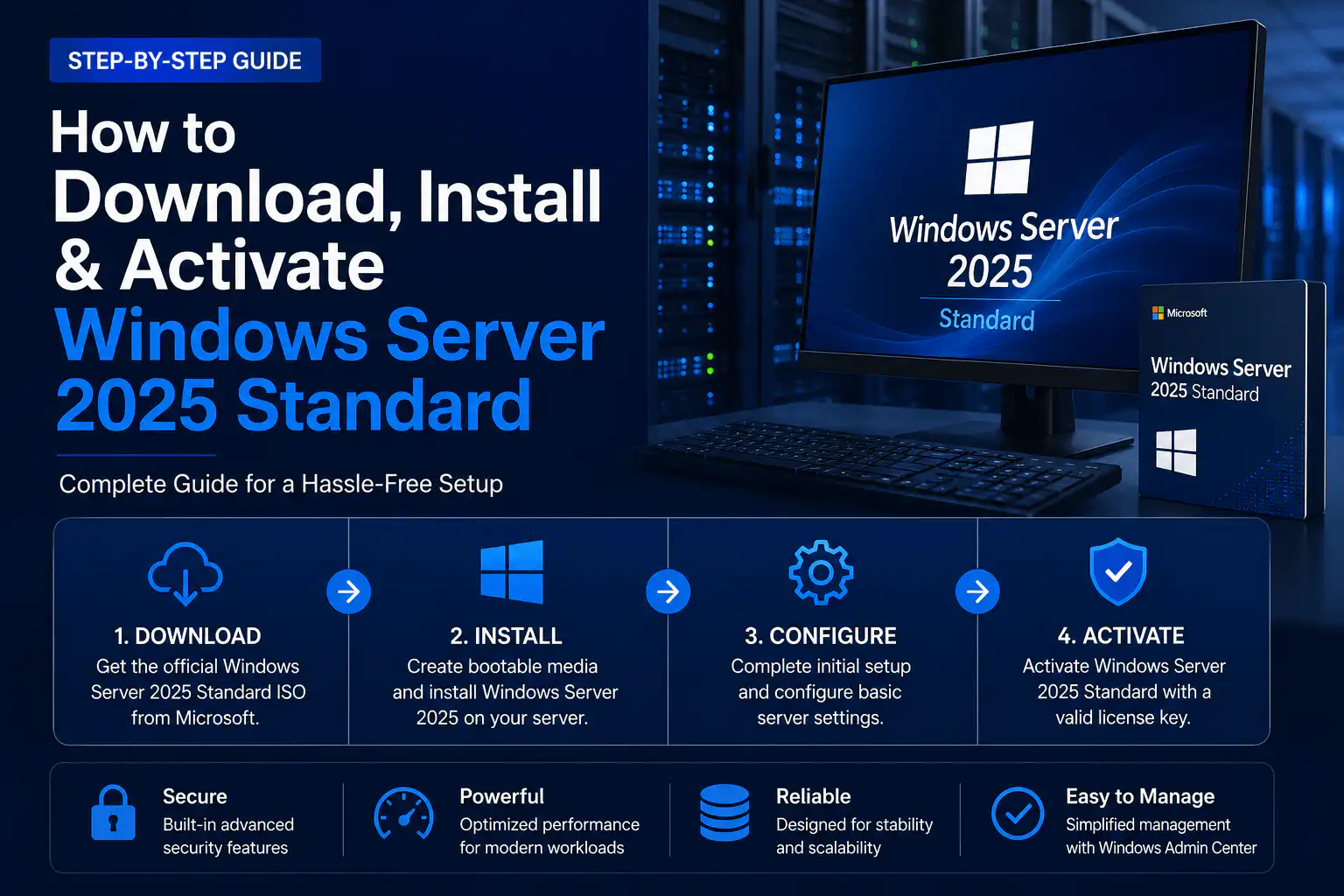
How to Download, Install & Activate Windows Server 2025 Standard: The Complete Step-by-Step Guide
Windows Server 2025 is Microsoft’s latest long-term servicing channel (LTSC) server operating system, and it’s the platform most businesses will standardise on for the rest of this decade. Whether you’re an IT administrator deploying a new domain controller, a system builder configuring a client machine, or a small business setting up your first on-premises server, this guide walks you through the entire process — downloading the official ISO, creating bootable installation media, installing Windows Server 2025 Standard, and activating it with a genuine product key.
Everything below applies to a genuine retail licence like the ones we deliver instantly at WinCDKey. If you don’t have your key yet, you can buy a Windows Server 2025 Standard key now and have it in your inbox within minutes — then follow along.
What Is Windows Server 2025 Standard?
Windows Server 2025 (build 26100) is the successor to Windows Server 2022 and shares its foundation with Windows 11 24H2. It’s a Long-Term Servicing Channel release, which means 5 years of mainstream support plus 5 years of extended support — running through October 2034. Headline improvements over previous versions include:
- Hotpatching — apply many security updates without rebooting (available via Azure Arc subscription), dramatically reducing maintenance windows
- Next-generation Active Directory — 32k database page size, improved scalability, and stronger security defaults for domain controllers
- SMB over QUIC — secure file access over the internet without a VPN, now available in Standard and Datacenter editions
- Faster NVMe storage performance — significantly higher IOPS compared to Windows Server 2022 on the same hardware
- Improved Hyper-V — GPU partitioning, hot-patchable virtualisation stack, and better live migration
- Modernised experience — Windows 11-style desktop, Winget package manager built in, Wi-Fi and Bluetooth support enabled more easily
The Standard edition is the right choice for physical servers or lightly virtualised environments — it includes rights to run up to two virtual machines (plus the host when used solely for management). If you need unlimited virtualisation or software-defined datacenter features like Storage Spaces Direct, step up to Windows Server 2025 Datacenter instead.
Windows Server 2025 System Requirements
Before downloading anything, make sure your hardware meets the minimums. Note that Windows Server 2025 tightens firmware requirements compared to older versions:
| Component | Minimum Requirement | Recommended for Production |
|---|---|---|
| Processor | 1.4 GHz 64-bit CPU, 2 cores, POPCNT & SSE4.2 instruction support | Modern multi-core Intel Xeon or AMD EPYC |
| RAM | 512 MB (Server Core) / 2 GB (Desktop Experience) | 16 GB or more depending on roles |
| Storage | 32 GB minimum system disk | NVMe SSD, 100 GB+ for roles and updates |
| Firmware | UEFI 2.3.1c with Secure Boot support | UEFI with Secure Boot enabled |
| Security | TPM 2.0 recommended (required for BitLocker and some security features) | TPM 2.0 enabled |
| Network | Gigabit Ethernet adapter | Dual NICs / 10 GbE for virtualisation hosts |
| Installation media | 8 GB+ USB flash drive or dual-layer DVD | USB 3.0 flash drive (16 GB) |
⚠️ Licensing note: Windows Server 2025 Standard uses core-based licensing. Microsoft requires a minimum of 16 core licences per server (all physical cores must be licensed, minimum 8 per processor). Client devices or users connecting to the server also require Client Access Licences (CALs) — and if users connect via Remote Desktop, you’ll additionally need RDS CALs such as our Windows Server 2025 RDS User CALs (50 pack) or RDS Device CALs (50 pack). Not sure what you need? Our Help & Support Centre can advise before you buy.
Step 1: Download the Windows Server 2025 ISO
Always download installation media directly from Microsoft to guarantee an authentic, tamper-free image:
- Go to the Microsoft Evaluation Center.
- Select Windows Server 2025, register the short form, and choose the 64-bit ISO in your preferred language.
- Download the ISO file (approximately 5–6 GB) to your working PC.
The Evaluation Center image runs as a 180-day trial — but here’s the important part: the same ISO becomes a fully licensed installation once you activate it with a genuine retail key. That means you can download today, install, and simply enter your Windows Server 2025 Standard product key during setup or after installation to convert the evaluation into a permanent, fully activated server. We explain exactly how in the activation section below.
Step 2: Create Bootable Installation Media
Skip this step if you’re installing into a virtual machine (Hyper-V, VMware, Proxmox) — you can mount the ISO directly. For physical hardware, create a bootable USB drive:
On Windows (Rufus — recommended)
- Download the free Rufus utility and insert an 8 GB+ USB drive (all data on it will be erased).
- Open Rufus, select your USB drive, and click SELECT to choose the Windows Server 2025 ISO.
- Set the partition scheme to GPT and target system to UEFI (non-CSM) — remember, Server 2025 requires UEFI.
- Click START and wait for the process to complete.
On Windows (built-in tools)
- Open Command Prompt as Administrator and run
diskpart. - Run
list disk, thenselect disk X(your USB), followed byclean,convert gpt,create partition primary,format fs=fat32 quick, andassign. - Mount the ISO (right-click > Mount) and copy all its contents to the USB drive. If
install.wimexceeds 4 GB, split it withDism /Split-Image.
On macOS or Linux
- Insert an 8 GB+ USB drive and identify it with
diskutil list(macOS) orlsblk(Linux). - Unmount the drive, then write the image with
dd, for example:sudo dd if=WindowsServer2025.iso of=/dev/sdX bs=4M status=progress.
Step 3: Install Windows Server 2025 Standard
Boot from the USB Drive
- Insert the USB into the target server and power it on.
- Press the boot menu key during startup — typically F12, F11, F10, or Esc depending on your motherboard or server vendor (Dell: F12, HPE: F11, Lenovo: F12).
- Select the USB drive as the UEFI boot device.
Run the Setup Wizard
Windows Server 2025 introduces a refreshed, Windows 11-style setup experience. Work through it as follows:
- Language and region: Choose your language, time format, and keyboard layout, then continue.
- Install Windows Server: Select the install option and confirm you agree that everything on the selected drive will be erased (fresh install).
- Product key: Enter your 25-character key from your WinCDKey delivery email, or click “I don’t have a product key” to activate later.
- Select your edition: Choose Windows Server 2025 Standard (Desktop Experience) if you want the full graphical interface — the right pick for most administrators. Choose Windows Server 2025 Standard (without Desktop Experience) for the lighter, command-line-driven Server Core installation, which has a smaller attack surface and lower resource use. Note: you cannot switch between Core and Desktop Experience after installation without reinstalling.
- Licence terms: Review and accept the Microsoft licence terms.
- Installation type: Select Custom: Install Microsoft Server Operating System only for a clean installation.
- Disk selection: Choose the target disk, delete or format existing partitions if this is a repurposed drive, and click Next.
- Install: Setup copies files and restarts automatically several times. On modern NVMe hardware, this typically takes 10–20 minutes.
Post-Installation Configuration
- Set the Administrator password: Windows Server 2025 enforces a complex password — use at least 12 characters mixing upper case, lower case, numbers, and symbols.
- Sign in: Press
Ctrl + Alt + Deleteand log in with the Administrator account. - Initial setup: Configure a static IP address, set the correct time zone, rename the server to match your naming convention, install vendor drivers, and run Windows Update.
Step 4: Activate Windows Server 2025 Standard
Once installed, activation takes just a couple of minutes. Have your genuine product key ready — if you haven’t purchased yet, get your Windows Server 2025 Standard key here with instant email delivery.
Method 1: Activate via Settings (Easiest)
- Go to Settings > System > Activation.
- Click Change product key, enter your 25-character key, and click Next.
- Confirm — Windows verifies the key with Microsoft’s servers and activates within seconds. An internet connection is required.
Method 2: Activate via Command Line (slmgr)
Ideal for Server Core installations or remote administration:
- Open Command Prompt or PowerShell as Administrator.
- Install the key:
slmgr /ipk XXXXX-XXXXX-XXXXX-XXXXX-XXXXX - Activate online:
slmgr /ato - Verify activation status:
slmgr /xpr— you should see “The machine is permanently activated.”
Method 3: Convert the Evaluation Edition to Full (DISM)
If you installed the 180-day evaluation from the Microsoft Evaluation Center, convert it to the fully licensed Standard edition without reinstalling:
- Open Command Prompt as Administrator.
- Run:
DISM /online /Set-Edition:ServerStandard /AcceptEula /ProductKey:XXXXX-XXXXX-XXXXX-XXXXX-XXXXX - Press Enter and allow the server to restart. Your evaluation is now a permanent, activated installation.
Method 4: Phone Activation (No Internet Required)
Running an air-gapped or offline server? You can activate by telephone instead. Run slui 4, select your region, and exchange the installation ID for a Confirmation ID. To make this even faster, use our free Get Confirmation ID (CID) Tool — enter your installation ID online from any device and receive your Confirmation ID instantly, no phone call required. Full walkthroughs for every activation method are in our Installation & Activation Guide.
Step 5: Post-Activation Setup Recommendations
- Add server roles and features: Open Server Manager (or use PowerShell’s
Install-WindowsFeature) to deploy the roles your environment needs — Active Directory Domain Services, DNS, DHCP, File and Storage Services, Hyper-V, or IIS. - Configure CALs: Assign your user or device CALs, and if you’re publishing remote desktops, install the RD Licensing role and apply your RDS 2025 CALs.
- Harden security: Enable Windows Defender Firewall profiles, turn on BitLocker for data volumes (TPM 2.0 makes this seamless), configure Microsoft Defender for endpoint protection, and enforce SMB signing — enabled by default in Server 2025.
- Set up backups: Configure Windows Server Backup or your third-party solution before the server enters production, and test a restore.
- Schedule updates: Establish a monthly patching window, or explore hotpatching via Azure Arc to cut reboots to just a few per year.
Windows Server 2025 vs Older Versions: Should You Upgrade?
| Version | End of Mainstream Support | End of Extended Support | Best For |
|---|---|---|---|
| Windows Server 2025 | October 2029 | October 2034 | New deployments — longest support runway |
| Windows Server 2022 Standard | October 2026 | October 2031 | Environments standardised on 2022 tooling |
| Windows Server 2019 Standard | Ended January 2024 | January 2029 | Legacy application compatibility |
| Windows Server 2016 | Ended January 2022 | January 2027 | Legacy only — plan migration now |
If you’re building anything new in 2026, Windows Server 2025 is the clear choice — you get eight more years of support than 2019 and the full modern security stack. Running SQL workloads on top? Pair your server with a SQL Server 2025 Standard licence or the proven SQL Server 2022 Standard, and browse the complete Microsoft Server range for every version and CAL type.
Troubleshooting Common Installation & Activation Issues
“This PC can’t run Windows Server 2025” during setup
Your firmware is likely set to Legacy/CSM boot, or your CPU lacks the required POPCNT/SSE4.2 instructions. Enter your BIOS/UEFI settings, disable CSM, enable UEFI boot with Secure Boot, and recreate your USB with a GPT partition scheme.
Error 0xC004F074 — “The Software Licensing Service reported that the product could not be activated”
This usually indicates the system attempted KMS activation. Force retail activation by reinstalling your key with slmgr /ipk followed by slmgr /ato. If it persists, use phone activation via our CID Tool.
Error 0x80070490 or activation server unreachable
Check that the server has working DNS and internet access, confirm the date and time are correct, then retry slmgr /ato. Offline environments should use phone activation instead.
Key rejected during setup
Double-check for typing errors (the characters 0/O and 8/B are common culprits) — better yet, copy and paste the key directly from your delivery email. Still stuck? Contact us via the Help & Support Centre and our team will resolve it, or review our Refunds & Returns policy for complete peace of mind.
Frequently Asked Questions
Is Windows Server 2025 a free upgrade from 2022 or 2019?
No. Windows Server 2025 requires a new licence, just like every previous major release. In-place upgrades are supported from Windows Server 2019 and 2022, but you’ll need a valid 2025 product key to activate.
Can I download Windows Server 2025 for free?
Yes — Microsoft offers a free 180-day evaluation ISO through the Evaluation Center. When the trial ends (or any time before), convert it to a permanent installation using the DISM command above with a genuine Windows Server 2025 Standard key. No reinstall needed.
Is a Windows Server 2025 key a one-time purchase?
Yes. A retail Windows Server 2025 Standard licence is a one-time payment for a perpetual licence — no subscription, no renewal fees, with security updates through October 2034.
How many virtual machines can I run on Standard edition?
Standard edition licensing covers up to two virtual OSE (operating system environments) per fully licensed server, plus the host when it runs only the Hyper-V role and management tools. Need more VMs? Windows Server 2025 Datacenter allows unlimited virtual machines.
Do I need CALs with Windows Server 2025 Standard?
Yes. Every user or device that accesses the server requires a Client Access Licence, and Remote Desktop users additionally need RDS CALs. We stock RDS User CAL 50-packs and RDS Device CAL 50-packs for Server 2025, plus Device CALs for Server 2022.
Can I install Windows Server 2025 in a virtual machine for testing?
Absolutely. Windows Server 2025 runs perfectly in Hyper-V, VMware Workstation/ESXi, and Proxmox. Mount the ISO directly — no USB needed — and allocate at least 2 vCPUs, 4 GB RAM, and 40 GB of disk for a comfortable lab experience.
Should I choose Desktop Experience or Server Core?
Choose Desktop Experience if you prefer a familiar GUI or run applications that require one. Choose Server Core for production infrastructure roles (AD DS, DNS, DHCP, Hyper-V, file servers) — it uses fewer resources, needs fewer patches, and presents a smaller attack surface. Both are included on the same ISO and use the same licence.
Why Buy Your Windows Server 2025 Key from WinCDKey?
WinCDKey is a UK-registered digital software retailer and verified Microsoft Partner, trusted by 400,000+ regular customers with over 600,000 orders delivered worldwide.
- ✅ 100% genuine licences — sourced through our authorised global distributor
- ✅ Instant email delivery — your key and download instructions arrive within minutes
- ✅ Massive savings vs RRP — enterprise-grade licensing at a fraction of retail pricing
- ✅ 2,500+ verified reviews on Trustpilot
- ✅ Free lifetime activation support — including our CID phone activation tool
- ✅ Volume pricing for IT teams — via B2B & Wholesale and Enterprise Licensing
- ✅ Track every order — with our Order Tracking page
Get Your Server Running Today
From ISO download to a fully activated production server, the entire Windows Server 2025 Standard setup takes under an hour on modern hardware. Grab your genuine Windows Server 2025 Standard key, add the RDS CALs your team needs, and follow the steps above — and if you hit a snag at any point, our support team and free Installation & Activation Guide are here to get you across the line.


