🎃 HALLOWEEN SALE: 50% OFF best-selling Windows, Office, Autodesk & Server keys — use code GHOST50 Shop the sale →


How to Transfer Microsoft Office to a New Computer

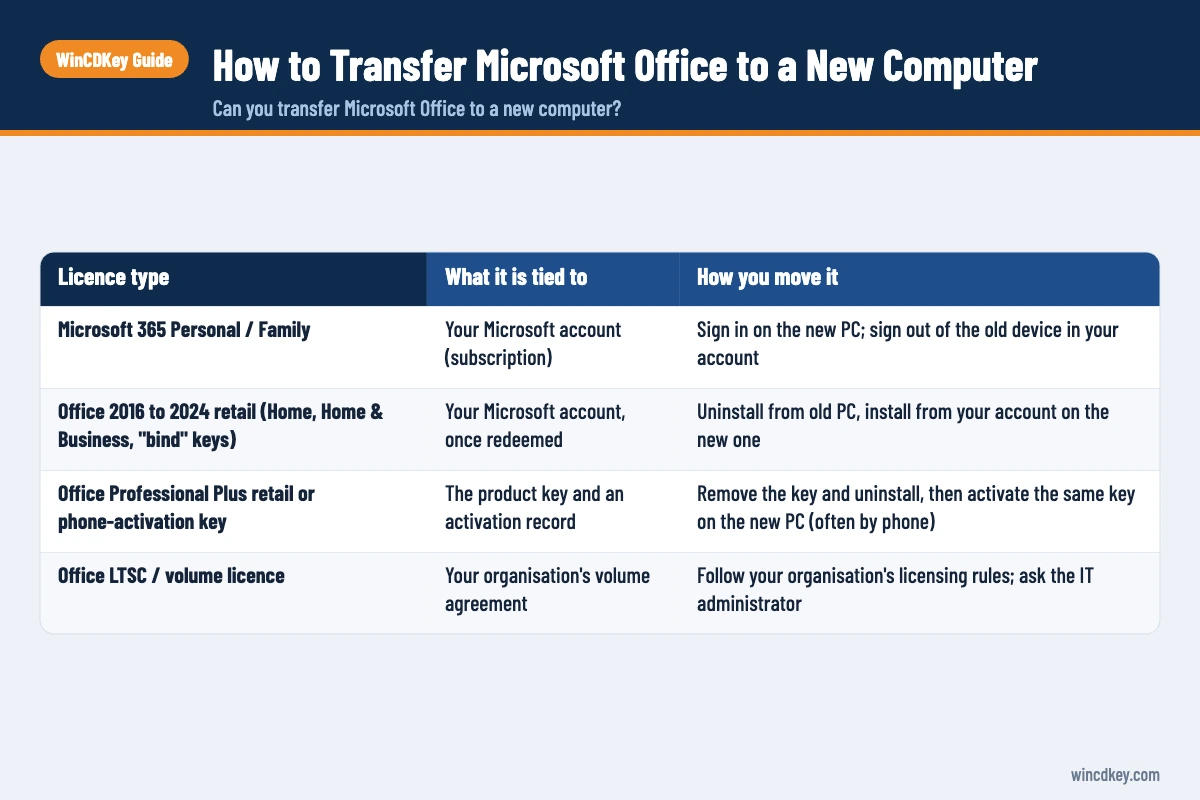
To transfer Office to a new computer, first work out how your licence activates. Account-linked versions, such as retail Office 2016 to 2024 and Microsoft 365, move by signing in on the new PC and removing Office from the old one. Key-only and phone-activation licences move by uninstalling from the old PC and activating the same key on the new one.
Microsoft allows one-time-purchase Office 2024 and 2021 to be moved to another computer you own, but not more than once every 90 days unless the old hardware failed. The steps below cover each licence type, the Mac question, and the activation errors that usually appear on the new machine.
Key takeaways
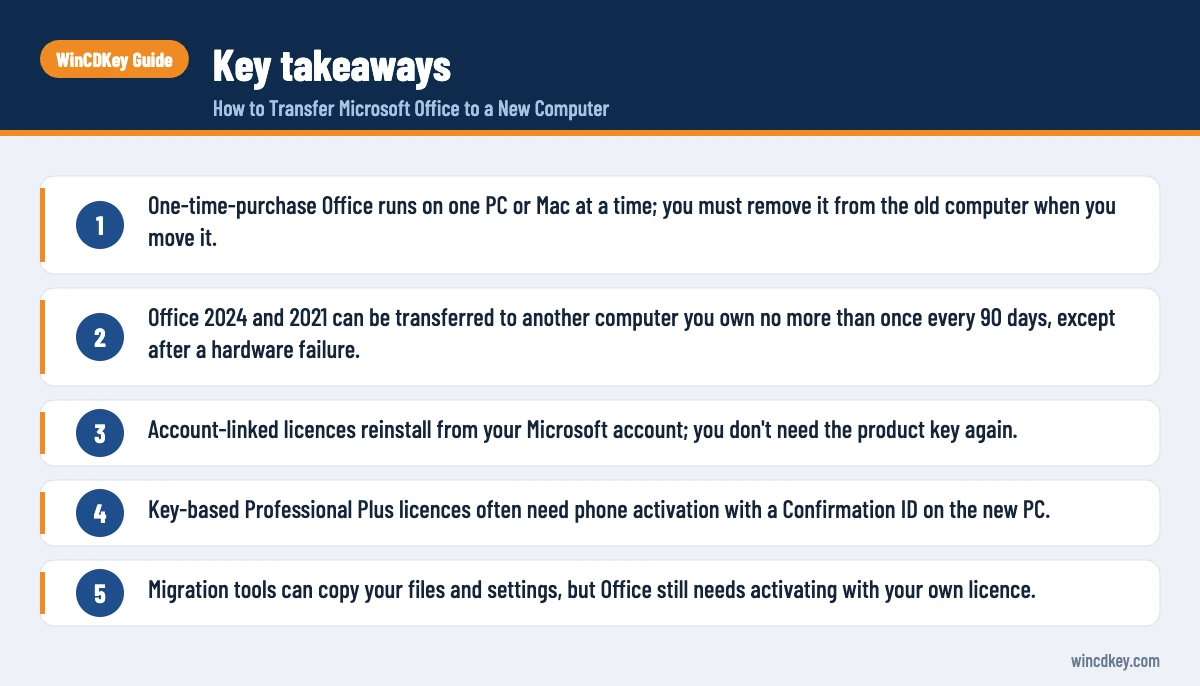
- One-time-purchase Office runs on one PC or Mac at a time; you must remove it from the old computer when you move it.
- Office 2024 and 2021 can be transferred to another computer you own no more than once every 90 days, except after a hardware failure.
- Account-linked licences reinstall from your Microsoft account; you don’t need the product key again.
- Key-based Professional Plus licences often need phone activation with a Confirmation ID on the new PC.
- Migration tools can copy your files and settings, but Office still needs activating with your own licence.
In this guide
- Can you transfer Microsoft Office to a new computer?
- How do you check which type of Office licence you have?
- How do you transfer Office linked to a Microsoft account?
- How do you move a key-based or phone-activation licence?
- Can you still transfer Office 2021 and older versions?
- Can you move Office from a Windows PC to a Mac?
- Why won’t Office activate on my new computer?
- Frequently asked questions
- The bottom line
- Useful links
Can you transfer Microsoft Office to a new computer?
Yes, in most cases. Microsoft’s guidance on transferring an Office licence says one-time purchases such as Office Home & Business can be moved to another computer you own, provided you remove Office from the old one. For Office 2024 and 2021, you can do this once every 90 days, sooner if the hardware failed.
How you move it depends on what the licence is tied to. Some licences live in your Microsoft account, some are tied only to the product key, and subscriptions follow the person rather than the device.
| Licence type | What it is tied to | How you move it |
|---|---|---|
| Microsoft 365 Personal / Family | Your Microsoft account (subscription) | Sign in on the new PC; sign out of the old device in your account |
| Office 2016 to 2024 retail (Home, Home & Business, “bind” keys) | Your Microsoft account, once redeemed | Uninstall from old PC, install from your account on the new one |
| Office Professional Plus retail or phone-activation key | The product key and an activation record | Remove the key and uninstall, then activate the same key on the new PC (often by phone) |
| Office LTSC / volume licence | Your organisation’s volume agreement | Follow your organisation’s licensing rules; ask the IT administrator |
Transferring to another person is a separate matter. Microsoft notes that users in the European Economic Area can transfer a licence to someone else by contacting Microsoft support and verifying ownership.
How do you check which type of Office licence you have?
Open Word, go to File > Account and read the Product Information panel. If it says “Belongs to” followed by an email address, the licence is linked to a Microsoft account. If it only shows a product name such as Professional Plus, it is key-based, and you’ll need the product key to move it.
Two further checks help when the panel isn’t clear:
- Your Microsoft account. Sign in at Microsoft’s Services & subscriptions page. Any account-linked Office purchase appears there with an Install option.
- The ospp.vbs script. On key-based installs, an elevated Command Prompt in the Office folder running
cscript ospp.vbs /dstatusshows the licence channel (for example RETAIL or MAK) and the last five characters of the installed key.
Keep your order email with the full 25-character key before you start. A frequent support ticket is a customer who wiped the old laptop before checking whether their licence needed the key again.
How do you transfer Office linked to a Microsoft account?
Uninstall Office from the old computer, sign in to your Microsoft account on the new one, and install Office from the Services & subscriptions page. Office activates automatically when you open an app and sign in with the same account. You don’t need to re-enter the product key.
- On the old PC, open Settings > Apps > Installed apps, select Microsoft Office (or Microsoft 365) and choose Uninstall. If the old PC is dead or wiped, skip this step.
- On the new PC, remove any pre-installed Microsoft 365 trial so it can’t clash with your licence.
- Sign in at account.microsoft.com/services with the account that owns the licence.
- Find your Office product and select Install, then run the downloaded installer.
- Open Word or Excel and sign in with the same Microsoft account when prompted. Check File > Account shows the product as activated.
Microsoft 365 Personal and Family work the same way, except you don’t need to uninstall first. You can install on as many devices as you like, with up to five signed in at once, and you can sign out of an old device from your account.
How do you move a key-based or phone-activation licence?
Remove the key from the old installation, uninstall Office, then install the same edition on the new computer and enter the key. Because the key already has an activation on record, online activation may fail, and you’ll often finish with telephone activation using a Confirmation ID.
- On the old PC, open Command Prompt as administrator and change to the Office folder, usually
C:\Program Files\Microsoft Office\Office16. - Run
cscript ospp.vbs /dstatusand note the last five characters of the key. - Run
cscript ospp.vbs /unpkey:XXXXX, using those five characters, to remove the key. Then uninstall Office. - On the new PC, install the same edition from official media. Our Office 2024 Pro Plus install guide covers the download.
- Enter your product key. If online activation is refused, choose telephone activation and complete it with a Confirmation ID.
The Confirmation ID step is explained fully in our guide to what a Confirmation ID is and how phone activation works. If the key was bought from WinCDKey, you can generate the code on our Get Confirmation ID page with your order number. Microsoft’s article on activating Office on a different device also points to telephone activation for moved installations.
Can you still transfer Office 2021 and older versions?
Yes. The licence terms still allow a transfer, and the software keeps working. The catch is support: Office 2021 reached end of support on 13 October 2026, and Office 2019 and 2016 ended on 14 October 2025, so none of them receive security updates any more. Moving an unsupported version to a new PC carries its risks with it.
A new computer is a natural moment to decide whether to keep the old version or move to a supported one. Office 2024 is supported until 9 October 2029 under Microsoft’s lifecycle policy. Our article on Office 2021 end of support sets out what stops and what keeps working.
Setting up a new PC with a supported Office?
Office 2024 Home & Business for PC/Mac links to your Microsoft account, which makes future moves straightforward. If you need the full Professional Plus suite, including Access, on Windows, see Office 2024 Professional Plus for Windows.
Can you move Office from a Windows PC to a Mac?
Only with editions licensed for both platforms. Office Home 2024 and Office Home & Business 2024 can be installed on one PC or one Mac, so you can move them from Windows to macOS by uninstalling on the PC and installing from your Microsoft account on the Mac. Professional Plus and LTSC editions are Windows-only.
The same account-based steps apply on the Mac: sign in at your Microsoft account, download the Mac installer and sign in inside Word. Moving the other way, from Mac to PC, works on the same terms. Before you buy, check that the product listing says PC/Mac rather than PC only.
Why won’t Office activate on my new computer?
The usual causes are an old installation that was never removed, a pre-installed trial on the new PC, signing in with a different Microsoft account, or a key whose online activations are used up. Each has a straightforward fix, and none of them means the licence is lost.
- “Maximum number of activations” or “already installed on another device”. The previous installation still counts. Uninstall it, then use telephone activation on the new PC.
- Wrong account. The licence appears only under the Microsoft account that redeemed it. Check File > Account for the signed-in email.
- Trial conflicts. New laptops often ship with a Microsoft 365 trial. Remove it, or use our guide to completely uninstall Office before reinstalling.
- Edition mismatch. A Professional Plus key won’t activate a Home & Business installation. Install the edition your key belongs to.
- Moved twice within 90 days. Microsoft’s terms limit transfers of Office 2024 and 2021 to once every 90 days unless the hardware failed.
Migration software such as EaseUS Todo PCTrans is useful for moving documents, settings and many applications between PCs. Treat Office as the exception: reinstall and activate it with your own licence on the new machine. If you’re also moving Windows, see our sibling guide on transferring a Windows licence to a new PC. Still stuck? Our Help & Support Centre can check the licence for orders placed with us.
Frequently asked questions
How many times can I transfer Office 2024 to a new computer?
Microsoft doesn’t publish an overall limit, but its terms say you can transfer Office 2024 or 2021 to another computer you own no more than once every 90 days. The exception is hardware failure, which allows an earlier move. Each time, Office must be removed from the previous computer.
Do I need my product key to move Office to a new PC?
Not if the licence is linked to your Microsoft account; you reinstall from account.microsoft.com and sign in. Key-based licences, such as most Professional Plus keys, do need the original 25-character key, so find your order email before you uninstall anything from the old computer.
Can I transfer Office from a dead or broken computer?
Yes. If the old PC has failed, you can’t uninstall from it, and Microsoft’s terms allow an earlier transfer after hardware failure. Account-linked Office installs straight from your account. Key-based licences usually need telephone activation with a Confirmation ID because the old activation is still on record.
Can I use one Office licence on two computers?
Not with one-time-purchase Office. Home, Home & Business and Professional Plus retail licences cover one PC or Mac at a time. If you need Office on several devices at once, Microsoft 365 Personal or Family is designed for that, with up to five devices signed in simultaneously.
Will my Outlook emails and Office settings move with the licence?
No. Transferring the licence only lets Office run on the new PC. Emails stored in Outlook data files, templates, custom dictionaries and documents must be copied separately, either manually, through OneDrive, or with migration software. Cloud email accounts simply resync once you sign in again.
Can I transfer an OEM version of Office that came with my laptop?
Check the licence terms first. Office that was pre-installed under some manufacturer agreements is tied to the original device and isn’t transferable. If it was redeemed to your Microsoft account as a standard retail product, it can usually be moved on the same terms as a boxed copy.
The bottom line
Moving Office is simple once you know what your licence is tied to: account-linked copies reinstall from your Microsoft account, while key-based copies need the key removed, reinstalled and, often, phone-activated. Respect the 90-day rule and remove the old installation. If you’re choosing a new edition for the new PC, our Office 2024 range lists the PC and PC/Mac options.
Useful links
| Resource | Why it helps |
|---|---|
| Transfer your Office licence (Microsoft) | Microsoft’s 90-day rule and EEA transfer guidance |
| Activate Office on a different device (Microsoft) | Why moved installations may need phone activation |
| Microsoft Services & subscriptions | Reinstall account-linked Office on the new PC |
| What is a Confirmation ID? | Phone activation explained for key-based licences |
| WinCDKey Get Confirmation ID | Generate a CID for WinCDKey phone-activation keys |
| Completely uninstall Office | Clear trials and leftovers on the new PC |
| Office 2021 end of support | Decide whether to move or upgrade an older version |
| Help & Support Centre | Licence checks for WinCDKey orders |


