🎃 HALLOWEEN SALE: 50% OFF best-selling Windows, Office, Autodesk & Server keys — use code GHOST50 Shop the sale →


New Outlook vs Classic Outlook: What’s Changing and Which to Use

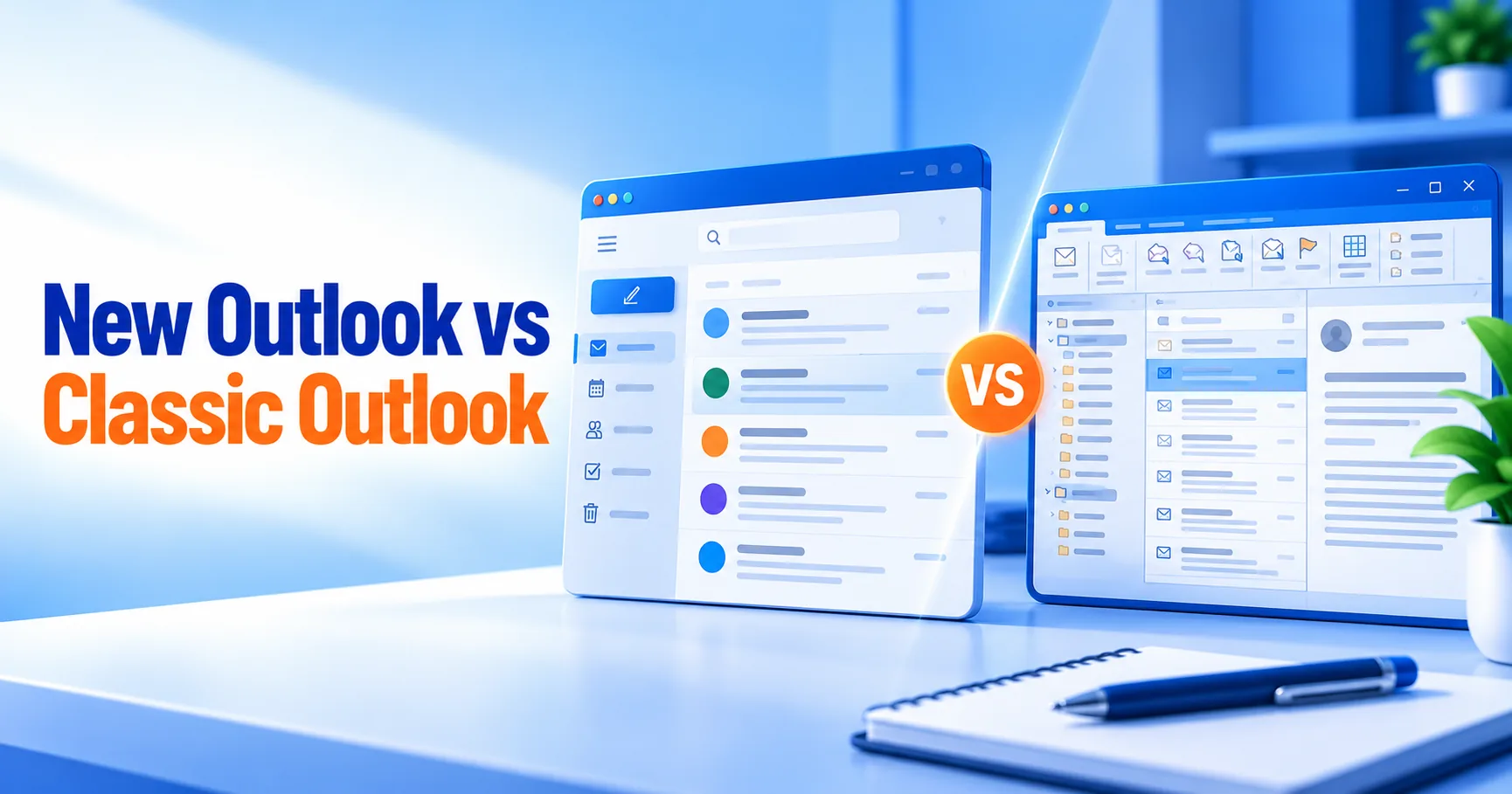
The short answer to new Outlook vs classic Outlook: new Outlook is Microsoft’s free, web-based mail app for Windows and the direction of travel, while classic Outlook is the full desktop program with PST files, COM add-ins and VBA macros. Classic Outlook isn’t disappearing soon; Microsoft says existing installations stay supported until at least 2029.
Most home users will be fine on new Outlook today. If you depend on local data files, business add-ins or a perpetual Office licence, classic Outlook is still the safer choice, and this guide explains why and what the timeline looks like.
Key takeaways
- New Outlook for Windows is free with Windows and replaced the Mail and Calendar apps, whose support ended on 31 December 2024.
- Classic Outlook comes with Microsoft 365, Outlook 2024, Office Home & Business 2024 and Professional Plus; it is not included in Office Home 2024.
- Microsoft moved the enterprise “opt-out” stage, when new Outlook becomes the default, to March 2027.
- New Outlook still doesn’t support COM add-ins or VBA macros, and PST and offline support are only partial.
- Outlook 2024 is supported until 9 October 2029.
| Feature | New Outlook for Windows | Classic Outlook |
|---|---|---|
| Cost | Free with Windows 10/11 | Needs Microsoft 365 or a perpetual Office/Outlook licence |
| Gmail, Yahoo, iCloud, IMAP, POP | Supported | Supported |
| On-premises Exchange | Partial (via IMAP) | Full |
| PST data files | Partial (import, export, open) | Full |
| Offline working | Partial | Full |
| COM add-ins | Not supported | Supported |
| VBA macros | Not supported | Supported |
| Web add-ins | Supported | Supported |
| Multiple mail profiles | Listed as upcoming | Supported |
| Copilot features | Yes, with a qualifying Microsoft 365 plan | Some, with a qualifying Microsoft 365 plan |
Source: Microsoft’s feature comparison between new Outlook and classic Outlook, last updated September 2026. Features change monthly, so check it before making a decision for a team.
In this guide
- New Outlook vs classic Outlook: what is the difference?
- Is classic Outlook going away?
- What can classic Outlook do that new Outlook can’t?
- Which Outlook should you use?
- How do you switch back to classic Outlook?
- Which licences include classic Outlook?
- Frequently asked questions
- The bottom line
- Useful links
New Outlook vs classic Outlook: what is the difference?
New Outlook is a lighter app built on the same code as Outlook on the web, delivered free with Windows and updated continuously. Classic Outlook is the traditional Win32 desktop program that has shipped with Office for decades. They connect to the same mailboxes, but classic Outlook stores and processes far more locally and supports deeper customisation.
Because new Outlook is web-based, features arrive at the same time as Outlook on the web, and it looks and behaves the same on any Windows PC. That is good for consistency but explains its gaps: anything that relies on running code inside the desktop program, such as COM add-ins and macros, has no equivalent.
Classic Outlook is the version you get with Outlook 2024 for Windows or a full Office suite. New Outlook is what Windows 11 opens when you click the Outlook icon on a fresh install.
Is classic Outlook going away?
Not yet. Microsoft describes a three-stage migration: opt-in, opt-out and cutover. New Outlook is still in the opt-in stage, the enterprise opt-out stage has been pushed back to March 2027, and Microsoft promises at least 12 months’ notice before each stage. Existing classic Outlook installations stay supported until at least 2029.
The timeline so far
- August 2024: new Outlook for Windows reached general availability.
- 31 December 2024: support ended for the Windows Mail, Calendar and People apps, which new Outlook replaced, as Microsoft explains in Outlook for Windows: the future of Mail, Calendar and People.
- Early 2025: new deployments of Microsoft 365 desktop apps began including new Outlook by default, from Version 2502, alongside classic Outlook.
- March 2026: Microsoft moved the enterprise opt-out stage from April 2026 to March 2027, giving organisations a further year to prepare.
- Cutover: no date yet. In this stage users can’t switch back, and Microsoft says it will give at least 12 months’ notice.
The stages are set out on Microsoft Learn’s page on the stages of migration to new Outlook for Windows, which includes the “at least 2029” commitment for perpetual and subscription installs.
Perpetual Outlook has its own lifecycle. Outlook 2024 and Outlook LTSC 2024 retire on 9 October 2029, while Outlook 2021 reached end of support on 13 October 2026, as covered in our article on Office 2021 end of support.
What can classic Outlook do that new Outlook can’t?
Classic Outlook still leads on local data, extensibility and offline use. It fully supports PST files, COM add-ins, VBA macros, custom forms, multiple mail profiles, files on network shares and full offline working. New Outlook covers some of these partially and doesn’t support COM add-ins, macros or custom forms at all.
Gaps that matter in practice
- PST archives. New Outlook can now import and export PST content, but Microsoft lists support as partial. If you keep years of mail in local archives, test before switching.
- COM add-ins. Many CRM, accounting, e-signature and document-management tools plug into classic Outlook as COM add-ins. Unless the vendor offers a web add-in, it won’t appear in new Outlook.
- Macros and rules that run code. VBA isn’t supported. Server-side rules still work; scripts that run on your PC don’t.
- Offline access. Partial support means you may not get the full offline mailbox experience on a laptop with patchy connectivity.
- On-premises Exchange. New Outlook connects only through IMAP, with the limits that brings.
Where new Outlook is ahead
New Outlook has features classic lacks, including following meetings without accepting, showing declined meetings on your calendar, editing “this and following” events in a series, and in-person event options. It also starts faster on modest hardware and gets new features monthly.
Which Outlook should you use?
Use new Outlook if you mainly need cloud email, such as Outlook.com, Gmail or a Microsoft 365 work mailbox, and no desktop add-ins. Stay on classic Outlook if you rely on PST archives, COM add-ins, macros, shared mail profiles or a perpetual Office licence you want to get full value from.
| Your situation | Suggested choice |
|---|---|
| Home user with Outlook.com or Gmail | New Outlook (free) |
| Small business on Microsoft 365, no add-ins | New Outlook, keep classic available |
| Accounting, CRM or e-signature add-in in Outlook | Classic Outlook until the vendor supports new Outlook |
| Large PST archives or strict offline needs | Classic Outlook |
| Bought Office Home & Business 2024 or Outlook 2024 | Classic Outlook (it’s what you paid for) |
A pattern we see in support tickets is people who bought a perpetual Office suite and never realised they were using the free new Outlook instead of the classic app included in their licence. If that sounds familiar, the next section shows how to switch.
How do you switch back to classic Outlook?
If classic Outlook is installed, turn off the “New Outlook” toggle in the top-right corner of new Outlook and classic Outlook opens. If it isn’t installed, you need a licence that includes it, such as Microsoft 365 or Outlook 2024, and then you can install it and set it as the default mail app.
- Open new Outlook and find the New Outlook toggle at the top right of the window.
- Switch the toggle off. Outlook may ask for optional feedback; you can skip it.
- Classic Outlook opens. If you see a message that it isn’t available, install it from your Microsoft account or Office installer.
- To make it stick, open Settings > Apps > Default apps in Windows and set Outlook (classic) as the default for email links.
- Pin classic Outlook to the taskbar and unpin the new Outlook icon so you open the right app each time.
Both apps can run side by side, so you can keep classic Outlook for add-ins and use new Outlook for a quick look at a second mailbox.
Which licences include classic Outlook?
Classic Outlook is included in Microsoft 365 Personal, Family and business plans with desktop apps, in standalone Outlook 2024, and in Office Home & Business 2024, Professional Plus 2024 and Office LTSC 2024. It is not included in Office Home 2024, and Windows on its own only gives you new Outlook.
If you prefer a subscription, Microsoft 365 Personal includes classic Outlook alongside the other desktop apps and 1 TB of OneDrive storage.
The Home versus Home & Business split catches many buyers out. Our sibling guide on Office Home 2024 vs Home & Business 2024 covers that choice in detail, and Microsoft 365 vs Office 2024 compares subscription and one-time purchase.
Need classic Outlook without a subscription?
Outlook 2024 for Windows is a one-time purchase supported until October 2029. If you also want Word, Excel and PowerPoint, Office 2024 Home & Business includes classic Outlook plus commercial use rights.
Frequently asked questions
Is new Outlook free?
Yes. New Outlook for Windows is included free with Windows 10 and Windows 11 and works with Outlook.com, Gmail, Yahoo, iCloud and other IMAP or POP accounts. Some features, including Copilot and certain business capabilities, need a qualifying Microsoft 365 subscription or a work or school account.
When will classic Outlook stop working?
No end date has been announced. Microsoft says existing installations of classic Outlook, under both perpetual and subscription licences, will be supported until at least 2029. Separately, Outlook 2024 retires on 9 October 2029 under Microsoft’s lifecycle policy, and Microsoft promises at least 12 months’ notice before cutover.
Can I still open PST files in new Outlook?
Partly. Microsoft lists PST support in new Outlook as partially available: you can open PST files and import mail, calendar, contacts and tasks, with broader export options added during 2026. Some classic Outlook capabilities remain unavailable, so heavy archive users should test before relying on it.
Why did Outlook change on my computer?
Windows updates install new Outlook as the default mail app, and newer Microsoft 365 installations include it alongside classic Outlook. Clicking a new Outlook icon or an email link can therefore open the new app. Your mailbox hasn’t changed; only the program reading it has.
Does Office Home 2024 include Outlook?
No. Office Home 2024 includes Word, Excel, PowerPoint and OneNote only. You can still use the free new Outlook with it, but classic Outlook requires Office Home & Business 2024, Outlook 2024, Professional Plus or a Microsoft 365 plan with desktop apps.
Is new Outlook better than classic Outlook?
It depends on how you use email. New Outlook is faster to start, free and gains features monthly, which suits cloud mailboxes. Classic Outlook remains more capable for PST archives, add-ins, macros and offline work. Many people run both and choose per task.
The bottom line
New Outlook is the future, but classic Outlook has a supported life well into 2029 and still does things the new app can’t. Choose based on add-ins, archives and offline needs rather than the icon Windows shows you. If you need the classic app, browse our Outlook licences.
Useful links
| Resource | Why it helps |
|---|---|
| Feature comparison (Microsoft Support) | Microsoft’s live list of what each app supports |
| Stages of migration (Microsoft Learn) | Opt-in, opt-out and cutover, plus the 2029 commitment |
| The future of Mail, Calendar and People (Microsoft) | Why the old Windows Mail app stopped working |
| Outlook 2024 for Windows | One-time-purchase classic Outlook |
| Microsoft 365 Personal | Subscription route to classic Outlook |
| Office 2024 Home & Business | Office suite with classic Outlook and commercial rights |
| Office Home vs Home & Business 2024 | Which edition includes Outlook |
| Microsoft 365 vs Office 2024 | Subscription or one-time purchase |
| Office 2021 end of support | What ended for Outlook 2021 in October 2026 |
| Outlook licences | All standalone Outlook versions |


