🎃 HALLOWEEN SALE: 50% OFF best-selling Windows, Office, Autodesk & Server keys — use code GHOST50 Shop the sale →


How to Speed Up Windows 11: 15 Fixes That Actually Work


To speed up Windows 11, start with the fixes that matter most: restart and install updates, switch off unnecessary startup apps, free disk space with Storage Sense, and set the power mode to Best performance. If the PC still drags, check for malware, repair system files, and consider an SSD or more RAM.
Below are 15 fixes in the order we’d try them, from two-minute settings changes to hardware upgrades, along with the popular “tweaks” that waste your time or weaken security.
Key takeaways
- Startup apps and a nearly full system drive cause most “Windows 11 slow” complaints.
- Every fix here uses tools built into Windows 11; no paid software is required.
- Run
sfc /scannowand a malware scan before blaming hardware. - A hard drive (HDD) system disk is the single biggest bottleneck; moving to an SSD transforms older PCs.
- Skip registry cleaners and never disable Microsoft Defender to gain speed.
In this guide
- Why is Windows 11 so slow?
- What are the quickest ways to speed up Windows 11? (Fixes 1 to 5)
- How do you free up space and speed up storage? (Fixes 6 to 9)
- Which Windows 11 settings improve performance? (Fixes 10 to 12)
- How do you fix a Windows 11 PC that is still slow? (Fixes 13 to 15)
- Will more RAM or an SSD speed up Windows 11?
- Frequently asked questions
- The bottom line
- Useful links
Why is Windows 11 so slow?
Windows 11 usually slows down because too many apps launch at startup, the system drive is almost full, an update or background sync is running, or the PC is still on a mechanical hard drive. Less often the cause is malware, corrupted system files or simply too little RAM for the way you work.
Matching the symptom to the cause saves time. Open Task Manager with Ctrl + Shift + Esc and look at the Processes tab, sorted by CPU, Memory and Disk, before changing anything.
| Symptom | Likely cause | Try first |
|---|---|---|
| Slow to reach a usable desktop | Too many startup apps | Fix 2 |
| Disk at 100% in Task Manager | HDD system drive, indexing, updates or sync | Fixes 7, 8, 9 |
| Memory constantly above 85% | Too little RAM for your workload, browser tabs | Fixes 3 and 12, then RAM upgrade |
| Fans loud, CPU high with nothing open | Background process or malware | Fixes 3 and 13 |
| Slow after an update, apps crashing | Corrupted system files or driver | Fixes 1 and 14 |
| Everything sluggish, laptop on battery | Power mode set to save energy | Fix 4 |
What are the quickest ways to speed up Windows 11? (Fixes 1 to 5)
The five quickest fixes are a full restart with updates installed, disabling unnecessary startup apps, closing whatever is hogging resources in Task Manager, switching the power mode to Best performance, and uninstalling software you no longer use. Together they take about 15 minutes and resolve most everyday slowness.
1. Restart and install updates
Fast Startup means “Shut down” doesn’t fully reset Windows, so use Start > Power > Restart. Then open Settings > Windows Update > Check for updates, and look under Advanced options > Optional updates for driver updates. Windows 11 version 26H2 is the current release, and our Windows 11 26H2 features overview covers what it changes.
2. Disable unnecessary startup apps
Go to Settings > Apps > Startup and switch off anything you don’t need the moment you sign in, such as game launchers, chat apps and updaters for software you rarely use. Keep security software, touchpad and audio drivers on. The “Startup impact” label helps you prioritise.
3. Find resource hogs in Task Manager
In Task Manager, sort by CPU, Memory and Disk. Browser tabs, sync clients and stuck installers are common culprits. Right-click a process and choose End task only if you recognise it, and search the name online before ending anything unfamiliar.
4. Change the power mode
Open Settings > System > Power & battery and set Power mode to Best performance while plugged in. On laptops this uses more battery and runs warmer, so switch back to Balanced when travelling.
5. Uninstall software you don’t use
Go to Settings > Apps > Installed apps, sort by size or install date, and remove trial software, duplicate utilities and pre-installed extras. Fewer programs means fewer background services and startup entries.
How do you free up space and speed up storage? (Fixes 6 to 9)
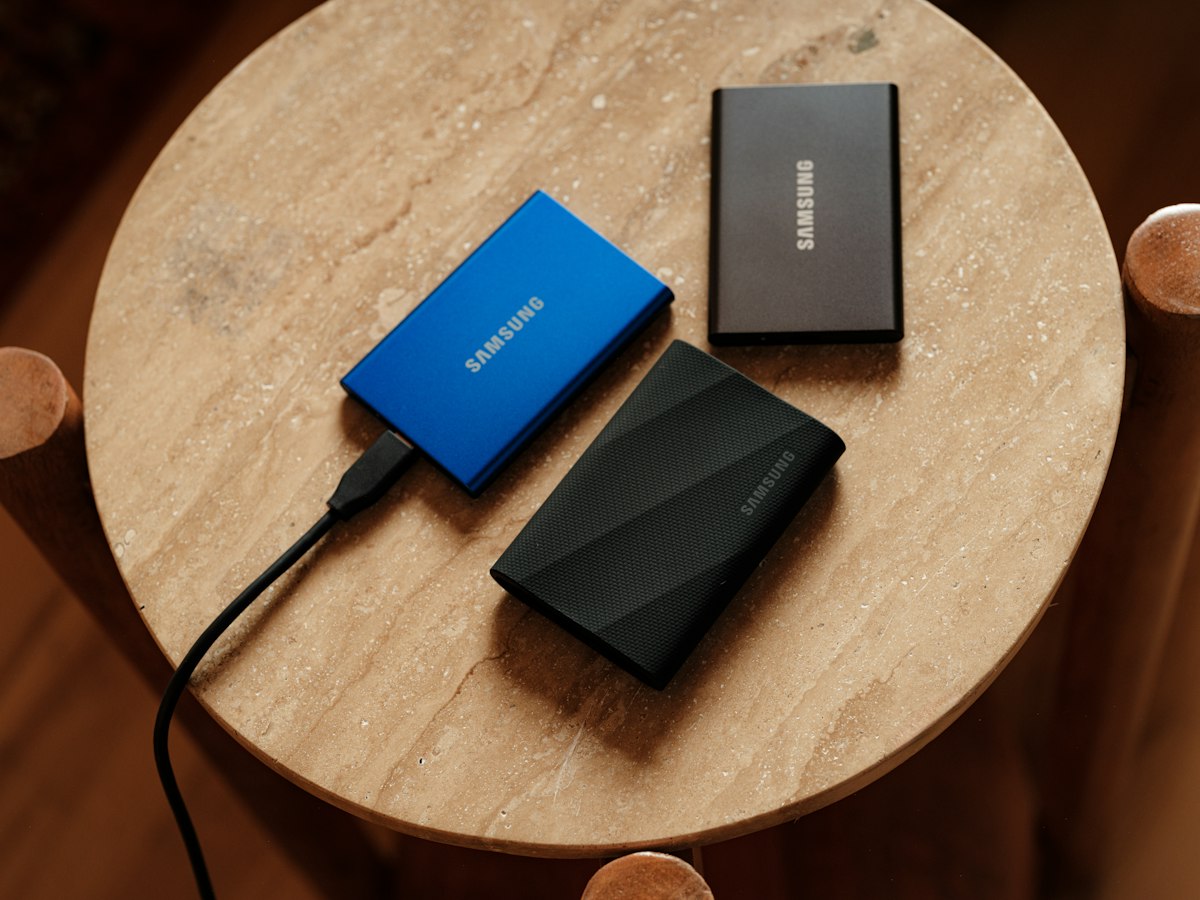
Turn on Storage Sense to clear temporary files automatically, pause OneDrive syncing during heavy work, run Optimise Drives to keep SSDs trimmed and hard drives defragmented, and move Windows to an SSD if it still runs from a hard drive. A system drive with less than about 10 to 15% free space slows updates and paging.
6. Use Storage Sense and clean temporary files
Open Settings > System > Storage. Select Temporary files to remove items such as Windows Update cleanup and delivery optimisation files, then switch on Storage Sense so Windows clears them on a schedule. Check the Downloads folder option carefully before ticking it.
7. Pause OneDrive syncing
Large first-time syncs can saturate both disk and network. Select the OneDrive cloud icon on the taskbar, open Help & Settings > Pause syncing, and resume when you finish. Turning on Files On-Demand also stops OneDrive storing every file locally.
8. Optimise your drives
Search for Defragment and Optimise Drives, select your system drive and click Optimise. Windows sends TRIM to SSDs and defragments hard drives; make sure Scheduled optimisation is on. There’s no need for third-party defrag tools.
9. Move Windows to an SSD
If Task Manager’s Performance tab lists your C: drive as an HDD, this is the upgrade that makes the biggest difference. You can clone the existing drive rather than reinstalling; our guide on how to clone an HDD to SSD on Windows 11 explains the process step by step.
Which Windows 11 settings improve performance? (Fixes 10 to 12)
The settings worth changing are visual effects (set to “Adjust for best performance”), transparency and animation effects, and the paging file, which should be left on automatic. These help most on older or low-memory PCs; on a modern machine with an SSD the difference is small but still noticeable in responsiveness.
10. Adjust visual effects for best performance
- Search for
performanceand open Adjust the appearance and performance of Windows. - On the Visual Effects tab, select Adjust for best performance.
- Optionally re-tick Smooth edges of screen fonts and Show thumbnails instead of icons, which most people want to keep.
- Select Apply.
11. Turn off transparency and animations
Switch off Transparency effects under Settings > Personalisation > Colours, and Animation effects under Settings > Accessibility > Visual effects. Menus and windows then appear instantly instead of fading in.
12. Keep the paging file on automatic
From the same Performance Options window, open the Advanced tab, then Change under Virtual memory, and make sure Automatically manage paging file size for all drives is ticked. Disabling the page file, a common “tweak”, can cause crashes when memory runs short.
Want help with backups and drive upgrades?
Windows’ own tools cover most of this guide. If you’re moving to a bigger SSD, EaseUS Todo Backup Home can clone and back up your system drive, and EaseUS Partition Master Pro can resize a cramped C: partition without reinstalling.
How do you fix a Windows 11 PC that is still slow? (Fixes 13 to 15)
If the quick fixes don’t help, run a full malware scan, repair Windows system files with SFC and DISM, and, as a last resort, roll back with System Restore or use Reset this PC. These address problems that settings changes can’t touch, such as hidden malware, damaged files or a bad update.
13. Scan for malware
Open Settings > Privacy & security > Windows Security > Virus & threat protection and run a Quick scan. If you suspect something persistent, choose Scan options > Microsoft Defender Antivirus (offline scan). Our article on whether Windows Defender is enough explains when a paid suite is worth adding.
14. Repair system files with SFC and DISM
- Right-click Start and choose Terminal (Admin).
- Run
DISM /Online /Cleanup-Image /RestoreHealthand wait for it to reach 100%. - Run
sfc /scannow. - Restart once both finish. Microsoft’s System File Checker guide explains how to read the results log.
15. Use System Restore or Reset this PC
If slowness started after a specific change, search for Create a restore point, open System Restore and pick a point from before the problem. If nothing else works, Settings > System > Recovery > Reset this PC with “Keep my files” reinstalls Windows while preserving documents. Your digital licence reactivates automatically on the same hardware, but back up first anyway.
Will more RAM or an SSD speed up Windows 11?
Yes, when hardware is the bottleneck. Moving from a hard drive to an SSD gives the largest single improvement on older PCs, and going from 4 or 8 GB to 16 GB of RAM helps if Task Manager regularly shows memory above about 85%. If neither is maxed out, extra hardware won’t fix a software problem.
Windows 11’s official minimum is 4 GB RAM, but that is a floor rather than a comfortable target. For browser-heavy work, Office and video calls, 16 GB is a sensible target, and an NVMe SSD makes boot and app launch times feel instant compared with an HDD.
Tweaks that don’t help (or cause harm)
- Registry cleaners: Microsoft doesn’t support them, and they can break apps for no measurable gain. Tools like CCleaner Professional are more useful for clearing files and managing startup items than for registry work.
- Disabling Microsoft Defender or core isolation: the speed gain is small and the security loss is large.
- “RAM booster” apps: Windows manages memory itself; forcing it empty makes apps reload from disk.
- Unofficial “debloated” Windows builds: modified images can carry malware, break updates and breach licence terms.

Frequently asked questions
Why is my new Windows 11 laptop so slow?
New laptops often run Windows Update, driver installs, OneDrive sync and search indexing for the first day or two, which loads the disk and CPU heavily. Pre-installed trial software and manufacturer utilities add startup load too. Leave it plugged in and online for a few hours, install updates, then disable unwanted startup apps.
Does Windows 11 run slower than Windows 10?
On hardware that meets Windows 11 requirements, everyday performance is broadly similar and sometimes better, thanks to improved memory and process scheduling. Older or borderline machines, especially those with hard drives and 4 GB of RAM, can feel slower on Windows 11. Upgrading to an SSD usually closes that gap.
Is it safe to disable startup programs in Windows 11?
Yes, disabling startup apps only stops them launching automatically at sign-in; it doesn’t uninstall them, and you can re-enable them at any time in Settings, Apps, Startup. Keep security software, audio, touchpad and graphics utilities on. If you’re unsure what an entry does, search its name before switching it off.
How much RAM does Windows 11 need to run smoothly?
Microsoft’s minimum is 4 GB, but 8 GB is a realistic baseline for web browsing and Office, and 16 GB suits heavier multitasking, video calls and large spreadsheets. If Task Manager’s Memory figure regularly sits above 85% during normal work, extra RAM will make a clear difference to responsiveness.
Will resetting Windows 11 make it faster?
Often, yes, because Reset this PC removes accumulated apps, startup items and leftover drivers. It doesn’t fix a failing drive or too little RAM. Try the other fixes first, back up your data, and choose “Keep my files” for a lighter reset. Your digital licence normally reactivates automatically afterwards.
Does Game Mode speed up Windows 11?
Game Mode, under Settings, Gaming, prioritises the game you’re playing and limits some background activity such as Windows Update installs during play. It can smooth out frame rates on modest hardware but doesn’t speed up general desktop use. It’s on by default, so there’s normally nothing to change.
The bottom line
Most slow Windows 11 PCs recover with a restart, fewer startup apps, more free disk space and the right power mode. If those fail, scan for malware and repair system files, and if the system drive is still a hard disk, an SSD is the upgrade worth paying for. Our help and support centre is there if a fix touches activation.
Useful links
| Resource | Why it helps |
|---|---|
| Microsoft: tips to improve PC performance | Microsoft’s official performance checklist |
| Microsoft: System File Checker | Repair corrupted system files |
| Clone an HDD to SSD on Windows 11 | The biggest hardware speed upgrade |
| Is Windows Defender enough? | Decide on extra security software |
| Windows 11 26H2 new features | What the latest update changes |
| EaseUS Todo Backup Home | Clone and back up before changes |
| EaseUS Partition Master Pro | Resize a full system partition |
| CCleaner Professional | Optional file cleaning and startup management |


