

Windows 11 26H2 – All New Features (Preview)

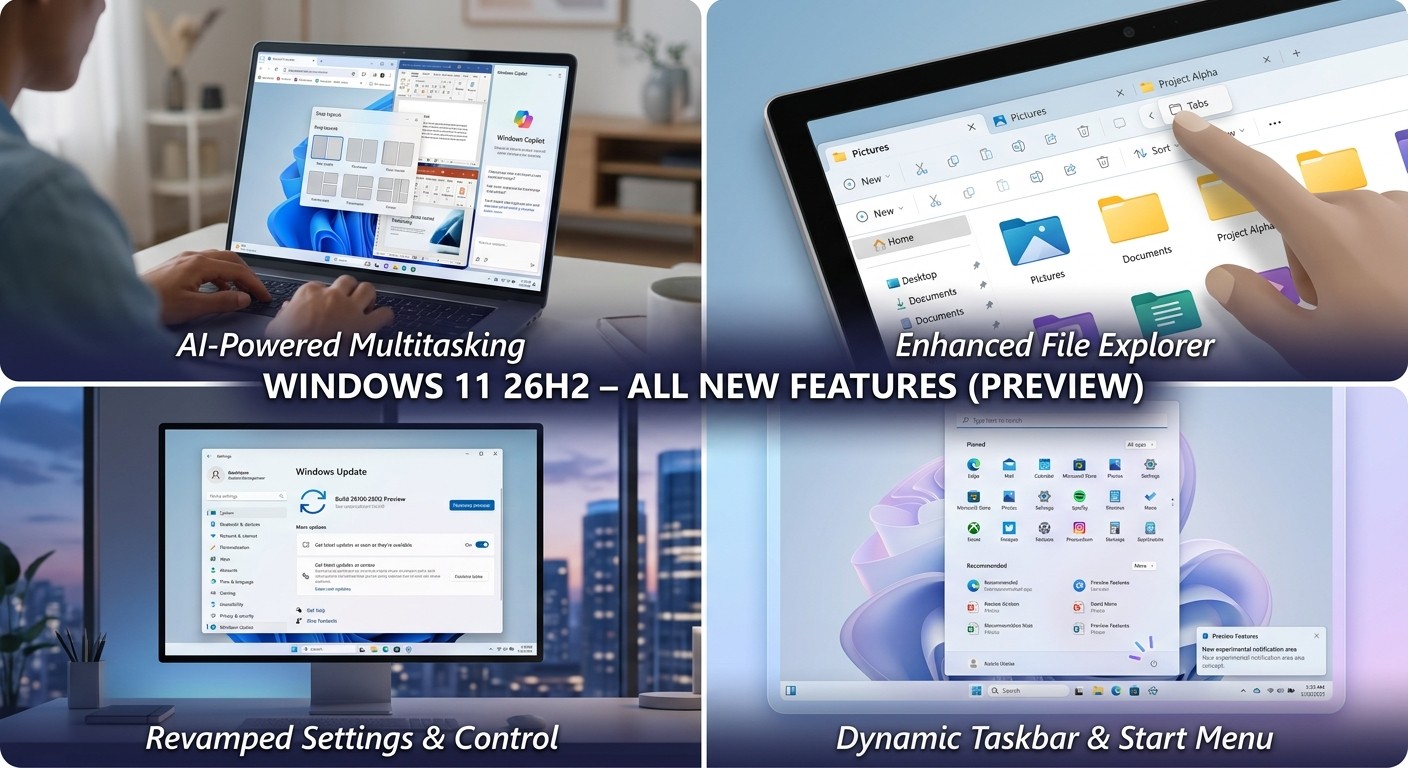
If you have already read our Windows 11 26H2 release date and upgrade guide, you know when the update lands. This article is the feature-by-feature companion: what each change does, where the setting lives, and whether it is switched on, rolling out gradually, or paused in the current preview.
Windows 11 26H2 at a glance
| Item | Detail (preview status, September 2026) |
|---|---|
| Version | Windows 11, version 26H2 (the “Windows 11 2026 Update”) |
| Build | 26300.9278 in the Release Preview Channel |
| Release Preview date | 27 August 2026 (ISOs added 31 August 2026) |
| Delivery method | Enablement package (eKB) for PCs on 24H2 or 25H2 — one restart |
| General availability | Microsoft says “later this calendar year”; recent annual updates arrived between late September and October |
| Support after install | 24 months for Home and Pro; 36 months for Enterprise and Education |
| Hardware requirements | No change announced — a PC that runs Windows 11 today is eligible |
What is actually new in Windows 11 26H2?
Very little of Windows 11 26H2 is exclusive to 26H2. Versions 24H2, 25H2 and 26H2 share one servicing branch, so new features ship inside monthly cumulative updates first, and the 26H2 enablement package mainly switches on the latest version number and restarts your support clock.
Microsoft’s own Release Preview announcement says many 26H2 improvements “might already be familiar” for exactly that reason. The practical upshot is simple: the features below are the Windows 11 2026 feature set, and 26H2 is the version that bundles them into the baseline.
Much of this year’s work also falls under Microsoft’s reliability and polish push, which we covered in what Windows K2 is and how it aims to fix Windows 11.
Windows 11 26H2 feature status tracker
The table below lists every notable change in the 2026 feature set, where to find it, and its state in the current preview. “Gradual” means Microsoft is using Controlled Feature Rollout, so the setting can be missing even on a fully updated PC.
| Feature | Where to find it | Preview status | Most useful for |
|---|---|---|---|
| Taskbar position (top, left, right, bottom) | Settings › Personalization › Taskbar › Taskbar behaviors | Gradual | Ultrawide and vertical-monitor users |
| Small taskbar size | Settings › Personalization › Taskbar › Taskbar behaviors › Taskbar size | Gradual | Small laptop screens |
| Start menu size (Automatic, Small, Large) | Settings › Personalization › Start | Gradual | Laptops where Start filled the screen |
| “Recommended” renamed “Recent”, separate section toggles | Settings › Personalization › Start | Gradual | Anyone who disliked the recommendations feed |
| Hide account name and picture in Start | Settings › Personalization › Start | Gradual | Streamers, screen-sharers, presenters |
| Turn off web and Store results in Search | Settings › Privacy & security › Search | Gradual | Privacy-minded and offline users |
| Customisable right-click (context) menu | Settings › Personalization › Context menu | Gradual | Power users |
| Modern Run dialog | Settings › System › Advanced › Run dialog | Optional toggle | Keyboard-driven users |
| Calendar-based update pause (35 days, repeatable) | Settings › Windows Update | Rolling via monthly updates | Home and small-office users |
| Skip updates during first-time setup | Out-of-box experience (OOBE) | Rolling via monthly updates | New PC builds and reinstalls |
| Cloud Rebuild | WinRE › Troubleshoot › Cloud Rebuild | In development | PCs that no longer boot |
| Administrator protection | Group Policy or Intune | Off by default | IT-managed fleets |
| Screen Tint | Settings › Accessibility › Screen Tint | Rolling via monthly updates | Light sensitivity and eye strain |
| Per-display Magnifier zoom | Settings › Accessibility › Magnifier | Rolling via monthly updates | Low-vision, multi-monitor users |
| Task Manager NPU and Isolation columns | Task Manager › right-click column header | Rolling via monthly updates | Copilot+ PC owners, admins |
| Ask Copilot box on the taskbar | — | Pulled back for rework | — |
| WMIC command-line tool | — | Removed | Admins must switch to PowerShell/WMI |
What changes in the Windows 11 26H2 taskbar and Start menu?
The taskbar can finally be moved to the top, left or right of the screen, gains a “Small” size option, and the Start menu becomes resizable with a renamed “Recent” section. These are the most visible changes in the 2026 feature set and reverse two of the most criticised decisions from Windows 11’s 2021 launch.
How do you move the taskbar in Windows 11 26H2?
- Open Settings › Personalization › Taskbar.
- Expand Taskbar behaviors.
- Under Taskbar position, choose Top, Left, Right or Bottom.
Flyouts, tooltips and animations follow the taskbar to its new edge. One limitation matters: the Search box and the Small taskbar size only work when the taskbar sits at the top or bottom, so a vertical taskbar falls back to a Search icon.
Start menu: size, “Recent” and privacy
Settings › Personalization › Start adds a size dropdown (Automatic, Small, Large). “Recommended” becomes “Recent”, and Pinned, Recent and All can each be shown or hidden independently.
A useful fix sits underneath: turning off Recent in Start no longer wipes your recent-files list in File Explorer, because the two are now decoupled. You can also hide your account name and picture — handy if you present or record your screen.
Phone Link users get message and notification previews by hovering over items in the Recent section, without opening the app.
Can you turn off Bing web results in Windows 11 Search?
Yes. In the 2026 feature set, Settings › Privacy & security › Search › Show suggested search results lets you switch off Web searches and Microsoft Store suggestions separately. With both off, Windows Search returns only local apps, settings and files, and shows nothing rather than a web result when nothing matches.
Search results are also labelled by type (app, file, setting, web or Store), and the Search home leads with your recent searches instead of promotional tiles. The Privacy & security page itself is reorganised into clearer groups, with camera, microphone and location controls easier to reach.
Why this matters: web suggestions send what you type in Search to Microsoft’s online services. Turning them off keeps queries on the device and usually makes local results appear faster, because Windows is no longer waiting on a network response. [VERIFY: confirm speed benefit wording against Microsoft’s release notes before publishing]
What is new in File Explorer and the right-click menu?
File Explorer gets a redesigned, customisable right-click menu plus speed fixes. A new Customize menu entry opens Settings › Personalization › Context menu, where you choose which file actions and app extensions appear, whether Cut, Copy, Rename, Share and Delete sit inline, and whether “Show more options” and “Properties” stay visible.
OneDrive commands move into their own submenu, so options like “Always keep on this device” no longer crowd the main menu. Elsewhere, File Explorer Home launches faster, “This PC” search now uses the Windows index, and deleting large fragmented files is quicker in some scenarios.
How does Windows Update change in 2026?
Windows Update gains a calendar-based pause that can be extended repeatedly in blocks of up to 35 days, fewer restarts, and clearer driver labels. Microsoft is also coordinating driver, .NET and firmware updates with the monthly quality update so most months need a single, predictable reboot.
- Restart and Shut down stay separate: you can always restart or shut down without installing pending updates.
- Clearer downloads: available updates are grouped, and drivers are labelled by category (display, audio, battery).
- Faster setup: new PCs can skip updates during first-time setup and install them later from the desktop.
- Assisted Setup and Get Started: optional guides help with app installs, pinning sites and choosing a theme after setup.
A note of realism: 2026’s monthly updates have not been trouble-free. We documented one example in the KB5083769 update that broke backups, which is why the backup step in our checklist below is not optional.
What recovery features does Windows 11 26H2 add?
The headline recovery addition is Cloud Rebuild, which reinstalls Windows from Windows Update directly inside the Windows Recovery Environment (WinRE) — no USB stick required. It downloads a fresh image matched to your edition, language and drivers, which helps when a PC can no longer reach the desktop.

Cloud Rebuild is still marked as in development, and it erases the drive, so treat it as a last resort after backing up. Supporting it, WinRE can now reuse saved Wi-Fi profiles, including some certificate-based networks, so recovery tools can get online without you retyping passwords. Microsoft has also discussed a Point-in-Time Restore capability as part of the 2026 recovery work. [VERIFY: confirm Point-in-Time Restore availability and name in current Microsoft documentation]
What security changes are in Windows 11 26H2?
The main security change is the return of Administrator protection, which replaces always-on admin rights with a temporary, isolated admin token created for a single task and destroyed afterwards. It was paused in December 2025 for an app-compatibility issue and resumed in the August 2026 preview.
It is off by default and is enabled through Group Policy or Microsoft Intune, per Microsoft’s Administrator protection documentation. Microsoft is clear that it is a hardening layer against privilege-escalation attacks, not a formal security boundary.
- WMIC removed: the legacy
wmic.exetool, long abused by malware, is gone from 24H2 and 25H2 builds too. WMI itself still works; scripts should move to PowerShell’s CIM cmdlets. - Post-quantum TLS: the ML-KEM algorithm can now be used on its own for TLS key exchange, not only in hybrid mode.
- Task Manager “Isolation” column: shows which apps run inside an AppContainer sandbox.
Edition matters here: Group Policy and Intune-style device management are Pro-and-above capabilities. Home users who want to manage features like Administrator protection centrally can move up with a Windows 11 Home to Pro upgrade without reinstalling.
What accessibility and input improvements are included?
Accessibility gets several practical upgrades: Screen Tint applies a coloured overlay to reduce eye strain, Magnifier supports a separate zoom level per monitor, Narrator can read and navigate maths equations in Word and PowerPoint, and a Pointer Indicator (Win + Ctrl + Shift + X) helps low-vision users find the cursor.
- Screen Tint: Settings › Accessibility › Screen Tint, with presets and a strength slider. It cannot run alongside Color filters.
- Touchpad: adjustable right-click zone size on pressable touchpads, scroll and zoom speed controls, accelerated and single-finger edge scrolling.
- Sound settings: live activity in volume sliders, hardware acceleration and exclusive-mode controls moved out of Control Panel, and a redesigned “All sound devices” page.
- Task Manager NPU columns: see how apps use the neural processing unit on Copilot+ PCs.
What happened to Ask Copilot on the taskbar?
Ask Copilot — the optional box that could replace taskbar Search with a Copilot prompt — was disabled in August 2026 while Microsoft reworks it around a unified Copilot app. It was never going to be on by default, and it is not part of the 26H2 baseline in the current preview. [VERIFY: check status on publish day]
If you use Copilot inside Microsoft 365 apps, our guide to the unified Copilot keyboard shortcuts covers what is changing there. Note that perpetual Office 2024 licences do not include Copilot features; those come with Microsoft 365 subscriptions.
Which 26H2 features are switched on for business PCs?
For commercial and managed devices, 26H2 turns on three experiences by default that were previously off for organisations: Windows settings backup, app-specific actions from the taskbar, and File Explorer enhancements. Home and Pro consumer PCs already received these through monthly updates.
Microsoft’s Windows IT Pro guidance for 26H2 recommends piloting on a small ring of devices before broad deployment through Windows Update for Business, WSUS or Intune. Teams standardising a fleet on Windows 11 Enterprise also get the longer 36-month support window.
Why don’t I see the new features after installing 26H2?
Because Microsoft still gates the biggest features behind Controlled Feature Rollout (CFR), even after the version number changes. Installing the 26H2 enablement package updates your build to 26300 and resets support, but the taskbar, Start and Search changes appear only when Microsoft enables them for your device.
That is the cause-and-effect most guides skip: the code arrives in a monthly update, the enablement package stamps the version, and a separate server-side flag decides visibility. Independent testing of the Release Preview build found the three headline features stayed hidden after upgrading until they were forced on manually. Microsoft indicated a broader rollout of those features with the September 2026 Patch Tuesday update. [VERIFY: confirm September 2026 rollout scope]
How to get the Windows 11 26H2 features now
The safest route is to stay on 24H2 or 25H2, keep monthly updates current, and let the features arrive; joining the Insider Program only to try 26H2 early gains you very little. If you want them as soon as possible, follow these steps.
- Check your version. Press
Win + R, typewinverand press Enter. You need 24H2 (build 26100) or 25H2 (build 26200). - Back up first. Use File History, a system image or your preferred backup tool before any feature change.
- Install the latest cumulative update. Go to Settings › Windows Update › Check for updates, including any optional non-security preview update.
- Turn on early delivery. Enable Get the latest updates as soon as they’re available on the Windows Update page.
- Confirm activation. Check Settings › System › Activation shows Windows as activated for your edition.
- Wait for 26H2 in Windows Update. When it is offered, choose Download & install; it needs one restart.
About third-party feature-unlock tools: some enthusiasts force hidden features on with unofficial tools. We don’t recommend this on work or production PCs — gated features are gated because Microsoft is still checking compatibility, and unsupported changes make troubleshooting harder.
For clean installs, in-place upgrades and moving from older versions, see our Windows 11 Pro download, install and upgrade guide.
Is there a deadline to move off 24H2?
Yes, if you use Home or Pro. Windows 11 24H2 Home and Pro stop receiving updates on 13 October 2026, and 26H2 (or 25H2) is the fix. Staying on 25H2 is fine for now, because it is supported until October 2027 for Home and Pro.
| Version | Home & Pro updates end | Enterprise & Education updates end |
|---|---|---|
| Windows 11 24H2 | 13 October 2026 | 12 October 2027 |
| Windows 11 25H2 | 12 October 2027 | 10 October 2028 |
| Windows 11 26H2 | Expected around October 2028 (24 months) | Expected around October 2029 (36 months) |
Dates per Microsoft lifecycle guidance as reported in September 2026. [VERIFY: confirm on Microsoft’s Windows 11 release information page on publish day]
Owners of new Arm laptops on version 26H1 are on a different path: 26H1 uses a different Windows core and cannot move to 26H2. Our Windows 11 26H1 breakdown explains the difference.
Do you need a new licence for Windows 11 26H2?
No. Windows 11 26H2 is a free update for any activated Windows 11 PC, and your existing Home or Pro activation carries over. You only need a licence if the PC is not activated, is still on Windows 10, or you want Pro-only capabilities such as BitLocker management, Group Policy, Hyper-V and Remote Desktop hosting.
A common issue we see in support is an activation error straight after a clean install, usually caused by an edition mismatch (for example, a Pro key entered on a Home install) rather than a faulty key. Our guide to fixing error 0xc004f050 on Windows 11 Pro walks through it.
Getting a PC ready for 26H2?
Choose a Windows 11 Pro licence for full management and security tools, Windows 11 Home for everyday use, or compare every edition in our Windows 11 range. Setting up a new build from scratch? The Office 2024 Pro Plus + Windows 11 Pro bundle covers the OS and productivity suite together.
Managing several machines? The Windows 11 Pro 5-PC pack suits small offices, and larger organisations can request volume pricing through our B2B & wholesale programme.
Windows 11 26H2 features: FAQs
What are the main new features in Windows 11 26H2?
The headline features are a movable taskbar (top, left, right or bottom), a Small taskbar size, a resizable Start menu with a “Recent” section, the ability to switch off web and Store results in Search, a customisable right-click menu, and calendar-based update pausing. Most also reach 24H2 and 25H2 via monthly updates.
Is Windows 11 26H2 a big update?
No. For PCs on 24H2 or 25H2 it is a small enablement package that installs with one restart. It mainly changes the version number to build 26300 and resets the support lifecycle, while the actual features arrive through regular monthly cumulative updates.
Can I move the taskbar to the top in Windows 11 26H2?
Yes. Go to Settings › Personalization › Taskbar › Taskbar behaviors › Taskbar position and choose Top. The option is being rolled out gradually, so it may not appear immediately even on an updated PC. The Search box and Small size work only at the top or bottom.
Does Windows 11 26H2 remove Bing from Search?
It lets you remove it. Under Settings › Privacy & security › Search, you can switch off Web searches and Microsoft Store suggestions independently. With both off, Search shows only apps, settings and files on your PC.
Why is the new taskbar missing after I installed 26H2?
Microsoft uses Controlled Feature Rollout, so features stay hidden until a server-side flag enables them for your device. Keep Windows Update current and turn on “Get the latest updates as soon as they’re available” to receive them sooner.
Does Windows 11 26H2 change the hardware requirements?
No hardware changes have been announced. Any PC that officially runs Windows 11 today — with TPM 2.0, Secure Boot and a supported processor — is eligible for 26H2.
Will my Windows 11 licence still work after updating to 26H2?
Yes. Feature updates keep your existing activation. If Windows shows as not activated after an update or reinstall, check the edition matches your licence, then see our installation and activation guide. Phone-activation keys can use our Confirmation ID tool.
Is Ask Copilot part of Windows 11 26H2?
Not in the current preview. Microsoft disabled the optional Ask Copilot taskbar box in August 2026 to rework it around a unified Copilot app. It was designed as an opt-in feature rather than a default.
Should I install 26H2 or stay on 25H2?
If you are on 24H2 Home or Pro, move before 13 October 2026. If you are on 25H2, there is no rush: the two are functionally identical and 25H2 is supported until October 2027. Installing 26H2 simply extends your support window further.
Why buy your Windows 11 licence from WinCDKey?
WinCDKey Ltd is a UK-registered software licence retailer with a Microsoft AppSource partner listing, more than 600,000 orders delivered and 2,500+ verified reviews on Trustpilot. Keys are delivered by email, and our Help & Support Centre assists with activation. Purchases are covered by our Refunds & Returns policy.
This article reflects the Windows 11 26H2 Release Preview as of 26 September 2026 and will be updated when the release reaches general availability. — WinCDKey Editorial Team


