🖤 BLACK FRIDAY SALE: 50% OFF Windows & Office with BLACK26 + 30% OFF Autodesk with BK26 Shop the sale →


eMMC vs SSD: Which Storage Does Your Laptop Need for Windows 11?

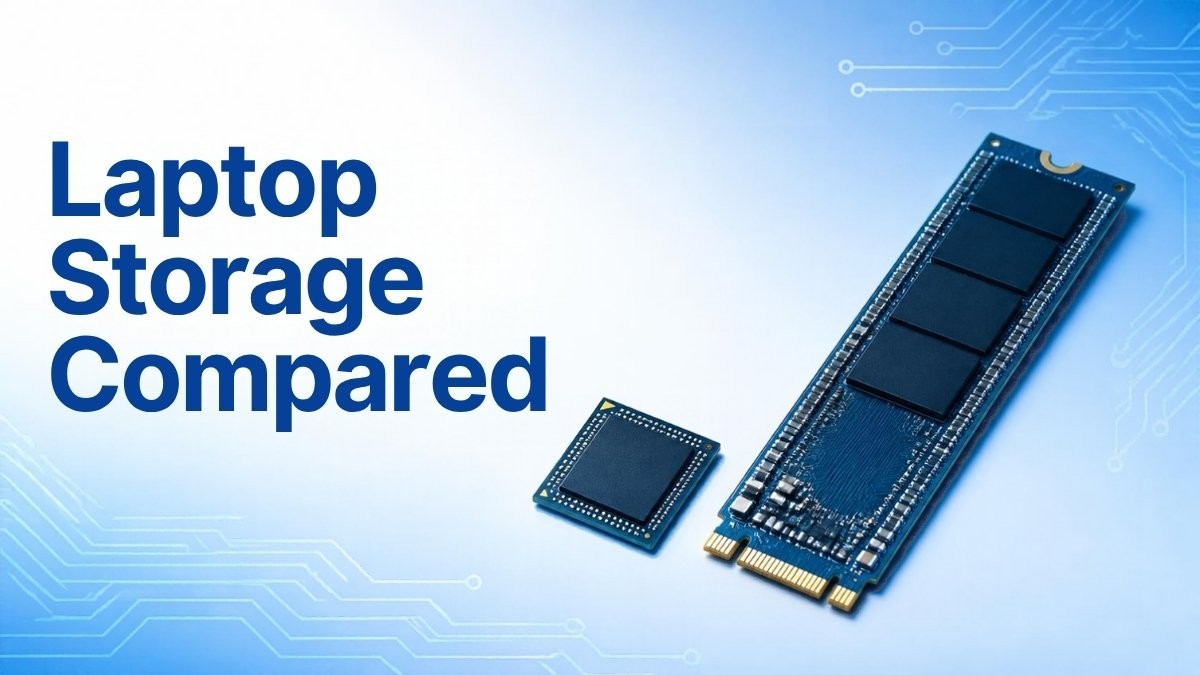
eMMC storage is a flash chip soldered to the motherboard, built for phones and low-cost laptops. An SSD is a separate drive with its own controller and a faster SATA or NVMe connection. For Windows 11, an SSD is the better choice: it is several times quicker, usually larger and often replaceable, while eMMC is slower, small and fixed for the life of the machine.
Key takeaways
- eMMC 5.1 tops out at about 400 MB/s reads; NVMe SSDs commonly reach several thousand MB/s.
- Windows 11 needs at least 64 GB of storage, and a 64 GB eMMC laptop often runs short of space for feature updates.
- eMMC is soldered on, so you can’t upgrade it; plan on external or microSD storage instead.
- eMMC is fine for web browsing, email and light Office work, but not for large files or heavy multitasking.
- If you’re buying, aim for an SSD of 256 GB or more; if you already own an eMMC laptop, careful housekeeping keeps it usable.
In this guide
eMMC vs SSD: side-by-side comparison
The main differences are speed, capacity and whether you can upgrade. eMMC is cheaper and uses little power, but an SSD wins on every performance measure that matters for Windows 11. The table summarises typical figures; exact numbers vary by model.
| eMMC | SATA SSD | NVMe SSD | |
|---|---|---|---|
| Form | Chip soldered to the board | 2.5-inch or M.2 drive | M.2 drive (sometimes soldered in thin laptops) |
| Interface | 8-bit parallel, half-duplex | SATA III (6 Gb/s) | PCIe, multiple lanes |
| Typical sequential read | Up to around 400 MB/s (eMMC 5.1) | Up to around 550 MB/s | Roughly 2,000–7,000+ MB/s |
| Typical capacity in laptops | 32–128 GB | 256 GB–2 TB | 256 GB–4 TB |
| Upgradeable | No | Usually | Often, check the model |
| Best for | Basic browsing, email, light documents | Older laptops, budget upgrades | Everyday Windows 11 use and above |
To see what your own laptop uses, open Settings > System > Storage > Advanced storage settings > Disks & volumes, or check Task Manager > Performance > Disk. An eMMC drive often shows a model name containing “MMC” or a capacity such as 58 GB or 116 GB.
What is eMMC storage?
eMMC (embedded MultiMediaCard) packages NAND flash memory and a simple controller in one chip that is soldered directly to the motherboard. It was designed for phones and tablets, and later used in budget laptops and Chromebooks because it is cheap, small and power-efficient.
The weakness is the interface. eMMC moves data over a narrow 8-bit parallel bus that can only read or write at one time, rather than both together. An SSD uses a more capable controller, more flash chips working in parallel and, in the case of NVMe, several PCIe lanes. That is why the same file copy or Windows update can take noticeably longer on an eMMC laptop.
Because the chip is part of the board, you can’t swap it for a larger one. When the storage is full or worn out, the options are external storage or a new laptop.

SSD vs eMMC speed: how big is the difference?
On paper, eMMC 5.1 reads at up to about 400 MB/s with writes often between 100 and 200 MB/s. A SATA SSD reaches around 550 MB/s, and a modern NVMe SSD several thousand MB/s. In daily use the gap shows most in updates, app installs and multitasking rather than web browsing.
Sequential speed is only part of the story. Windows constantly reads and writes small files, and random performance is where eMMC falls further behind. You’ll notice it in:
- Boot and sign-in times, especially after an update.
- Windows feature updates, which unpack many gigabytes of small files.
- Opening several apps at once, or browsers with many tabs, when RAM is limited and Windows uses the page file.
- Large file copies such as photo libraries or video.
For light work, such as email, streaming and editing a document in Word, the difference is less dramatic. Most eMMC laptops also have 4 GB of RAM, which is often the bigger bottleneck.
Is eMMC storage enough for Windows 11?
It meets the minimum but leaves little room. Microsoft’s Windows 11 specifications call for a 64 GB or larger storage device and warn that you need enough free space for updates. A 64 GB eMMC laptop typically has well under half of that free once Windows and a few apps are installed.
The common support ticket we see from eMMC owners is a feature update that refuses to install because of low disk space. Windows 11 also stores temporary update files, a page file and, after an upgrade, a copy of the previous version for rollback. On a 64 GB drive that can leave just a few gigabytes free.
| Storage size | How Windows 11 copes |
|---|---|
| 32 GB eMMC | Below the Windows 11 minimum; not suitable |
| 64 GB eMMC | Installs, but updates often need external storage or a clean-up first |
| 128 GB eMMC | Workable for light use with regular housekeeping |
| 256 GB SSD | Comfortable for most home and office users |
| 512 GB SSD or more | Room for large apps, games or media libraries |
Storage is only one part of the requirements. Our guide to Windows 11 system requirements, TPM and Secure Boot explains the full checklist, and some low-cost eMMC laptops ship in S mode, which our Windows 11 Home vs Pro comparison helps put in context.
Which should you buy: eMMC laptop or SSD laptop?
Buy an SSD laptop unless the budget is very tight and the use is very light. An eMMC model makes sense as a child’s first device, a travel spare or a dedicated web and email machine. For anything you’ll use daily for several years, an SSD of at least 256 GB is the safer investment.
- Choose eMMC if you mainly browse, stream and write documents, store files in the cloud, and want the lowest price or longest battery life.
- Choose an SSD if you work with Office files daily, keep photos locally, run Teams or Zoom alongside other apps, or want the laptop to cope with future Windows updates.
- Check upgradeability on SSD models too. Many thin laptops solder their storage in place, so buy the capacity you’ll need.
If you’re replacing an eMMC laptop, the Windows licence may be tied to the old machine; our guide to transferring a Windows licence to a new PC explains which licence types move. If you’re moving from an old hard drive to an SSD on a desktop or upgradeable laptop, our guide on cloning an HDD to an SSD in Windows 11 shows how to keep Windows, apps and activation intact.
How to get the most from an eMMC laptop
Keep at least 10–15 GB free, move personal files to the cloud or a microSD card, and use Storage Sense to clear temporary files. Before feature updates, plug in a USB drive Windows can use for temporary space. These steps keep a 64 GB or 128 GB eMMC laptop usable.
- Turn on Storage Sense: Settings > System > Storage > Storage Sense, and set it to run automatically. Microsoft’s guide to freeing up drive space in Windows lists the other built-in options.
- Open Settings > System > Storage > Temporary files after each update and remove old Windows Update files and the previous installation if offered.
- Store documents and photos in OneDrive with Files On-Demand so they don’t take local space until opened.
- Use a microSD card or USB stick for downloads, music and video. Format it as NTFS or exFAT.
- Uninstall preloaded trial software from Settings > Apps > Installed apps. If you also have a larger external SSD, a tool such as EaseUS Partition Master can help manage partitions on it.
- Keep a regular backup on an external drive; a soldered drive that fails takes the motherboard with it.
Protect the data on a drive you can’t replace
Because eMMC can’t be swapped out, a backup is the only safety net if it fails. EaseUS Todo Backup Home can create scheduled system and file backups to an external drive, and it’s also a practical way to move to a new SSD laptop later.
Frequently asked questions
Is eMMC the same as an SSD?
Not quite. Both use NAND flash memory and have no moving parts, but eMMC is a single soldered chip with a basic controller and a narrow interface. An SSD has a more capable controller, more flash chips working in parallel and a faster SATA or NVMe connection, so it is considerably quicker and usually larger.
Can I upgrade eMMC storage to an SSD?
Usually not. eMMC is soldered to the motherboard and the board normally has no spare M.2 slot. A small number of models include an empty slot, so check the service manual. Otherwise, add capacity with a microSD card, a USB drive or cloud storage rather than replacing the internal chip.
Is 64 GB eMMC enough for Windows 11?
It meets Microsoft’s 64 GB minimum, but there is little space left once Windows and apps are installed. Feature updates may fail until you free space or connect a USB drive for temporary files. It works for light use if you keep files in the cloud and clean up after each update.
How much faster is an SSD than eMMC?
A SATA SSD is moderately faster in sequential reads, while an NVMe SSD can be many times faster, reaching thousands of MB/s against eMMC’s 400 MB/s ceiling. The difference is most noticeable during boot, updates, app installs and large file copies, and less so for browsing or streaming.
How long does eMMC storage last?
Lifespan depends on how much data is written. For typical light laptop use, eMMC often lasts the useful life of the device, but heavy writing, such as constant swapping on a 4 GB RAM machine, wears it faster. Because it can’t be replaced, keep regular backups so a failure doesn’t cost you data.
Is eMMC better than a hard drive?
For responsiveness, often yes. eMMC has no moving parts, so random access and start-up are usually snappier than an old spinning hard drive, and it is more resistant to knocks. Hard drives offer far more capacity for the price, though, and a SATA or NVMe SSD beats both.
The bottom line
eMMC storage keeps budget laptops cheap and light, but it is slow, small and permanent, which makes it a poor fit for heavier Windows 11 use. Buy an SSD laptop if you can, and if you already own an eMMC model, keep space free and back it up. For buying a full Windows licence for a new or rebuilt PC, compare editions in our Windows 11 Home vs Pro guide.
Useful links
| Resource | Why it helps |
|---|---|
| Windows 11 system requirements | Full checklist beyond storage |
| Clone HDD to SSD in Windows 11 | Move to an SSD without reinstalling |
| Windows 11 Home vs Pro | Pick the right edition for a new laptop |
| Transfer a Windows licence to a new PC | Moving your licence when you replace the laptop |
| EaseUS Todo Backup Home | Scheduled backups for drives you can’t replace |
| Microsoft: Windows 11 specifications | Official minimum storage and RAM |
| Microsoft Support: Free up drive space | Built-in clean-up tools for small drives |


