🖤 BLACK FRIDAY SALE: 50% OFF Windows & Office with BLACK26 + 30% OFF Autodesk with BK26 Shop the sale →


The Copilot Key in Windows 11: What It Does and How to Remap It

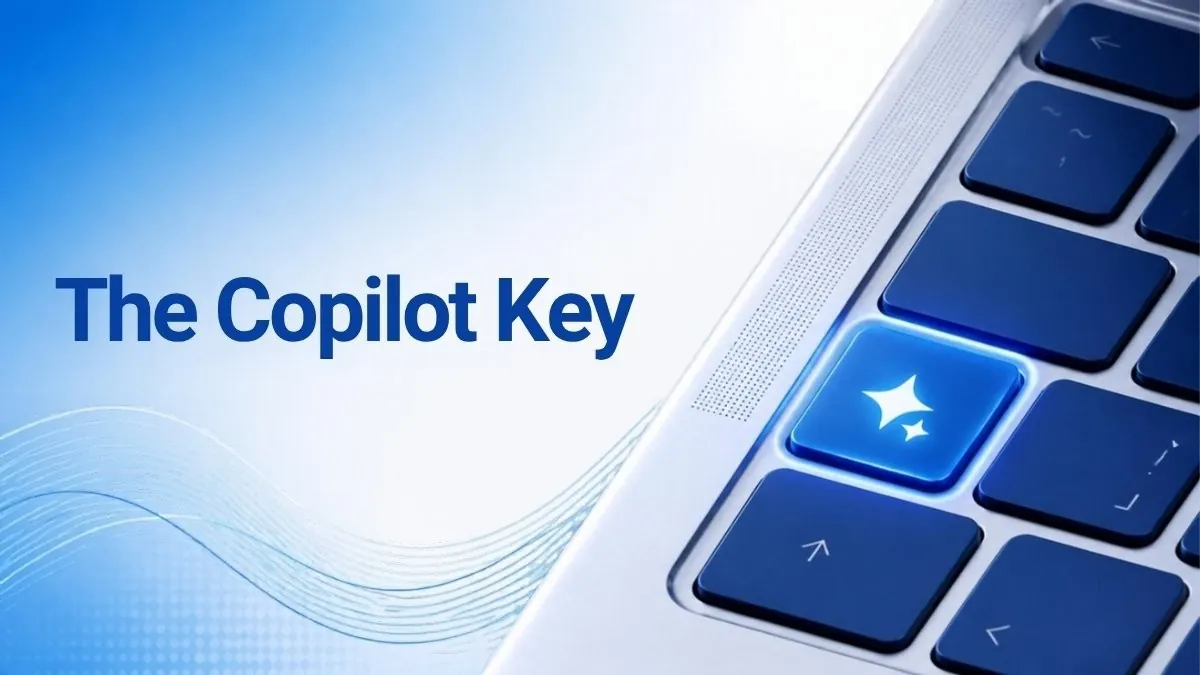
The Copilot key is the dedicated key on newer Windows 11 keyboards, usually next to the right Alt key, that opens Microsoft’s Copilot assistant. You can change what it does: open Settings > Bluetooth & devices > Keyboard and set it to Search, an app of your choice or, on updated PCs, back to Right Ctrl or the Menu key.
Key takeaways
- Microsoft introduced the Copilot key in January 2024; on many laptops it replaced the Right Ctrl or Menu key.
- Under the hood the key sends a shortcut (
Win + Shift + F23), not a normal keystroke. - Windows 11 lets you point it at Search or a Store/MSIX app, and the October 2026 updates add Right Ctrl and Context menu options.
- PowerToys Keyboard Manager can remap it to almost anything if the built-in options aren’t enough.
- Copilot in Word, Excel and Outlook needs a Microsoft 365 plan; Office 2024 perpetual editions don’t include it.
In this guide
- What is the Copilot key on a Windows 11 keyboard?
- What does the Copilot key actually do?
- How to remap the Copilot key in Windows 11 Settings
- How to remap the Copilot key with PowerToys
- Does the Copilot key give you Copilot in Word and Excel?
- Copilot key not working? Common fixes
- Frequently asked questions
- The bottom line
- Useful links
What is the Copilot key on a Windows 11 keyboard?
The Copilot key is a dedicated keyboard button, marked with the Copilot logo, that Microsoft added to new Windows 11 PCs from early 2024. Microsoft called it the first significant change to the Windows PC keyboard in nearly three decades. It usually sits to the right of the space bar, often where Right Ctrl or the Menu key used to be.
That placement is the source of most complaints. People who used Right Ctrl for shortcuts, gaming or remote-desktop tools suddenly lost it, and Microsoft has since acknowledged on its Copilot key support page that on some devices the key replaces Right Ctrl or the Context Menu key.
The key is a hardware feature, not a Windows edition feature. It behaves the same on Windows 11 Home and Pro, and on external keyboards that include it.
What does the Copilot key actually do?
By default, pressing the Copilot key opens the Copilot app in Windows 11. If Copilot isn’t available or is turned off, Microsoft says the key opens Windows Search instead. Technically it doesn’t send a unique key code: the keyboard sends the shortcut Win + Shift + F23, which Windows then maps to Copilot.
That detail explains a lot. Because it’s a shortcut, the old Keyboard Manager “remap a key” approach doesn’t work on it directly, and holding Shift or Ctrl while pressing it can behave oddly. It also means remapping tools need to target the whole combination.
On work PCs signed in with an organisation account, what the key opens can depend on the policies your IT team has set. If your key launches something unexpected on a managed laptop, check with your administrator before changing it.
Copilot key options at a glance
| Option | What pressing the key does | Where to set it |
|---|---|---|
| Copilot (default) | Opens the Copilot app | Out of the box |
| Search | Opens Windows Search | Settings > Bluetooth & devices > Keyboard |
| Custom | Launches a Store or signed MSIX app you choose | Settings > Bluetooth & devices > Keyboard |
| Right Ctrl | Acts as the Right Control key | Settings, after the October 2026 updates |
| Context menu | Opens the right-click menu | Settings, after the October 2026 updates |
| Anything else | Any key or shortcut you define | PowerToys Keyboard Manager |
How to remap the Copilot key in Windows 11 Settings
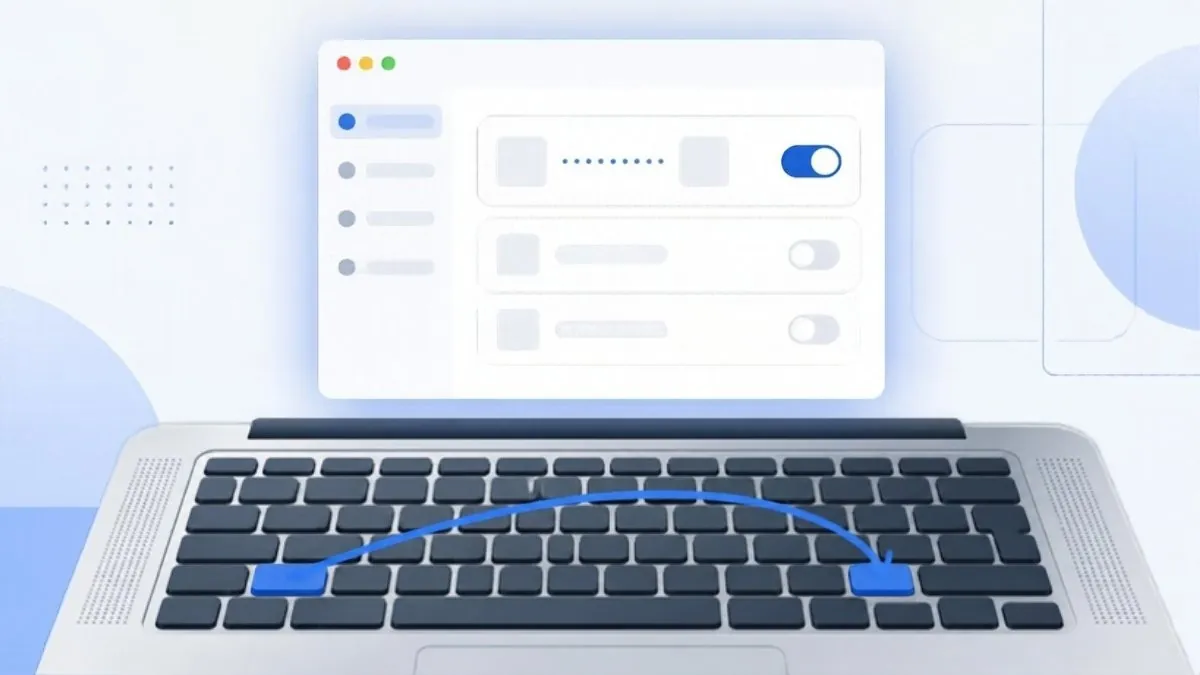
To remap the Copilot key, open Settings > Bluetooth & devices > Keyboard and find Customize Copilot key on keyboard. Choose Search, or Custom to pick an app. On PCs with the October 2026 Windows updates installed, you can also set it to Right Ctrl or the Context menu key.
- Press
Win + Ito open Settings. - Go to Bluetooth & devices > Keyboard.
- Find Customize Copilot key on keyboard. (Some earlier builds placed it under Personalisation > Text input.)
- Pick an option from the drop-down: Search, Custom, or, where offered, Right Ctrl or Context menu.
- For Custom, select an app from the list and confirm. The change applies straight away.
Why your favourite app isn’t in the list
The Custom option only lists apps from the Microsoft Store or apps packaged as signed MSIX. Microsoft limits it this way for security, so many classic desktop programs, including some browsers, won’t appear and you can’t browse to an .exe. If you need one of those, PowerToys is the workaround.
A catch with Right Ctrl
Microsoft notes that when the key is set to Right Ctrl, shortcuts using RCtrl + Win or RCtrl + Shift may not work as normal. Use the left Ctrl key for those combinations. Some laptop makers also offer their own remapping utility; Microsoft advises using either theirs or the Windows setting, not both.
If you don’t see the Right Ctrl option, open Settings > Windows Update and install the latest cumulative update. Microsoft has said the options depend on the device, its firmware and keyboard design, so not every PC will show them.
How to remap the Copilot key with PowerToys
Microsoft PowerToys can remap the Copilot key to any key or shortcut, including Right Ctrl on PCs that don’t yet have the built-in option. Install PowerToys, open Keyboard Manager, choose Remap a shortcut, and map Win + Shift + F23 to the action you want. PowerToys must be running for the remap to work.
- Install Microsoft PowerToys from the Microsoft Store or Microsoft’s GitHub page.
- Open PowerToys, select Keyboard Manager and make sure it’s enabled.
- Select Remap a shortcut, then Add shortcut remapping. Don’t use “Remap a key”.
- In the shortcut box, press the Copilot key, or build
Win + Shift + F23from the drop-downs. - Under the action, choose what to send, for example Ctrl (Right), or a shortcut to open an app.
- Select OK and test the key.
Users on Microsoft’s own Q&A forum report a side effect: because the key includes Shift, some Shift-based combinations (such as Ctrl + Shift + arrow to select words) may stop working through the remapped key. If that matters to you, the built-in Settings option is the cleaner fix once it’s available.
Does the Copilot key give you Copilot in Word and Excel?
No. The Copilot key opens the Copilot app in Windows, which is free to use with a Microsoft account. Copilot inside Word, Excel, PowerPoint and Outlook is a separate feature tied to Microsoft 365 subscriptions. Perpetual versions such as Office 2024 and Office 2021 don’t include Copilot, whatever keyboard you have.
Microsoft 365 Personal and Family now include Copilot in the desktop apps with a monthly allowance of AI credits for the subscription owner, while heavier users can look at higher tiers. Allowances and pricing change, so check the current terms on Microsoft’s site before relying on a specific number.
We cover the detail in our article on whether Office 2024 has Copilot, and the wider choice in Microsoft 365 vs Office 2024.
Want Copilot inside your Office apps?
A Microsoft 365 Personal 1-year subscription includes the desktop apps, 1 TB of OneDrive storage and Copilot features in Word, Excel and Outlook for one person. Sharing with family? Compare the options in Microsoft 365 Family vs Personal.
Copilot key not working? Common fixes
If the Copilot key does nothing, the cause is usually that Copilot isn’t installed, the key has been remapped (by Windows, a laptop utility or PowerToys), or a work policy blocks it. Check the keyboard setting first, then confirm the Copilot app is installed and updated from the Microsoft Store.
- Check the mapping: open Settings > Bluetooth & devices > Keyboard and see what the key is set to.
- Reinstall Copilot: search the Microsoft Store for Copilot and install or update it.
- Look for conflicts: disable PowerToys remaps and manufacturer keyboard tools temporarily, then test.
- Update Windows: new keyboard options arrive through cumulative updates, so install pending updates and restart.
- Work devices: if your PC is managed by an organisation, ask IT whether Copilot is restricted by policy.
Key behaviour can also differ on an unactivated copy of Windows, because some personalisation settings are locked. Our guide to checking if Windows 11 is activated takes a minute. And if you were hoping the Copilot key would take screenshots, use Win + Shift + S instead; our Snipping Tool guide covers every shortcut.
Frequently asked questions
What does the Copilot key do on a Windows 11 laptop?
By default the Copilot key opens the Copilot app, Microsoft’s AI assistant in Windows 11. If Copilot isn’t available or is disabled, it opens Windows Search instead. You can change its action in Settings under Bluetooth and devices, Keyboard, choosing Search, a Microsoft Store app, or on updated PCs Right Ctrl or the Context menu key.
Can I change the Copilot key back to Right Ctrl?
Yes, on PCs with the October 2026 Windows 11 updates the keyboard settings include a Right Ctrl option, depending on the device and firmware. If your PC doesn’t offer it yet, install the latest updates or use PowerToys Keyboard Manager to remap the Win + Shift + F23 shortcut the key sends to Right Ctrl.
Why can’t I choose any app for the Copilot key?
Windows only lists Microsoft Store apps and apps packaged as signed MSIX in the Custom option. Microsoft restricts the list for security reasons, so many classic desktop programs and browser web apps won’t appear, and you can’t browse to an .exe file. PowerToys Keyboard Manager can launch other programs if you need them.
Is the Copilot key the same as Win + C?
Not exactly. The physical Copilot key sends the shortcut Windows + Shift + F23, which Windows maps to Copilot. Win + C has been used for Copilot or other features in different Windows 11 versions, but remapping tools such as PowerToys need to target Win + Shift + F23 to change the dedicated key itself.
Do I need Microsoft 365 to use the Copilot key?
No. The key opens the Copilot app in Windows, which works with a free Microsoft account. You only need a Microsoft 365 plan such as Personal or Family for Copilot features inside Word, Excel, PowerPoint and Outlook. Perpetual Office 2024 and Office 2021 licences don’t include Copilot in the apps.
Can I disable the Copilot key completely?
Windows doesn’t offer a simple off switch in every build, but you can make the key harmless by mapping it to Search, Right Ctrl or the Context menu. For a true disable, use PowerToys Keyboard Manager to remap Win + Shift + F23 to Disable. On work PCs, administrators can also control Copilot through policy.
The bottom line
The Copilot key is easy to tame: point it at Search, an app, or back to Right Ctrl in Settings, and fall back on PowerToys for anything else. If what you really want is Copilot inside your documents, start with our Microsoft 365 vs Office 2024 comparison.
Useful links
| Resource | Why it helps |
|---|---|
| Microsoft: updates to the Copilot key | Official notes on remapping to Right Ctrl or Context menu |
| Microsoft PowerToys | Free tool for custom key and shortcut remaps |
| Does Office 2024 have Copilot? | Which Office versions include Copilot |
| Microsoft 365 vs Office 2024 | Subscription or one-off licence |
| Microsoft 365 Family vs Personal | Choose the right Microsoft 365 plan |
| Microsoft 365 Personal (1 year) | Office apps with Copilot features for one person |
| Snipping Tool in Windows 11 | Screenshot and recording shortcuts |


