🖤 BLACK FRIDAY SALE: 50% OFF Windows & Office with BLACK26 + 30% OFF Autodesk with BK26 Shop the sale →


How to Install Remote Desktop Services on Windows Server 2025

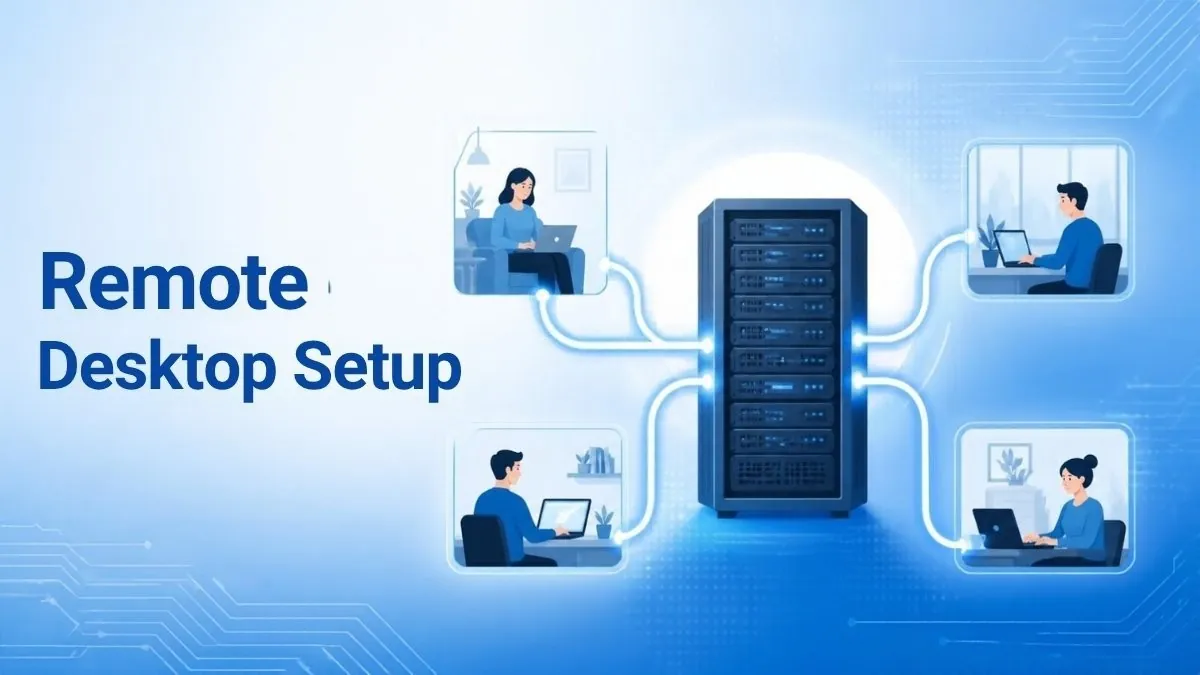
To install Remote Desktop Services on Windows Server 2025, join the server to an Active Directory domain, open Server Manager, choose Add Roles and Features > Remote Desktop Services installation, and deploy the Connection Broker, Web Access and Session Host roles. Then add RD Licensing, activate it, install your RDS CALs and set the licensing mode.
This guide walks through a session-based deployment step by step, with the matching PowerShell commands and the licensing checks that stop RDS from failing after its 120-day grace period.
Key takeaways
- RDS role services need domain-joined servers. Per User CALs can only be tracked through Active Directory.
- A session-based deployment needs at least RD Connection Broker, RD Web Access and RD Session Host, plus RD Licensing.
- A new RD Session Host has a 120-day licensing grace period. After that, connections fail unless licensing is configured.
- A Windows Server 2025 Session Host needs Windows Server 2025 RDS CALs; a 2025 licence server can also hold older CALs.
- RDS CALs are needed on top of the Windows Server licence and the standard user or device CALs.
In this guide
- What does Remote Desktop Services on Windows Server 2025 include?
- What do you need before installing RDS?
- How to install Remote Desktop Services with Server Manager
- How to set up RD Licensing and install RDS CALs
- How to create a session collection and publish desktops
- Installing RDS with PowerShell
- Troubleshooting common RDS problems
- Frequently asked questions
- The bottom line
- Useful links
What does Remote Desktop Services on Windows Server 2025 include?
Remote Desktop Services on Windows Server 2025 is a set of role services that let many users run desktops or apps on a server at the same time. The core roles are RD Session Host, RD Connection Broker, RD Web Access, RD Gateway and RD Licensing. A small deployment can put most of them on one server.
| Role service | What it does | Needed for a basic deployment? |
|---|---|---|
| RD Session Host | Runs the shared desktops and RemoteApp programs users connect to | Yes |
| RD Connection Broker | Directs incoming connections and reconnects users to existing sessions | Yes |
| RD Web Access | Web portal and feed listing the desktops and apps users can open | Yes |
| RD Licensing | Issues and tracks RDS CALs once activated | Yes, before the grace period ends |
| RD Gateway | Lets users connect securely from the internet over HTTPS | Only for remote access from outside |
Microsoft’s Remote Desktop Services roles overview describes each role in more detail. Note that RDS is different from simply enabling Remote Desktop for admins, which allows two administrative connections without RDS CALs.
What do you need before installing RDS?
Before installing RDS you need a Windows Server 2025 installation that is activated and joined to an Active Directory domain, a domain account with local administrator rights on every RDS server, static IP addresses, and RDS CALs for each user or device. Plan which servers will host which roles before you start.
- Windows Server 2025 licence. Standard or Datacenter, licensed by cores. Our Windows Server 2025 Standard vs Datacenter guide helps you choose.
- Active Directory domain. If you do not have one yet, follow our guide to setting up a Windows Server 2025 domain controller first. Avoid installing RD Session Host on the domain controller itself in production.
- Licences. Each user or device needs a Windows Server CAL and an RDS CAL. The Windows Server 2025 licensing explainer covers how cores, CALs and RDS CALs fit together.
- Updates and names. Fully patch each server and use the final hostname before deployment; renaming afterwards breaks the deployment.
If your server is still on an evaluation build, convert it before production use with our guide to upgrading Windows Server 2025 evaluation to Standard.

How to install Remote Desktop Services with Server Manager
In Server Manager, select Manage > Add Roles and Features, choose Remote Desktop Services installation, pick Standard deployment and Session-based desktop deployment, assign servers to the Connection Broker, Web Access and Session Host roles, then select Deploy. The wizard installs the roles and restarts the Session Host if required.
- Sign in to the server that will be the Connection Broker with a domain account that is a local administrator on all RDS servers.
- If you are using more than one server, open Server Manager > Manage > Add Servers, select Find Now and add each RDS server.
- Select Manage > Add Roles and Features and select Next.
- Choose Remote Desktop Services installation.
- Choose Standard deployment (or Quick Start to install everything on one server with a default collection).
- Choose Session-based desktop deployment.
- Assign servers for RD Connection Broker, RD Web Access and RD Session Host. On a single server, choose the same server each time.
- Tick Restart the destination server automatically if required and select Deploy.
- Wait until every role shows as succeeded, then sign back in if the server restarted.
These steps follow Microsoft’s RDS deployment guide, which applies to Windows Server 2025. After deployment, the Remote Desktop Services node appears in the left pane of Server Manager.
How to set up RD Licensing and install RDS CALs
To set up RD Licensing, add the RD Licensing role from Deployment Overview, activate the licence server in Remote Desktop Licensing Manager, install your RDS CALs, then set the licensing mode to Per User or Per Device in Deployment Properties. Do this well inside the 120-day grace period so users are not locked out.
Add and activate the licence server
- In Server Manager, open Remote Desktop Services > Overview.
- In Deployment Overview, select the green RD Licensing icon, choose the server and complete the wizard.
- Open Tools > Remote Desktop Services > Remote Desktop Licensing Manager.
- Right-click the server, choose Activate Server, and select Automatic connection (or Web Browser or Telephone if the server has no internet).
- Enter your company details and finish the wizard.
- If prompted, add the licence server to the Terminal Server License Servers group in Active Directory.
Install the RDS CALs
- In RD Licensing Manager, right-click the server and choose Install Licenses.
- Choose the licence programme that matches your purchase and enter the licence code when prompted.
- Select the product version (Windows Server 2025), the CAL type and the quantity, then finish.
Microsoft’s article on activating the Remote Desktop licence server lists each connection method.
Set the licensing mode
- Back in Remote Desktop Services > Overview, select Tasks > Edit Deployment Properties.
- Open RD Licensing, choose Per User or Per Device to match your CALs, add the licence server and select OK.
| Session Host version | 2025 RDS CAL | 2022 RDS CAL | 2019 RDS CAL |
|---|---|---|---|
| Windows Server 2025 | Yes | No | No |
| Windows Server 2022 | Yes | Yes | No |
| Windows Server 2019 | Yes | Yes | Yes |
Source: Microsoft’s RDS CAL documentation. Per User CALs suit people with their own laptops; Per Device CALs suit shared shift-work PCs.
Need CALs before the grace period runs out?
For a 2025 Session Host you need 2025 RDS CALs. WinCDKey lists Windows Server 2025 RDS User Connections (50) and RDS Device Connections (50), alongside the Windows Server 2025 Standard base licence.
How to create a session collection and publish desktops
A session collection groups Session Host servers and decides which users can connect. In Server Manager go to Remote Desktop Services > Collections, select Tasks > Create Session Collection, name it, add the Session Hosts, choose the user groups and decide on user profile disks. Users can then connect through RD Web Access or the Remote Desktop client.
- Open Remote Desktop Services > Collections and select Tasks > Create Session Collection.
- Enter a name such as
Office-Desktops. - Add the RD Session Host servers.
- Replace the default
Domain Usersgroup with a dedicated security group, for exampleRDS-Users. - Decide whether to enable user profile disks (they need a file share) or use another profile solution.
- Select Create.
- To publish individual apps, open the collection, select RemoteApp Programs > Tasks > Publish RemoteApp Programs.
Users can browse to https://<server-fqdn>/RDWeb to see their desktops. Install a trusted certificate under Edit Deployment Properties > Certificates to stop certificate warnings.
Applications such as Office need volume-licensed builds for shared sessions; retail Office is not designed for Remote Desktop servers.
Installing RDS with PowerShell
You can build the same deployment with the RemoteDesktop PowerShell module. Run New-RDSessionDeployment to create the deployment, Add-RDServer to add RD Licensing, Set-RDLicenseConfiguration to set the mode, and New-RDSessionCollection to create the collection. Run them from an elevated session on the Connection Broker.
Replace the example server names with your own fully qualified domain names:
New-RDSessionDeployment -ConnectionBroker "rds01.contoso.local" -WebAccessServer "rds01.contoso.local" -SessionHost "rds01.contoso.local"
Add-RDServer -Server "rds01.contoso.local" -Role "RDS-LICENSING" -ConnectionBroker "rds01.contoso.local"
Set-RDLicenseConfiguration -LicenseServer "rds01.contoso.local" -Mode PerUser -ConnectionBroker "rds01.contoso.local"
New-RDSessionCollection -CollectionName "Office-Desktops" -SessionHost "rds01.contoso.local" -ConnectionBroker "rds01.contoso.local"
The syntax comes from Microsoft’s New-RDSessionDeployment reference. You still need to activate the licence server and install CALs in RD Licensing Manager.
Troubleshooting common RDS problems
The most common RDS issue is the “Remote Desktop licensing mode is not configured” warning, which means the deployment has no licensing mode or licence server set. Others include users not being in the collection’s group, certificate warnings, and CAL version mismatches. Each has a quick check.
- Licensing mode not configured. Set the mode in Deployment Properties, or check Group Policy at
Computer Configuration > Administrative Templates > Windows Components > Remote Desktop Services > Remote Desktop Session Host > Licensing. Group Policy overrides Server Manager. - No licences available. Confirm the CALs are 2025 versions and match the mode (Per User vs Per Device).
- “The connection was denied because the user account is not authorised”. Add the user to the collection’s user group.
- Certificate warnings. Assign a certificate matching the external name to each role.
- Licence server not reachable. Make sure it is in the Terminal Server License Servers group and the Remote Desktop Licensing service is running.
If the server itself shows activation problems, see our Windows Server 2025 Standard install and activation guide.
Frequently asked questions
Does Remote Desktop Services need a domain?
For a standard RDS deployment through Server Manager, yes. The RDS servers should be joined to an Active Directory domain, and Per User CALs cannot be tracked in a workgroup. A workgroup server can run a standalone Session Host with Per Device CALs, but management is manual and the full deployment tools are unavailable.
How long is the RDS grace period on Windows Server 2025?
A newly created RD Session Host has a grace period of 120 days. During that time users can connect without RDS CALs. Once it expires, connections fail with a licensing error unless a licensing mode is set and an activated licence server with valid Windows Server 2025 RDS CALs is available.
Can I install all RDS roles on one server?
Yes. Small deployments often place RD Connection Broker, RD Web Access, RD Session Host and RD Licensing on one server, either through Quick Start or by choosing the same server in a Standard deployment. For larger or internet-facing deployments, separate the Session Host and add RD Gateway on its own server.
Do I need RDS CALs as well as Windows Server CALs?
Yes. Microsoft requires a Windows Server CAL for each user or device that accesses the server, plus an RDS CAL for each user or device that uses Remote Desktop Services. The two-session administrative Remote Desktop connection does not need RDS CALs, but multi-user desktop or app access does.
Can I use Windows Server 2022 RDS CALs on a 2025 server?
Not on a 2025 Session Host. Microsoft’s compatibility table shows a Windows Server 2025 Session Host only accepts 2025 RDS CALs. A 2025 licence server can store older CALs and serve older Session Hosts, so you can upgrade the licence server first and move Session Hosts later.
Per User or Per Device RDS CALs: which should I choose?
Choose Per User when each person connects from several devices, such as a laptop and a home PC. Choose Per Device when several people share one device, such as shift workers on a warehouse terminal. The licensing mode in Deployment Properties must match the CAL type you install.
The bottom line
Installing Remote Desktop Services on Windows Server 2025 takes less than an hour once the domain and licences are ready. The key is finishing RD Licensing before the 120-day grace period ends. For the licensing background, read our guide to Windows Server 2025 cores, CALs and RDS CALs.
Useful links
| Resource | Why it helps |
|---|---|
| Microsoft Learn: deploy RDS infrastructure | Official deployment steps |
| Microsoft Learn: RDS CALs | CAL types and version compatibility |
| Microsoft Learn: activate the licence server | Activation methods in RD Licensing Manager |
| Microsoft Learn: New-RDSessionDeployment | PowerShell syntax |
| Set up a Windows Server 2025 domain controller | Build the domain RDS depends on |
| Windows Server 2025 licensing explained | Cores, CALs and RDS CALs |
| Standard vs Datacenter | Choose the base edition |
| RDS User Connections (50) | Windows Server 2025 Per User RDS CALs |


