🖤 BLACK FRIDAY SALE: 50% OFF Windows & Office with BLACK26 + 30% OFF Autodesk with BK26 Shop the sale →


How to Change or Reset Your Windows 11 Password (Local and Microsoft)

Here is how to change computer password settings in Windows 11: open Settings > Accounts > Sign-in options, select Password > Change, enter the current password and set a new one. How you reset a forgotten password depends on the account type: a Microsoft account is reset online, while a local account uses security questions or a reset disk.
Key takeaways
- Check your account type first:
Settings > Accounts > Your infoshows an email address for a Microsoft account. - Change a known password in
Settings > Accounts > Sign-in options > Password, or pressCtrl + Alt + Delete. - Forgotten Microsoft account password: use I forgot my password on the sign-in screen or reset it from any browser.
- Forgotten local account password: answer your security questions or use a password reset disk.
- Administrators can set a new local password with
net user, but files encrypted with EFS may become unreadable.
In this guide
- Do you use a local account or a Microsoft account?
- How to change your computer password in Windows 11
- How to reset a forgotten Microsoft account password
- How to reset a forgotten local account password
- How to change a password with Command Prompt
- PIN vs password: which one are you changing?
- Frequently asked questions
- The bottom line
- Useful links
Do you use a local account or a Microsoft account?
Open Settings > Accounts > Your info. If an email address appears under your name, you sign in with a Microsoft account and its password is managed online. If there is no email address, it is a local account whose password exists only on this PC. The reset method differs for each.
This matters because the same password signs you in to Outlook.com, OneDrive and Microsoft Store purchases when you use a Microsoft account. Changing it on the PC changes it everywhere you use that account.
| Task | Microsoft account | Local account |
|---|---|---|
| Change a known password | Settings > Sign-in options (changes it online) | Settings > Sign-in options or Ctrl+Alt+Delete |
| Reset a forgotten password | “I forgot my password” or the online reset page | Security questions or password reset disk |
| Admin can reset it | No, only through the online account | Yes, via Computer Management or net user |
| Password reset disk | Not available | Available |
| Links Windows activation to the account | Yes, digital licence can be linked | No |
If you plan to switch from a local account to a Microsoft account, linking it also helps with activation later: Windows can then reactivate through the Activation troubleshooter, as our guide to activation after a hardware change explains.
How to change your computer password in Windows 11
If you know your current password, the quickest route is Settings: go to Accounts > Sign-in options, expand Password, select Change, confirm your identity, enter the old password and then the new one. The same steps work for local and Microsoft accounts.
Change your password in Settings
- Press
Windows key + Ito open Settings. - Select Accounts > Sign-in options.
- Expand Password and select Change.
- Confirm with your PIN or current password if asked.
- Enter your current password, then the new password twice. Local accounts can also add a password hint.
- Select Next, then Finish. Use the new password next time you sign in.
If you see no Password option, check Additional settings on the same page. When For improved security, only allow Windows Hello sign-in for Microsoft accounts on this device is on, Windows hides password sign-in. Turn it off temporarily, or change the password online instead.
Change your password with Ctrl + Alt + Delete
- Press
Ctrl + Alt + Delete. - Select Change a password.
- Enter the old password, the new password and the confirmation, then press
Enter.
This is the method most office users know, and on a domain-joined work PC it changes your network password too.
How to reset a forgotten Microsoft account password
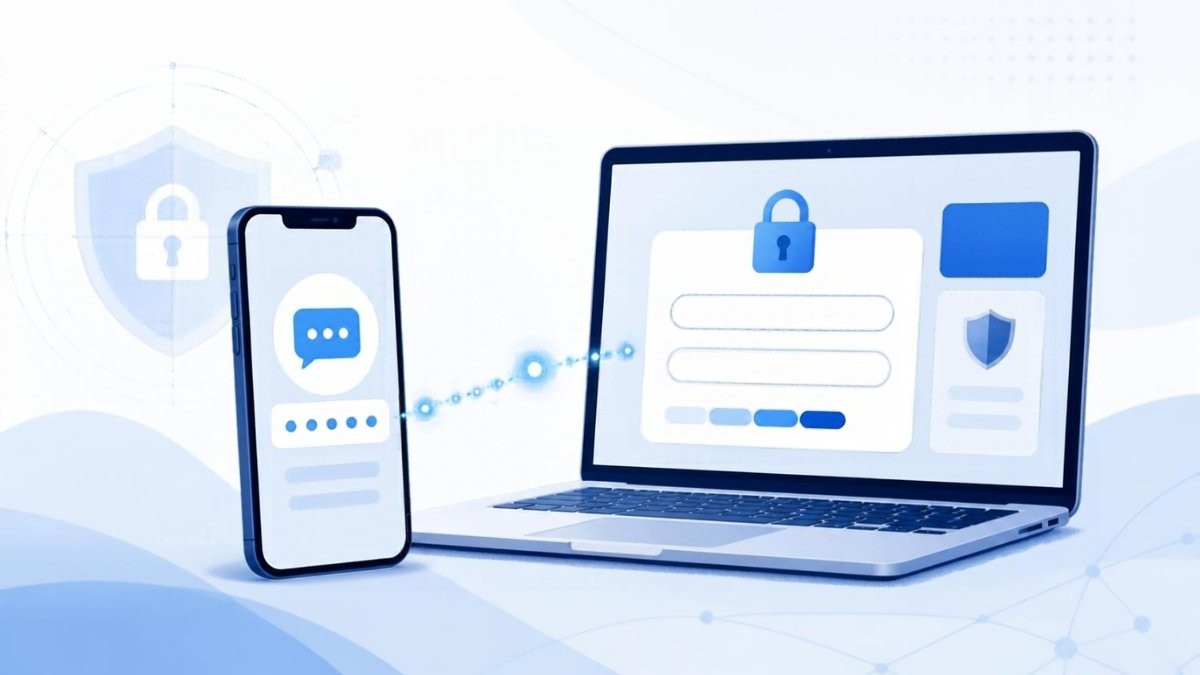
On the Windows sign-in screen, select I forgot my password and verify your identity with a code sent to your recovery email or phone. You can also reset it from any browser on another device. Once the online password changes, the PC accepts the new one when it is connected to the internet.
- On the sign-in screen, select I forgot my password. If it is not shown, select Sign-in options, choose web sign-in, then Forgot my password.
- Choose where to receive a security code and enter it.
- Create the new password and sign in.
From another device, use Microsoft’s account password reset page. If you still know your PIN, you can sign in with it and select Forgot my current password under Sign-in options instead.
Microsoft says its support staff cannot retrieve or bypass a forgotten password, so keep your recovery email and phone number up to date. Their full walkthrough is on the change or reset your Windows password support page.
How to reset a forgotten local account password
For a local account, type any wrong password on the sign-in screen, select Reset password, and answer the three security questions you set up. If you created a password reset disk, insert that USB drive instead. Another administrator account on the PC can also set a new password for you.
Use your security questions
- Enter an incorrect password and press
Enter, then select OK. - Select Reset password.
- Answer the security questions and create a new password.
Use a password reset disk
A password reset disk is a USB flash drive you create in advance while signed in to the local account. Search the Control Panel for “create password reset” and follow the wizard; Microsoft’s guide to creating a password reset disk has the steps. You do not need to make a new disk each time you change the password.
Ask another administrator
On Windows 11 Pro, another admin can open Computer Management > Local Users and Groups > Users, right-click your account and choose Set Password. That console is not included in Windows 11 Home (one of the admin tools covered in our Windows 11 Home vs Pro comparison), where the admin uses the net user command below instead. Either way, Windows warns that this can make EFS-encrypted files, stored credentials and certificates inaccessible, which is why the security-question route is safer if it works.
When nothing else works
If there is no other admin, no reset disk and you cannot answer the questions, the supported option is to reset the PC with Remove everything. Our guide to factory resetting Windows 11 explains what that deletes. Third-party “password removal” tools exist, but many are unsafe and some bundle malware, so we do not recommend them.
How to change a password with Command Prompt
An administrator can change any local account password with net user. Open Terminal or Command Prompt as administrator and run net user username *, then type the new password twice when prompted. The asterisk keeps the password off the screen and out of your command history.
- Right-click Start and choose Terminal (Admin).
- Run
net userto list the accounts on the PC. - Run
net user "Jane Smith" *, using quotation marks if the name contains a space. - Type the new password, press
Enter, then type it again to confirm.
This works for local accounts only. A Microsoft account password has to be changed online, because the PC simply checks it against Microsoft. The same EFS warning applies when an admin sets a password this way.
Had to reset the PC to get back in?
A reset on the same hardware normally reactivates Windows automatically. If it doesn’t, or the machine was never properly licensed, a Windows 11 Home retail key gives you a genuine licence you can move to a new PC later. You can confirm the result with our guide on checking Windows 11 activation.
PIN vs password: which one are you changing?
Your Windows Hello PIN and your password are separate. The PIN only opens this particular device, while the password belongs to the account itself. Changing one does not change the other, so if Windows asks for a PIN you have forgotten, select I forgot my PIN rather than resetting your password.
A PIN is tied to the device’s TPM chip, so someone who learns it cannot use it to sign in elsewhere. That is why Microsoft encourages PIN, face or fingerprint sign-in, and why a long password you rarely type is perfectly reasonable.
To change the PIN, go to Settings > Accounts > Sign-in options > PIN (Windows Hello) > Change PIN. If your PC lacks a TPM, see our explainer on Windows 11 TPM and Secure Boot requirements.
Frequently asked questions
How do I change my computer password if I forgot the old one?
You cannot change it without the old password, but you can reset it. For a Microsoft account, select I forgot my password on the sign-in screen or reset it online. For a local account, answer your security questions, use a password reset disk, or ask another administrator to set a new password.
Can I remove the password from Windows 11 completely?
For a local account, you can set a blank password through Sign-in options, but anyone with physical access can then open the PC. For a Microsoft account, Windows can hide the password and use only Windows Hello PIN, face or fingerprint. That is the safer way to stop typing a password every day.
Why is there no Password option in Sign-in options?
The setting that only allows Windows Hello sign-in for Microsoft accounts is usually switched on. Turn it off under Additional settings in Sign-in options and the Password entry returns. On work PCs, an organisation’s policy may also hide it, in which case your IT team manages password changes.
Does changing my Windows password change my Microsoft account password?
Yes, if you sign in with a Microsoft account. Its password is the same one you use for Outlook.com, OneDrive and other Microsoft services, so changing it on the PC updates it everywhere. Other devices signed in to that account will ask for the new password the next time they check.
Will resetting my password affect Windows activation?
No. Activation is tied to the PC’s hardware and, optionally, to your Microsoft account, not to the password itself. Changing or resetting a password leaves activation untouched. Only a hardware change, an edition change or reinstalling with a different edition normally triggers activation problems.
Can Microsoft support reset my Windows password for me?
No. Microsoft states that its support agents cannot retrieve, reset or bypass a lost password, and they will not send reset links. You have to use the self-service reset with your recovery email or phone. Keeping that recovery information current is the best protection against being locked out.
The bottom line
Changing a known password takes a minute in Settings or with Ctrl + Alt + Delete; resetting a forgotten one depends on whether you use a Microsoft or local account. Set up recovery options now, and if you ever need to start over, our Windows 11 factory reset guide covers the last resort.
Useful links
| Resource | Why it helps |
|---|---|
| Factory reset Windows 11 | Last-resort option when you cannot get back in |
| Activation after a hardware change | Why linking a Microsoft account helps reactivation |
| Windows 11 Home vs Pro | Which admin tools each edition includes |
| Check if Windows 11 is activated | Confirm activation after a reset |
| Windows 11 TPM and Secure Boot | Why Windows Hello PINs rely on the TPM |
| Windows 11 Home retail key | Genuine licence if a reset leaves Windows unactivated |
| Change or reset your Windows password (Microsoft) | Official steps for both account types |
| Microsoft account password reset | Reset a Microsoft account password from any browser |
| Create a password reset disk (Microsoft) | Prepare a USB recovery option for local accounts |


