🎃 HALLOWEEN SALE: 50% OFF best-selling Windows, Office, Autodesk & Server keys — use code GHOST50 Shop the sale →


How to Upgrade Windows 11 Home to Pro Without Reinstalling

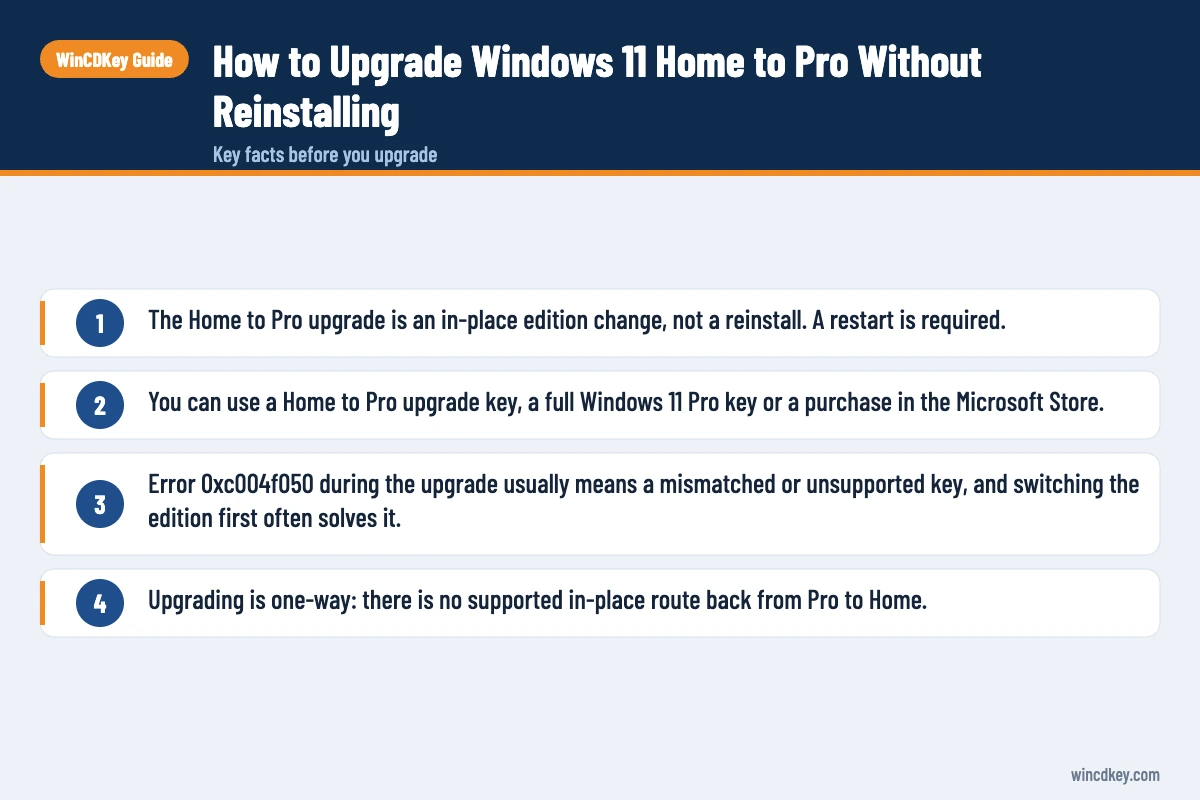
To upgrade Windows 11 Home to Pro without reinstalling, open Settings > System > Activation, select Change product key, enter a Windows 11 Pro key and let the PC restart. Windows adds the Pro features in place, keeping your files, apps and settings. The whole process usually takes five to ten minutes.
Key takeaways
- The Home to Pro upgrade is an in-place edition change, not a reinstall. A restart is required.
- You can use a Home to Pro upgrade key, a full Windows 11 Pro key or a purchase in the Microsoft Store.
- Error 0xc004f050 during the upgrade usually means a mismatched or unsupported key, and switching the edition first often solves it.
- Upgrading is one-way: there is no supported in-place route back from Pro to Home.
In this guide
- Can you upgrade Windows 11 Home to Pro without reinstalling?
- What do you need before you start?
- How to upgrade Windows 11 Home to Pro with a product key
- How to upgrade through the Microsoft Store
- What if the Pro key is rejected?
- How do you confirm the upgrade worked?
- Frequently asked questions
- The bottom line
- Useful links
Can you upgrade Windows 11 Home to Pro without reinstalling?
Yes. Microsoft supports upgrading Windows 11 Home to Pro in place by entering a Pro product key in Settings. Windows switches on the Pro components already present on the system, restarts once and keeps everything else as it was. No USB drive, ISO file or clean installation is needed.
Microsoft’s Windows edition upgrade documentation lists manually entering a product key as the supported method for Home to Pro, with a reboot required. Command-line tools and provisioning packages are not supported for this particular path, so Settings is the place to do it.
If you are still deciding whether the move is worthwhile, our comparison of Windows 11 Home vs Pro sets out exactly which features you gain.
What do you need before you start?
You need a PC running Windows 11 Home, an administrator account, an internet connection and a valid Windows 11 Pro key: either a dedicated Home to Pro upgrade key or a full Pro retail or OEM key. Take a quick backup and note your device encryption recovery key before you begin.
- The right edition family: Home upgrades to Pro, and Home N upgrades to Pro N. An N edition key won’t upgrade standard Home, and vice versa.
- S mode: if Settings shows Windows 11 Home in S mode, switch out of S mode first through the Microsoft Store. Microsoft’s S mode FAQ confirms switching out is free but one-way.
- Recovery key: if device encryption is on, confirm your recovery key is saved to your Microsoft account. Microsoft’s guide to finding your BitLocker recovery key shows where to look.
- Pending updates: install waiting updates and restart before upgrading, which avoids the most common stalls.
Which key type should you use?
A Windows 11 Home to Pro upgrade key is designed for exactly this job and is usually the lowest-cost route. A full Windows 11 Pro retail key costs more but also works on a clean install or a future PC, which matters if you rebuild often.
How to upgrade Windows 11 Home to Pro with a product key
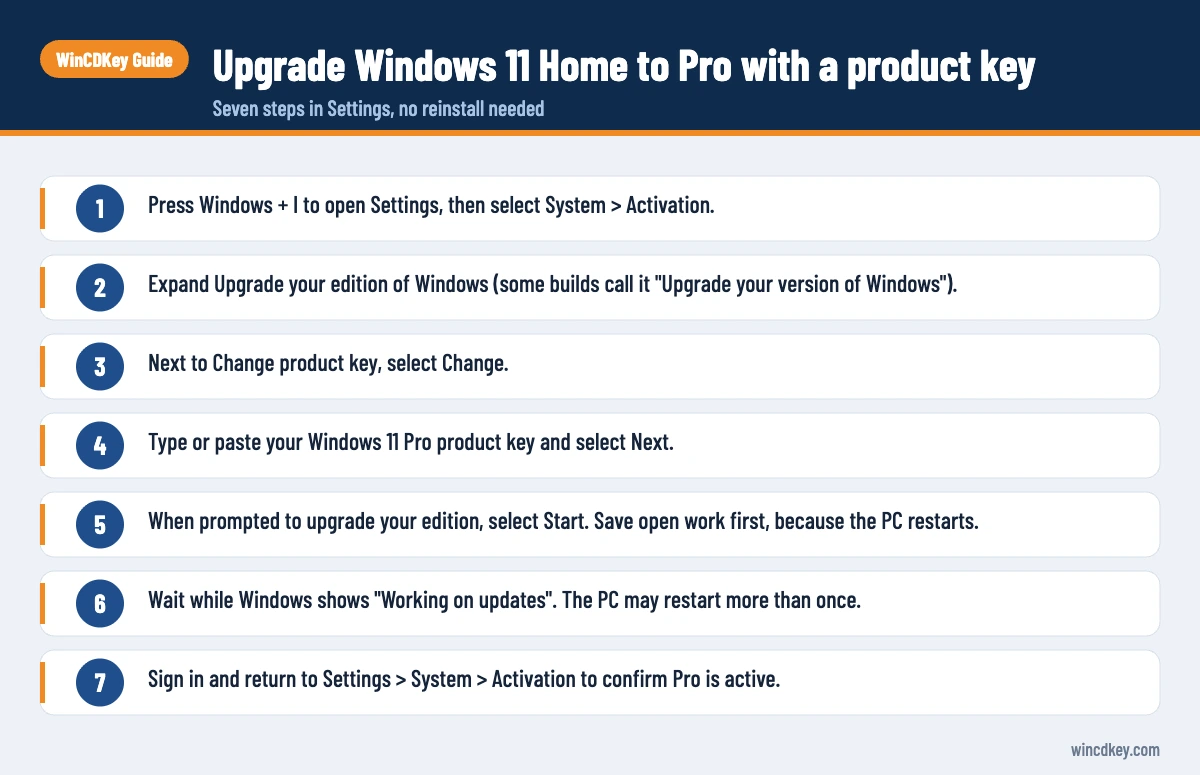
Go to Settings, System, Activation, expand Upgrade your edition of Windows and select Change product key. Enter your 25-character Pro key, select Next, then Start to begin the upgrade. Windows prepares the Pro features, restarts and activates Windows 11 Pro automatically when it reconnects to the internet.
- Press Windows + I to open Settings, then select System > Activation.
- Expand Upgrade your edition of Windows (some builds call it “Upgrade your version of Windows”).
- Next to Change product key, select Change.
- Type or paste your Windows 11 Pro product key and select Next.
- When prompted to upgrade your edition, select Start. Save open work first, because the PC restarts.
- Wait while Windows shows “Working on updates”. The PC may restart more than once.
- Sign in and return to Settings > System > Activation to confirm Pro is active.
You can also jump straight to the Activation page by pressing Windows + R, typing ms-settings:activation and pressing Enter.
How to upgrade through the Microsoft Store
If you don’t have a key, open Settings, System, Activation and select Open Store under Upgrade your edition of Windows. The Store shows the Windows 11 Pro upgrade price for your region; after payment, select Install and the PC upgrades and restarts. The licence is stored as a digital licence on your Microsoft account.
This route is convenient but generally costs more than buying a Pro upgrade key separately. Microsoft’s UK store lists full Windows 11 Pro at £219.99, and the in-Store upgrade price varies by region and over time, so compare before you click Buy.
One practical advantage of the Store route is that the digital licence is attached to your Microsoft account immediately, so there is no key to keep safe afterwards.
What if the Pro key is rejected?
If Windows rejects a valid Pro key with error 0xc004f050 or a message that the key won’t work, the usual cause is that Home can’t accept that key type directly. Switching the edition to Pro with Microsoft’s generic Pro default key first, then entering your own key once Pro is installed, resolves most cases.
The generic key VK7JG-NPHTM-C97JM-9MPGT-3V66T is a default installation key for Windows Pro that Microsoft community moderators routinely suggest for this step. It changes the edition only; it does not activate Windows. Activation still requires your own genuine key.
- Go to Settings > System > Activation > Change product key.
- Enter
VK7JG-NPHTM-C97JM-9MPGT-3V66Tand select Next, then Start. - Let Windows upgrade to Pro and restart. It will show as not activated at this point.
- Return to Change product key, enter your purchased Windows 11 Pro key and select Activate.
Other errors you might see
- 0xc004f050: the key is invalid for this edition or mistyped. See our detailed fix for error 0xc004f050 on Windows 11 Pro.
- 0xC004C008: the key has reached its activation limit on another device. Our guide to fixing 0xC004C008 covers the options.
- 0x803fa067: Windows found no valid licence for Pro, often after the generic key step when the real key hasn’t been entered yet.
If online activation keeps failing with a genuine key, phone activation is the dependable fallback.
Ready to move to Pro?
Our Windows 11 Home to Pro upgrade key is delivered by email and works with the steps above. If anything stalls, open a ticket through our help and support centre with the error code and a screenshot.
How do you confirm the upgrade worked?
Open Settings, System, About and check that Edition reads Windows 11 Pro. Then open Settings, System, Activation and confirm the status says Windows is activated. For a deeper check, run slmgr /dli in Terminal, which shows the edition, licence channel and the last five characters of the installed key.
It’s also worth confirming the Pro tools are there. Type “BitLocker” or “gpedit.msc” into Start search, or check that Hyper-V and Windows Sandbox now appear in Turn Windows features on or off. Our step-by-step guide on how to check if Windows 11 is activated explains every status message.
Finally, sign in with a Microsoft account if you use a local one. That links the new Pro digital licence to your account, which helps you reactivate after a future hardware change.
Frequently asked questions
Will upgrading Windows 11 Home to Pro delete my files?
No. The Home to Pro upgrade is an edition change applied in place, so your documents, photos, installed apps and settings stay as they are. Windows restarts during the process but does not reinstall. A backup is still sensible before any system change, particularly on a PC that holds important work.
Can I use a Windows 10 Pro key to upgrade Windows 11 Home to Pro?
Generally yes. Windows 11 accepts most genuine Windows 10 Pro keys, because Microsoft treats Windows 11 as an upgrade of Windows 10 for activation. Enter it under Change product key in the same way. If the key is rejected, try the edition switch method first, then enter the Windows 10 Pro key.
How long does the Windows 11 Home to Pro upgrade take?
Usually between five and ten minutes on a modern PC with an SSD, including one or two restarts. It can take longer on older hard drives or if Windows has pending updates. Avoid switching the PC off while it shows “Working on updates”, as interrupting the process can cause problems.
Why does Windows say the product key didn’t work?
The most common reasons are a typing error, a key for the wrong edition family (such as Pro N on standard Home), a key already used on another PC, or Home refusing a key type it can’t upgrade from directly. Check the key carefully, then try the generic edition switch followed by your own key.
Can I downgrade from Windows 11 Pro back to Home?
Not in place. Microsoft provides no supported downgrade path from Pro to Home, so returning to Home requires a clean installation of Windows 11 Home with a Home licence. If the original Home licence came pre-installed by your PC maker, it is usually stored in firmware and activates again automatically.
Do I need to reinstall drivers or apps after upgrading to Pro?
No. Drivers, apps and settings carry over unchanged because the upgrade only enables extra features. After the restart, run Windows Update once to pick up any Pro-specific components, and turn on Hyper-V or Windows Sandbox under Turn Windows features on or off if you plan to use them.
The bottom line
Upgrading Windows 11 Home to Pro is a short, in-place job: enter a Pro key, restart and confirm activation. If the key is rejected, switch the edition first and then activate with your own key. For a fresh install instead, follow our Windows 11 Pro download and installation guide.
Useful links
| Resource | Why it helps |
|---|---|
| Windows 11 Home vs Pro | What you gain from the upgrade |
| How to check if Windows 11 is activated | Confirm activation afterwards |
| Windows 11 Home to Pro upgrade key | Key designed for in-place upgrades |
| Fix error 0xc004f050 | Most common upgrade error |
| Activate Windows by phone | Fallback when online activation fails |
| Help and support centre | Support tickets and activation help |
| Microsoft Support: Find your BitLocker recovery key | Locate the recovery key before upgrading |
| Microsoft Support: S mode FAQ | Switching out of S mode before upgrading |
| Microsoft Learn: Windows edition upgrades | Official supported upgrade and downgrade paths |


