🎃 HALLOWEEN SALE: 50% OFF best-selling Windows, Office, Autodesk & Server keys — use code GHOST50 Shop the sale →


Windows 11 System Requirements: How to Check TPM 2.0 and Secure Boot

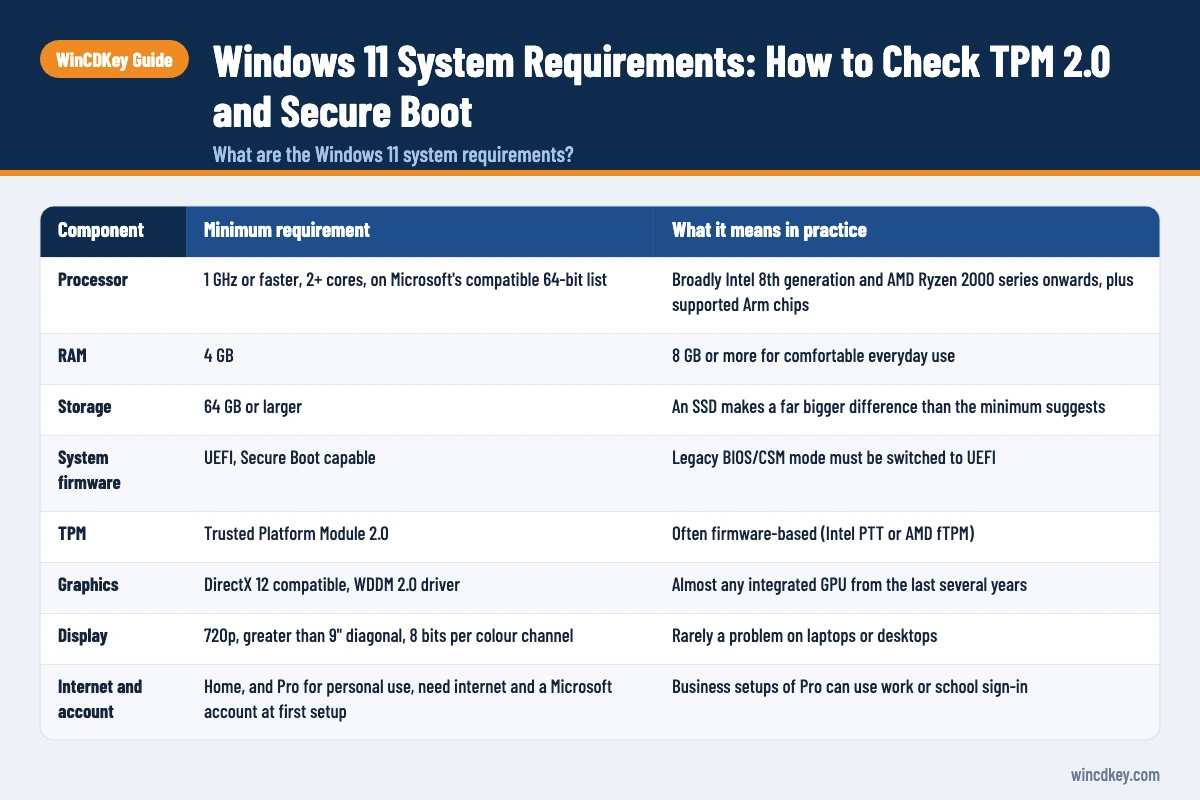
The Windows 11 system requirements are a compatible 64-bit processor with two or more cores at 1 GHz or faster, 4 GB of RAM, 64 GB of storage, UEFI firmware with Secure Boot capability, TPM 2.0, and a DirectX 12 graphics card. Most PCs from 2018 onwards qualify, but TPM and Secure Boot are often switched off in firmware.
Below you’ll find the full requirements table, the quickest way to test your PC, and exactly where to look for TPM 2.0 and Secure Boot, plus what to do if your processor isn’t supported.
Key takeaways
- The hard blockers are usually TPM 2.0, Secure Boot and the processor list, not RAM or storage.
- Microsoft’s PC Health Check app tells you in a minute which requirement fails.
- Run
tpm.mscto check TPM andmsinfo32to check Secure Boot and BIOS mode. - TPM and Secure Boot are frequently present but disabled; turning them on in UEFI settings often solves it.
- Microsoft advises against installing on unsupported hardware, which may not receive updates.
In this guide
- What are the Windows 11 system requirements?
- How do I check if my PC can run Windows 11?
- How do I check if my PC has TPM 2.0?
- How do I check if Secure Boot is enabled?
- How do I turn on TPM 2.0 and Secure Boot?
- What if my processor isn’t supported by Windows 11?
- Frequently asked questions
- The bottom line
- Useful links
What are the Windows 11 system requirements?
Microsoft’s minimum requirements for Windows 11 are a compatible 64-bit processor or SoC (1 GHz, two or more cores), 4 GB RAM, 64 GB storage, UEFI firmware that is Secure Boot capable, TPM version 2.0, DirectX 12 graphics with a WDDM 2.0 driver, and a 720p display larger than 9 inches. These apply to Home, Pro and the business editions alike.
| Component | Minimum requirement | What it means in practice |
|---|---|---|
| Processor | 1 GHz or faster, 2+ cores, on Microsoft’s compatible 64-bit list | Broadly Intel 8th generation and AMD Ryzen 2000 series onwards, plus supported Arm chips |
| RAM | 4 GB | 8 GB or more for comfortable everyday use |
| Storage | 64 GB or larger | An SSD makes a far bigger difference than the minimum suggests |
| System firmware | UEFI, Secure Boot capable | Legacy BIOS/CSM mode must be switched to UEFI |
| TPM | Trusted Platform Module 2.0 | Often firmware-based (Intel PTT or AMD fTPM) |
| Graphics | DirectX 12 compatible, WDDM 2.0 driver | Almost any integrated GPU from the last several years |
| Display | 720p, greater than 9″ diagonal, 8 bits per colour channel | Rarely a problem on laptops or desktops |
| Internet and account | Home, and Pro for personal use, need internet and a Microsoft account at first setup | Business setups of Pro can use work or school sign-in |
The source for all of the above is Microsoft’s Windows 11 specifications page. Feature-specific extras (for example, Hyper-V needing second-level address translation, or certain Copilot+ features needing an NPU) sit on top of these minimums.
How do I check if my PC can run Windows 11?
Install Microsoft’s free PC Health Check app on the Windows 10 PC, open it and select Check now under the Windows 11 heading. It reports whether the device meets every requirement and, if not, names the failing item, such as TPM, Secure Boot, processor or storage, so you know what to fix.
- Download PC Health Check from Microsoft (search “PC Health Check” on microsoft.com) and install it.
- Open the app and select Check now in the “Introducing Windows 11” panel.
- Select See all results to view every pass and fail.
- Note any failures, then use the sections below to confirm and fix them.
On a Windows 10 PC that qualifies, Windows Update may also show “This PC can run Windows 11”. A common pattern in our support tickets: Health Check flags TPM or Secure Boot on a perfectly modern motherboard simply because the firmware shipped with those options off.
How do I check if my PC has TPM 2.0?
Press Windows key + R, type tpm.msc and press Enter. If the TPM Management console shows “The TPM is ready for use”, look at Specification Version under TPM Manufacturer Information: it must read 2.0. If you see “Compatible TPM cannot be found”, the TPM is missing or, more often, disabled in firmware.
- Press
Win + Rto open Run. - Type
tpm.mscand select OK. - Read the Status line and the Specification Version.
- If the version is lower than 2.0 (for example 1.2), the device doesn’t meet the requirement as it stands.
Prefer the command line? Open PowerShell as administrator and run Get-Tpm. TpmPresent and TpmReady should both read True. Some older 1.2 chips can be updated to 2.0 with a manufacturer firmware update, so check your PC maker’s support page before giving up.
How do I check if Secure Boot is enabled?
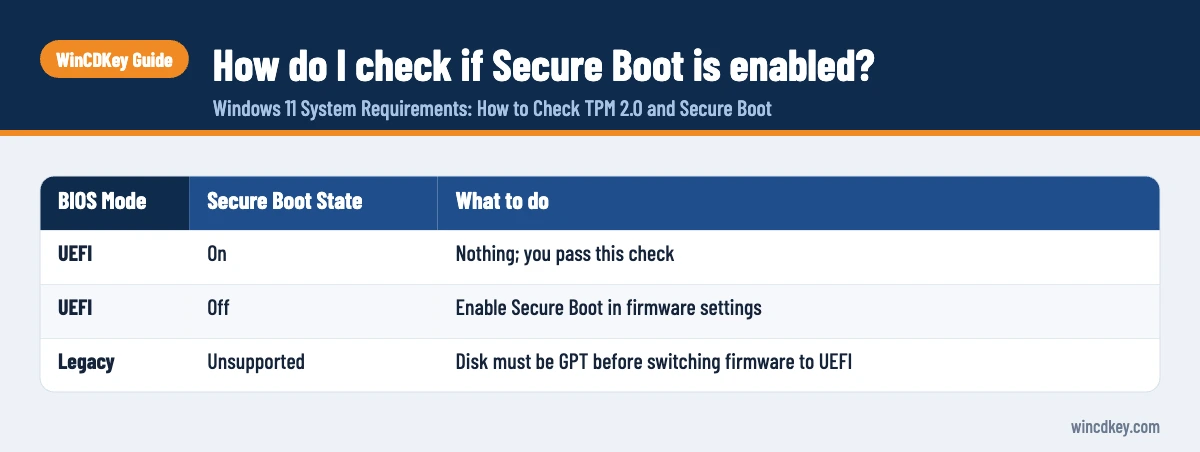
Press Windows key + R, type msinfo32 and open System Summary. Check two lines: BIOS Mode should say UEFI, and Secure Boot State should say On. “Off” means the PC supports Secure Boot but it is disabled; “Unsupported” usually means the PC is running in Legacy BIOS mode.
| BIOS Mode | Secure Boot State | What to do |
|---|---|---|
| UEFI | On | Nothing; you pass this check |
| UEFI | Off | Enable Secure Boot in firmware settings |
| Legacy | Unsupported | Disk must be GPT before switching firmware to UEFI |
The Legacy case needs care. If Windows was installed in Legacy mode, the system disk is probably MBR, and switching the firmware to UEFI alone will stop it booting. Microsoft’s MBR2GPT tool converts the disk without deleting data, but take a full backup first. If you are planning a clean install anyway, the new installation will create GPT partitions automatically.
How do I turn on TPM 2.0 and Secure Boot?
Restart into your UEFI firmware settings, find the TPM option (often called Intel PTT, Intel Platform Trust Technology, AMD fTPM or Security Device Support) and enable it, then find Secure Boot under the Boot or Security menu and enable it. Save, exit, and rerun PC Health Check to confirm.
- In Windows 10, go to Settings > Update & Security > Recovery and select Restart now under Advanced startup. (On Windows 11 it’s Settings > System > Recovery.)
- Choose Troubleshoot > Advanced options > UEFI Firmware Settings > Restart.
- Look in the Advanced, Security or Trusted Computing menus for the TPM setting and enable it.
- Open the Boot or Security menu and set Secure Boot to Enabled. Some boards require CSM to be disabled first, and some need “Standard” or “Install default keys” selected.
- Save changes (often
F10) and restart. - Run
tpm.mscandmsinfo32again to confirm both changes took effect.
Menu names vary between manufacturers, so check your PC or motherboard maker’s documentation if you can’t find an option. Microsoft’s guide to enabling TPM 2.0 lists the common labels.
One more 2026-specific point: several of the original Microsoft Secure Boot certificates from 2011 expire during 2026. Keep Windows Update switched on and install any firmware updates your PC maker releases, so the replacement certificates arrive. Devices that miss them still boot but stop receiving new boot-level protections.
Your PC passes? Make sure the licence matches the edition
Once Health Check shows green, you can upgrade or install fresh. If you need a licence, WinCDKey offers a Windows 11 Pro retail key and a Windows 11 Home retail key; Home users who want BitLocker and Remote Desktop can use the Home to Pro upgrade instead.
What if my processor isn’t supported by Windows 11?
If PC Health Check says your processor isn’t supported, there is no setting that changes that. Your realistic options are to stay on Windows 10 with Extended Security Updates for now, replace the PC or motherboard, or accept the risks of an unsupported installation, which Microsoft advises against because such devices may not receive updates.
Option 1: Stay on Windows 10 with ESU
Windows 10 reached end of support on 14 October 2025. Eligible personal PCs on version 22H2 can enrol in consumer Extended Security Updates, which now run to 12 October 2027, as covered in our Windows 10 ESU extension explainer. That buys time to plan a hardware upgrade.
Option 2: Upgrade hardware
For desktops, a newer processor and motherboard usually costs less than a new PC, and a Windows licence carries over if it is a retail licence. OEM licences are tied to the original motherboard; our guide to transferring a Windows licence to a new PC explains the difference.
Option 3: An unsupported installation (not recommended)
Workarounds exist, including registry edits Microsoft once documented and later removed from its support pages, and third-party tools that strip the checks. We don’t recommend them as a main route. Microsoft’s download page warns that installing on a PC that doesn’t meet the minimum requirements may leave it unsupported and without updates, and future feature updates may not install.
Frequently asked questions
Can Windows 11 run on 4 GB of RAM?
Yes, 4 GB is Microsoft’s official minimum, so Windows 11 installs and runs. In practice, a few browser tabs plus Office or Teams will push a 4 GB machine into heavy disk paging and noticeable slowdowns. 8 GB is a sensible working minimum, and 16 GB suits multitasking, larger spreadsheets and light creative work.
Does Windows 11 require TPM 2.0 or will TPM 1.2 work?
Windows 11 requires TPM 2.0, and TPM 1.2 doesn’t meet the requirement. Check the Specification Version in tpm.msc. Some business laptops with TPM 1.2 can be moved to 2.0 through a manufacturer firmware update, so look on your PC maker’s support site before assuming the hardware is unsuitable.
Is my PC too old for Windows 11?
Generally, PCs with an Intel 8th-generation Core or AMD Ryzen 2000-series processor or newer can run Windows 11, provided TPM 2.0 and Secure Boot are enabled. Older CPUs aren’t on Microsoft’s supported list. PC Health Check gives a definitive answer for your exact machine in about a minute.
Why does PC Health Check say my PC must support Secure Boot?
Usually because the PC is running in Legacy BIOS (CSM) mode or Secure Boot is turned off. Run msinfo32 and check BIOS Mode and Secure Boot State. If BIOS Mode shows Legacy, convert the system disk to GPT with MBR2GPT after a backup, then switch firmware to UEFI and enable Secure Boot.
Is it safe to enable TPM in BIOS?
Yes, enabling the firmware TPM is a normal, supported change and doesn’t affect your files. One caution: if BitLocker or device encryption is already active, changing TPM or Secure Boot settings can trigger a recovery key prompt, so make sure you have your BitLocker recovery key saved before you start.
Do I need a new licence to move from Windows 10 to Windows 11?
Usually not. A qualifying, activated Windows 10 PC upgrades to the equivalent Windows 11 edition and keeps its digital licence. You only need a new licence if you’re building a PC, installing a different edition, or the old licence was OEM and tied to hardware you have replaced.
The bottom line
Most failed Windows 11 compatibility checks come down to TPM 2.0 or Secure Boot being switched off, which takes five minutes to fix in firmware. If the processor is the blocker, plan a hardware change rather than forcing an install. Once your PC passes, follow our guide to creating a Windows 11 bootable USB to install it.
Useful links
| Resource | Why it helps |
|---|---|
| Microsoft Windows 11 specifications | Official minimum hardware requirements |
| Enable TPM 2.0 on your PC | Microsoft’s TPM check and firmware guidance |
| MBR2GPT documentation | Convert a Legacy MBR disk to GPT for UEFI |
| Windows 10 ESU extended to October 2027 | Option if your hardware isn’t supported |
| Create a Windows 11 bootable USB | Next step once your PC passes |
| Transfer a Windows licence to a new PC | Retail vs OEM rules after a hardware upgrade |
| Windows 11 Pro retail key | Licence for a Pro installation |
| Windows 11 Home retail key | Licence for a Home installation |
| Upgrade Windows 11 Home to Pro | Add Pro features without reinstalling |


