🎃 HALLOWEEN SALE: 50% OFF best-selling Windows, Office, Autodesk & Server keys — use code GHOST50 Shop the sale →


How to Transfer a Windows 11 Licence to a New PC

You can transfer a Windows license to a new PC if it is a retail licence: remove the product key from the old computer, install the same edition on the new one and activate it with that key. OEM licences that came preinstalled on a PC stay with that machine and cannot legally be moved. Volume licences follow the organisation’s agreement.
Key takeaways
- Only retail (stand-alone) Windows licences are transferable to another PC you own; OEM licences are tied to the first device.
- Run
slmgr /dlibefore you do anything else to see whether your licence is RETAIL, OEM or VOLUME. - A licence can only be active on one PC at a time, so uninstall the key from the old machine with
slmgr /upkfirst. - The new PC must run the same edition (Home key for Home, Pro key for Pro) or activation will fail.
- If online activation is refused after a move, Microsoft’s Installation ID / Confirmation ID route or a support ticket usually resolves it.
In this guide
- Can you transfer a Windows license to a new PC?
- How do you check which licence type you have?
- What should you do on the old PC first?
- How to transfer a Windows license to a new PC, step by step
- What if activation is refused after the transfer?
- What are your options with an OEM licence?
- Frequently asked questions
- The bottom line
- Useful links
Can you transfer a Windows license to a new PC?
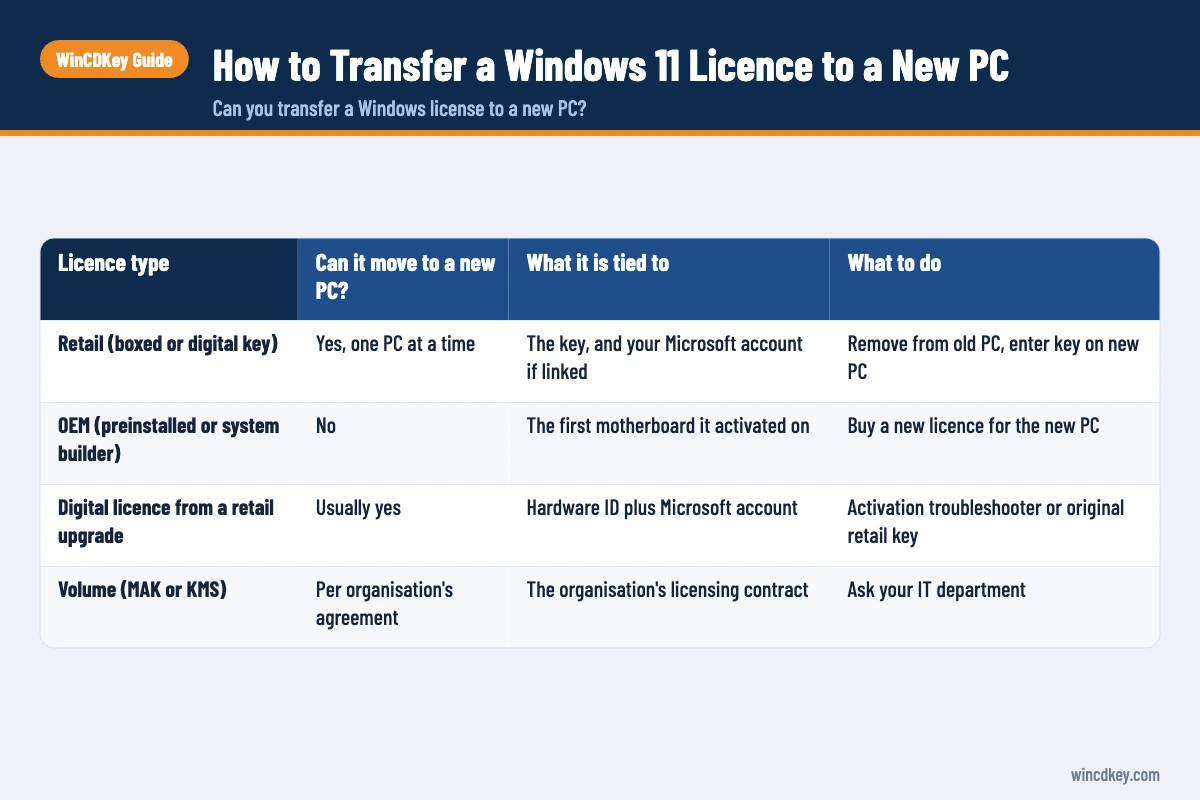
Yes, if the licence is retail. Microsoft’s Windows licence terms let you move stand-alone software to another device that belongs to you, provided it is removed from the previous device. Software that came preinstalled on a computer (OEM) is licensed to that computer and may only be transferred together with it.
In practice, the licence type matters far more than how you obtained Windows. A free upgrade from Windows 10 to Windows 11 keeps the type of the original licence, so an upgraded retail licence stays retail and an upgraded OEM licence stays OEM.
| Licence type | Can it move to a new PC? | What it is tied to | What to do |
|---|---|---|---|
| Retail (boxed or digital key) | Yes, one PC at a time | The key, and your Microsoft account if linked | Remove from old PC, enter key on new PC |
| OEM (preinstalled or system builder) | No | The first motherboard it activated on | Buy a new licence for the new PC |
| Digital licence from a retail upgrade | Usually yes | Hardware ID plus Microsoft account | Activation troubleshooter or original retail key |
| Volume (MAK or KMS) | Per organisation’s agreement | The organisation’s licensing contract | Ask your IT department |
For a fuller explanation of how each channel works, see our guide to OEM vs retail vs volume Windows keys.
How do you check which licence type you have?
Open Command Prompt on the old PC and run slmgr /dli. After a few seconds a Windows Script Host box shows a Description line ending in a channel name such as RETAIL, OEM_DM (preinstalled by the manufacturer), OEM_COA_NSLP, VOLUME_MAK or VOLUME_KMSCLIENT. That channel tells you whether the transfer is allowed.
- Press Start, type
cmdand open Command Prompt (no administrator rights needed for this check). - Type
slmgr /dliand press Enter. - Read the Description line and note the last five characters of the partial product key.
- For more detail, including the activation ID, run
slmgr /dlv.
Microsoft documents both commands in its Slmgr.vbs options reference. If you cannot boot the old PC any more, check your order confirmation email or the box: a 25-character key bought as a stand-alone product is retail by definition.
A common support ticket we see is from someone who assumed a key printed on a sticker was retail. Stickers on laptops are OEM certificates, and those licences belong to that laptop.
What should you do on the old PC first?
Before moving a retail licence, make sure you have the full 25-character product key, then uninstall it from the old computer with slmgr /upk. This frees the licence so it is only in use on one machine, which is what the licence terms require and what Microsoft’s activation servers expect.
- Locate your key. Look in your purchase email, your retailer account or the packaging. Windows only stores the full key on some installs, so do not rely on reading it back later.
- Open an elevated Command Prompt. Right-click Command Prompt and choose Run as administrator.
- Uninstall the key. Run
slmgr /upk. Windows confirms the key was uninstalled; after a restart the old PC is unlicensed. - Clear the key from the registry. Run
slmgr /cpkyso the key cannot be read from the old machine. - Tidy up your Microsoft account. If the PC is being sold or recycled, remove it from your devices list at account.microsoft.com and reset the PC.
Uninstalling the key is a local action; Microsoft’s documentation describes it as returning the system to an unlicensed state. It does not “refund” an activation count, but it does mean you are no longer using the licence on two machines, which avoids most disputes if you later need help from Microsoft.
How to transfer a Windows license to a new PC, step by step
To transfer a Windows license to a new PC, install the same edition of Windows the key is for, skip the key during setup if you like, then go to Settings > System > Activation > Change product key and enter your retail key. Windows contacts Microsoft and activates within a minute if the key is free.
- Install the matching edition. A Windows 11 Pro key needs Windows 11 Pro installed; a Home key needs Home. If setup asks for a key, you can enter it there or choose I don’t have a product key.
- Connect to the internet and sign in with an administrator account.
- Open Settings > System > Activation.
- Select Change product key and type the 25-character key.
- Select Activate. The Activation state should change to Active.
- Link your Microsoft account on the same page (Add an account) so the digital licence can be recovered after future hardware changes.
If you prefer the command line, run slmgr /ipk XXXXX-XXXXX-XXXXX-XXXXX-XXXXX followed by slmgr /ato from an elevated Command Prompt. Both do the same job as the Settings page.
If your licence is a digital licence linked to your Microsoft account rather than a key you can see, the new PC looks like the old one with different hardware. In that case use the Activation troubleshooter’s “I changed hardware on this device recently” option, which we cover in detail in our guide to Windows activation after a hardware change.
What if activation is refused after the transfer?
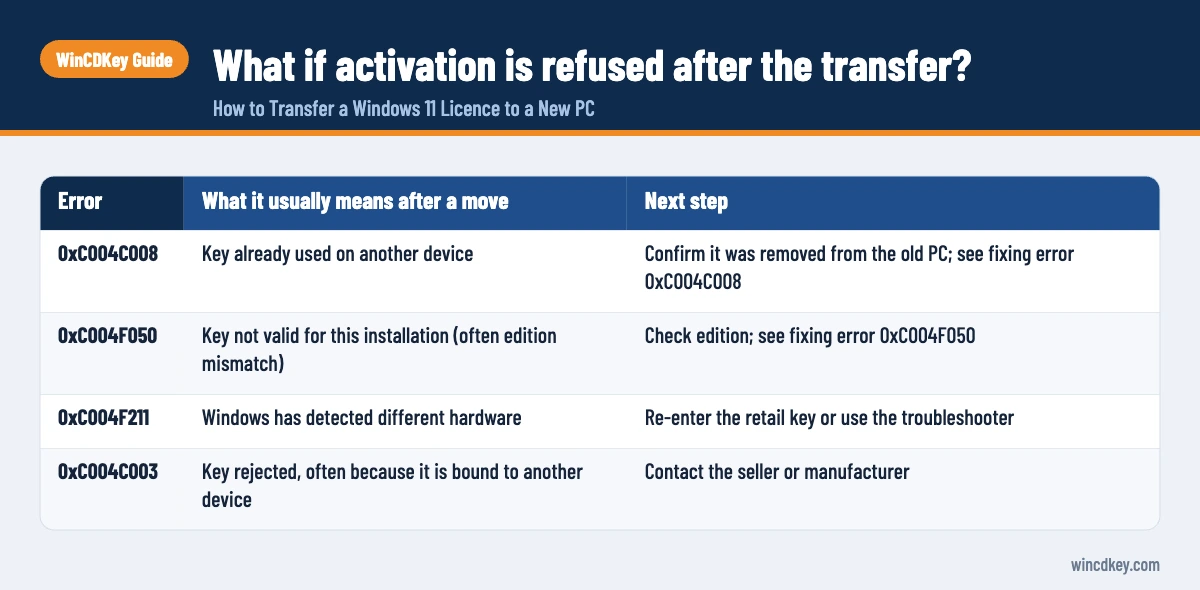
Most failed transfers come down to three things: the key is OEM rather than retail, the installed edition does not match the key, or Microsoft’s servers still see the key in use elsewhere. Each produces a recognisable error code, and the last one can usually be cleared through the Installation ID and Confirmation ID process.
| Error | What it usually means after a move | Next step |
|---|---|---|
| 0xC004C008 | Key already used on another device | Confirm it was removed from the old PC; see fixing error 0xC004C008 |
| 0xC004F050 | Key not valid for this installation (often edition mismatch) | Check edition; see fixing error 0xC004F050 |
| 0xC004F211 | Windows has detected different hardware | Re-enter the retail key or use the troubleshooter |
| 0xC004C003 | Key rejected, often because it is bound to another device | Contact the seller or manufacturer |
Retail keys that have been activated before are sometimes accepted only through offline activation. You generate an Installation ID on the PC, exchange it for a Confirmation ID and enter that to finish. Microsoft moved its old telephone line for this to an online activation portal in December 2025, and our walkthrough on activating Windows via phone explains the Installation ID step. For keys bought from WinCDKey that are sold for this method, the Get Confirmation ID tool does the exchange for you.
Microsoft’s own list of codes is in its activation errors help page, which is worth checking for any code not listed here.
What are your options with an OEM licence?
An OEM licence cannot be moved, so the new PC needs its own licence. The choice is between another OEM key, which is cheaper but will again be tied to that motherboard, and a retail key, which costs more but can follow you to your next computer. If you rebuild often, retail usually works out better.
The old PC keeps its OEM licence, so it can be sold or passed on fully activated. That is often the simplest outcome: the licence stays where the terms say it belongs and the new machine starts with a clean, matching key.
Check that your new PC meets the requirements and decide on the edition before you buy. Home covers most personal use; Pro adds BitLocker device encryption management, Remote Desktop hosting and Hyper-V, which matter for work machines.
Need a licence you can move later?
A Windows 11 Pro retail key or Windows 11 Home retail key can be transferred to another PC you own when you upgrade. If the new PC will be its last home, a Windows 11 Pro OEM key costs less.
Frequently asked questions
Can I use my Windows 10 key on a new Windows 11 PC?
Generally yes, if the Windows 10 key is retail and matches the edition. Windows 11 accepts Windows 10 Home and Pro keys for the equivalent Windows 11 edition. An OEM Windows 10 key from an old laptop or prebuilt desktop is still bound to that device, so it will not legitimately activate a different PC.
How many times can I transfer a retail Windows licence?
Microsoft does not publish a fixed limit. The rule is that a retail licence may be used on one device at a time and must be removed from the previous one. Frequent moves can trigger an online refusal, after which offline activation with a Confirmation ID or contacting Microsoft support is normally needed.
Does slmgr /upk deactivate the key on Microsoft’s servers?
No. Microsoft describes slmgr /upk as uninstalling the product key from the current Windows installation, leaving it unlicensed after a restart. There is no command that releases a key on Microsoft’s side. Removing it locally simply ensures you are not using the licence on two machines at once.
Can I transfer an OEM Windows licence to a new motherboard?
Not as a general rule. An OEM licence is tied to the PC it was first activated on, and Microsoft treats a new motherboard as a new PC. A board replaced under warranty for a fault is usually handled by the manufacturer. An upgrade by choice normally needs a new licence.
Will my apps and files transfer with the Windows licence?
No. The licence only covers Windows itself. Files, settings and programs have to be moved separately, for example with OneDrive, an external drive or a migration tool, and most paid apps such as Office have their own licence rules and activation steps.
Do I need to remove the old PC from my Microsoft account?
It is not required for activation, but it is good housekeeping. Removing the old device from your account’s device list avoids confusion when the Activation troubleshooter shows linked devices, and it is sensible if you are selling or recycling the computer.
The bottom line
Check the licence type first, remove a retail key from the old PC, and activate the same edition on the new one. If the licence turns out to be OEM, budget for a new key rather than fighting activation. If anything stalls, our Help & Support Centre covers activation issues for keys bought from us.
Useful links
| Resource | Why it helps |
|---|---|
| OEM vs retail vs volume Windows keys | Explains which licence types can move |
| Windows activation after a hardware change | Activation troubleshooter for digital licences |
| Activate Windows via phone | Installation ID and Confirmation ID steps |
| Get Confirmation ID tool | CID lookup for phone-activation keys |
| Fix error 0xC004C008 | Key already in use on another device |
| Fix error 0xC004F050 | Invalid key or edition mismatch |
| Microsoft Learn: Slmgr.vbs options | Official reference for /dli, /upk, /cpky, /ipk, /ato |
| Microsoft Support: activation errors | Official list of error codes |
| WinCDKey Help & Support Centre | Help with keys bought from WinCDKey |


