🎃 HALLOWEEN SALE: 50% OFF best-selling Windows, Office, Autodesk & Server keys — use code GHOST50 Shop the sale →


How to Remove the “Activate Windows” Watermark (The Legitimate Way)

The “Activate Windows” watermark appears because Windows cannot find a valid licence for the installed edition. The only legitimate way to remove it is to activate Windows: enter a genuine product key for that edition, re-link a digital licence after a hardware change, or buy a licence. Once activation succeeds, the watermark disappears, usually after a restart.
Key takeaways
- The activate Windows watermark is a symptom: Windows is running without a valid licence for its current edition.
- Settings > System > Activation tells you the exact reason and shows an error code to work from.
- Common causes are no key at all, a Home/Pro edition mismatch, a hardware change or an expired volume (KMS) activation.
- Registry edits and “watermark remover” tools only hide text; Windows stays unactivated and personalisation stays locked.
- A genuine key for the right edition clears the watermark and the restrictions together.
In this guide
- What does the Activate Windows watermark mean?
- Why does the Activate Windows watermark appear?
- What can’t you do on unactivated Windows?
- How do you remove the Activate Windows watermark legitimately?
- Do registry tweaks or watermark tools remove it?
- Is it the same as other Windows watermarks?
- Frequently asked questions
- The bottom line
- Useful links
What does the Activate Windows watermark mean?
The semi-transparent “Activate Windows – Go to Settings to activate Windows” text in the bottom-right corner means Windows has not been activated. Activation is the check that confirms your copy is covered by a licence that has not been used on more devices than its terms allow. It is not a virus warning or a sign that something is broken.
Windows works normally in most respects without activation, which is why many people leave it for weeks. The watermark sits above every window, including full-screen games and presentations, and it will not go away on its own.
Why does the Activate Windows watermark appear?
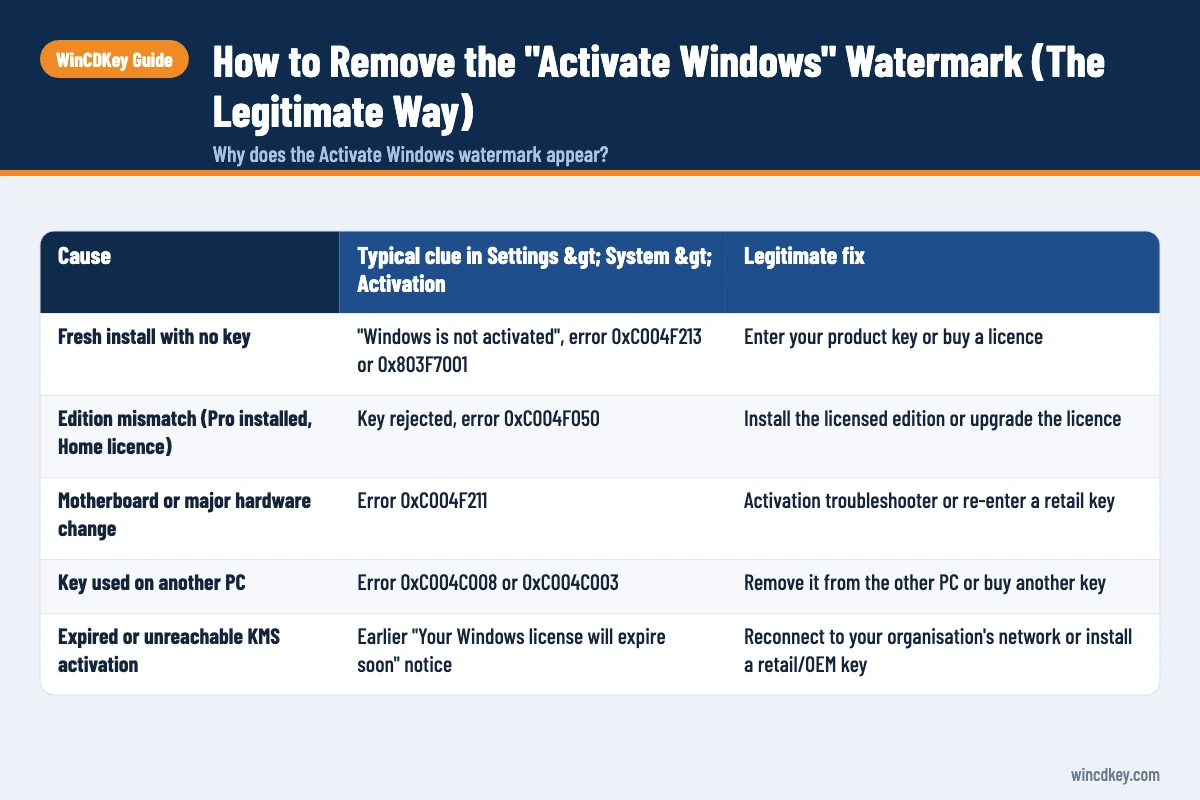
The watermark appears whenever activation fails or has never happened. The four usual reasons are: Windows was installed without a key, the key is for a different edition, the PC’s hardware changed enough that its digital licence no longer matches, or a volume (KMS) activation was not renewed. Each leaves a different clue on the Activation page.
| Cause | Typical clue in Settings > System > Activation | Legitimate fix |
|---|---|---|
| Fresh install with no key | “Windows is not activated”, error 0xC004F213 or 0x803F7001 | Enter your product key or buy a licence |
| Edition mismatch (Pro installed, Home licence) | Key rejected, error 0xC004F050 | Install the licensed edition or upgrade the licence |
| Motherboard or major hardware change | Error 0xC004F211 | Activation troubleshooter or re-enter a retail key |
| Key used on another PC | Error 0xC004C008 or 0xC004C003 | Remove it from the other PC or buy another key |
| Expired or unreachable KMS activation | Earlier “Your Windows license will expire soon” notice | Reconnect to your organisation’s network or install a retail/OEM key |
Microsoft explains each code on its activation errors help page. To read your status and code, follow our guide on how to check if Windows 11 is activated. A pattern we see often is a laptop that shipped with Windows 11 Home being reinstalled from a Pro USB stick: the Home digital licence is still valid, but it cannot activate Pro, so the watermark appears straight after setup.
What can’t you do on unactivated Windows?
Unactivated Windows 11 locks the Personalisation settings, so you cannot change the wallpaper, colours, lock screen or themes from Settings. It also shows the permanent watermark and periodic reminders to activate. Security updates continue to install, but running Windows long-term without a licence is not permitted by Microsoft’s licence terms.
Other practical drawbacks include:
- Persistent overlay. The watermark appears on screenshots, screen shares and recordings.
- Notifications. Settings shows a banner at the top until activation succeeds.
- Possible further limits. In 2024 Microsoft was reported to be testing restrictions on some Microsoft Edge settings for unactivated PCs; whether these appear on your PC depends on the Edge version.
- Business risk. For a work PC, an unlicensed install is a compliance problem in a software audit, not just a cosmetic one.
How do you remove the Activate Windows watermark legitimately?
To remove the activate Windows watermark properly, open Settings > System > Activation, read the error, then fix the cause: enter a valid key for your edition, run the Activation troubleshooter after a hardware change, or buy a licence. When the status reads “Active”, restart and the watermark is gone.
- Open the Activation page. Go to Start > Settings > System > Activation and expand Activation state.
- Note the edition and error code. Check whether it says Windows 11 Home or Pro and write down any code shown.
- If you own a product key, enter it. Select Change product key, type the 25-character key for the same edition and select Activate.
- If you changed hardware, use the troubleshooter. Select Troubleshoot, then I changed hardware on this device recently, and sign in with the Microsoft account that was linked to the licence.
- If the edition is wrong, correct it. Either reinstall the edition you are licensed for, or buy an upgrade licence (for example Home to Pro) and enter that key.
- If you have no licence, buy one. Use Go to Store on the same page, or enter a key bought from another retailer.
- Restart the PC. The watermark is usually removed immediately, but a restart clears it from all screens.
Microsoft’s Activate Windows support article covers the same page and explains the difference between a digital licence and a product key. If your problem started after a motherboard swap, our guide to Windows activation after a hardware change goes through the troubleshooter in detail.
If online activation will not accept a valid key, offline activation through an Installation ID and Confirmation ID is the fallback. Our article on activating Windows via phone explains that route.
Do registry tweaks or watermark tools remove it?
Some registry edits and third-party “watermark remover” tools can hide the text, but they do not activate Windows. Personalisation stays locked, the Settings banner remains, the PC is still unlicensed, and the watermark often returns after a feature update. They change what you see, not your licence status.
Tools that claim to activate Windows without a purchased key are a different matter. Unofficial activators are unsafe: they routinely bundle malware, alter system files and breach Microsoft’s licence terms. We do not recommend or link to any of them.
If cost is the issue, a legitimately sourced key is usually the cheapest safe fix. Before buying from any discount retailer, check that it publishes a clear refunds and returns policy and offers activation support if the key is refused.
Is it the same as other Windows watermarks?
No. Windows shows other desktop text that has nothing to do with activation. “System requirements not met” appears on PCs running Windows 11 on unsupported hardware, and Insider Preview builds show an “Evaluation copy” build stamp. Activating Windows will not remove either, because neither is caused by a missing licence.
- System requirements not met: relates to TPM 2.0, Secure Boot or processor support. The fix is hardware or firmware, not a key.
- Evaluation copy / build number: shown on Windows Insider builds and evaluation editions such as Windows 11 Enterprise Evaluation.
- Test Mode: appears when driver signature test signing is enabled, usually by developer tools.
Need a key that matches your edition?
Check your edition first, then choose a Windows 11 Home retail key, a Windows 11 Pro retail key, or the Home to Pro upgrade if Pro is already installed on a Home licence.
Frequently asked questions
Is it illegal to use Windows without activating it?
Installing Windows is not a crime, and Microsoft allows setup without a key. However, Microsoft’s licence terms require a valid licence to use Windows, so running it indefinitely unactivated is a breach of those terms. For businesses this can become a real liability during a software audit.
How long can I use Windows 11 without activation?
There is no fixed shutdown date for an unactivated retail installation of Windows 11. It keeps working with the watermark, reminders and locked personalisation. Evaluation editions are different: Microsoft’s Windows 11 Enterprise evaluation lasts 90 days, after which the desktop turns black and the PC shuts down every hour.
Why did the watermark appear after a Windows update?
Updates rarely remove a valid licence. More often the update exposed an existing problem, such as an expired KMS activation, a key already used elsewhere, or a change of motherboard firmware that Windows reads as new hardware. Check Settings > System > Activation for the code, then fix that cause.
Will the watermark go away if I sign in with a Microsoft account?
Only if a digital licence for the same edition is already linked to that account and this PC. Signing in alone does not create a licence. After a hardware change, you also need to run the Activation troubleshooter and pick this device from the list.
Does the Activate Windows watermark affect performance?
No. The watermark is a display overlay and does not slow the PC down. Its practical cost is cosmetic and compliance-related: it shows in recordings and screen shares, personalisation stays locked, and the PC remains unlicensed until it is activated.
Can I remove the watermark without a product key?
Yes, if the PC already has a digital licence. Many Windows 11 PCs activate automatically from a licence stored in firmware or linked to a Microsoft account. Without any existing licence, though, a key or a Microsoft Store purchase is needed; there is no legitimate free method.
The bottom line
The activate Windows watermark is Windows telling you it has no valid licence for the installed edition. Read the error code, fix that specific cause, and the watermark goes with it. If you bought a key from us and it will not activate, our Help & Support Centre is the place to start.
Useful links
| Resource | Why it helps |
|---|---|
| How to check if Windows 11 is activated | Read your activation status and error code |
| Windows activation after a hardware change | Troubleshooter steps after a motherboard swap |
| Activate Windows via phone | Offline activation when online activation fails |
| Microsoft Support: Activate Windows | Official activation and digital licence guidance |
| Windows 11 Home to Pro upgrade | Fixes a Pro install on a Home licence |
| Refunds & returns policy | What happens if a key does not activate |
| WinCDKey Help & Support Centre | Activation help for keys bought from WinCDKey |


