🎃 HALLOWEEN SALE: 50% OFF best-selling Windows, Office, Autodesk & Server keys — use code GHOST50 Shop the sale →


How to Partition a Hard Drive in Windows 11 (Disk Management and Tools)

To partition a hard drive in Windows 11, back up your files, open Disk Management, shrink an existing volume to free up space, then right-click the unallocated space and create a new simple volume. Windows can do this for free without erasing data on NTFS drives; third-party tools help when you need to move, merge or resize partitions Windows cannot.
Key takeaways
- Always back up before changing partitions. One wrong click on the wrong disk can erase it.
- Disk Management, the Settings app and DiskPart are all free and built into Windows 11.
- Windows can shrink NTFS volumes, but unmovable files such as the page file limit how far.
- Windows can only extend a volume into free space directly after it on the same disk.
- Partition tools such as EaseUS Partition Master can move and merge partitions, which Windows’ own tools cannot.
In this guide
Should you partition a hard drive in Windows 11?
Partitioning makes sense when you want to keep data separate from Windows, set up a dual-boot system, or organise a large new drive. It adds little for most single-drive laptops, where folders do the same job without fixed size limits. A partition is a section of a disk that Windows treats as a separate drive letter.
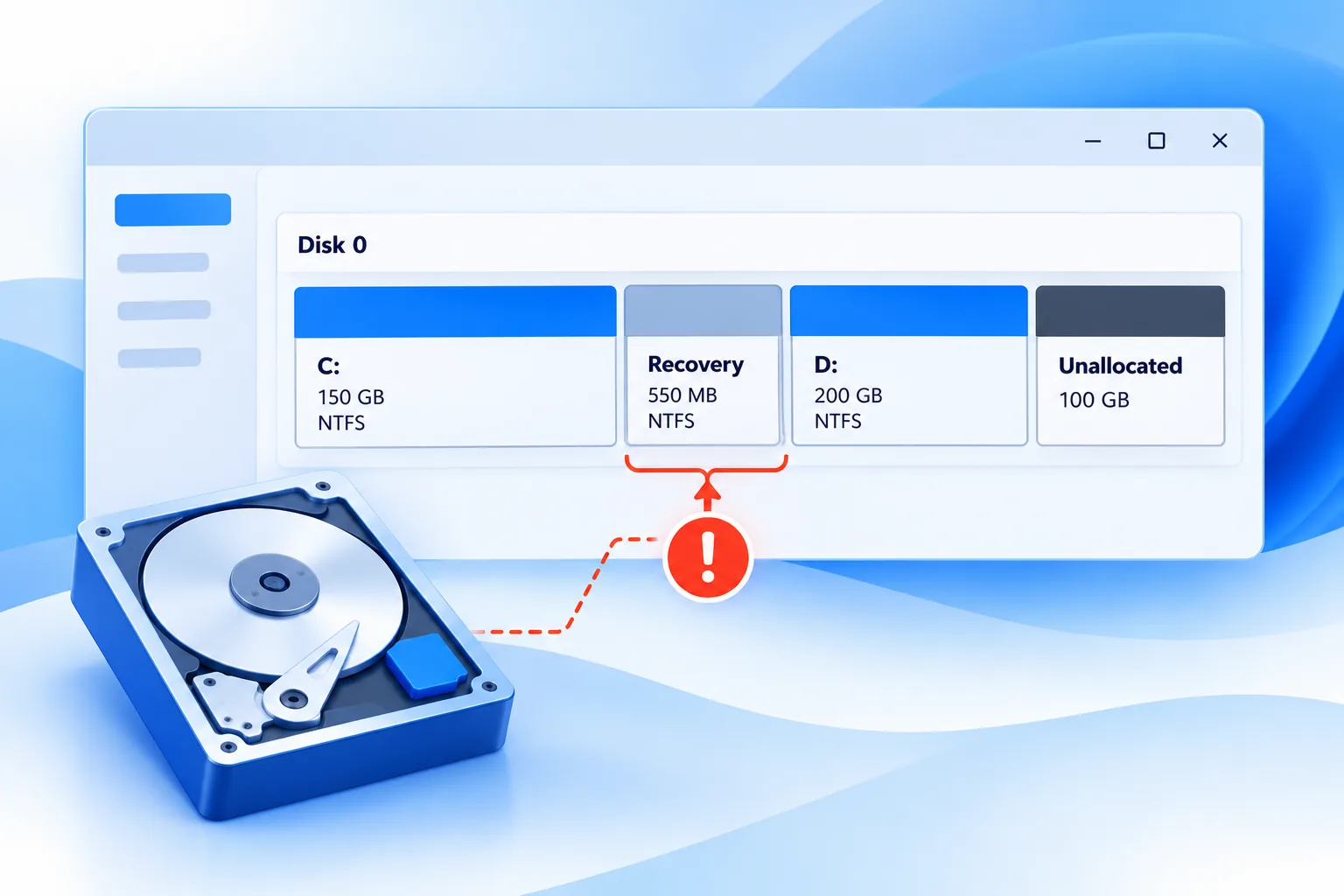
A typical Windows 11 system disk already has several partitions. You only see C: in File Explorer, but Disk Management also shows a small EFI system partition, a hidden Microsoft reserved partition and a recovery partition. Leave these alone; deleting them can stop the PC from booting.
Good reasons to partition
- Separate data from Windows. A D: data partition survives a Windows reset more easily, though it is not a backup: if the disk fails, both partitions go together.
- Dual boot. A second operating system needs its own partition.
- Organise a new secondary drive. Split a large HDD into, for example, a media volume and a backup volume.
Before you start, make a copy of anything important. Our guide to how to recover deleted files on Windows 11 exists because partition mistakes happen, but recovering is always harder than restoring from a backup. EaseUS Todo Backup Home can take a full disk image first.
How do you partition a hard drive with Disk Management?
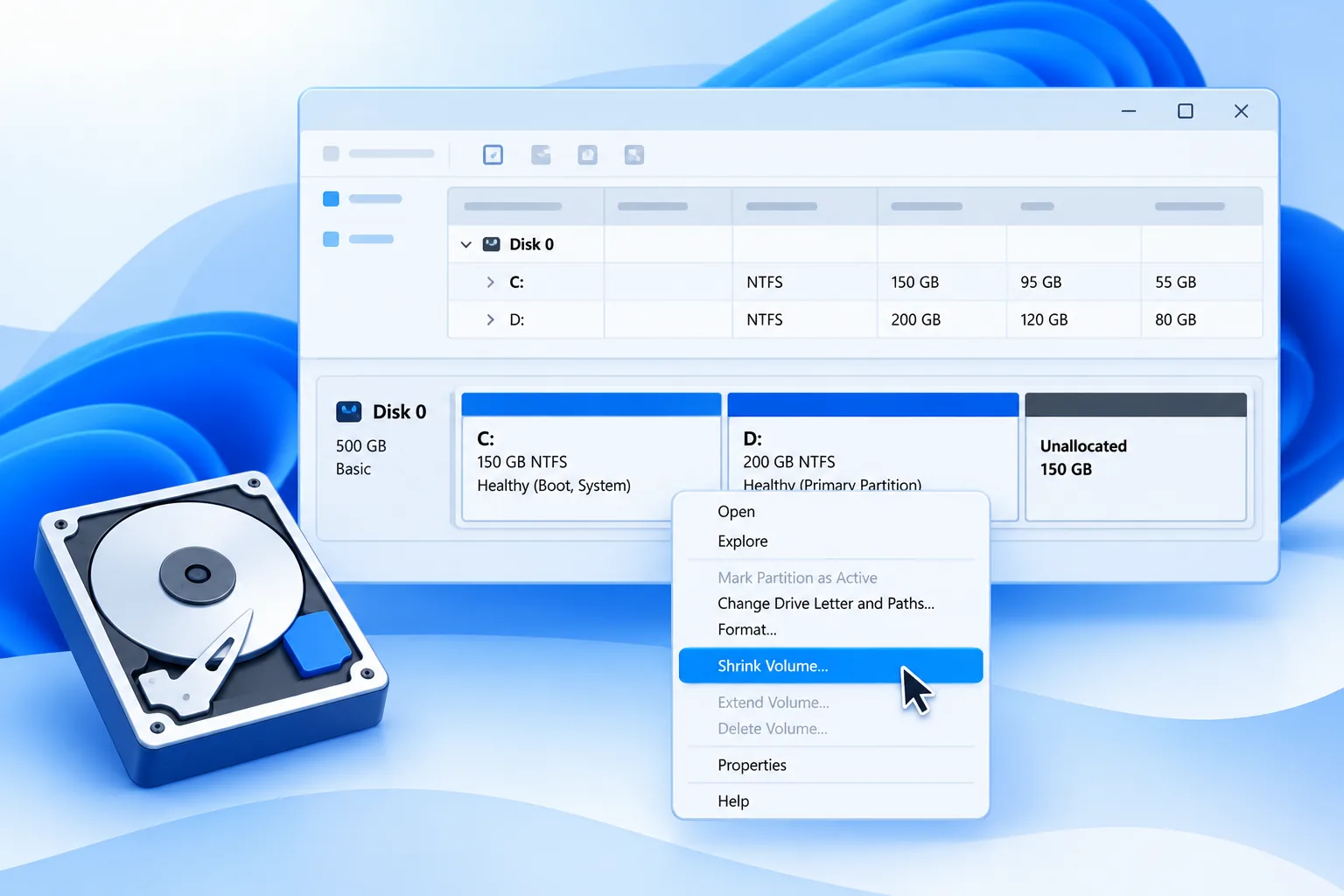
Open Disk Management, right-click the volume you want to split, choose Shrink Volume and enter how many megabytes to free. Then right-click the new unallocated space, choose New Simple Volume and follow the wizard to set the size, drive letter and file system. Your existing files stay in place.
- Back up important files to another drive or the cloud.
- Right-click Start and select Disk Management, or press Win + R, type
diskmgmt.mscand press Enter. - Right-click the volume with spare space, usually C:, and select Shrink Volume.
- Enter the amount to shrink in MB (1 GB = 1,024 MB). Windows shows the maximum it can free. Select Shrink.
- Right-click the new Unallocated block and select New Simple Volume.
- Set the volume size, assign a drive letter, choose NTFS as the file system and type a volume label.
- Leave Perform a quick format ticked and select Finish. The new drive appears in File Explorer.
Microsoft’s guide to shrinking a basic volume covers the same steps and the limits behind them.
Partitioning a brand-new drive
A new internal drive appears in Disk Management as “Not initialized”. Right-click it, choose Initialize Disk, select GPT, then create volumes in the unallocated space as above. GPT supports disks over 2 TB and more than four primary partitions, which MBR does not.

Can you partition from Settings or the command line?
Yes. Windows 11’s Settings app has a simpler disk page under System > Storage > Advanced storage settings > Disks & volumes, and DiskPart offers full control from the command line. Settings suits quick resizes and new volumes; DiskPart suits scripting and fixing disks that Disk Management will not handle.
Using Settings
Open Settings > System > Storage > Advanced storage settings > Disks & volumes. Select a volume and open its Properties to change its size, label or drive letter. Unallocated space shows its own option to create a volume. The choices are fewer than in Disk Management, which helps avoid mistakes.
Using DiskPart
Run Command Prompt or Terminal as administrator, type diskpart and press Enter. These commands shrink C: by about 100 GB and create a new volume in the freed space:
| Command | What it does |
|---|---|
list volume |
Lists all volumes with their numbers |
select volume C |
Selects the C: volume |
shrink desired=102400 |
Frees about 100 GB (sizes are in MB) |
list disk then select disk 0 |
Selects the disk with the new free space |
create partition primary |
Creates a partition in the free space |
format fs=ntfs quick label=Data |
Quick-formats it as NTFS |
assign letter=D |
Gives it a drive letter |
DiskPart does exactly what you type with no undo. Check the disk and volume numbers twice, and never run clean unless you intend to wipe the whole disk.
Why can’t you shrink or extend a volume?
Windows cannot shrink past unmovable system files such as the page file and shadow copy storage, and it can only extend a volume into unallocated space immediately to its right on the same disk. On a typical Windows 11 PC, the recovery partition sitting after C: is the most common reason Extend Volume is greyed out.
Shrink Volume offers less space than expected
Disk Management stops at the first unmovable file it meets. Microsoft notes that the page file and shadow copies are typical blockers, and that event ID 259 in the Application log names the file responsible. Practical fixes include running Disk Cleanup, temporarily turning off hibernation with powercfg /h off, or temporarily moving the page file to another drive. Re-enable anything you switched off afterwards.
Extend Volume is greyed out
According to Microsoft’s guidance on extending a volume, the free space must be directly after the volume, on the same disk, and the volume must use NTFS or ReFS. If another partition is in the way, your options are to delete it after backing up, create a separate volume instead, or use a tool that can move partitions.
Other common limits
- FAT32 or exFAT volumes cannot be shrunk or extended by Windows’ built-in tools.
- MBR disks allow only four primary partitions and cannot use space beyond 2 TB. Converting to GPT in Windows normally requires deleting all partitions first.
- BitLocker volumes can usually be resized, but save your recovery key before changing anything.
When do you need partition software?
You need partition software when Windows’ tools hit their limits: moving a recovery partition so C: can grow, merging two partitions without losing data, resizing FAT32 volumes, converting MBR to GPT without wiping, or migrating Windows to a new drive. For simple shrink-and-create jobs, Disk Management is enough.
EaseUS Partition Master Pro shows the disk visually and lets you drag partition edges, move partitions, merge adjacent volumes and extend the system drive. Changes are queued and applied together, so you can review the plan before anything is written. EaseUS also offers a free edition; check which features are in the free and paid tiers before relying on one.
Moving partitions rewrites data, so a power cut mid-operation is the main risk. Plug a laptop into mains power, close other apps and, again, back up first.
If you are replacing the drive rather than reorganising it, see our guide to cloning an HDD to SSD. If you are starting from scratch with a clean install, Windows Setup lets you create and delete partitions during installation, as covered in our Windows 11 Pro download and installation guide.
Hit a wall with Disk Management?
EaseUS Partition Master Pro moves, merges and resizes partitions that Windows cannot. See the full partition manager range for multi-PC and technician editions.
Frequently asked questions
Can I partition my C drive without losing data?
Yes. Disk Management’s Shrink Volume reduces C: without deleting files, then you create a new volume in the freed space. The operation is designed to be non-destructive, but power cuts or disk errors can still cause problems, so back up important files before you start, especially on a laptop running on battery.
How many partitions should a hard drive have?
For most home PCs, one Windows partition plus the hidden system partitions Windows creates is enough. Add a separate data partition if you reinstall Windows often or dual boot. More partitions mean more fixed limits on space, so avoid splitting a drive into many small volumes without a clear reason.
Why is Extend Volume greyed out in Windows 11?
Extend Volume needs unallocated space directly to the right of the volume on the same disk. On most Windows 11 PCs, the recovery partition sits between C: and any free space, which blocks it. Other causes are a FAT32 or exFAT volume, or the free space being on a different disk.
Is it better to partition an SSD or use folders?
On a single SSD, folders usually work better. Partitions do not improve SSD speed or lifespan, and they lock space into fixed sizes. Partition an SSD only for a specific reason, such as dual booting or keeping data separate during Windows reinstalls. Backups still need to go to a different drive.
Does partitioning erase data?
Shrinking and extending volumes does not erase data on NTFS drives. Deleting a partition, formatting it, initialising a disk or running DiskPart’s clean command does erase data. Read every prompt carefully, check you have the right disk selected, and keep a backup in case something goes wrong.
What is the difference between MBR and GPT?
MBR is the older partition style, limited to four primary partitions and 2 TB of usable space. GPT supports far larger disks and many more partitions, and Windows 11 PCs use it to boot in UEFI mode. Choose GPT for any new drive unless an older system specifically requires MBR.
The bottom line
For most jobs, Windows 11’s Disk Management is all you need to partition a hard drive: back up, shrink, then create a new volume. When you need to move, merge or extend around a blocking partition, a dedicated tool saves a reinstall. Browse our EaseUS software range if you reach that point.
Useful links
| Resource | Why it helps |
|---|---|
| Microsoft: shrink a basic volume | Official shrink steps, DiskPart syntax and limits |
| Microsoft: extend a basic volume | Why Extend Volume is unavailable and what to do |
| EaseUS Partition Master Pro | Move, merge and resize partitions Windows cannot |
| EaseUS partition manager range | Compare editions and licence options |
| EaseUS Todo Backup Home | Image the disk before you make changes |
| Recover deleted files on Windows 11 | What to do if a partition change goes wrong |
| Clone an HDD to SSD | Move Windows to a new drive instead |
| Windows 11 Pro download and install guide | Partition during a clean install |


