🎃 HALLOWEEN SALE: 50% OFF best-selling Windows, Office, Autodesk & Server keys — use code GHOST50 Shop the sale →


How to Create a Windows 11 Bootable USB (Media Creation Tool & Rufus)

To create a Windows 11 bootable USB, plug in a blank drive of at least 8 GB, download Microsoft’s Media Creation Tool, choose “USB flash drive” and let it download and write Windows 11 for you. If you already have the official ISO, the free tool Rufus does the same job with more control over partition scheme and file system.
This guide covers both methods step by step, how to boot from the finished drive, and the handful of problems that cause most “USB not detected” or “media driver missing” headaches.
Key takeaways
- You need a USB drive of 8 GB or more; everything on it will be erased.
- Microsoft’s Media Creation Tool is the simplest route and currently downloads Windows 11 version 26H2 (the 2026 Update).
- Rufus suits people who already have the official ISO or need to set GPT/UEFI options manually.
- The USB holds every consumer edition; your product key or digital licence decides which edition activates.
- Both tools make x64 media only. Arm-based PCs need Microsoft’s separate Arm64 ISO.
In this guide
- What do you need to make a Windows 11 bootable USB?
- How do you create a Windows 11 bootable USB with the Media Creation Tool?
- How do you make a Windows 11 USB with Rufus?
- Media Creation Tool or Rufus: which should you use?
- How do you boot from the USB and start installing?
- Why is my Windows 11 USB not working?
- Frequently asked questions
- The bottom line
- Useful links
What do you need to make a Windows 11 bootable USB?
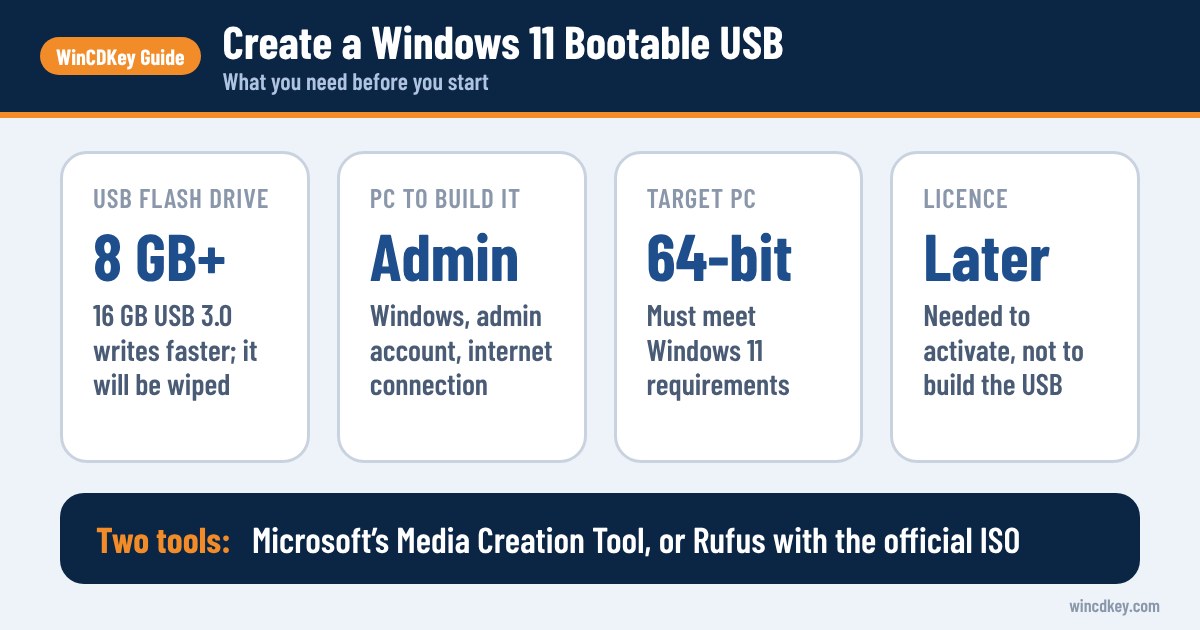
You need a USB flash drive with at least 8 GB of space, a Windows PC with an internet connection and administrator rights, and a licence for the computer you plan to install on. Microsoft states that any content on the USB drive will be deleted, so copy your files off it first.
| Item | Requirement | Practical tip |
|---|---|---|
| USB flash drive | 8 GB minimum | A 16 GB USB 3.0 drive from a known brand writes faster and fails less often |
| PC to build the drive | Windows, admin account, internet | Use a wired connection if you can; the download is several gigabytes |
| Target PC | 64-bit (x64) and meets Windows 11 requirements | Arm devices need the Arm64 ISO instead |
| Licence | Windows 11 product key or existing digital licence | Not needed to build the USB, only to activate |
Before you start, confirm the target computer actually meets the TPM 2.0, Secure Boot and processor rules. Our guide to Windows 11 system requirements and how to check TPM and Secure Boot walks through those checks, so we won’t repeat them here.
A licence question we see often: the USB itself is edition-neutral. Microsoft describes its ISO as multi-edition, using your product key to unlock the correct edition, so one drive covers Home and Pro.
How do you create a Windows 11 bootable USB with the Media Creation Tool?
Download the Media Creation Tool from Microsoft’s Windows 11 download page, run it as an administrator, accept the licence terms, confirm language and edition, choose “USB flash drive”, then pick your drive. The tool downloads Windows 11, verifies it and writes a bootable drive in one pass, usually within 20 to 60 minutes.
- Go to the official Windows 11 download page. At the time of writing it offers “Windows 11 2026 Update, Version 26H2”.
- Under Create Windows 11 Installation Media, select Download Now and save
mediacreationtool.exe. - Insert your USB drive and unplug any other USB storage, so you can’t select the wrong disk.
- Run the tool, approve the User Account Control prompt and accept the licence terms.
- On the language and edition screen, keep Use the recommended options for this PC ticked, or untick it to choose a different language. Microsoft advises picking the same language you will use when installing.
- Select USB flash drive and click Next.
- Choose your drive from the list (use Refresh drive list if it is missing) and click Next.
- Wait while Windows 11 downloads and the media is created. When you see “Your USB flash drive is ready”, click Finish and safely eject the drive.
If the drive is for a PC you are building, a new SSD, or a sale-ready reset, this is the method we recommend to most customers. It always fetches the current release, so there’s less to update after installation.
How do you make a Windows 11 USB with Rufus?
Download the official Windows 11 ISO from Microsoft, run Rufus (version 4.15 was current in mid-2026), select your USB drive and the ISO, keep the partition scheme on GPT for UEFI computers, then click Start. Rufus writes the drive faster than the Media Creation Tool because the image is already downloaded.
Step 1: Download and verify the ISO
- On Microsoft’s Windows 11 download page, scroll to Download Windows 11 Disk Image (ISO) for x64 devices.
- Select Windows 11 (multi-edition ISO for x64 devices), then your language, then 64-bit Download. The link is valid for 24 hours.
- Optional but sensible: open PowerShell and run
Get-FileHash C:\Users\you\Downloads\your-file.iso. Compare the SHA256 value with the one Microsoft publishes for your language.
Step 2: Write the drive with Rufus
- Run Rufus (it needs Windows 8 or later and doesn’t need installing).
- Under Device, choose your USB drive.
- Click Select and pick the Windows 11 ISO.
- Set Partition scheme to GPT and Target system to UEFI (non CSM). Leave file system as Rufus suggests.
- Click Start. Rufus shows a “Windows User Experience” dialog with optional customisations; untick anything you don’t need and click OK.
- Confirm the warning that the drive will be erased, wait for Ready, then close Rufus.
The Windows User Experience dialog includes options to remove Microsoft’s hardware checks. We don’t recommend them: Microsoft warns that unsupported PCs may not receive updates, and an install that skips TPM or Secure Boot loses the protections those checks exist for.
Media Creation Tool or Rufus: which should you use?
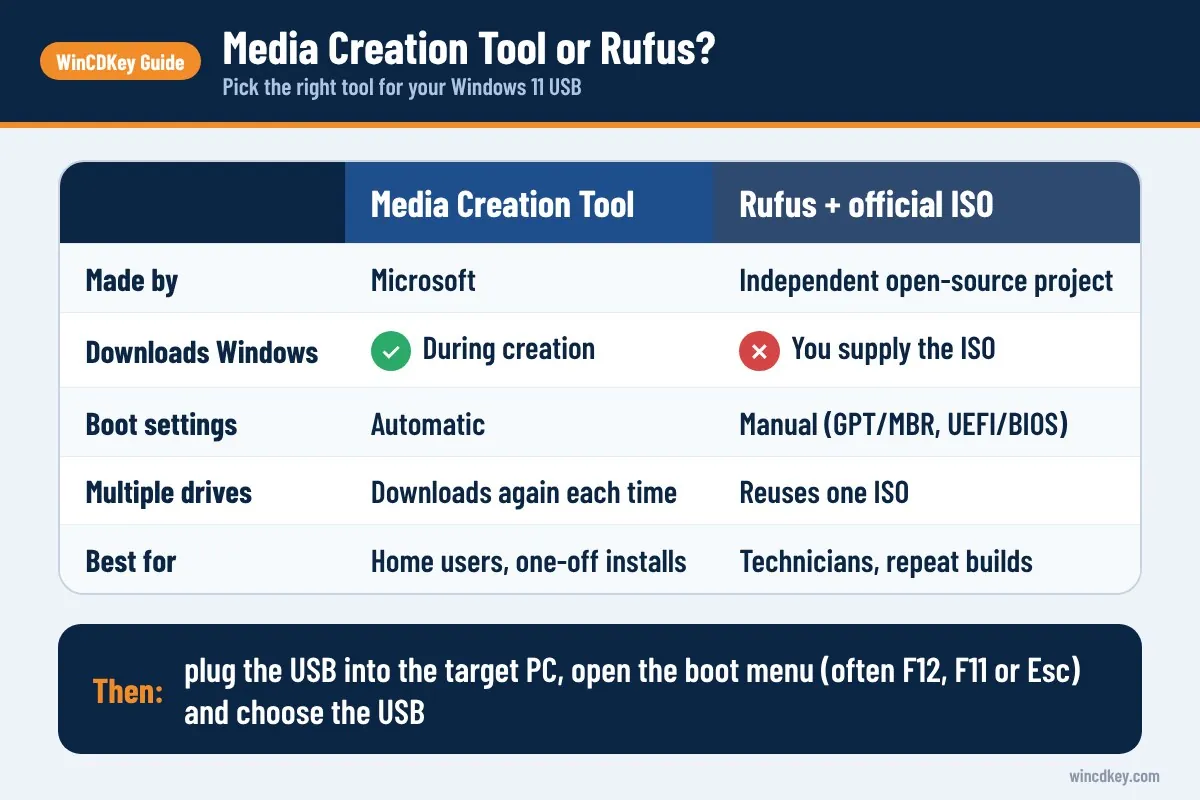
Use the Media Creation Tool if you want the simplest, Microsoft-supported route and don’t mind it downloading Windows during creation. Use Rufus if you already have the official ISO, need to rebuild drives repeatedly, or want direct control over partition scheme and target system settings.
| Factor | Media Creation Tool | Rufus + official ISO |
|---|---|---|
| Made by | Microsoft | Independent open-source project |
| Downloads Windows for you | Yes, during creation | No, you supply the ISO |
| Partition/boot settings | Automatic | Manual (GPT/MBR, UEFI/BIOS) |
| Reuse for multiple drives | Downloads again each time | Reuses one ISO |
| Best for | Home users, one-off installs | Technicians, repeat builds, offline setups |
Either way, the files come from Microsoft. Avoid “pre-activated” or modified ISOs from third-party sites: they are a common source of malware and breach licence terms.
How do you boot from the USB and start installing?
Insert the drive, restart the PC and press its one-time boot menu key as it powers on, then choose the entry starting with “UEFI” followed by your USB drive’s name. Windows Setup loads from the stick, and you choose between upgrading or a custom clean install.
- Plug the USB into the target PC, ideally a port directly on the motherboard rather than a hub.
- Restart and tap the boot menu key. It varies by manufacturer;
F12,F11,F8andEscare common, and the key is usually shown briefly on the startup screen. - Select the UEFI: [your USB] entry.
- Choose language and keyboard, then Install Windows 11.
- Enter your product key, or choose I don’t have a product key if the PC previously had an activated Windows 11 installation (it should reactivate from its digital licence once online).
- Pick the edition that matches your licence. Choosing Pro when you own a Home key is the root cause of many activation errors, such as error 0xc004f050.
- For a clean install, delete or format the old partitions on the target drive when prompted, then select the unallocated space and continue. Back up first: this erases data.
Already on Windows? You can also start Setup by opening the USB in File Explorer and running setup.exe, which is handy for an in-place upgrade that keeps files and apps. For the remaining set-up screens and activation, see our Windows 11 Pro download, install and activation guide.
Need a licence for the new install?
The bootable USB installs Windows, but you still need a valid key to activate it. WinCDKey sells a Windows 11 Pro retail key and a Windows 11 Home retail key, both delivered digitally; pick the one that matches the edition you install.
Why is my Windows 11 USB not working?
Most failures come from four causes: the PC is still set to legacy/CSM boot, the drive is faulty or plugged into a hub, the tool was closed before finishing, or the PC needs storage drivers that Setup lacks. Working through them in that order solves the large majority of cases we see.
The USB doesn’t appear in the boot menu
Enter the firmware (UEFI) settings and check that UEFI boot is enabled. A Windows 11 drive made with GPT/UEFI settings won’t appear if the PC is in legacy BIOS mode. Try a different USB port, and rebuild the drive if it was removed early.
“A media driver your computer needs is missing”
This usually means Setup can’t see the storage controller, often on laptops using Intel RST/VMD. Download the storage driver from your PC maker’s support site, copy it to the USB and use Load driver during Setup. Swapping to a USB 2.0 port also fixes it occasionally.
The Media Creation Tool stops with an error
Run it as administrator, disable any VPN, free a few gigabytes on drive C: and retry. If it keeps failing, download the ISO and use Rufus instead; this avoids the tool’s download step entirely.
Setup says the PC can’t run Windows 11
That is a hardware compatibility check, not a USB fault. Check TPM 2.0 and Secure Boot in firmware first; both are often present but switched off.
Frequently asked questions
How big does a USB need to be for Windows 11?
Microsoft asks for a blank USB flash drive with at least 8 GB of space. In practice a 16 GB USB 3.0 drive is a better choice because it writes faster and leaves room if image sizes grow. Everything on the drive is erased during creation, so back up its contents beforehand.
Can I use the Windows 11 bootable USB on more than one PC?
Yes. The installation media isn’t tied to a single computer, so you can install on as many PCs as you like. Each installation still needs its own valid licence to activate, and retail and OEM licences carry different transfer rules, so check what your key allows before reusing it elsewhere.
Do I need a product key to create the USB?
No. A product key is only needed when you install or activate Windows 11 on the target PC. You can type it during Setup or choose “I don’t have a product key” and enter it later under Settings, System, Activation. PCs previously activated on Windows 11 normally reactivate automatically from their digital licence.
Is Rufus safe to use for Windows 11?
Rufus is a widely used open-source utility, and it is safe when downloaded from its official website and used with Microsoft’s own ISO. Skip the optional settings that remove hardware checks unless you understand the consequences, and never pair it with modified or “pre-activated” Windows images from unofficial sources.
Can I make a Windows 11 bootable USB on a Mac?
Yes, but it takes more work. You download the ISO on the Mac, format the USB in Disk Utility and copy the files, splitting the large install file to fit FAT32 limits with a command-line tool. If a Windows PC is available, building the drive there with the Media Creation Tool is quicker.
How do I turn the USB back into a normal drive?
Plug it into a Windows PC, right-click it in File Explorer and choose Format, selecting exFAT or NTFS. If Windows only shows a small partition, open Disk Management, delete the volumes on the USB and create a new simple volume using all the space.
The bottom line
For most people, the Media Creation Tool is the fastest way to a reliable Windows 11 bootable USB, while Rufus suits anyone working from the official ISO. Build the drive, check the target PC’s requirements, and install the edition that matches your key. If activation still fails afterwards, our help and support centre covers the common fixes.
Useful links
| Resource | Why it helps |
|---|---|
| Microsoft Windows 11 download page | Official Media Creation Tool and ISO downloads |
| Rufus official site | Download the genuine Rufus utility |
| Windows 11 system requirements guide | Check TPM 2.0, Secure Boot and CPU support first |
| Windows 11 Pro install and activation guide | Finish setup and activate your licence |
| Fix error 0xc004f050 | Resolve edition and key mismatch errors |
| Windows 11 Pro retail key | Licence for a Pro installation |
| Windows 11 Home retail key | Licence for a Home installation |
| WinCDKey help and support centre | Activation and order support |


