🎃 HALLOWEEN SALE: 50% OFF best-selling Windows, Office, Autodesk & Server keys — use code GHOST50 Shop the sale →


How to Clone an HDD to SSD on Windows 11 Without Reinstalling

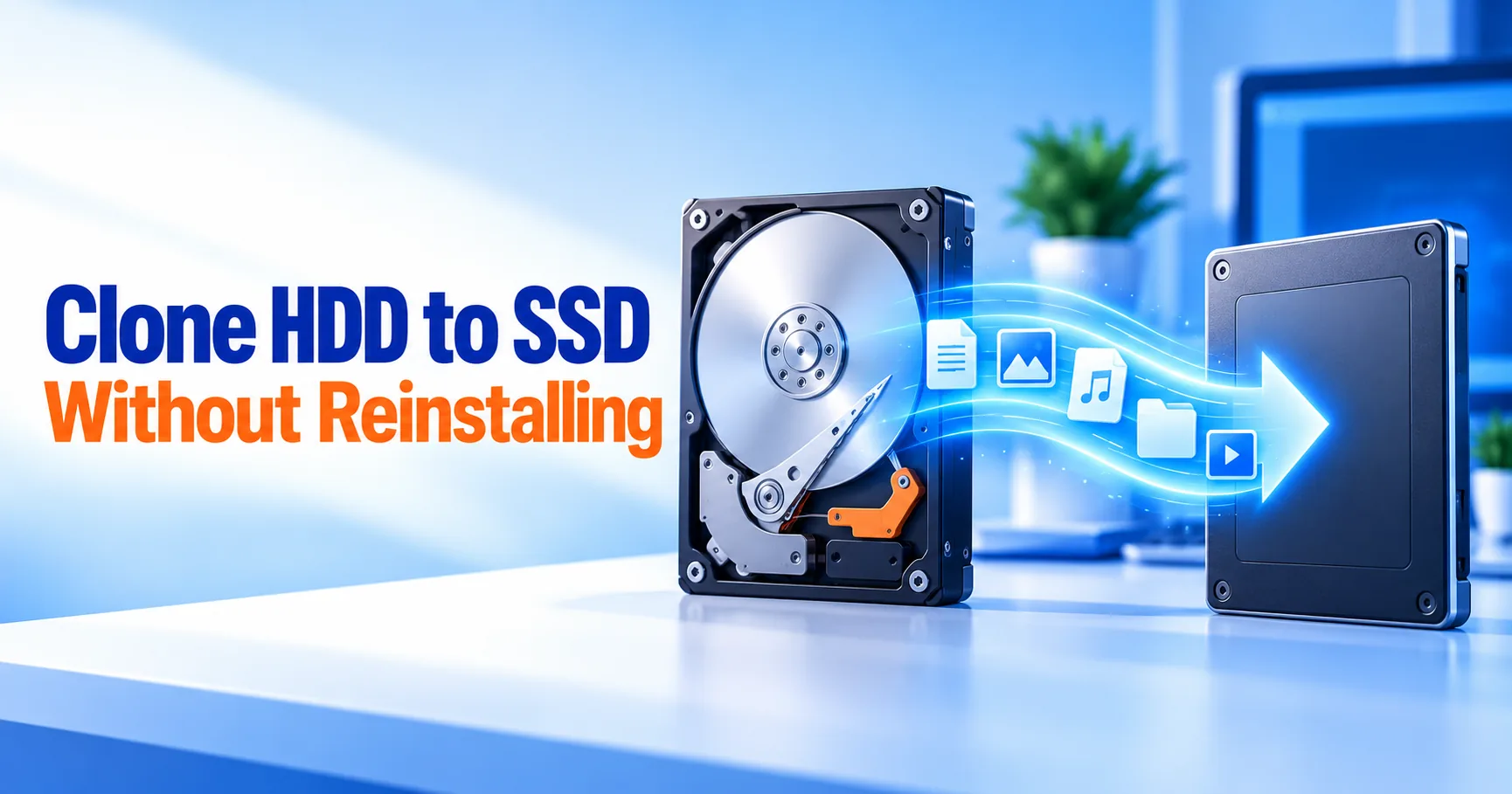
To clone HDD to SSD on Windows 11, connect the SSD, back up your data, then use disk cloning software to copy the whole drive, including Windows and its boot partitions, onto the SSD. Swap the drives or change the boot order, and Windows starts from the SSD with your apps, files and activation intact.
Key takeaways
- Windows 11 has no built-in clone tool. Microsoft recommends third-party software for full-disk backup.
- The SSD must be at least as large as the used space on the old drive, not its total size.
- Back up first and note your BitLocker recovery key before you start.
- After cloning, boot from the SSD, check TRIM, and keep the old drive untouched until you are sure everything works.
- On the same PC, Windows normally stays activated after a drive swap.
In this guide
- Can you clone an HDD to SSD without reinstalling Windows?
- What do you need before cloning?
- Clone, image or clean install: which method is best?
- How do you clone an HDD to SSD step by step?
- What should you do after cloning?
- Why won’t a cloned SSD boot?
- Frequently asked questions
- The bottom line
- Useful links
Can you clone an HDD to SSD without reinstalling Windows?
Yes. Disk cloning software copies every partition on the old drive, including the EFI boot partition, Windows, the recovery partition and your data, to the new SSD. The result is a bootable copy of your current setup, so you avoid reinstalling Windows, reinstalling apps and re-entering settings.
Windows 11 itself cannot do this. The old System Image Backup tool, still listed as “Backup and Restore (Windows 7)” in Control Panel, is on Microsoft’s deprecated features list, and Microsoft advises using a third-party product for full-disk backup. That is why most people migrate the OS to SSD with a dedicated tool.
The payoff is real. Moving Windows from a spinning hard drive to an SSD, particularly an NVMe model, typically cuts boot and app launch times dramatically. It is the single most noticeable upgrade for an older PC.
What do you need before cloning?
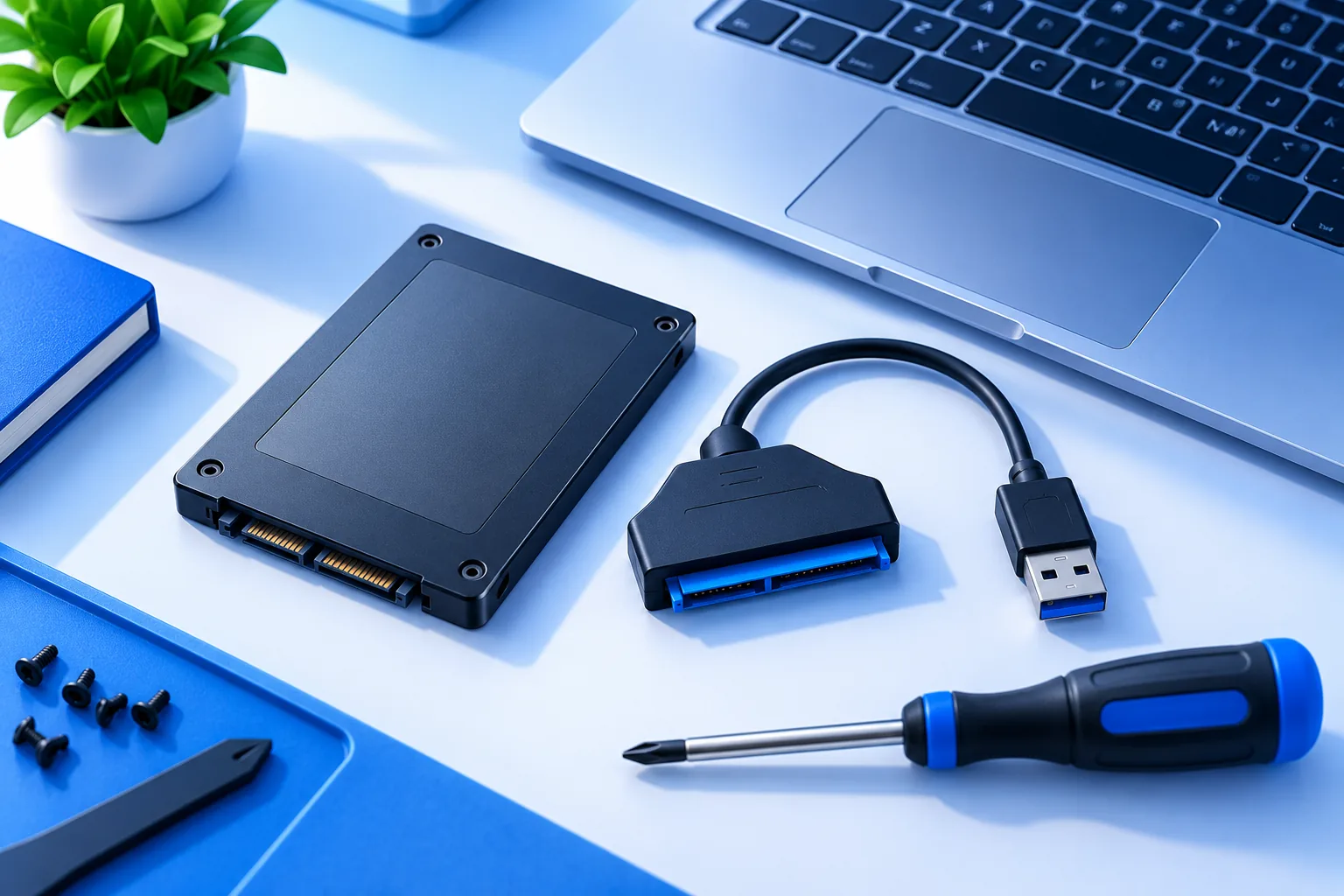
You need an SSD with enough capacity for the data currently on your drive, a way to connect it at the same time as the old disk, a backup of anything important, your BitLocker recovery key if encryption is on, and cloning software. Ten minutes of preparation prevents most failed clones.
| Item | What to check |
|---|---|
| SSD capacity | Larger than the used space on the source drive. Check in File Explorer under This PC. |
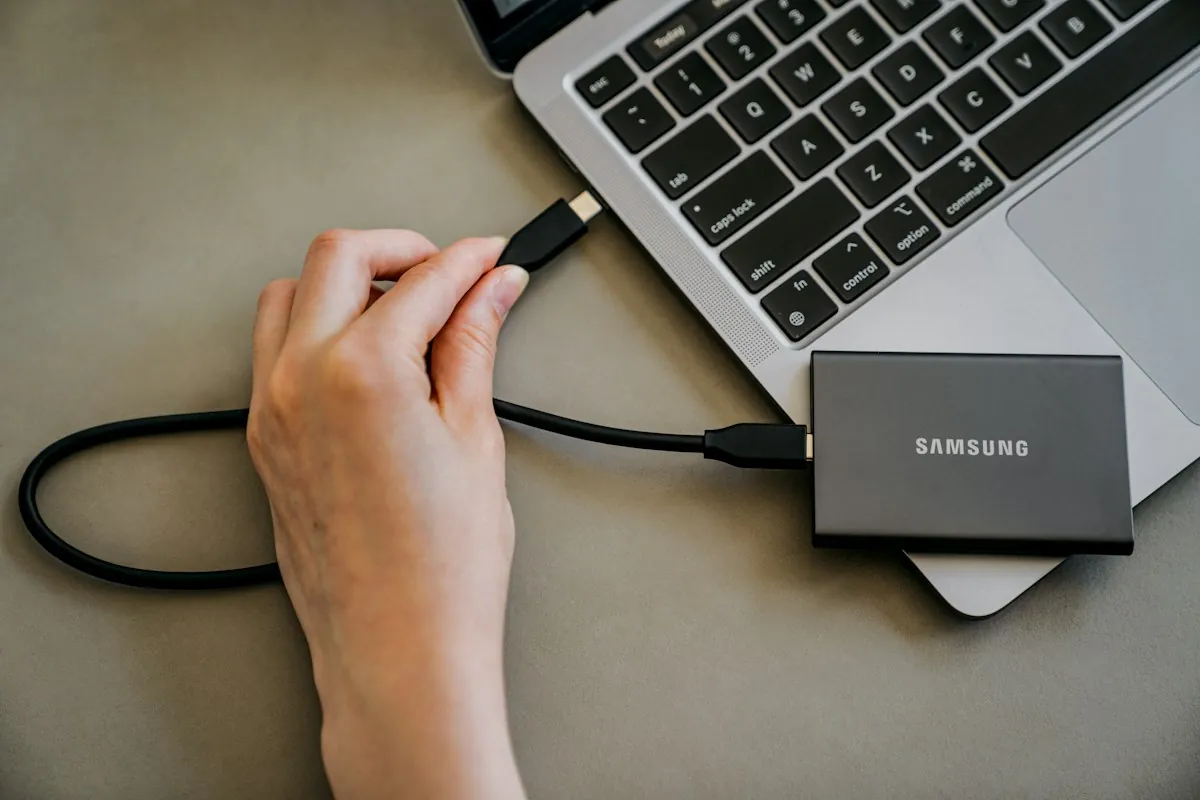
| Connection | Desktop: a spare SATA port or M.2 slot. Laptop: a USB-to-SATA cable or USB NVMe enclosure. |
| Drive type | M.2 slots may support NVMe, SATA or both. Check the PC or motherboard manual. |
| Backup | A copy of important files on a third drive or in the cloud. |
| BitLocker / device encryption | Save the recovery key, or check it at your Microsoft account. You may be asked for it after the swap. |
| Free space tidy-up | Empty the Recycle Bin and remove large unneeded files so the clone fits and runs faster. |
| Cloning software | A tool that supports system or OS migration, not just data partitions. |
A common support ticket we see is a clone that failed because the user cloned a 1 TB drive with 700 GB used onto a 500 GB SSD. Trim the data first, or buy a larger SSD.
Clone, image or clean install: which method is best?
Cloning is best when your current Windows installation works well and you want to keep everything exactly as it is. A clean install is better when the PC is slow because of years of clutter or problems. An image backup and restore sits between the two and suits people who want a safety copy anyway.
| Method | Keeps apps and settings | Effort | Best for |
|---|---|---|---|
| Disk clone | Yes | Low | Healthy systems, quick upgrades |
| Image backup, then restore to SSD | Yes | Medium | When you also want a backup file |
| Clean install plus file copy | No | High | Problem systems, fresh start |
If you are moving to a different PC rather than a new drive, cloning is the wrong tool, because drivers and activation are tied to the original hardware. A migration tool such as EaseUS Todo PCTrans Pro transfers apps and files between computers instead.
How do you clone an HDD to SSD step by step?
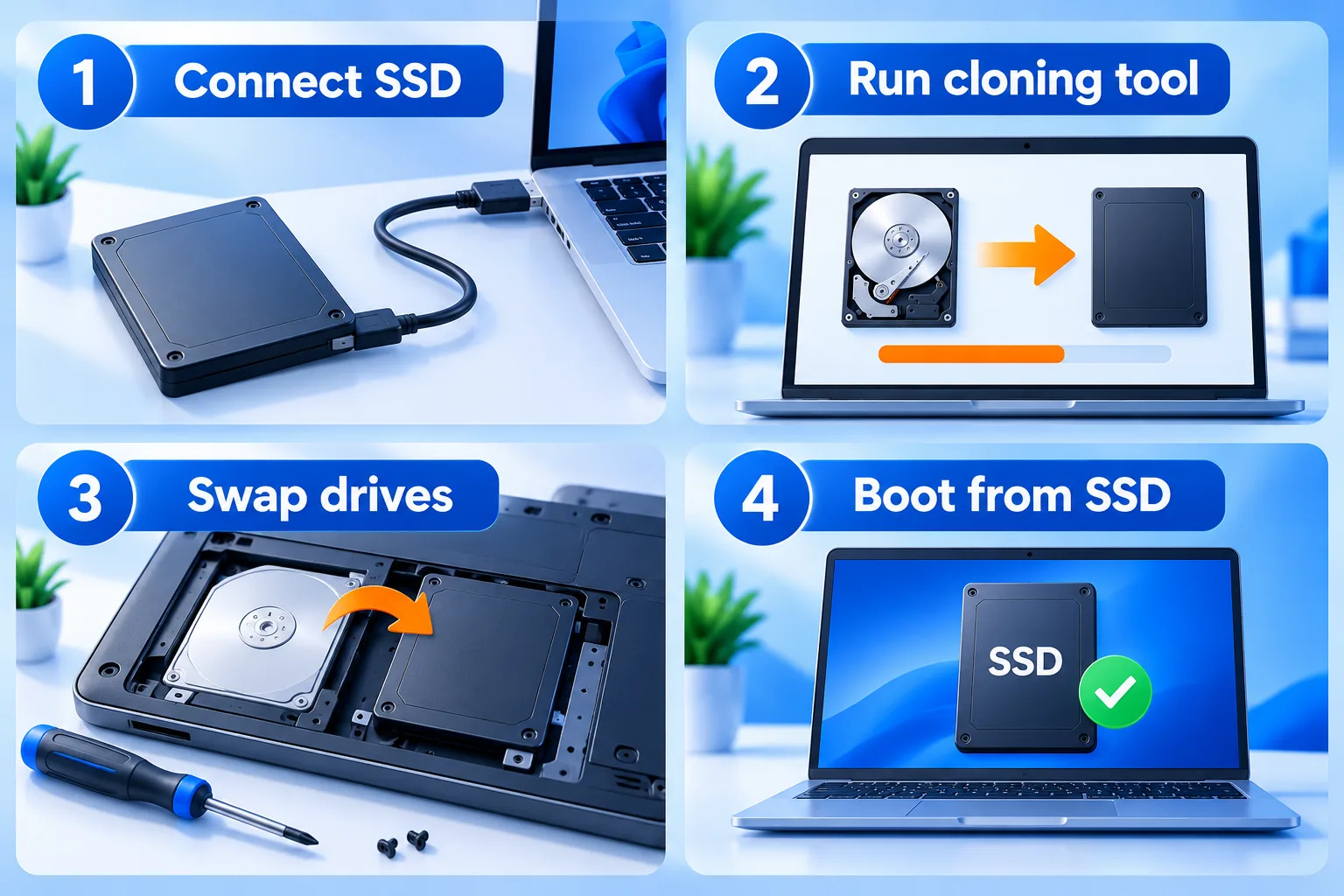
Connect the SSD, open your cloning software, choose the old drive as the source and the SSD as the target, enable SSD alignment if offered, start the clone, then shut down and boot from the SSD. The steps below use EaseUS tools as the example; other reputable cloning tools follow the same pattern.
- Back up first. Copy important files to another drive or cloud storage. Cloning is reliable, but choosing the wrong target disk erases it.
- Connect the SSD. Install it in a spare slot, or attach it by USB adapter. If it is brand new, open Disk Management (
diskmgmt.msc) and initialise it as GPT if prompted. Do not create partitions on it. - Install the cloning software. EaseUS Todo Backup Home includes disk and system clone. EaseUS says its free Todo Backup edition does not include cloning, so check the edition before you start.
- Choose system or disk clone. System clone copies only Windows and its boot partitions, which helps when the SSD is smaller. Disk clone copies every partition.
- Select source and target. Source is the old HDD; target is the SSD. Double-check the disk sizes and model names. Everything on the target is overwritten.
- Enable SSD optimisation. Tick the option to optimise or align for SSD if your tool offers it. This keeps partitions aligned for best performance.
- Start the clone. Time depends on data size and connection speed. USB 2.0 adapters are much slower than USB 3 or a direct SATA or M.2 connection.
- Shut down and swap. On a laptop, replace the HDD with the SSD. On a desktop, either remove the old drive or set the SSD first in the UEFI boot order.
- Boot and check. Windows should start normally. Confirm in File Explorer that C: is now the SSD and that your files and apps are present.
If you would rather work from a partition tool, EaseUS Partition Master Pro also offers OS migration in its paid editions, alongside resizing and partition management.
Ready to move Windows to your new SSD?
EaseUS Todo Backup Home handles both the clone and your ongoing backups. For resizing partitions afterwards, see the EaseUS partition manager range.
What should you do after cloning?
After cloning, confirm Windows boots from the SSD, check that TRIM is enabled, extend the C: drive if spare space remains, and check activation. Keep the old drive unchanged for a week or so before wiping it, so you have a fallback if anything is missing.
Check TRIM and optimisation
Open Command Prompt as administrator and run fsutil behavior query DisableDeleteNotify. A result of 0 means TRIM is enabled. Then open Defragment and Optimize Drives from Start: the SSD should be listed as a solid state drive with a scheduled optimisation.
Use the extra space
If the SSD is larger than the old drive and the tool did not resize automatically, you will see unallocated space in Disk Management. Windows can only extend a volume into free space directly after it, as Microsoft’s extend a volume guide explains. A recovery partition sitting after C: blocks that, which is where a tool like Partition Master can move it. Our guide on how to partition a hard drive in Windows 11 covers both routes.
Check activation
Go to Settings > System > Activation. Changing the storage drive on the same PC normally keeps Windows activated, because the digital licence is tied mainly to the motherboard. If you changed other parts at the same time, see our guide to Windows activation after a hardware change.
Reuse the old drive
Once you are confident, reuse the old HDD as a backup or storage disk. Delete its partitions in Disk Management and create one new volume. Do this from the SSD-booted system only, and double-check the disk number first.
Why won’t a cloned SSD boot?
A cloned SSD usually fails to boot because the PC is still trying to start from the old drive, the boot mode does not match the partition style, or the boot partitions were not copied. Fixing the boot order in UEFI settings solves most cases; the rest need the boot mode checked or the clone repeated.
- Wrong boot order: enter UEFI setup (often F2, Del or F12 at power-on) and set the SSD or “Windows Boot Manager” on the SSD first.
- MBR and GPT mismatch: Windows 11 PCs normally boot in UEFI mode from GPT disks. If the clone produced an MBR disk, the PC may not find it. Re-clone with GPT, or convert using a partition tool.
- Only C: was cloned: copying the Windows partition alone leaves out the EFI boot partition. Use system clone or full disk clone instead.
- Storage controller mode: on desktops, a changed SATA mode (AHCI or RAID) in firmware can cause an “Inaccessible boot device” error. Set it back to what it was before.
- BitLocker prompt: enter the recovery key you saved earlier. This is expected on some encrypted systems after a drive change.
Still stuck? Reconnect the old drive, boot from it, and repeat the clone with the options above. Your data is still on the original disk, which is why you kept it.
Frequently asked questions
Does Windows 11 have built-in cloning software?
No. Windows 11 has no disk clone feature. The legacy System Image Backup tool still appears in Control Panel, but Microsoft lists it as deprecated and recommends a third-party product for full-disk backup. Most people use dedicated cloning software such as EaseUS Todo Backup to migrate Windows to an SSD.
Can I clone a larger HDD to a smaller SSD?
Yes, as long as the SSD is bigger than the space actually used on the HDD. Delete or move large files first, and choose system clone if you only need Windows and apps on the SSD. Good cloning tools resize partitions automatically to fit the smaller target drive.
Will cloning to SSD keep Windows activated?
Usually, yes. Replacing the storage drive in the same PC does not normally trigger reactivation, because Windows digital licences are tied mainly to the motherboard. If Windows does report it is not activated, the Activation troubleshooter in Settings can often relink a digital licence to your Microsoft account.
Do I need to initialise a new SSD before cloning?
Some cloning tools initialise the SSD for you, but Windows may prompt you in Disk Management when you first connect it. Choose GPT for a Windows 11 system disk. Do not create or format partitions on it, because the clone will overwrite the target disk anyway.
How long does it take to clone an HDD to SSD?
It depends on how much data you copy and how the drives are connected. A few hundred gigabytes over a direct SATA or M.2 link might take well under an hour, while a slow USB 2.0 adapter or a failing source drive can take several hours. Cloning only used space speeds things up.
Should I clone or clean install Windows on a new SSD?
Clone if your current Windows works well and you want to keep apps and settings. Clean install if the system is slow, unstable or full of software you no longer use. A clean install takes longer to set up but gives you a fresh start; cloning is quicker and keeps everything as it was.
The bottom line
Cloning an HDD to SSD is the quickest way to make an older Windows 11 PC feel new without reinstalling. Back up first, check the SSD size and connection, use a tool that supports system cloning, and keep the old drive until you are sure. For the software side, compare tools in our EaseUS software range.
Useful links
| Resource | Why it helps |
|---|---|
| Microsoft: deprecated Windows features | Confirms System Image Backup is deprecated |
| Microsoft: extend a basic volume | Rules for using spare SSD space after a clone |
| EaseUS Todo Backup Home | Disk and system clone plus scheduled backups |
| EaseUS Partition Master Pro | OS migration and partition resizing |
| EaseUS partition manager range | Compare Partition Master editions |
| EaseUS Todo PCTrans Pro | Move apps and files to a different PC instead |
| Partition a hard drive in Windows 11 | Extend C: or split the new SSD |
| Windows activation after a hardware change | Fix activation if other parts changed too |


