🎃 HALLOWEEN SALE: 50% OFF best-selling Windows, Office, Autodesk & Server keys — use code GHOST50 Shop the sale →


How to Recover Deleted Files on Windows 11 (Free and Paid Methods)

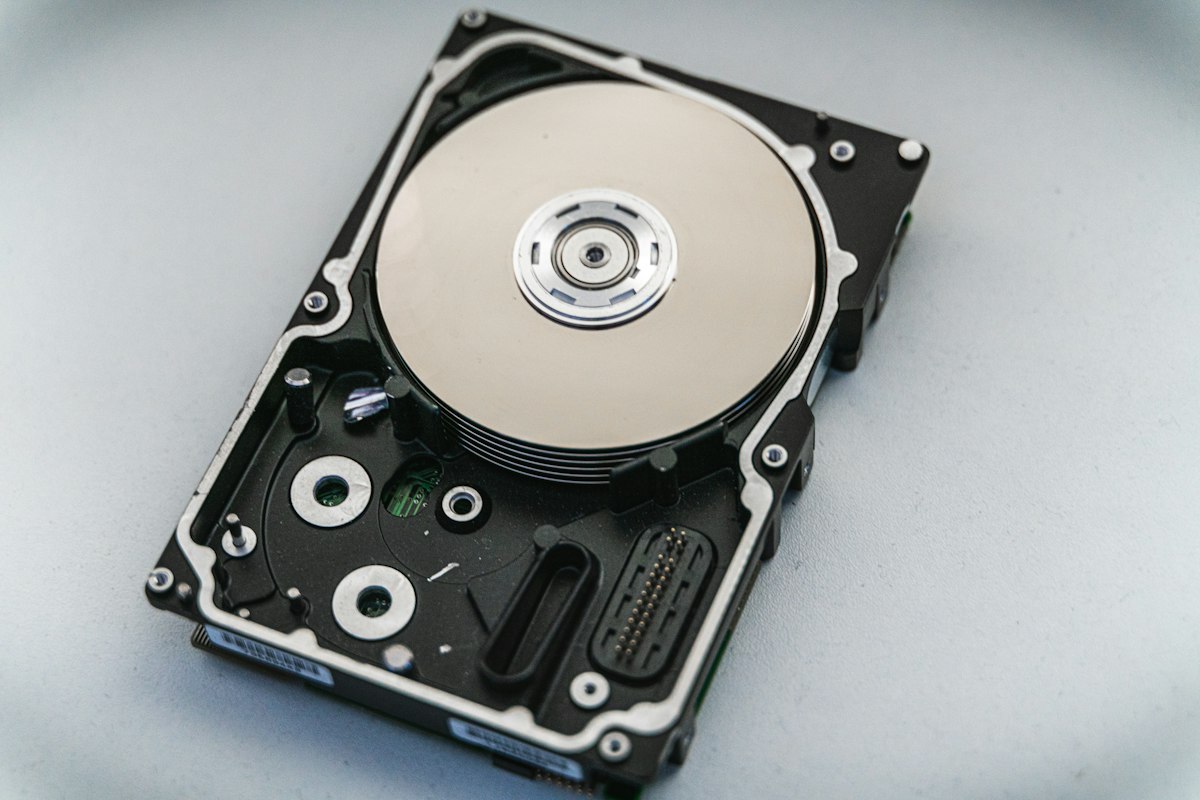
To recover deleted files on Windows 11, check the Recycle Bin first, then OneDrive’s recycle bin, then File History or Previous Versions if a backup was running. If none of those has the file, Microsoft’s free Windows File Recovery tool or paid software such as EaseUS Data Recovery Wizard can often find it, provided you stop using the drive straight away.
Key takeaways
- Stop saving to the affected drive the moment you notice a missing file. New data can overwrite what you want back.
- Free methods come first: Recycle Bin, OneDrive recycle bin (30 days for personal accounts), File History and Previous Versions.
- Windows File Recovery (
winfr) is a free Microsoft command-line tool for files that have left the Recycle Bin. - Paid software helps with formatted, RAW or failing drives, large recoveries and anyone who prefers a visual preview.
- Recovery from SSDs is less likely to succeed than from hard drives, so backups matter more than ever.
In this guide
- Can you recover deleted files on Windows 11 after emptying the Recycle Bin?
- How do you restore files from the Recycle Bin and OneDrive?
- How do you recover files with File History or Previous Versions?
- How do you use Windows File Recovery?
- When is paid data recovery software worth it?
- How do you stop losing files again?
- Frequently asked questions
- The bottom line
- Useful links
Can you recover deleted files on Windows 11 after emptying the Recycle Bin?
Often, yes. When Windows deletes a file it usually marks the space as free rather than wiping it, so the data stays on the disk until something new is written over it. Your chances are best on a traditional hard drive, used lightly since the deletion, and worst on an SSD that has been in use for days.
The single most important step is to stop writing to the drive. Do not install recovery software onto the same drive you are recovering from, and do not save recovered files back to it. Use a second drive or a USB stick as the destination.
Why SSDs are different
Most SSDs use a feature called TRIM, which tells the drive which blocks are no longer needed so it can clear them in the background. Once that happens, deleted data on an internal SSD is often unrecoverable by any tool. Microsoft’s own guidance notes that overwriting is especially likely on solid-state drives, so act quickly and keep expectations realistic.
USB sticks, SD cards and external hard drives usually do not receive TRIM in the same way, which is why recovery from them tends to go better.
How do you restore files from the Recycle Bin and OneDrive?
Open the Recycle Bin on the desktop, find the file, right-click it and choose Restore. It returns to its original folder. If the folder syncs with OneDrive, also check the OneDrive recycle bin online, which keeps deleted items for 30 days on personal accounts and 93 days on work or school accounts by default.
- Double-click Recycle Bin on the desktop. If the icon is missing, press Win + R, type
shell:RecycleBinFolderand press Enter. - Sort by Date Deleted or use the search box in the top-right corner.
- Right-click the file and select Restore. Restoring a whole folder brings back everything inside it.
Files deleted with Shift + Delete, from the command line, from a USB stick or from a network share skip the Recycle Bin, so look elsewhere for those.
Check OneDrive’s recycle bin
If your Desktop, Documents or Pictures folders are backed up to OneDrive, a file deleted on the PC is deleted in OneDrive too, but it goes to OneDrive’s own recycle bin. Sign in at onedrive.com and open Recycle bin from the left menu. Microsoft’s OneDrive restore guide explains the retention periods, and Microsoft 365 subscribers can roll back their entire OneDrive to an earlier date.

How do you recover files with File History or Previous Versions?
If File History was switched on before the file disappeared, right-click the folder that held it, choose Restore previous versions, pick a version from before the deletion and restore it. File History must already have been backing up to an external drive or network location for this to work; it cannot be turned on after the fact.
- Open File Explorer and go to the folder where the file used to be.
- Right-click the folder and select Properties > Previous Versions, or Show more options > Restore previous versions.
- Choose a version dated before the file was lost and select Open to preview it.
- Use Restore to to save it to a different location. Plain Restore overwrites the current version, which cannot be undone.
You can also open the full File History browser from Control Panel > System and Security > File History > Restore personal files. Microsoft’s File History guide covers setup and restore in detail.
If the Previous Versions tab is empty, no backup or restore point captured that folder. Move on to the recovery tools below.
How do you use Windows File Recovery?
Windows File Recovery is a free command-line app from the Microsoft Store. You run winfr with a source drive, a different destination drive, a mode and a file filter. It searches the disk for deleted files that are no longer in the Recycle Bin and copies anything it finds into a new recovery folder on the destination.
| Mode | Best for | File systems |
|---|---|---|
/regular |
Recently deleted files on a healthy drive | NTFS |
/extensive |
Older deletions, formatted or corrupted drives | NTFS, FAT, exFAT and others |
Most Windows 11 system drives use NTFS. USB sticks and SD cards often use FAT32 or exFAT, so they need extensive mode.
Step by step
- Install Windows File Recovery from the Microsoft Store. Ideally do this before more data is written, or from another account with minimal activity.
- Plug in a USB drive or second disk to use as the destination. The source and destination must be different drives.
- Open Start, search for Windows File Recovery and run it. Accept the administrator prompt.
- Type a command. To recover a Documents folder from C: to E:, run
winfr C: E: /regular /n \Users\YourName\Documents\ - To recover by file type, run
winfr C: E: /regular /n *.docx /n *.pdf. For photos on an SD card in drive F:, runwinfr F: E: /extensive /n *.jpg - Press Y to continue. When it finishes, open the Recovery_ folder (named with the date and time) on the destination drive and check the files.
The full syntax and more examples are on Microsoft’s Windows File Recovery support page. It does not work on cloud storage or network shares.
When is paid data recovery software worth it?
Paid data recovery software is worth it when free methods find nothing, when a drive has been formatted or shows as RAW, when Windows will not boot, or when you need to recover more than a small amount of data with previews. It is not worth it if the file is already in a backup or the Recycle Bin.
Tools such as EaseUS Data Recovery Wizard Pro scan the drive, show results in folders with file previews, and let you tick exactly what to restore. That is easier than guessing winfr filters, especially for photos and mixed file types. EaseUS also offers a free edition, which EaseUS says recovers up to 2 GB, so you can confirm a scan finds your files before paying.
Which EaseUS tool fits which problem?
- Deleted or formatted files, lost partitions: Data Recovery Wizard Pro, available as a one-month, one-year or longer-term licence for one PC.
- PC will not start: EaseUS Data Recovery Wizard with bootable media runs from a USB stick, so you can copy files off before reinstalling.
- Files recovered but will not open: EaseUS Fixo attempts to repair damaged documents, photos and videos.
Whatever tool you use, install it on a different drive from the one you are scanning and save results elsewhere. If a drive is clicking, grinding or disappearing from Windows, power it off. Repeated scans can make physical damage worse, and a professional lab is the safer choice for irreplaceable data.
Free methods came up empty?
Run the free EaseUS scan first to see what is recoverable, then upgrade for unlimited recovery with EaseUS Data Recovery Wizard Pro. Browse the full EaseUS data recovery range for bootable and specialist options.
How do you stop losing files again?
The reliable way to stop losing files is the 3-2-1 habit: three copies of important data, on two different types of storage, with one copy off-site or in the cloud. On Windows 11 that can be as simple as OneDrive for documents plus File History or a disk image on an external drive.
- Turn on File History with an external drive, so Previous Versions has something to restore from.
- Use OneDrive folder backup for Desktop, Documents and Pictures through the Windows Backup app.
- Take a full image before risky jobs such as resizing partitions or swapping drives. EaseUS Todo Backup Home handles scheduled image backups.
- Keep malware protection on. Ransomware is a common cause of “lost” files. Our guide on whether Windows Defender is enough covers the free ransomware setting most people miss.
- Be careful with disk tools. Most accidental wipes happen while partitioning. Read our guide to partitioning a hard drive in Windows 11 before you change anything.
Frequently asked questions
Where do permanently deleted files go in Windows 11?
They stay on the drive as unindexed data. Windows marks the space as free and removes the file’s entry, but the content remains until new data overwrites it. That is why recovery tools can often find them, and why you should stop using the drive immediately. On SSDs, TRIM may clear the data quickly.
Can I recover deleted files without software?
Yes, if the file is in the Recycle Bin, the OneDrive recycle bin, or a File History or Previous Versions backup. Windows File Recovery is also free and made by Microsoft, though it is command-line only. Third-party software is only needed when these built-in options cannot find the file.
How do I recover a file deleted with Shift + Delete?
Shift + Delete bypasses the Recycle Bin, so check OneDrive’s recycle bin and Previous Versions first. If neither has it, run Windows File Recovery with /regular mode on an NTFS drive, saving to a different drive, or use a data recovery tool. Act quickly, particularly on an SSD.
Is Windows File Recovery free?
Yes. Windows File Recovery is a free Microsoft app available from the Microsoft Store for Windows 10 and Windows 11. It has no graphical interface; you run the winfr command with a source drive, destination drive, mode and file filters. It does not support cloud storage or network shares.
Can you recover files from a formatted drive?
Often, if it was a quick format and little has been written since. Use Windows File Recovery in extensive mode or a tool such as EaseUS Data Recovery Wizard, which also handles RAW and lost partitions. A full format, or a format of an SSD, greatly reduces the chances of recovery.
Is EaseUS Data Recovery safe to use?
EaseUS Data Recovery Wizard is a widely used commercial tool and only reads the scanned drive, so it does not change your files. Download it from EaseUS or a reputable retailer, never from unofficial sites. Install it on a different drive from the one you are recovering, and save recovered files elsewhere.
The bottom line
Start with the free routes: Recycle Bin, OneDrive, Previous Versions, then Windows File Recovery. If they cannot find your files, or the drive is formatted or will not boot, a dedicated tool is the next step, so compare options in our EaseUS software range. Then set up a backup so you are not here again.
Useful links
| Resource | Why it helps |
|---|---|
| Microsoft: Windows File Recovery | Official winfr syntax, modes and examples |
| Microsoft: File History | Set up backups and restore previous versions |
| Microsoft: restore deleted OneDrive files | OneDrive recycle bin retention and restore |
| EaseUS free data recovery | Free edition limits before you buy |
| EaseUS Data Recovery Wizard Pro | Unlimited recovery with previews on one PC |
| EaseUS Data Recovery bootable media | Recover files when Windows will not start |
| EaseUS Fixo | Repair recovered files that will not open |
| EaseUS Todo Backup Home | Scheduled image backups to prevent future loss |
| Is Windows Defender enough? | Ransomware protection settings in Windows Security |
| Partition a hard drive in Windows 11 | Change disk layouts without losing data |


