🎃 HALLOWEEN SALE: 50% OFF best-selling Windows, Office, Autodesk & Server keys — use code GHOST50 Shop the sale →


Windows Server 2022 End of Support: Should You Upgrade to 2025?

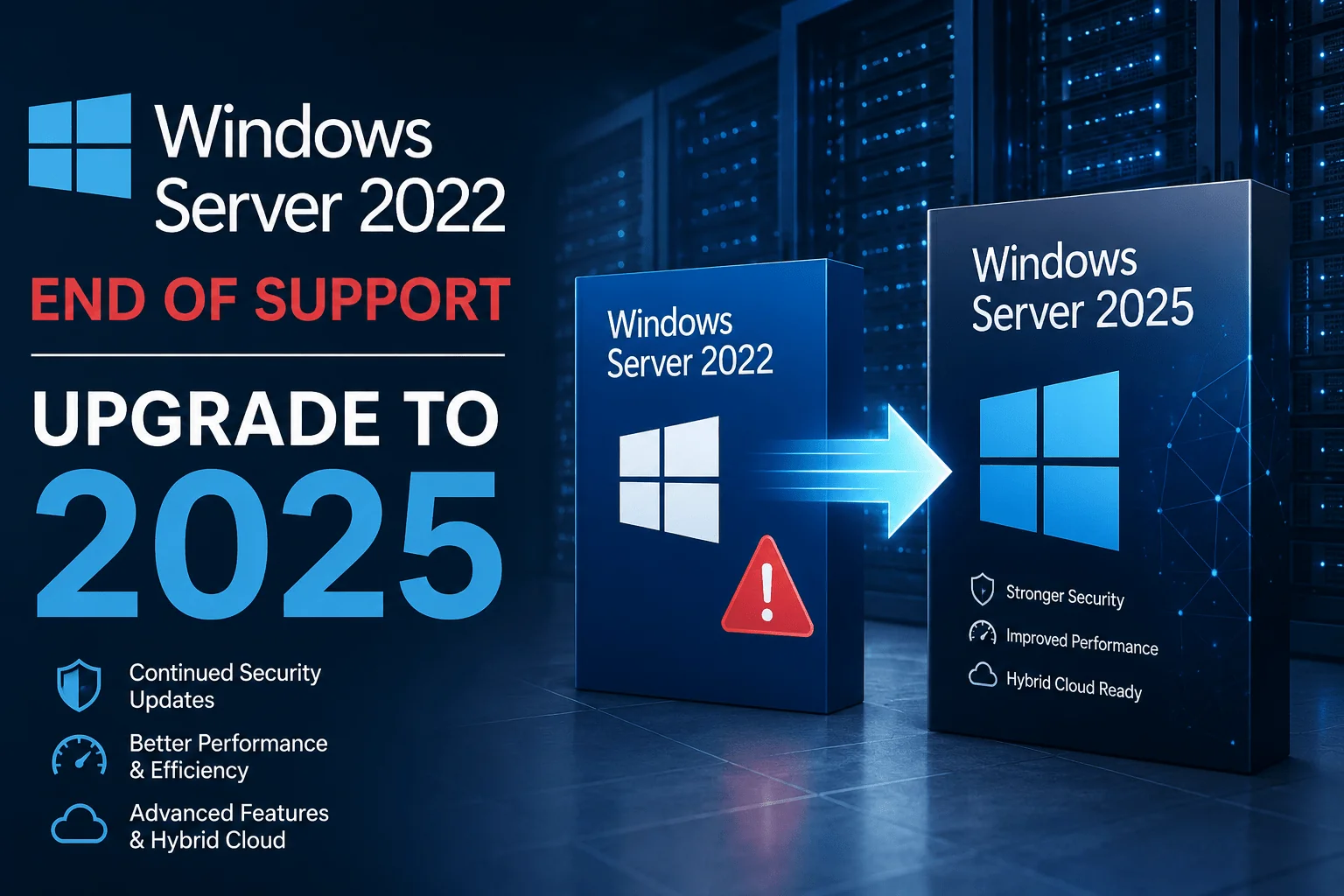
Microsoft has been sending message-centre reminders that Windows Server 2022 reaches end of mainstream support on 13 October 2026. A lot of the coverage around those notices has quietly dropped the word “mainstream”, which has left plenty of administrators believing their servers stop receiving patches this October. They don’t.
This guide sets out what genuinely changes on 13 October 2026, what you keep until 2031, and the conditions under which moving to Windows Server 2025 is worth the migration effort — rather than treating the date as a deadline it isn’t.
Table of contents
- Is Windows Server 2022 end of support in October 2026?
- What actually changes on 13 October 2026
- Mainstream support vs extended support
- Should you upgrade Windows Server 2022 to 2025?
- Windows Server 2022 vs 2025 comparison table
- What Windows Server 2025 adds that 2022 doesn’t have
- Can you do an in-place upgrade from 2022 to 2025?
- What a Windows Server 2025 upgrade costs to licence
- Which servers to upgrade first
- The real risk of staying on Server 2022 until 2031
- Common upgrade problems and fixes
- Frequently asked questions
Is Windows Server 2022 end of support in October 2026?
No. 13 October 2026 is the end of mainstream support for Windows Server 2022, not end of life. The operating system then moves into extended support and continues receiving free monthly security updates through 14 October 2031. Nothing deactivates, nothing stops booting, and no licence expires on that date.
Windows Server 2022 is a Long-Term Servicing Channel (LTSC) release under Microsoft’s Fixed Lifecycle Policy. That policy grants roughly five years of mainstream support followed by five years of extended support — about a decade in total.
The confusion is understandable. For Windows 10 and Office 2021, the widely publicised October dates are the hard security cut-off. For Windows Server 2022, the October 2026 date is a phase change five years ahead of the real one.
What actually changes on 13 October 2026
The October 2026 security update is the last one issued under mainstream support. After that, the servicing model narrows to security-only. Here is the practical split:
| What you keep until 14 Oct 2031 | What you lose on 13 Oct 2026 |
|---|---|
| Free monthly security updates, at no additional cost | New features and functionality |
| Critical security patching through Windows Update / WSUS / Intune | Non-security bug fixes and quality hotfixes |
| Your existing perpetual licence and activation | Complimentary technical support incidents |
| The ability to install and deploy the OS on new hardware | The ability to request design changes or new features |
One nuance worth knowing: Microsoft extended hotpatching eligibility for Windows Server 2022 Datacenter: Azure Edition through October 2027 — a year beyond the mainstream date. [VERIFY: confirm current hotpatch end date for Server 2022 Datacenter: Azure Edition on Microsoft’s hotpatch documentation before publishing, as this was an announced extension.]
Mainstream support vs extended support: the difference that matters
Mainstream support covers security updates, bug fixes, feature work and free support incidents; extended support covers security updates only. The distinction matters because a non-security bug that annoys your team in November 2026 will not be fixed — but a vulnerability that puts your domain controller at risk still will be, free of charge, for another five years.
This is the single most misread part of the Windows Server lifecycle. “End of support” and “end of life” for Server releases both refer to the extended end date, which for Server 2022 is 14 October 2031.
For comparison across the estate you may still be running:
| Release | Mainstream support ends | Extended support ends (true EOL) |
|---|---|---|
| Windows Server 2012 / 2012 R2 | Ended | Out of support — paid ESU coverage ends 13 October 2026 |
| Windows Server 2016 | Ended | 12 January 2027 |
| Windows Server 2019 | Ended | 9 January 2029 |
| Windows Server 2022 | 13 October 2026 | 14 October 2031 |
| Windows Server 2025 | 13 November 2029 | 14 November 2034 |
If you take three dates from that table, make them 13 October 2026 (Server 2012/R2 paid ESU genuinely ends), 12 January 2027 (Server 2016 reaches true end of life) and 9 January 2029 (Server 2019 reaches true end of life). Those are the ones that leave machines unpatched. Server 2022’s is not.
Should you upgrade Windows Server 2022 to Windows Server 2025?
Upgrade if the server is due for a hardware refresh, if you need a specific Server 2025 capability, or if you are deploying anything new — otherwise a healthy, patched Server 2022 box can reasonably stay put. The October 2026 date on its own is not a technical reason to migrate a stable production workload.
The useful question isn’t “has support changed?” but “does the effort buy me something?” Three situations where it clearly does:
- New deployments. Building a fresh server on Server 2022 today buys you patches until 2031 for the same labour as a Server 2025 build that buys you until 2034. There is no argument for the older release on a clean install unless a vendor explicitly refuses to certify 2025.
- Hardware refresh windows. An OS migration and a hardware swap share a maintenance window. Doing them separately means taking the outage twice.
- You need a 2025-only feature. The Active Directory 32k page size, on-premises hotpatching via Azure Arc, SMB over QUIC on Standard and Datacenter, or NVMe over Fabrics all require the newer release.
And two where it usually doesn’t — at least not yet:
- Line-of-business applications your vendor has only certified to Server 2022. Running an unsupported configuration to chase a lifecycle date you’ve misread is the worse outcome.
- Servers scheduled for decommission before 2031 anyway. Migrating a box you plan to retire in three years is effort spent twice.
Windows Server 2022 vs Windows Server 2025: side by side
| Area | Windows Server 2022 | Windows Server 2025 |
|---|---|---|
| Release | Generally available September 2021 | Generally available 1 November 2024 |
| Codebase | Windows 10 lineage | Windows 11 lineage |
| Mainstream support ends | 13 October 2026 | 13 November 2029 |
| Extended support ends | 14 October 2031 | 14 November 2034 |
| Hotpatching | Datacenter: Azure Edition only | Extended to Azure Arc-connected Standard and Datacenter |
| SMB over QUIC | Azure Edition only | Available on Standard and Datacenter |
| Active Directory database page size | 8 KB (unchanged since Windows 2000) | Optional 32k pages at new functional level |
| Storage | Storage Spaces Direct, Storage Replica | Adds NVMe over Fabrics, Storage Replica compression |
| Licence type | Perpetual, core-based, CALs required | Perpetual, core-based, CALs required |
| Third-party application maturity | Several more years of vendor validation | Newer; some vendors still catching up |
Both are perpetual licences — you buy the version, you keep the version. Neither is a subscription, and neither entitles you to a free upgrade to the other. Server editions have never worked that way outside of Software Assurance.
What Windows Server 2025 adds that 2022 doesn’t have
Most Server releases are incremental. This one has a handful of changes substantial enough to justify a migration on their own merits.
Hotpatching outside Azure Edition
Hotpatching installs many security updates without a reboot. In Server 2022 it was confined to Datacenter: Azure Edition; in Server 2025 it extends to Standard and Datacenter machines connected to Azure Arc. For anything where a maintenance window is genuinely expensive, this changes the monthly patch routine more than any other feature on the list.
[VERIFY: confirm current commercial terms for Arc-enabled hotpatching on Server 2025 Standard/Datacenter. Reporting has varied between a paid subscription and no additional cost — check Microsoft’s hotpatch documentation before publishing.]
Next-generation Active Directory
Domain controllers can optionally use a 32k database page size instead of the 8 KB page AD has used since Windows 2000, raising the ceiling on multivalued attributes considerably. Note the cause and effect here: this is a forest-wide change requiring every DC to be 32k-capable and a new domain and forest functional level, and Microsoft is not retrofitting that functional level to 2019 or 2022. One legacy DC left in place blocks the whole forest from the feature.
Server 2025 also introduces Delegated Managed Service Accounts (dMSA), which replace legacy service accounts with fully randomised, automatically managed keys and disable the original passwords.
SMB over QUIC on Standard and Datacenter
SMB over QUIC tunnels encrypted SMB traffic over UDP/443, giving remote users access to file shares over the internet without a VPN. Because the traffic looks like ordinary HTTPS to a firewall, it traverses restrictive networks that block SMB outright. Server 2025 adds certificate-based client access control and configurable alternative ports, which addresses the obvious “exposed to the whole internet” objection.
Security defaults and storage
Credential Guard is enabled by default on eligible hardware, SMB signing is enforced more aggressively, and new machine accounts get strong random passwords instead of predictable defaults. On the storage side, NVMe over Fabrics lets remote storage perform close to locally attached NVMe, and Storage Replica gains block-level compression.
Can you do an in-place upgrade from Windows Server 2022 to 2025?
Yes — Microsoft supports in-place upgrade to Windows Server 2025 from Server 2012 R2 and later, up to four versions at a time, so 2022 to 2025 is a single documented hop. A supported path is not the same as a low-risk production change, though. For domain controllers, failover clusters and Hyper-V hosts, most experienced administrators still prefer to stand up a clean Server 2025 instance and migrate roles across.
The reason is rollback. A completed in-place upgrade cannot be reversed except by restoring from backup. A parallel build can be abandoned by simply pointing clients back at the old server.
Before you start
- Take a full, tested backup. Not just a snapshot — a restore you have actually verified. This is the only rollback you have.
- Check the CPU requirement. Server 2025 has stricter processor requirements than 2022. [VERIFY: confirm the exact CPU instruction-set requirement for Server 2025 — reporting cites SSE4.2/POPCNT — against Microsoft’s published system requirements.]
- Confirm TPM 2.0 and UEFI. Server 2025 will install without TPM 2.0, but Credential Guard and several security defaults depend on it.
- Check third-party agents. Backup agents, endpoint security, monitoring and any line-of-business application need explicit vendor support for Server 2025. This is where most upgrade regrets originate.
- Verify edition, language and licensing match. Standard upgrades to Standard, Datacenter to Datacenter. Cross-edition and cross-language paths carry their own restrictions.
- Test on a representative clone first. Not a bare install — a copy of the actual workload.
The upgrade itself
- Mount the Windows Server 2025 installation media on the running server.
- Run
setup.exefrom within the existing Windows Server 2022 installation. Booting from the media gives you a clean install, not an upgrade. - Choose to download updates during setup, so known blockers are handled before the OS is replaced.
- Enter your Windows Server 2025 product key when prompted, or defer and activate afterwards.
- Select Keep files, settings and applications — this is the option that makes it an in-place upgrade rather than a wipe.
- Review the compatibility report setup produces and resolve every blocker before continuing.
- Let the upgrade run. Expect multiple reboots and plan a window well beyond your estimate.
- After first boot, confirm activation, verify roles and services, check event logs, and re-validate your backup agent.
Step-by-step installation and activation walkthroughs for both releases are in our Windows Server 2025 Standard download, install and activate guide and the Windows Server 2022 Standard equivalent. If you are working from an evaluation build, see upgrading a Windows Server 2025 evaluation to Standard.
What does a Windows Server 2025 upgrade cost to licence?
Windows Server 2025 requires a new licence — there is no free upgrade path from Server 2022, and your existing CALs do not carry forward. Server editions have never included version upgrade rights outside Software Assurance, so budget for the operating system licence and the client access licences together.
Three components determine what you actually need:
- Core licences. Windows Server is licensed per physical core, with a minimum of 16 cores per server and 8 cores per processor. A 12-core single-socket box still needs the 16-core minimum.
- Edition. Standard covers two virtual machines (or two Hyper-V containers) per licensed host. Datacenter covers unlimited virtualisation and unlocks Storage Spaces Direct, software-defined networking and unrestricted Storage Replica. If you run more than a couple of VMs per host, Datacenter usually works out cheaper than stacking Standard licences.
- CALs. Every user or device accessing the server needs a Client Access Licence, and CALs must match or exceed the server version. Move a file server to 2025 and the users hitting it need Server 2025 User CALs or Device CALs. Remote Desktop deployments need separate RDS CALs on top — see RDS User Connections and RDS Device Connections.
Current pricing for each is on the individual product pages: Windows Server 2025 Standard, Windows Server 2025 Datacenter, or browse the full Microsoft Server category. If you are licensing more than a handful of servers, the enterprise licensing page and B2B quote request are the faster route than buying individually.
Staying on Server 2022 costs nothing extra until October 2031 — extended support security updates are free. That is a genuine argument for deferral on stable workloads, and worth weighing honestly against the migration budget. Existing Windows Server 2022 licences and 2022 User CALs remain valid throughout.
Which servers should you upgrade first?
If you are planning a phased migration rather than a single cutover, sequence by risk rather than by convenience.
| Priority | Workload | Why |
|---|---|---|
| 1 — Now | Any remaining Server 2012 / 2012 R2 or 2016 machines | These are the ones with a genuine security cliff — 2012/R2 ESU ends 13 Oct 2026, 2016 reaches EOL 12 Jan 2027 |
| 2 — Next | New builds and hardware refreshes | Same effort, five more years of lifecycle |
| 3 — Planned | Internet-facing file servers and RDS hosts | SMB over QUIC and the hardened SMB defaults have direct security value here |
| 4 — Planned | Domain controllers | Worth doing as a coordinated forest-level project, not piecemeal — the 32k page feature needs every DC upgraded |
| 5 — Defer | Stable line-of-business application servers with vendor certification limits | Wait for vendor support; you have until 2031 |
If you stay on Server 2022 until 2031, what actually bites you?
Not Microsoft patching — that continues. The pressure comes from three directions the lifecycle table doesn’t show.
Third-party vendors set their own dates. Backup software, endpoint protection and hypervisor management tools tend to drop support for an OS well before Microsoft does. A vendor dropping Server 2022 in 2029 is a more likely forcing function than Microsoft’s 2031 date.
Hardware drivers thin out. Server-class hardware bought in 2029 may not ship Server 2022 drivers at all. That quietly turns “upgrade when convenient” into “upgrade to replace this failed array controller”.
Your other software has its own lifecycle. SQL Server, Exchange and line-of-business applications each run to their own calendar and frequently expire before the host OS. If you are running SQL Server on the same box, check its dates separately — see our SQL Server 2025 Standard install and activation guide and the SQL Server 2025 Standard licence.
The failure mode worth naming: everybody schedules their migration for the final quarter before a deadline, so partner capacity, licence availability and your own change windows all get scarce at exactly the same moment. Planning to the date is planning to the queue.
Common upgrade problems and how to fix them
Setup says this version is not supported for upgrade
Almost always an edition, language or channel mismatch. Standard must upgrade to Standard and Datacenter to Datacenter, the installation language must match, and evaluation builds need converting to a retail or volume channel before they will upgrade. Our guide on Windows Server Standard and Datacenter evaluation issues covers the conversion path.
The upgrade completed but the server won’t activate
Check the key type matches the installation. A key intended for one edition will not activate another, and volume-channel keys behave differently from retail. If online activation fails, phone activation is available — our phone activation walkthrough and the Confirmation ID tool handle that route.
A role or service failed to start after upgrade
Work through Event Viewer before reinstalling anything. Third-party filter drivers from backup and security agents are the usual culprit; reinstalling the agent’s current Server 2025-supported build resolves most of them.
Backups fail immediately after the upgrade
Backup agents commonly need reinstallation rather than just an update after a major OS version change, because the driver stack has moved underneath them. Verify a real restore, not just a successful job status.
Anything not covered here, our Help & Support Centre and ticket system are the fastest route to a human.
Frequently asked questions
Will Windows Server 2022 stop receiving security updates in October 2026?
No. Windows Server 2022 continues to receive free monthly security updates through extended support until 14 October 2031. The October 2026 date ends mainstream support, which stops new features, non-security bug fixes and complimentary support incidents — security patching is unaffected.
Is Windows Server 2022 still safe to run after October 2026?
Yes, provided you keep it patched. It remains a fully supported operating system receiving monthly security updates for five more years. The security posture on 14 October 2026 is materially the same as on 12 October 2026; what changes is Microsoft’s feature and bug-fix commitment, not its vulnerability response.
Do I need to buy a new licence to upgrade to Windows Server 2025?
Yes. Windows Server has never included free version upgrades outside Software Assurance, so a move from 2022 to 2025 needs new core licences for the server plus matching Server 2025 CALs for every user or device that accesses it. Your Server 2022 licence stays valid on Server 2022 indefinitely.
Can I upgrade Windows Server 2022 to 2025 without reinstalling?
Yes. Microsoft supports a direct in-place upgrade from Server 2022 to Server 2025, run by launching setup from within the running OS and choosing to keep files, settings and applications. Take a verified backup first — a completed in-place upgrade cannot be rolled back except by restore.
Which is better for a new server in 2026, Windows Server 2022 or 2025?
Windows Server 2025, in almost every case. A clean 2022 build gives you patches until 2031; the same work on 2025 gives you until 2034, plus hotpatching, SMB over QUIC on Standard and the newer security defaults. The exception is a line-of-business application whose vendor has not yet certified Server 2025.
Does end of mainstream support affect my Windows Server 2022 CALs?
No. Client Access Licences are perpetual and tied to the server version, not to a support phase. Your Server 2022 User and Device CALs remain valid for as long as you run Server 2022. They do not, however, cover access to a Server 2025 machine — that needs 2025 CALs.
Buying Windows Server 2025 licences
WinCDKey supplies perpetual Windows Server licences with instant digital delivery, covering Server 2025 Standard, Server 2025 Datacenter, User and Device CALs, and RDS connection packs. Existing Server 2022 Standard and Server 2022 Datacenter licences remain available if you are standardising an estate rather than moving forward.
Orders are delivered by email with activation instructions. Every licence is covered by our 90-day replacement policy, and installation help is available through the installation and activation guide or by opening a support ticket. You can read what other buyers say on Trustpilot, and more about the company on our About Us page, Terms & Conditions and FAQs.
For volume requirements across multiple servers, the wholesale application and enterprise licensing pages set out bulk pricing. Existing orders can be checked at order tracking.


