🎃 HALLOWEEN SALE: 50% OFF best-selling Windows, Office, Autodesk & Server keys — use code GHOST50 Shop the sale →


How to Download, Install & Activate Office 2021 Home and Business for Mac

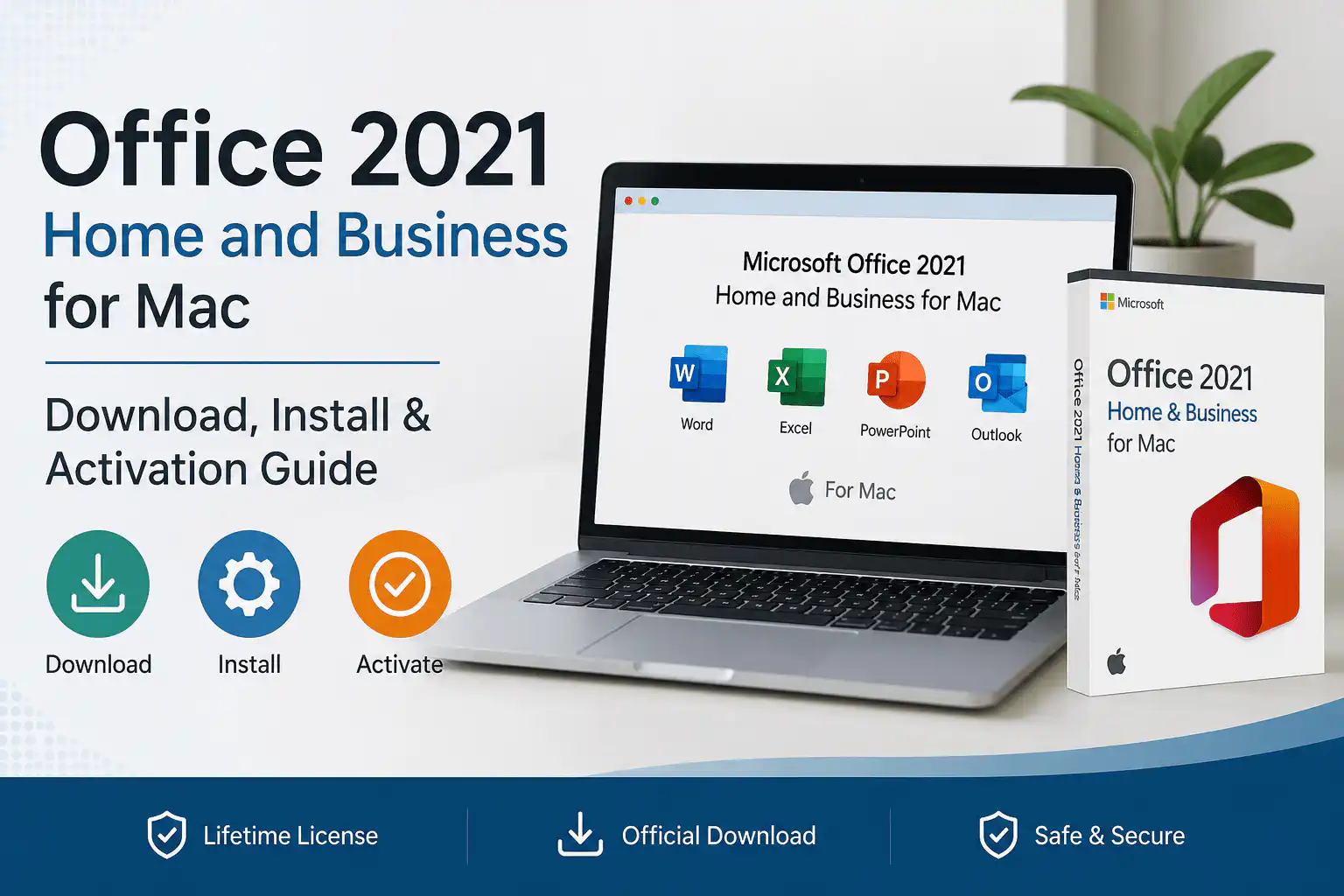
Microsoft Office 2021 Home and Business for Mac is a one-time-purchase productivity suite built for macOS, covering Word, Excel, PowerPoint, Outlook and OneNote. Unlike a Microsoft 365 subscription, there is no monthly fee and no renewal date — the licence is perpetual and binds permanently to the Microsoft account you redeem it with.
This guide takes you from checking your Mac’s compatibility through to a fully activated installation, plus reinstallation on a new Mac and fixes for the activation errors we see most often in support tickets. If you have not bought a key yet, you can buy Office 2021 Home and Business for Mac from WinCDKey with delivery by email within minutes.
⚠️ Read this before you redeem
- This is a Mac-only licence. It will not redeem or activate on Windows. If you need the Windows edition, use Office 2021 Home and Business for PC instead.
- The licence binds permanently to your Microsoft account at redemption. Choose an account you will keep long term — the binding cannot be moved to a different account afterwards.
- Once a key has been redeemed or activation has been attempted, it cannot be returned to stock. See our Refund and Returns Policy before redeeming.
- Microsoft’s support lifecycle for Office 2021 runs to October 2026. The software continues to work after that date, but stops receiving security updates.
What do you need to install Office 2021 Home and Business on a Mac?
You need four things: a supported version of macOS, roughly 10 GB of free disk space, a Microsoft account, and your 25-character product key. Redemption happens at setup.office.com, the installer downloads from office.com, and activation completes when you sign in inside any Office app.
The whole process usually takes 15–25 minutes, most of which is the installer download.
System requirements
| Requirement | Minimum |
|---|---|
| Operating system | Microsoft supports the three most recent macOS releases. Check Microsoft’s current list before installing on an older Mac. |
| Processor | Intel Mac or Apple Silicon (M-series) — Office 2021 runs natively on both, no Rosetta 2 required |
| Memory | 4 GB RAM (8 GB recommended) |
| Storage | 10 GB free disk space |
| Display | 1280 × 800 resolution |
| Internet | Required for redemption, download and first activation |
| Account | A Microsoft account (free) — the licence binds to it permanently |
Why the macOS version matters: Microsoft ties Office 2021 support to a rolling window of the current macOS release plus the two before it. If your Mac is two or more generations behind, the installer may run but apps can crash or fail to sign in — and support requests on unsupported systems are the single most common cause of “it installed but won’t activate” tickets. Verify against Microsoft’s official system requirements page before you redeem.
What’s included in Office 2021 Home and Business for Mac?
Five applications: Word, Excel, PowerPoint, Outlook and OneNote. This edition does not include Access or Publisher — both are Windows-only applications and have never shipped in any Mac edition of Office.
- Word 2021 — documents with co-authoring, advanced formatting and template support
- Excel 2021 — includes XLOOKUP and dynamic arrays, the biggest formula upgrade since Excel 2019
- PowerPoint 2021 — new transitions, stock media library and improved recording tools
- Outlook 2021 — mail, calendar, contacts and tasks in one desktop client
- OneNote 2021 — notebooks that sync across your signed-in devices
Need Access, Publisher or a full professional feature set? That means Windows — see Office 2021 Professional Plus. Prefer the newest generation on macOS? Browse Office 2024 for Mac.
Perpetual licence vs Microsoft 365 subscription
| Office 2021 Home & Business (Mac) | Microsoft 365 subscription | |
|---|---|---|
| Payment | One-time purchase | Monthly or annual renewal |
| Devices | 1 Mac | Multiple, per plan |
| Feature updates | No — feature set is fixed at the 2021 release | Yes, continuous |
| Copilot / AI features | Not included — Copilot is subscription-only | Available on eligible plans |
| Cloud storage | Not included | OneDrive storage included |
| Security updates | To October 2026 | While subscribed |
If cloud storage and always-current features matter more than cost, a subscription is the better fit — compare our Office 2021 for Mac range against the alternatives before deciding.
How do you download and install Office 2021 Home and Business on Mac?
Redeem the key at setup.office.com, download the .pkg installer, run it, then sign in to any Office app to activate. Four steps in order — do not download the installer before redeeming, because the download link is generated by the redemption itself.
Step 1 — Redeem your product key at setup.office.com
- Open a browser on your Mac and go to setup.office.com.
- Sign in with your Microsoft account, or select Create one if you don’t have one. This is the account the licence binds to permanently, so use a personal address you will keep — not a work address you may lose access to.
- Enter the 25-character product key from your WinCDKey email (format XXXXX-XXXXX-XXXXX-XXXXX-XXXXX). Copy and paste it rather than typing to avoid character mix-ups.
- Choose your country/region and language, then select Next.
- The licence is confirmed against your account and you are taken to the download page.
Step 2 — Download the Mac installer
- On the confirmation page, select Install Office. You can also return later via office.com → account icon → View subscriptions and licences → Install.
- A Microsoft Office .pkg installer downloads to your Downloads folder. Expect roughly 2–3 GB, so allow time on a slower connection.
- Let the download finish completely before opening it. A partially downloaded .pkg is the most common cause of an installer that fails halfway through.
Step 3 — Install Office on your Mac
- Open Downloads and double-click the Microsoft Office .pkg file.
- Select Continue on the welcome screen.
- Read the licence agreement, select Continue, then Agree.
- Review the disk space required. To install elsewhere, use Change Install Location.
- Select Install. macOS will ask for your Mac login password — this is normal, and is required to write into the Applications folder.
- Installation typically takes 3–8 minutes depending on your Mac.
- Select Close when it completes.
Tip: select Customize before installing to deselect apps you don’t need. On a Mac with a small SSD this can save several gigabytes.
Step 4 — Activate Office on your Mac
- Open any Office app — Word from Launchpad or Applications is easiest.
- When prompted, sign in with the same Microsoft account you used at setup.office.com. Using a different account is the number one reason activation fails.
- Office checks the licence against Microsoft’s activation servers and activates automatically. You’ll see a confirmation.
- The other apps activate on first launch using the same signed-in account — you don’t repeat the key entry.
Why you won’t need the key again: activation here is account-based, not hardware-based. Because the entitlement lives on your Microsoft account rather than being tied to your Mac’s hardware ID, replacing your Mac or reinstalling macOS doesn’t consume or break the licence — you sign in and it reactivates. This is the practical difference between an account-bound Office licence and a hardware-bound Windows OEM key.
How do you reinstall Office 2021 on a new or reset Mac?
Sign in at office.com with the Microsoft account the licence is bound to, open View subscriptions and licences, locate the Office 2021 Home and Business entry and select Install. Then repeat Steps 3 and 4 above. Your original product key is not needed.
Keep your WinCDKey order confirmation email anyway — it’s your proof of purchase if you ever need to raise a support ticket.
Why won’t Office 2021 activate on my Mac?
Almost always one of three causes: you’re signed in with a different Microsoft account than the one used to redeem, the key was redeemed on the wrong portal, or the Mac is offline during first activation. Work through the fixes below in order.
The product key isn’t accepted
Check for character confusion — zero versus letter O, and 1 versus I. Confirm you’re redeeming at setup.office.com and not the Microsoft Store or a Microsoft 365 redemption page, which reject perpetual keys. Also confirm you bought the Mac edition; a Windows key will not redeem for Mac. If it still fails, contact our Help & Support Centre.
“Office can’t be activated”
This is an account mismatch in most cases. Open any Office app, go to the app menu and Sign Out completely, then sign back in with the account you used at redemption. Confirm the Mac has an active internet connection while doing this.
The installer stops or freezes
Confirm at least 10 GB free space, quit all Office apps, delete the downloaded .pkg, restart the Mac, and download a fresh copy from office.com. Partial downloads and low disk space cover the large majority of these.
Office apps don’t appear in Applications
The installation didn’t complete cleanly. Re-run the installer. If apps launch but immediately quit, check your macOS version is still within Microsoft’s supported window.
Office asks for a licence after a macOS upgrade
Office 2021 is perpetual and does not expire, so this is a sign-in prompt rather than an expiry. Open any app, sign in with your Microsoft account, and it reactivates. Our full Installation and Activation Guide covers the less common cases.
You need phone activation
Mac Office redemption is account-based and doesn’t use phone activation. If you’re activating a Windows product and hit a phone activation prompt, use our Confirmation ID (CID) tool instead.
Where can you buy a genuine Office 2021 Home and Business Mac key?
WinCDKey supplies Office 2021 Home and Business for Mac keys with delivery by email within minutes of checkout. WinCDKey is a verified Microsoft Partner, with over 400,000 regular customers, 600,000+ orders fulfilled and 2,500+ verified reviews on Trustpilot.
Support is available through the Help & Support Centre, and buying in volume for a team is handled through B2B and wholesale quotes or enterprise licensing. You can check an existing purchase via order tracking or your account page.
Compare other editions
- All Office 2021 for Mac editions — the full Mac-compatible range
- Office 2021 Home and Business for PC — the Windows equivalent
- Office 2021 Professional Plus — need Access or Publisher? Windows only
- Office 2024 for Mac — upgrade to the latest generation
- Office 2019 Home and Business for Mac — previous generation
- Office 2016 Home and Business for Mac — oldest supported Mac edition we stock
- Office 365 Pro Plus account — prefer a subscription-style account with cloud storage?
- Browse all Office 2021 or the full WinCDKey shop
Frequently asked questions
Can I install Office 2021 Home and Business on more than one Mac?
No. This is a single-device licence covering one Mac. Installing on a second Mac requires a second licence — browse the Office 2021 range for multi-device options.
Does Office 2021 for Mac run natively on Apple Silicon?
Yes. Office 2021 is a universal application and runs natively on Apple Silicon Macs without Rosetta 2 translation, so performance matches Intel builds on comparable hardware.
How long does activation take?
Usually under 30 seconds once you sign in, assuming an active internet connection. Redemption plus download plus install typically totals 15–25 minutes, dominated by the 2–3 GB installer download.
Does Office 2021 Home and Business for Mac include Copilot?
No. Copilot and Microsoft’s other AI features are exclusive to Microsoft 365 subscriptions and are not part of any perpetual Office licence, including Office 2021 and Office 2024.
Does the licence expire?
No. It is a perpetual licence and the software keeps working indefinitely. Microsoft’s security update support for Office 2021 runs to October 2026; after that the apps continue to function but no longer receive patches.
What happens if I lose my product key?
Once redeemed, the key is no longer needed — the entitlement is recorded on your Microsoft account. Sign in at office.com to reinstall at any time. Keep your WinCDKey order email as proof of purchase.
Can I move the licence to a different Microsoft account later?
No. The binding is set at redemption and cannot be transferred to another Microsoft account, which is why choosing the right account at Step 1 matters.
Can I use this key on Windows?
No. Home and Business Mac keys are platform-specific and will not redeem for Windows. Use Office 2021 Home and Business for PC instead.
Still stuck? Reach our support team through the Help & Support Centre, or check the FAQs page for wider licensing questions.


