🎃 HALLOWEEN SALE: 50% OFF best-selling Windows, Office, Autodesk & Server keys — use code GHOST50 Shop the sale →


How to Fix Windows Error 0xc0000005 – Access Violation Issue

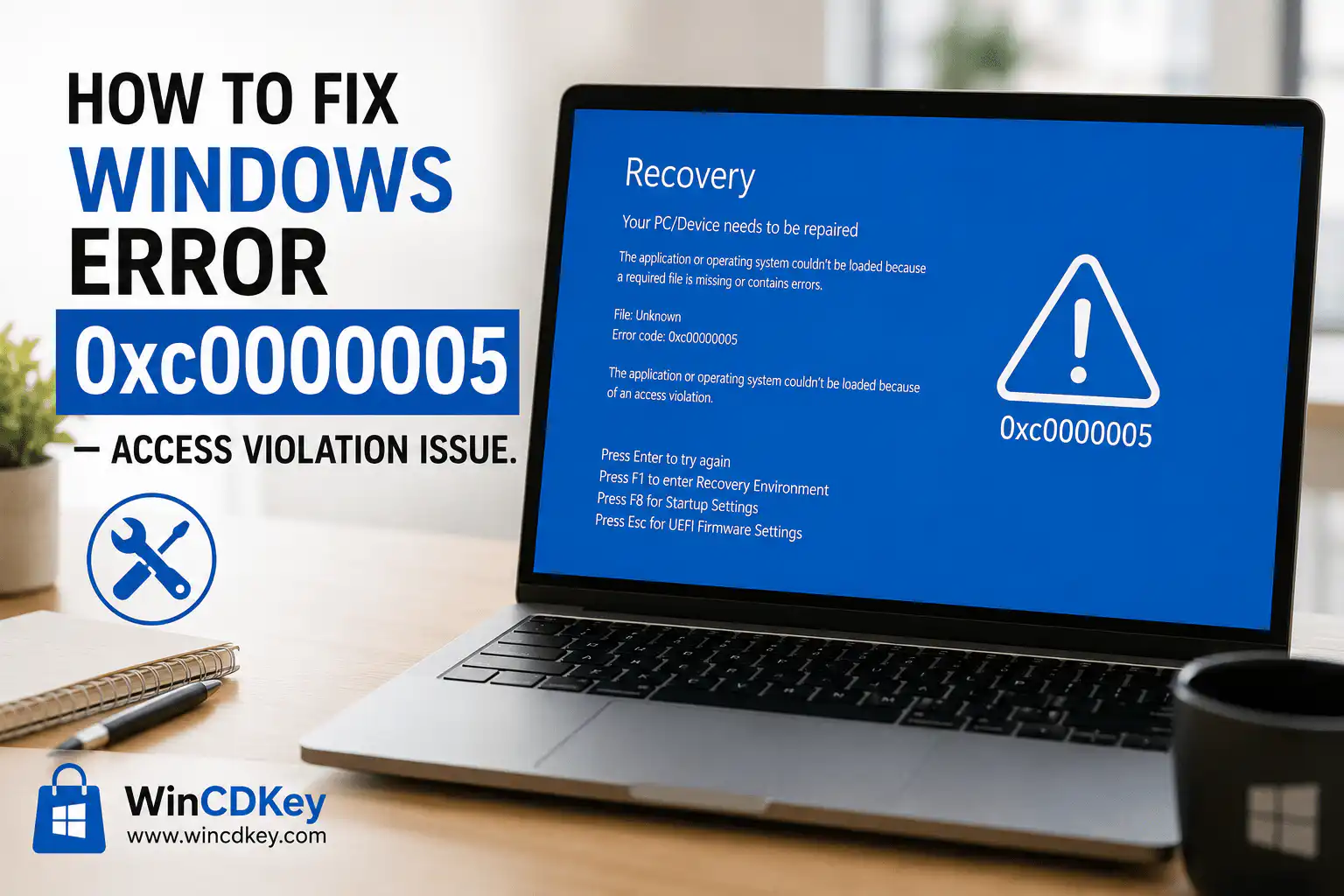
The Windows error 0xc0000005 — also called an Access Violation or Exception Code 0xc0000005 — is one of the most frustrating errors a Windows user can encounter. One moment an application is running fine; the next you get a pop-up that reads “The application was unable to start correctly (0xc0000005). Click OK to close the application.”
This error appears on Windows 10 and Windows 11 alike and can be triggered by dozens of things: a failing RAM stick, corrupted system files, a bad Windows update, outdated drivers, or even malware. The good news is that in almost every case, it can be fixed without reinstalling Windows — if you follow the right steps in the right order.
This guide walks you through 10 proven fixes, from the fastest five-minute checks to the more advanced repairs used by IT professionals. Work through them in order and you’ll resolve the error in a single session.
Already running a Windows version that’s expired or improperly activated? An unlicensed copy of Windows can cause persistent system errors. Get a genuine Windows 11 key or Windows 10 key from Wincdkey and eliminate that variable entirely.
What Is Windows Error 0xc0000005?
Error 0xc0000005 is a memory access violation. It occurs when a running program attempts to read from or write to a memory address it doesn’t have permission to use. Windows intercepts this illegal operation and terminates the offending process — which is why you see the error instead of a full system crash.
The error shows up in three main situations, each with slightly different root causes:
- Access Violation Error 0xc0000005 — appears when opening a folder, file, or application. Usually caused by faulty RAM, a malware infection, or corrupt disk drivers.
- Application Error 0xc0000005 — appears when launching a specific program. Usually caused by incompatible software, a missing Visual C++ runtime, or a bad Windows update.
- Windows Installation Error 0xc0000005 — appears during a Windows OS install or update. Usually caused by damaged installation media, bad sectors on the drive, or insufficient memory.
Common Causes at a Glance
| Cause | How It Triggers 0xc0000005 |
|---|---|
| Faulty or failing RAM | Corrupted memory cells pass bad data to applications, causing illegal memory reads |
| Corrupted system files | Damaged Windows DLLs fail to handle memory requests correctly |
| Outdated or corrupt drivers | Driver conflicts cause memory collisions between processes |
| Malware infection | Malicious code hijacks system memory, triggering access violations |
| Problematic Windows Update | A buggy update can break system DLLs or registry settings |
| Data Execution Prevention (DEP) | DEP may block a legitimate (but older) application from running |
| Incorrect virtual memory / pagefile settings | A too-small pagefile causes memory overflow errors |
| Third-party software conflicts | Security software or startup apps interfere with process memory |
| Corrupted or incomplete application install | Missing app files create memory exceptions when that code path is reached |
| Registry errors | Corrupted registry entries misdirect program execution into protected memory |
Fix 1: Run the Windows Memory Diagnostic (Check Your RAM)
Faulty RAM is the number one hardware cause of error 0xc0000005. This is the quickest hardware check you can do and should be your first step.
- Press Win + R, type
mdsched.exe, and press Enter. - Click Restart now and check for problems (recommended).
- Your PC will restart and run a memory scan (typically takes 10–20 minutes).
- After the scan, Windows restarts and displays results in the system tray. To see the full report, open Event Viewer → Windows Logs → System and look for entries from MemoryDiagnostics-Results.
If errors are found: Shut down your PC and reseat your RAM sticks. If errors persist, test each stick individually to identify the faulty module and replace it.
For advanced testing: Download MemTest86 (free), create a bootable USB, and run it overnight. It performs far more thorough testing than the Windows built-in tool.
Fix 2: Repair System Files with SFC and DISM
Corrupted Windows system files are the most common software cause of error 0xc0000005. The System File Checker (SFC) and Deployment Image Servicing and Management (DISM) tools can find and repair them automatically.
- Press Win + X and select Terminal (Admin) or Command Prompt (Admin).
- Run the SFC scan first:
sfc /scannow- Wait for it to complete (this can take 10–20 minutes). Restart your PC afterwards.
- If the error persists, run DISM to repair the Windows image that SFC relies on:
DISM /Online /Cleanup-Image /ScanHealth
DISM /Online /Cleanup-Image /CheckHealth
DISM /Online /Cleanup-Image /RestoreHealth- Restart your PC after DISM completes, then run
sfc /scannowone more time.
Tip: If SFC reports that it found corrupt files but could not repair them all, the DISM restore step is critical — it downloads replacement files directly from Windows Update to fill in anything SFC couldn’t fix locally.
Fix 3: Run a Full Malware Scan
Malware that embeds itself in system processes is a well-known cause of access violation errors. A malicious program attempting to write to protected memory areas will trigger 0xc0000005 repeatedly.
- Open Windows Security (search for it in the Start menu).
- Go to Virus & threat protection → Scan options.
- Select Full scan and click Scan now.
For a deeper scan that runs before Windows fully loads (catching rootkits), select Microsoft Defender Offline scan instead. Your PC will restart and scan before Windows starts — this is the most thorough option.
If you’re using a third-party antivirus, run its full or deep scan equivalent. Make sure virus definitions are fully up to date before scanning.
Fix 4: Update or Roll Back Device Drivers
Outdated graphics, storage, or chipset drivers are a frequent trigger for application-specific 0xc0000005 errors — especially in games or GPU-intensive applications.
Update Drivers
- Right-click the Start button and select Device Manager.
- Look for any device with a yellow exclamation mark — these are flagged as problematic.
- Right-click the device → Update driver → Search automatically for drivers.
- For GPU drivers, always download directly from the manufacturer: NVIDIA, AMD, or Intel.
Roll Back a Driver (If the Error Started After a Recent Update)
- In Device Manager, right-click the recently updated device → Properties.
- On the Driver tab, click Roll Back Driver if the option is available.
- Restart your PC and test whether the error is gone.
Fix 5: Uninstall a Problematic Windows Update
Microsoft occasionally releases updates that introduce new bugs, including memory access errors. If the 0xc0000005 error appeared shortly after a Windows Update, this fix is worth trying before anything more drastic.
- Go to Settings → Windows Update → Update history.
- Click Uninstall updates.
- Sort by Installed On date to find recent updates.
- Right-click the most recent update and select Uninstall.
- Restart your PC and test.
On Windows 11: Go to Settings → System → Recovery → Go back if you want to revert to a previous Windows build entirely.
Fix 6: Disable Data Execution Prevention (DEP) for a Specific App
Data Execution Prevention (DEP) is a Windows security feature that prevents code from running in non-executable memory regions. While this is a good thing for security, it can incorrectly block older or poorly coded legitimate applications — causing error 0xc0000005.
Important: Only disable DEP for specific trusted applications, never system-wide. This method is especially useful for legacy software and older games.
- Press Win + S, type View advanced system settings, and open it.
- Under the Advanced tab, click Settings under Performance.
- Click the Data Execution Prevention tab.
- Select “Turn on DEP for all programs and services except those I select”.
- Click Add, browse to the executable (.exe) file of the problematic application, and add it.
- Click Apply → OK and restart your PC.
Alternatively, you can disable DEP for a specific app via Command Prompt (Admin):
bcdedit /set {current} nx AlwaysOffWarning: The above command disables DEP system-wide. Use it only as a temporary diagnostic step, and re-enable DEP with bcdedit /set {current} nx AlwaysOn afterwards.
Fix 7: Adjust Virtual Memory (Pagefile) Settings
When physical RAM runs out, Windows uses a portion of your hard drive as virtual memory (the pagefile). If the pagefile is too small or misconfigured, memory-intensive applications can trigger access violation errors.
- Press Win + S, search Adjust the appearance and performance of Windows, and open it.
- Click the Advanced tab, then click Change under Virtual memory.
- Uncheck Automatically manage paging file size for all drives.
- Select your system drive (usually C:).
- Select Custom size and set:
- Initial size: 1.5× your total RAM in MB (e.g., 16 GB RAM = 24,576 MB)
- Maximum size: 3× your total RAM in MB (e.g., 16 GB RAM = 49,152 MB)
- Click Set → OK and restart.
Fix 8: Perform a Clean Boot
A clean boot starts Windows with only Microsoft’s essential services and drivers — stripping out all third-party startup programs. This is the fastest way to determine whether a background application (antivirus, backup software, overlay tools, etc.) is conflicting with your program and causing the error.
- Press Win + R, type
msconfig, and press Enter. - On the Services tab, check Hide all Microsoft services, then click Disable all.
- On the Startup tab, click Open Task Manager.
- In Task Manager, right-click each startup item and select Disable.
- Close Task Manager and click OK in msconfig.
- Restart your PC and try launching the application that was throwing the error.
If the error is gone in clean boot: A third-party service or startup app is the culprit. Re-enable them one by one (restarting after each) until the error returns — that’s your conflict.
To restore normal startup: Open msconfig → Services tab → Enable All → Startup tab → enable all items → Restart.
Fix 9: Reinstall the Affected Application
If error 0xc0000005 only appears when launching one specific application, the app’s own installation files may be corrupted or incomplete. A clean reinstall often resolves this immediately.
- Go to Settings → Apps → Installed apps (Windows 11) or Settings → Apps → Apps & features (Windows 10).
- Find the application, click it, and select Uninstall.
- After uninstalling, open File Explorer and manually delete any remaining folders for the app in:
C:\Program Files\C:\Program Files (x86)\C:\Users\[YourName]\AppData\Local\C:\Users\[YourName]\AppData\Roaming\
- Restart your PC, then download a fresh installer from the official source and reinstall.
For games crashing with 0xc0000005: Also check that your Visual C++ Redistributables are up to date. Download the latest packages from Microsoft’s official page. Many games rely on specific versions (2015–2022 x64 and x86).
Fix 10: Use System Restore or Reset Your PC
If none of the above fixes resolve the error, these are your two final options — ordered from least to most disruptive.
Option A: System Restore
Rolls your system back to a previous state before the error started, without affecting your personal files.
- Press Win + S, search Create a restore point, and open it.
- Click System Restore.
- Choose a restore point dated before the error first appeared.
- Follow the wizard and allow your PC to restart.
Option B: Reset This PC (Keep My Files)
Reinstalls Windows while preserving your personal files. Removes all apps and settings.
- Go to Settings → System → Recovery.
- Under Reset this PC, click Reset PC.
- Select Keep my files and follow the instructions.
Before resetting, make sure your Windows licence is genuine and noted down — you’ll need it after the reset. If you need a Windows 11 Pro licence key or a Windows 10 Pro key, Wincdkey offers genuine keys at a fraction of the retail price — delivered instantly by email.
Bonus: Check for Disk Errors with CHKDSK
Bad sectors on your hard drive or SSD can cause the OS to read corrupted data into memory, triggering access violations. Run CHKDSK to scan and repair disk-level errors:
- Open Command Prompt as Administrator.
- Run:
chkdsk C: /f /r /x- If prompted that the volume is in use, type Y and press Enter — the scan will run on the next restart.
- Restart your PC and allow CHKDSK to complete before Windows loads.
The /f flag fixes errors, /r locates bad sectors and recovers readable data, and /x forces the volume to dismount first if needed.
Windows Error 0xc0000005: Quick Fix Summary
| # | Fix | Best For | Time Needed |
|---|---|---|---|
| 1 | Windows Memory Diagnostic | Faulty RAM | 15–30 min |
| 2 | SFC + DISM scan | Corrupted system files | 20–40 min |
| 3 | Full malware scan | Malware / virus infection | 30–60 min |
| 4 | Update / rollback drivers | Outdated or broken drivers | 10–20 min |
| 5 | Uninstall recent Windows Update | Buggy Windows Update | 5–10 min |
| 6 | Disable DEP for specific app | Legacy / older applications | 5 min |
| 7 | Adjust virtual memory (pagefile) | Memory-intensive apps / low RAM | 5 min |
| 8 | Clean boot | Third-party software conflict | 10–15 min |
| 9 | Reinstall the affected app | Corrupted application files | 10–30 min |
| 10 | System Restore / Reset PC | Persistent, unresolvable errors | 30–90 min |
| + | CHKDSK | Bad sectors / disk errors | 30–60 min |
Frequently Asked Questions
What causes error 0xc0000005 on Windows 11?
On Windows 11, the most common causes are faulty RAM, a corrupt or recently changed device driver, a buggy Windows cumulative update, or a third-party application that conflicts with Windows 11’s stricter memory protection. The fixes above all apply to Windows 11 as well as Windows 10.
Can error 0xc0000005 cause data loss?
The error itself doesn’t delete data, but if it’s caused by failing hardware (especially RAM or a dying hard drive) or malware, those underlying issues can cause data loss. Run your RAM and disk checks promptly and keep regular backups.
Why does 0xc0000005 happen only with one specific program?
If only one application throws this error, the most likely causes are: a corrupted application installation, a missing or outdated Visual C++ Redistributable, a DEP conflict, or an incompatibility with your current version of Windows. Start with Fix 9 (reinstall the app) and Fix 6 (DEP) for single-app errors.
Does 0xc0000005 mean I need to reinstall Windows?
In most cases, no. The 10 fixes in this guide resolve the error without a full reinstall. Only if every other option fails should you consider resetting or reinstalling Windows — and even then, the “Keep my files” reset option preserves your personal data.
I got error 0xc0000005 during a Windows installation — what do I do?
This usually points to bad RAM, bad installation media (a corrupted ISO or faulty USB drive), or bad sectors on the target drive. Run MemTest86 on the RAM, recreate your bootable USB using a freshly downloaded ISO, and run CHKDSK on the target drive before attempting the installation again.
My system shows 0xc0000005 for ntdll.dll — is that different?
When ntdll.dll is the faulting module, it almost always points to either faulty RAM or a software incompatibility rather than a problem with ntdll.dll itself. ntdll.dll is one of the lowest-level Windows libraries, so when something corrupts memory before reaching it, the fault is logged against it. Prioritise Fixes 1, 2, and 8.
How to Prevent Error 0xc0000005 in the Future
- Keep Windows updated. Microsoft’s Windows 11 and Windows 10 cumulative updates regularly patch memory-handling bugs.
- Keep drivers current. Check Device Manager and your GPU manufacturer’s site monthly.
- Use a reliable antivirus. Consider Kaspersky Total Security or Avast Premium Security, available at genuine key prices from Wincdkey.
- Test RAM periodically. Run MemTest86 once a year, or whenever you add new RAM.
- Monitor your hard drive health. Use CrystalDiskInfo (free) to check SMART health data on your drives.
- Don’t install software from untrusted sources. Pirated software is a primary vector for malware that causes memory violations.
- Make sure your Windows licence is genuine. An improperly activated copy of Windows may receive incomplete or blocked updates. A genuine Windows 11 Pro licence from Wincdkey is the most cost-effective way to ensure full, legitimate activation and update access.
Need a Genuine Windows Licence?
If you’ve worked through this guide and found that your Windows installation itself is damaged beyond repair — or you’re running an improperly activated copy — a clean reinstall with a genuine key is the fastest path to a stable system.
Wincdkey is a verified Microsoft Partner supplying genuine product keys at up to 70% off retail price. Keys are delivered to your inbox within minutes.
- Windows 11 Pro (1 Device)
- Windows 11 Home
- Windows 10 Pro Key
- Windows 10 Home (32/64-bit)
- Windows 10/11 Pro + Office 2021 Bundle — best value if you need Office too
Read what thousands of customers say about us on Trustpilot before you buy. Questions? Our Help & Support Centre has you covered. Full installation guidance is available in our Installation & Activation Guide.


