🎃 HALLOWEEN SALE: 50% OFF best-selling Windows, Office, Autodesk & Server keys — use code GHOST50 Shop the sale →


What Is a Confirmation ID (CID)? Phone Activation Explained

A Confirmation ID (CID) is the 48-digit code that completes offline, or “phone”, activation of Windows and Microsoft Office. Your PC shows an Installation ID, Microsoft checks it against your product key, and returns a matching Confirmation ID that you type back in. Since 3 December 2025 Microsoft issues these codes through an online portal rather than an automated phone call.
This guide explains what the two codes actually are, why some keys rely on them, where to get a CID legitimately in 2026, and how to enter it in Office and Windows without tripping over the usual mistakes.
Key takeaways
- The Installation ID (IID) comes from your PC; the Confirmation ID (CID) is Microsoft’s answer to that exact IID.
- A CID only works for the IID it was issued against. Reinstalling, changing hardware or re-entering the key produces a new IID and needs a new CID.
- Microsoft’s telephone activation line now points callers to its online Product Activation Portal (aka.ms/aoh).
- WinCDKey customers with phone-activation keys can also generate a CID on our own Get Confirmation ID page using their order number.
- Microsoft 365 subscriptions never use a CID; they activate by signing in.
In this guide
- What is a Confirmation ID?
- Why do some Windows and Office keys need phone activation?
- What does “GetCID” mean, and are GetCID websites safe?
- How do you get a Confirmation ID in 2026?
- How do you enter a Confirmation ID in Office?
- How do you activate Windows with a Confirmation ID?
- Why is my Confirmation ID not working?
- Frequently asked questions
- The bottom line
- Useful links
What is a Confirmation ID?
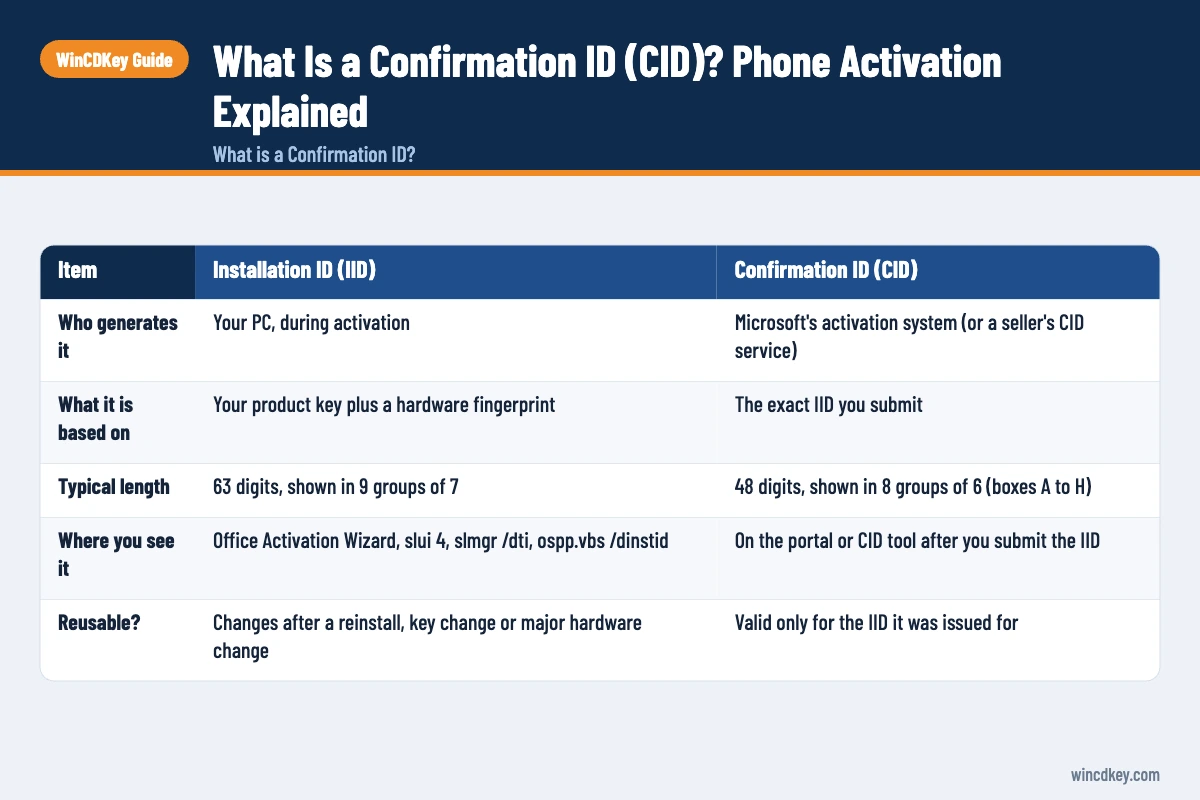
A Confirmation ID is a one-time response code from Microsoft’s activation system that proves a specific installation is licensed. It is calculated from the Installation ID your PC generates, so it works for that installation only. Once entered, the product is activated permanently, and the PC itself never needs to contact Microsoft’s activation servers.
Think of it as a question and an answer. The Installation ID is the question your computer asks (“is this key valid on this hardware?”), and the Confirmation ID is Microsoft’s signed reply. Neither code is your product key; the key is the 25-character code you bought.
| Item | Installation ID (IID) | Confirmation ID (CID) |
|---|---|---|
| Who generates it | Your PC, during activation | Microsoft’s activation system (or a seller’s CID service) |
| What it is based on | Your product key plus a hardware fingerprint | The exact IID you submit |
| Typical length | 63 digits, shown in 9 groups of 7 | 48 digits, shown in 8 groups of 6 (boxes A to H) |
| Where you see it | Office Activation Wizard, slui 4, slmgr /dti, ospp.vbs /dinstid |
On the portal or CID tool after you submit the IID |
| Reusable? | Changes after a reinstall, key change or major hardware change | Valid only for the IID it was issued for |
That last row matters more than anything else in this guide. Most “invalid Confirmation ID” tickets we see turn out to be a CID generated for an older IID, often from before a reinstall.
Why do some Windows and Office keys need phone activation?
Some keys are set up to activate through Microsoft’s offline channel rather than an automatic online check. You will meet phone activation when the key is a phone-activation SKU, when a key has used up its online activations, or when the PC has no internet connection. In each case, the IID-to-CID exchange replaces the online handshake.
Common situations
- Phone-activation keys. Office Professional Plus keys are often sold this way, for example Office 2024 Pro Plus phone activation. Online activation usually fails with a prompt to activate by telephone instead.
- Retail Windows phone SKUs. A Windows 11 Pro retail phone activation key completes activation through the same IID and CID exchange.
- Air-gapped or offline machines. Servers, lab PCs and secure workstations that never touch the internet still need activating.
- Moving a one-time-purchase Office licence. Microsoft’s own guidance says that when you move Office to a different computer under the licence terms, you may need to activate it by phone on the new machine.
Once activated, a phone-activated copy behaves exactly like any other. You get the same apps and the same security updates for the product’s support period. The extra step happens once, at setup.
What does “GetCID” mean, and are GetCID websites safe?
“GetCID” simply means getting a Confirmation ID. It is not a Microsoft product or service name; it is the phrase people type into search engines when the activation wizard asks for a code they don’t have. Several unrelated websites have adopted the term as a brand, which causes a lot of confusion.
Be cautious with any site that asks you to paste your Installation ID and product key when it has no connection to the seller who supplied your key. You can’t tell where that data goes or whether the code it returns is legitimate. A Confirmation ID is only meaningful if the key behind it is genuinely yours to use.
The safe options are short: Microsoft’s own portal, or the CID service run by the shop you bought the key from. Both are covered in the next section. Tools that claim to activate without any valid key are unofficial activators; they breach the licence terms and are a common source of malware, so we don’t cover them.
How do you get a Confirmation ID in 2026?
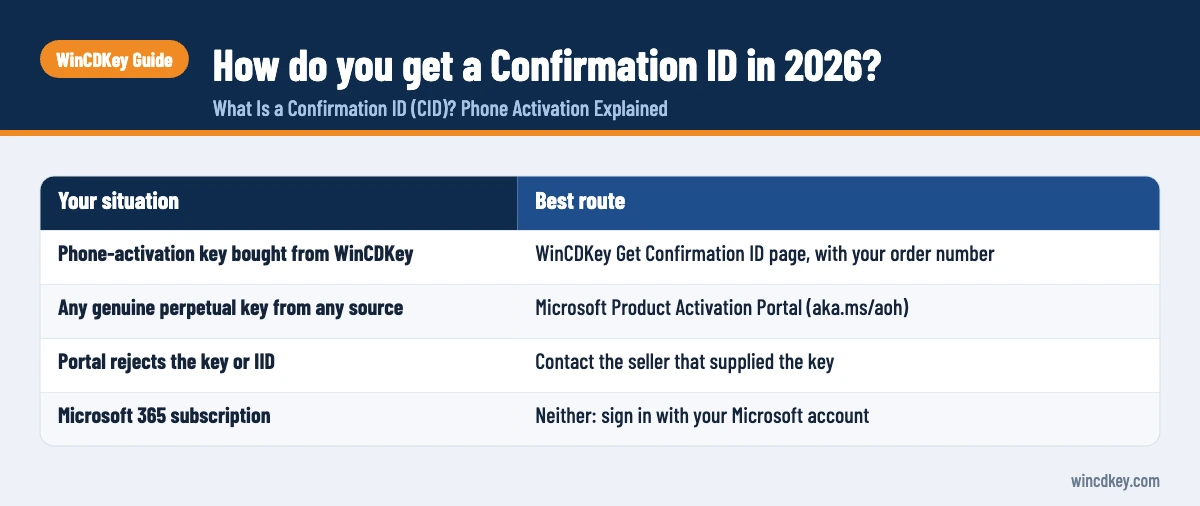
In 2026 there are two legitimate routes: Microsoft’s online Product Activation Portal, which works for any genuine perpetual key, and your key seller’s own CID tool for keys bought from them. The old automated phone service no longer issues codes; since 3 December 2025, calling the number in the wizard plays a message pointing you to the portal.
Route 1: Microsoft’s Product Activation Portal
Microsoft’s article on activating perpetual products with the Product Activation Portal confirms the move from telephone to online. The portal lives at aka.ms/aoh (visualsupport.microsoft.com) and covers retail, OEM and volume licence products.
- On any device with internet access, such as your phone, open the portal and complete the CAPTCHA.
- Sign in with a personal Microsoft account or a work or school account. Microsoft states that signing in does not attach the licence to that account; it only secures access to the portal.
- Choose Activate a Microsoft Product, select the product, and enter the Installation ID exactly as shown on your PC.
- Copy the Confirmation ID the portal returns and enter it on the PC you are activating.
The PC being activated does not need internet access. Only the device you use to reach the portal does.
Route 2: the WinCDKey Get Confirmation ID page
If you bought a phone-activation key from us, you can generate the CID on our Get Confirmation ID tool. You enter your order number and the Installation ID from your screen, and the tool returns the Confirmation ID for that key. Your order email states whether CID access is included with the product or offered as a separate service.
This route only works for keys sold by WinCDKey. We can’t generate codes for keys bought elsewhere.
| Your situation | Best route |
|---|---|
| Phone-activation key bought from WinCDKey | WinCDKey Get Confirmation ID page, with your order number |
| Any genuine perpetual key from any source | Microsoft Product Activation Portal (aka.ms/aoh) |
| Portal rejects the key or IID | Contact the seller that supplied the key |
| Microsoft 365 subscription | Neither: sign in with your Microsoft account |
How do you enter a Confirmation ID in Office?
Open any Office app, choose telephone activation in the Activation Wizard, copy the Installation ID from Step 2, get the CID, then type it into boxes A to H in Step 3. Microsoft’s Activation Wizard guide describes the same screens. The whole process takes a few minutes.
- Install Office from official media and open Word. Enter your 25-character product key when prompted. Our Office 2024 Pro Plus install and activation guide covers the download.
- In the Activation Wizard, select I want to activate the software by telephone and click Next. If you see “Telephone activation is no longer supported for your product”, Microsoft says you can ignore it and continue.
- Choose your country or region in Step 1, then note the Installation ID shown in Step 2.
- Get the Confirmation ID from the portal or the WinCDKey tool.
- Type the CID into boxes A to H in Step 3 and click Next. A confirmation message appears when activation succeeds.
Command-line alternative for Office
Volume and Professional Plus installs can also use the ospp.vbs script. Open Command Prompt as administrator and change to the Office folder, usually C:\Program Files\Microsoft Office\Office16 (some installs use \root\Office16).
cscript ospp.vbs /dinstiddisplays the Installation ID.cscript ospp.vbs /actcid:YOURCONFIRMATIONIDactivates with the CID (digits only, no spaces).cscript ospp.vbs /dstatusconfirms the licence status.
These switches are documented in Microsoft Learn’s page on tools to manage volume activation of Office.
How do you activate Windows with a Confirmation ID?
Run slui 4 to open the phone activation screen, or use slmgr /dti to display the Installation ID. Submit the IID through the portal or your seller’s tool, then enter the returned CID with slmgr /atp. The PC does not need to be online for the final step.
- Make sure the correct product key is installed. If not, run
slmgr /ipk XXXXX-XXXXX-XXXXX-XXXXX-XXXXXfrom an elevated Command Prompt. - Press Win + R, type
slui 4, choose your country and note the Installation ID. If the window doesn’t open, runslmgr /dtiinstead. - Get the Confirmation ID from the portal or the WinCDKey tool.
- Enter it in the slui window, or run
slmgr /atp YOURCONFIRMATIONIDwithout spaces or dashes. - Check the result with
slmgr /xpr, which should report that the machine is permanently activated.
Our existing walkthrough on how to activate Windows via phone has screenshots of the slui screens.
Using a WinCDKey phone-activation key?
Keep your order number to hand and generate your code on the Get Confirmation ID page. You can browse all our Office phone-activation keys if you still need a licence.
Why is my Confirmation ID not working?
A Confirmation ID usually fails because it was generated for a different Installation ID, was typed incorrectly, or the key itself has been blocked or exhausted. Check the IID first: if it has changed since you requested the code, the old CID will never work, however carefully you type it.
- The IID changed. Reinstalling, repairing, switching between 32-bit and 64-bit Office or re-entering the key all generate a new IID. Request a fresh CID.
- Typing errors. One wrong digit invalidates the whole code. Re-enter all eight blocks rather than hunting for the mistake.
- Edition mismatch. A Professional Plus key on a Home & Business installation (or vice versa) won’t activate. Install the edition that matches your key.
- Leftover licences. Pre-installed Office trials or older versions can clash. A clean removal using our guide to completely uninstall Office often clears it.
- The key is blocked or out of activations. The portal will refuse it. Contact the seller; if it came from us, open a ticket via our Help & Support Centre.
If activation succeeded but you want to double-check it, our sibling guide on how to check if Windows 11 is activated covers the Settings and slmgr checks.
Frequently asked questions
Is a Confirmation ID the same as a product key?
No. The product key is the 25-character code you buy, and it identifies your licence. The Confirmation ID is a 48-digit response that Microsoft or your seller generates from the Installation ID on one specific PC. You need the key first; the CID only completes activation for that one installation.
Can I reuse a Confirmation ID on another computer?
No. A Confirmation ID is mathematically tied to the Installation ID it was issued for, and that IID reflects both your key and the hardware. Another computer generates a different IID, so it needs its own CID, and the licence terms must allow the installation in the first place.
Can I still activate Office by phone in 2026?
Not by speaking to an automated phone system. Since 3 December 2025, Microsoft’s activation number directs callers to the online Product Activation Portal, where you enter the Installation ID and receive the Confirmation ID. The Office wizard’s telephone option still exists; only the way you obtain the code has changed.
Does the PC need internet access to activate with a Confirmation ID?
No. Only the device you use to reach the portal or your seller’s CID tool needs a connection, and that can be a phone. The computer being activated can stay completely offline, which is why this method is still used for servers and secure workstations without internet access.
Why is telephone activation greyed out in Office?
A greyed-out telephone option usually means you are running Microsoft 365, which activates only by signing in to a Microsoft account. Microsoft states that subscriptions don’t support telephone activation. Perpetual editions such as Office 2024 Professional Plus show the option normally.
How long does it take to get a Confirmation ID?
Usually a few minutes. Signing in to Microsoft’s portal and entering the Installation ID is the longest part, and seller CID tools return the code almost immediately. Typing the 63-digit IID accurately takes more time than the lookup itself, so copy it in groups and check each block.
The bottom line
A Confirmation ID is just Microsoft’s answer to the Installation ID on your PC, and it only fits that one installation. Get it from Microsoft’s portal or from the seller of your key, never from an unknown site. If you’re moving Office to another machine soon, our guide to transferring Microsoft Office to a new computer explains when a fresh CID is needed.
Useful links
| Resource | Why it helps |
|---|---|
| WinCDKey Get Confirmation ID | Generate a CID for phone-activation keys bought from WinCDKey |
| Microsoft Product Activation Portal guide | Microsoft’s official replacement for telephone activation |
| Office Activation Wizard (Microsoft) | Where to find the telephone option and the A to H boxes |
| ospp.vbs reference (Microsoft Learn) | Command-line switches for Office IIDs and CIDs |
| Activate Windows via phone | Step-by-step slui screens for Windows |
| Office 2024 Pro Plus install guide | Download and installation before activation |
| Office phone-activation keys | Current phone-activation Office licences |
| Help & Support Centre | Raise a ticket if your key or CID is rejected |


