🎃 HALLOWEEN SALE: 50% OFF best-selling Windows, Office, Autodesk & Server keys — use code GHOST50 Shop the sale →


Windows Activation After a Motherboard or Hardware Change: How to Fix It

Windows activation after a hardware change usually fails because Windows identifies your PC by its hardware, and a new motherboard makes it look like a different computer. To fix it, run the Activation troubleshooter and choose “I changed hardware on this device recently”, or re-enter a retail product key. OEM licences generally cannot be moved to new hardware.
Key takeaways
- Swapping RAM, a graphics card or a drive rarely affects activation; a motherboard replacement almost always does.
- The Activation troubleshooter only works if your digital licence was linked to a Microsoft account before the change.
- You must be signed in as an administrator and reinstall the same edition (Home or Pro) the licence covers.
- Retail licences can be reactivated on new hardware; OEM licences are tied to the original motherboard.
- Link your Microsoft account now, before your next upgrade, to make reactivation a two-minute job.
In this guide
- Why does a hardware change deactivate Windows?
- Which hardware changes affect Windows activation?
- What should you do before changing hardware?
- How do you fix Windows activation after a hardware change?
- What if your licence wasn’t linked to a Microsoft account?
- What if Windows still won’t activate?
- Frequently asked questions
- The bottom line
- Useful links
Why does a hardware change deactivate Windows?
When Windows activates, Microsoft records a digital licence against a hardware identifier built from your PC’s components, with the motherboard weighted most heavily. After a significant change, the identifier no longer matches the record, so Windows cannot find a licence for “this” device and reports error 0xC004F211.
This is cause and effect, not a fault. Windows is doing exactly what it is designed to do: stop one licence being cloned across many machines. The fix is to prove to Microsoft that the new hardware is a continuation of the licensed PC, which is what the Activation troubleshooter does when your licence is linked to a Microsoft account.
Microsoft does not publish the exact weighting of each component, so treat any online “points” formulas with caution. What is consistent in practice is that a new motherboard counts as a new PC.
Which hardware changes affect Windows activation?
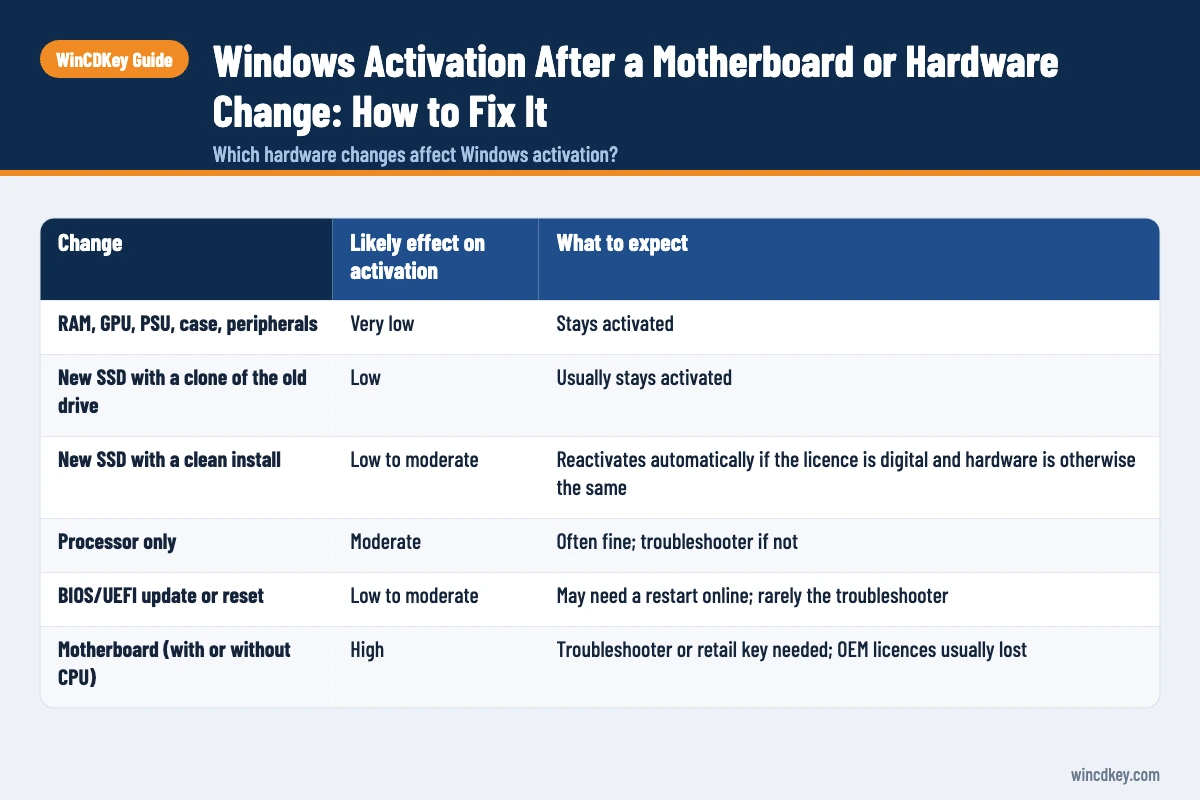
A motherboard replacement is the change most likely to deactivate Windows, followed by swapping the motherboard and processor together. Upgrading RAM, a graphics card, a power supply or a single storage drive usually leaves activation untouched. A BIOS reset or firmware update occasionally triggers a re-check, which normally clears itself once online.
| Change | Likely effect on activation | What to expect |
|---|---|---|
| RAM, GPU, PSU, case, peripherals | Very low | Stays activated |
| New SSD with a clone of the old drive | Low | Usually stays activated |
| New SSD with a clean install | Low to moderate | Reactivates automatically if the licence is digital and hardware is otherwise the same |
| Processor only | Moderate | Often fine; troubleshooter if not |
| BIOS/UEFI update or reset | Low to moderate | May need a restart online; rarely the troubleshooter |
| Motherboard (with or without CPU) | High | Troubleshooter or retail key needed; OEM licences usually lost |
One support pattern worth knowing: people often reinstall Windows at the same time as a motherboard swap and pick the wrong edition from the USB menu. Reinstalling Pro on a Home licence produces an activation error that looks like a hardware problem but is really an edition mismatch.
What should you do before changing hardware?
Before a motherboard upgrade, link your Windows licence to your Microsoft account, confirm the licence type, and keep a copy of any retail product key. Those three steps decide whether reactivation takes two minutes or ends with a support call.
- Check activation and linking. Go to Settings > System > Activation. The status should say Windows is activated with a digital licence linked to your Microsoft account.
- Link it if needed. Confirm you are an administrator under Settings > Accounts > Your info, then on the Activation page select Add an account and sign in.
- Check the licence channel. Run
slmgr /dliin Command Prompt. RETAIL means the licence can follow new hardware; OEM_DM or OEM_COA means it belongs to the old board. - Save your product key if you bought one, from the order email or retailer account.
- Note your edition (Home, Pro, Pro for Workstations) so you reinstall the same one if needed.
Our explainer on OEM vs retail vs volume Windows keys sets out why the channel matters so much here.
How do you fix Windows activation after a hardware change?
To reactivate Windows after a hardware change, sign in as an administrator, open Settings > System > Activation > Troubleshoot, choose “I changed hardware on this device recently”, sign in with the Microsoft account linked to the licence, tick “This is the device I’m using right now” and select Activate.
- Connect to the internet and sign in with an administrator account.
- Open Settings > System > Activation. The page should report that Windows is not activated.
- Select Troubleshoot. The option only appears when Windows is unactivated.
- Select “I changed hardware on this device recently”, then Next.
- Sign in with the same Microsoft account that was linked to the digital licence.
- Choose your device from the list of devices linked to that account and tick the box confirming it is the one you are using.
- Select Activate. Activation state should change to Active within a minute.
These steps follow Microsoft’s own guide to reactivating Windows after a hardware change, which also lists the conditions: same edition before and after, administrator account, and the account linked before the change.
If your device does not appear in the list, you are almost always signed in with a different Microsoft account from the one the licence was linked to. Check other personal or work accounts before trying anything else.
What if your licence wasn’t linked to a Microsoft account?
If the licence was never linked, the troubleshooter cannot help, but a retail product key still can. Go to Settings > System > Activation > Change product key and enter the original 25-character key. A retail licence is allowed to move to new hardware, so Microsoft’s servers will normally accept it.
The situation is different for OEM licences. An OEM licence is tied to the PC it first activated on, and Microsoft treats a new motherboard as a new PC. If the board was replaced under warranty by the manufacturer because it was faulty, the manufacturer normally restores activation. If you upgraded the board yourself, you will generally need a new licence.
Moving your Windows installation to an entirely new computer follows the same rules, and we cover that case separately in how to transfer a Windows license to a new PC.
Upgraded the motherboard on an OEM licence?
A Windows 11 Pro retail key can be moved to new hardware in future, while a Windows 11 Pro OEM key is the lower-cost option if this build will keep its board. Home users can choose the Windows 11 Home retail key.
What if Windows still won’t activate?
If the troubleshooter and your retail key both fail, check the error code, confirm the installed edition matches the licence, and wait a few hours if the message mentions busy servers. For keys Microsoft refuses online after a legitimate move, offline activation with a Confirmation ID or Microsoft support is the next step.
- 0xC004F211: hardware changed and no matching licence found. Use the troubleshooter or a retail key.
- 0x803F7001 or 0xC004F213: no valid licence found for this device. Enter a key or check you are on the right edition.
- 0xC004C008: the key is in use on another device. See our guide to fixing error 0xC004C008.
- 0xC004F050: the key is not valid for the installed edition. See fixing error 0xC004F050.
Microsoft keeps a full list on its activation errors page. Offline activation uses an Installation ID from your PC and a Confirmation ID in return; since December 2025 Microsoft handles this through an online portal rather than its old phone line. Our phone activation guide explains the process.
Frequently asked questions
Will changing my graphics card deactivate Windows?
Almost never. Graphics cards, RAM, power supplies and peripherals carry little or no weight in the hardware identifier Windows uses for activation. You can swap them freely. The component that matters is the motherboard, and to a lesser extent the processor and boot drive when changed together.
Can I reactivate Windows after a motherboard change for free?
Yes, if you have a retail licence or a digital licence that came from a retail key and was linked to your Microsoft account. Run the Activation troubleshooter or re-enter the retail key. If the licence was OEM, Microsoft treats the new motherboard as a new PC, so a new licence is usually needed.
Why doesn’t my device appear in the activation troubleshooter?
The troubleshooter lists only devices linked to the Microsoft account you signed in with. If your PC is missing, you are probably using a different account, or the licence was never linked before the change. Try other accounts you own, then fall back to entering your retail product key.
How many times can I reactivate Windows after hardware changes?
Microsoft does not publish a fixed number. Reactivation is intended for genuine hardware changes to the same licensed PC, and repeated moves in a short period can trigger refusals online. When that happens, offline activation with a Confirmation ID or a conversation with Microsoft support usually resolves a legitimate case.
Does a clean install of Windows affect activation?
Not on its own. If the hardware is unchanged and you reinstall the same edition, Windows recognises the digital licence and activates automatically once online. Problems arise when a clean install coincides with a motherboard change or when a different edition is installed by mistake.
Do I need my product key after a hardware change?
Only if your digital licence was not linked to a Microsoft account. A linked licence can be restored through the troubleshooter without a key. Keeping your retail key safe is still wise, because it is the fallback when linking was missed or the account details have changed.
The bottom line
Most hardware upgrades never touch activation, and a motherboard swap is easy to recover from if your licence is retail and linked to your Microsoft account. Link it today, keep your key, and reinstall the same edition. If you need help with a key bought from WinCDKey, open a ticket through our Help & Support Centre.
Useful links
| Resource | Why it helps |
|---|---|
| Microsoft Support: reactivating after a hardware change | Official troubleshooter steps and conditions |
| Microsoft Support: activation errors | Meaning of each error code |
| OEM vs retail vs volume Windows keys | Why licence channel decides what moves |
| Transfer a Windows license to a new PC | Moving a licence to a completely new computer |
| Activate Windows via phone | Offline activation with a Confirmation ID |
| Fix error 0xC004C008 | Key already in use on another device |
| Fix error 0xC004F050 | Key not valid for this edition |
| WinCDKey Help & Support Centre | Support for keys bought from WinCDKey |


