

How to Find Your Windows 11 Product Key (5 Reliable Methods)

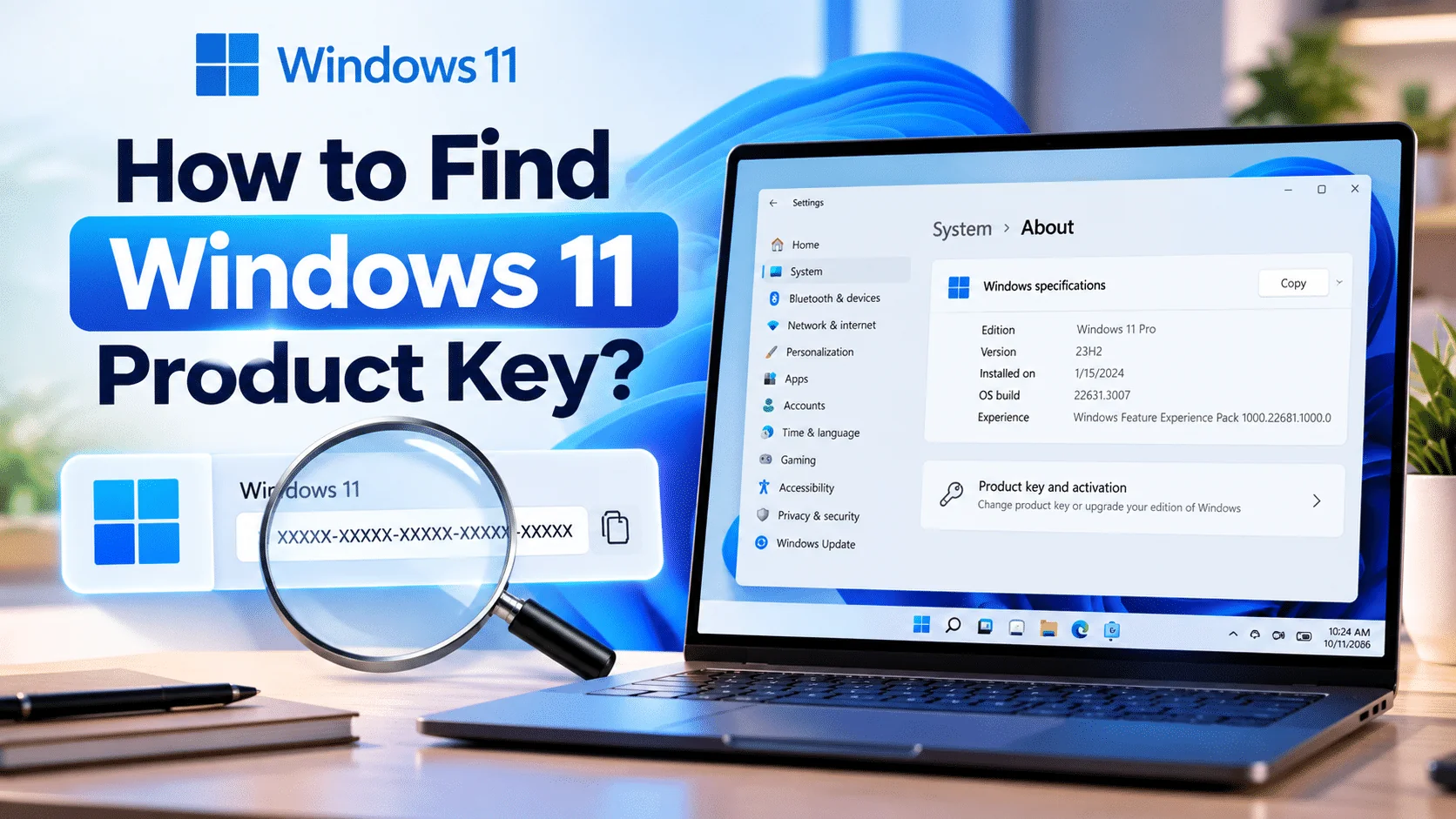
The quickest way to find your Windows 11 product key is to run one PowerShell command, which reads the key stored in your PC’s firmware by the manufacturer. If you bought a key separately, it is in your order email or retailer account. If Windows activated with a digital licence, you may not have a key to find at all, and you don’t need one to reinstall.
Key takeaways
- PowerShell reveals the full key only when the manufacturer embedded one in the firmware (most pre-built laptops and desktops).
- The old
wmiccommand no longer works on Windows 11 version 24H2 and later, because Microsoft has removed WMIC. slmgr /dlishows only the last five characters, which is enough to confirm which key is installed.- Keys you bought online live in the order confirmation email, the seller’s account area or your Microsoft account order history.
- A digital licence linked to your Microsoft account reactivates Windows automatically, with no key required.
In this guide
- Do you actually need your Windows 11 product key?
- How to find Windows 11 product key with PowerShell or CMD
- How to see the last five characters with slmgr
- Where to find a key you bought
- Can you find the key in the registry or with a key finder?
- What to do if you can’t find any product key
- Frequently asked questions
- The bottom line
- Useful links
Each method suits a different situation, so it helps to know what you are looking for before you start:
| Method | What it shows | Best for |
|---|---|---|
| PowerShell (firmware key) | Full 25-character key | Pre-built PCs that shipped with Windows |
slmgr /dli |
Last 5 characters and licence channel | Confirming which key is installed now |
| Order email or seller account | Full key | Keys bought online, including from WinCDKey |
| Microsoft account order history | Full key or digital licence record | Purchases from the Microsoft Store |
| Box card or COA sticker | Full key | Boxed retail copies and older PCs |
| Settings, Activation page | Licence status, not the key | Checking if you need a key at all |
Do you actually need your Windows 11 product key?
Often you don’t. If Windows 11 is activated with a digital licence, Microsoft’s activation servers recognise your hardware and reactivate Windows automatically after a reinstall, without asking for a key. You need the actual key mainly when moving a retail licence to a new PC or when activation fails after a major hardware change.
Microsoft’s guide to finding your Windows product key confirms that free upgrades from Windows 10 and Pro upgrades bought in the Microsoft Store produce a digital licence rather than a key you can read.
To see which you have, open Settings > System > Activation. If it says “Windows is activated with a digital license linked to your Microsoft account”, your licence is already safely stored. Our guide on how to check if Windows 11 is activated explains each status message.
How to find Windows 11 product key with PowerShell or CMD
Open Terminal, run (Get-CimInstance -ClassName SoftwareLicensingService).OA3xOriginalProductKey and press Enter. If your PC came with Windows pre-installed, the full 25-character key embedded in the firmware appears on the next line. A blank result means no key is stored in firmware.
- Right-click the Start button and choose Terminal.
- Paste
(Get-CimInstance -ClassName SoftwareLicensingService).OA3xOriginalProductKeyand press Enter. - Copy the key shown and store it somewhere safe, such as a password manager.
- If you prefer Command Prompt, run
powershell "(Get-CimInstance -ClassName SoftwareLicensingService).OA3xOriginalProductKey"instead.
Why the old wmic command stopped working
Many older guides tell you to run wmic path softwarelicensingservice get OA3xOriginalProductKey. Microsoft’s deprecated features list now states that WMIC has been removed from Windows 11 version 24H2 and later, so on a current PC that command returns “not recognised”. The PowerShell command reads exactly the same value.
What the firmware key really is
Manufacturers write the key into a firmware table on the motherboard, known as OEM Activation 3.0. That is why there is no sticker on most modern laptops. The key belongs to the edition the PC shipped with, so a laptop sold with Home returns a Home key even if you later upgraded it to Pro.
How to see the last five characters with slmgr
Run slmgr /dli in Terminal or Command Prompt. A small window shows the edition, the licence channel (Retail, OEM or Volume), the last five characters of the installed product key and the licence status. It cannot display the full key, but it confirms which key is in use.
That partial key is more useful than it sounds. A common support ticket we see is a customer holding two or three keys who isn’t sure which one is installed. Matching the last five characters to your order email settles it in seconds.
For more detail, slmgr /dlv adds the activation ID and remaining activation counts. Both commands are documented in Microsoft’s slmgr.vbs options reference and neither needs administrator rights.
Reading the licence channel
- RETAIL: a standalone key, usually transferable to another PC.
- OEM_DM or OEM_COA: a manufacturer or system-builder licence tied to this machine.
- VOLUME_MAK or VOLUME_KMSCLIENT: an organisation’s volume licence.
The channel matters most when you replace a PC: retail licences can normally move with you, OEM licences stay with the original machine, and volume licences belong to the organisation.
Where to find a key you bought
A key bought online is in your order confirmation email and usually in the seller’s account area. Keys bought from the Microsoft Store appear under Order history in your Microsoft account. Boxed copies have the key on a card inside the box, and older pre-built PCs have it on a Certificate of Authenticity sticker.
- Digital purchase: search your inbox for the order number, “product key” or the retailer’s name. Check spam and promotions folders too.
- WinCDKey orders: sign in to your WinCDKey account and open the order, or use order tracking with your order number and email.
- Microsoft Store: sign in at account.microsoft.com and check Order history.
- Work devices: volume keys are managed by your IT department through Microsoft’s licensing portal, not shown on the PC.
Can you find the key in the registry or with a key finder?
Partly, but these methods are unreliable on Windows 11. The registry value often holds a generic default key used during installation rather than your real licence key, and many modern installs do not keep a readable copy at all. Third-party key finders read the same locations, so they share the same limits.
The value people usually point to is BackupProductKeyDefault under HKEY_LOCAL_MACHINE\SOFTWARE\Microsoft\Windows NT\CurrentVersion\SoftwareProtectionPlatform. On PCs activated by digital licence it frequently shows a generic key that will not activate anything by itself.
If you do try a key viewer, download it only from the developer’s official site or the Microsoft Store. Utilities promoted as key “generators” or activators are unsafe, frequently bundle malware and breach Microsoft’s licence terms.
What to do if you can’t find any product key
First check whether you need one: if Settings shows a digital licence, link it to your Microsoft account and you’re covered. If not, contact the PC manufacturer for an OEM licence or the original seller for a retail key. If none of those exist, the remaining option is to buy a new Windows 11 licence.
- Go to Settings > Accounts and sign in with a Microsoft account so your digital licence is linked to it.
- If activation fails after a hardware change, run Settings > System > Activation > Troubleshoot and choose “I changed hardware on this device recently”.
- Contact the manufacturer if the PC shipped with Windows but the firmware key is missing.
- Contact the original seller with your order number if you bought a retail key.
Lost the key for good?
If your old licence can’t be recovered, a Windows 11 Pro retail key or a Windows 11 Home retail key is delivered by email, so it stays in your inbox for next time. Moving to a new computer? See our guide to transferring a Windows 11 licence to a new PC.
Frequently asked questions
How do I find my Windows 11 product key using CMD?
Open Command Prompt and run powershell "(Get-CimInstance -ClassName SoftwareLicensingService).OA3xOriginalProductKey". This reads the key stored in your PC’s firmware. The older wmic command no longer works on Windows 11 24H2 and later because WMIC has been removed. A blank result means no firmware key exists.
Why does PowerShell show a blank product key?
A blank result means the firmware holds no embedded key. This is normal on self-built PCs, on machines upgraded free from Windows 10, and where Windows was activated with a retail key or digital licence. Check your order email or Settings, System, Activation instead, because your licence still exists even though nothing is stored in firmware.
Is my Windows 11 product key stored in my Microsoft account?
Only in some cases. Keys bought from the Microsoft Store appear in your account’s order history, and a digital licence can be linked to your account for automatic reactivation. Keys bought from other retailers are not stored there, so keep the original order email or a copy in a password manager.
Can I use the product key from my old laptop on a new PC?
It depends on the licence type. A retail key can usually be moved to a new PC once it is removed from the old one. An OEM key found in a laptop’s firmware is tied to that laptop and cannot legally be transferred. Run slmgr /dli to see which channel your key uses.
Does reinstalling Windows 11 require a product key?
Usually not. If the PC was previously activated with a digital licence, choose “I don’t have a product key” during setup and install the same edition. Windows activates automatically once it connects to the internet. A key is needed only on new hardware or if the original activation was never completed.
How do I find my Windows 11 product key on the sticker?
Most Windows 10 and Windows 11 PCs don’t have a key sticker, because manufacturers store the key in firmware instead. A Certificate of Authenticity sticker usually belongs to Windows 7 or 8 era hardware. On a modern PC, use the PowerShell method to read the embedded key.
The bottom line
Start with PowerShell for pre-built PCs, your order email for keys bought online and the Activation page to see whether you need a key at all. Once you’ve found it, store it safely so a future reinstall or PC move is painless. If activation still fails, our help and support centre can point you to the right fix.
Useful links
| Resource | Why it helps |
|---|---|
| How to check if Windows 11 is activated | Understand your activation status message |
| Transfer a Windows 11 licence to a new PC | Moving a retail key safely |
| WinCDKey account and order tracking | Retrieve keys from past WinCDKey orders |
| Help and support centre | Activation help and tickets |
| Microsoft Support: Find your Windows product key | Official guidance on keys and digital licences |
| Microsoft Learn: Deprecated features | Confirms WMIC removal |
| Microsoft Learn: slmgr.vbs options | Reference for /dli and /dlv |


