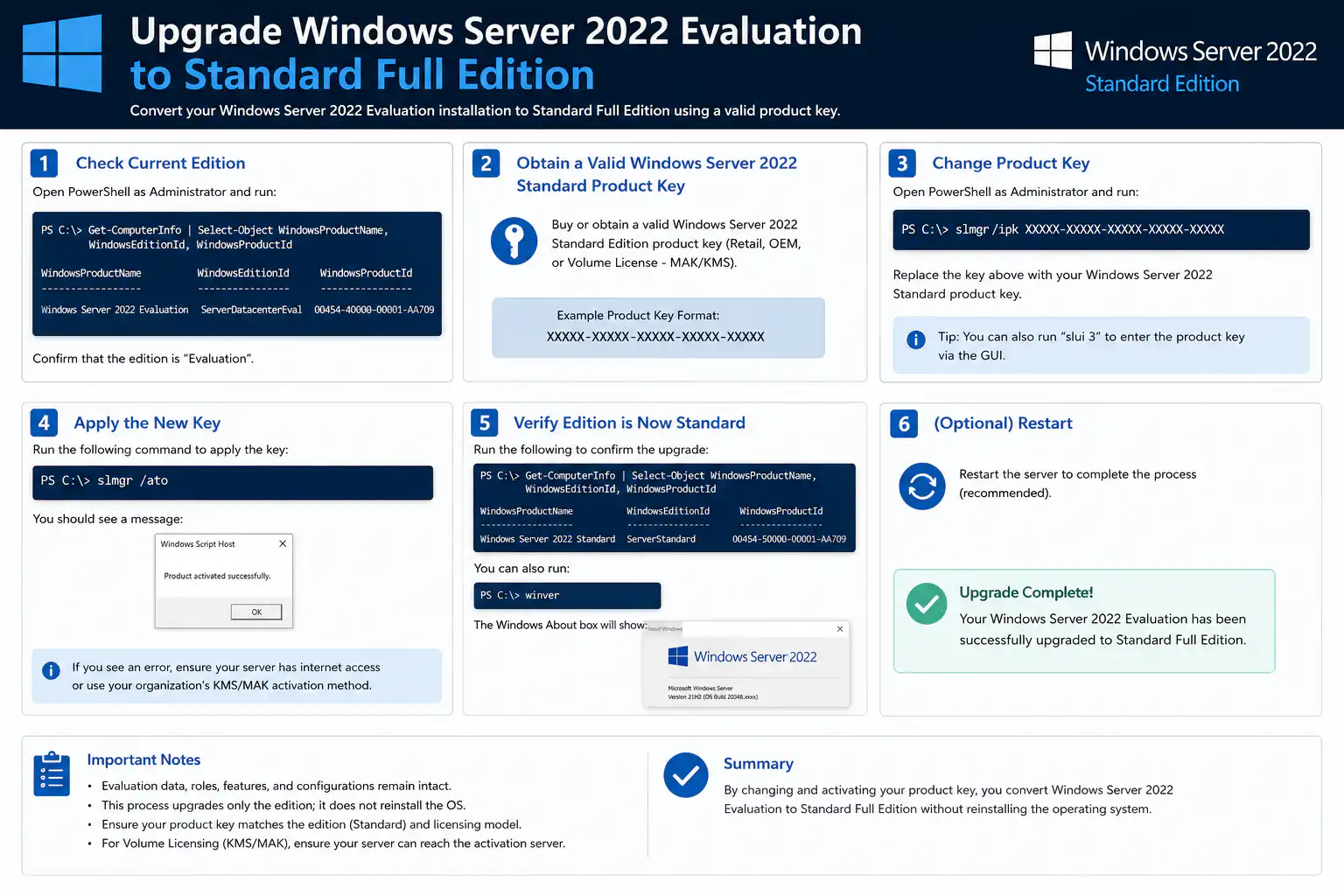
So you’ve been running Windows Server 2022 on a free evaluation ISO, your testing went perfectly, and now you’re ready to go live. The next logical step is purchasing a genuine license and activating your server — but here’s where many IT administrators hit an unexpected wall.
If you’ve already grabbed your Windows Server 2022 Standard or Datacenter key from WinCDKey and tried to activate it through Windows Settings or the slmgr command, you may have found that it simply doesn’t work. Don’t worry — your key is fine. The issue lies in the evaluation edition itself, and there’s a quick fix.
In this guide, we’ll show you exactly how to convert your Windows Server 2022 Evaluation edition into the full retail version using Microsoft’s built-in DISM tool — no reinstallation, no data loss, no hassle.
Why Doesn’t the Product Key Work Directly?
This is the most common question from administrators who are new to this process, and the answer is simple: the evaluation edition and the retail edition are technically different builds.
When you try to activate using:
Windows Settings → Activation ❌
slmgr /ipk via Command Prompt ❌
…both methods fail because the product version embedded in the evaluation ISO doesn’t match what your retail license key expects. You must first convert the edition, and then activate. Think of it as upgrading the DNA of your Windows installation before the license key can be accepted.
What You’ll Need Before Starting
✅ A genuine Windows Server 2022 product key — grab one instantly from WinCDKey at a fraction of the retail price
✅ Your server connected to the internet
✅ Access to PowerShell or Command Prompt as Administrator
✅ A planned reboot window — a restart is required to complete the process
✅ Patience — the conversion can take anywhere from 5 minutes to an hour
⚠️ Note: This process does not bypass licensing in any way. A valid, genuine product key is required. WinCDKey supplies 100% genuine Microsoft license keys sourced from authorised distributors, delivered to your inbox within minutes of purchase.
Step-by-Step: Convert Windows Server 2022 Evaluation to Full Edition
Step 1 — Open PowerShell as Administrator
Elevated privileges are required for DISM commands to work.
Click the Start menu and search for PowerShell
Right-click and select Run as Administrator
Click Yes on the UAC prompt
Step 2 — Confirm You’re Running the Evaluation Edition
Run the following command to see your currently installed edition:
dism /online /get-currentedition
Expected output:
Current Edition : ServerEval
This confirms the evaluation version is installed and the conversion is needed.
Choose the edition that matches your purchased license. For most businesses, ServerStandard is the right choice. If you need unlimited virtualisation rights, go for ServerDatacenter.
💡 Not sure which edition is right for you? WinCDKey stocks both Windows Server 2022 Standard and Windows Server 2022 Datacenter at highly competitive prices with instant digital delivery.
Step 4 — Run the Conversion Command
This is the key step. Run the command below, replacing ServerStandard with your target edition and inserting your WinCDKey product key:
⏳ The progress bar may appear stuck at 10% or 20% for an extended period — this is completely normal. Do not close the window or restart your server. The process is still running in the background and can take up to an hour depending on your hardware.
Step 5 — Reboot Your Server
Once DISM finishes, you’ll be prompted to restart. Go ahead and reboot. During the restart, Windows will finalise the edition change. When your server comes back online, it will be running the full retail edition of Windows Server 2022.
Step 6 — Verify the Conversion Was Successful
After the reboot, confirm the edition has changed:
dism /online /get-currentedition
You should now see:
Current Edition : ServerStandard
Step 7 — Activate Windows Server 2022
Now that the edition has been converted, you can activate using any standard method:
Option A — Via Windows Settings:
Go to Settings → System → Activation and enter your product key.
Option B — Via Command Prompt:
Your server is now fully licensed, activated, and production-ready. 🎉
Compatibility: Does This Work on Other Windows Server Versions?
Yes! While this guide focuses on Windows Server 2022, the exact same DISM process works across multiple versions:
Version
Supported
Windows Server 2016
✅ Yes
Windows Server 2019
✅ Yes
Windows Server 2022
✅ Yes
Windows Server 2025
✅ Yes
WinCDKey also stocks licences for Windows Server 2025 if you’re planning an upgrade to the latest version.
Troubleshooting Common Issues
❌ DISM command fails with an error
Make sure PowerShell is running as Administrator and your server has an active internet connection.
❌ Progress bar appears completely frozen
This is expected behaviour. Leave the process running for at least 30–60 minutes before assuming something has gone wrong.
❌ Activation fails even after conversion
Verify that:
Your product key matches the edition you converted to (Standard key for Standard edition, Datacenter key for Datacenter)
The key hasn’t already been activated on another machine
Your server can reach Microsoft’s activation servers
❌ Target edition not listed by DISM
Some evaluation ISOs only support upgrading to specific editions. Double-check which evaluation build you downloaded from Microsoft.
Where to Get a Genuine Windows Server 2022 Key
If you haven’t purchased your licence yet, WinCDKey is your best option. Here’s why thousands of IT professionals and businesses choose WinCDKey:
💰 Up to 80% cheaper than buying directly from Microsoft
⚡ Instant digital delivery — your key arrives by email within minutes
✅ 100% genuine keys sourced from authorised distributors
🔒 Secure payment with full encryption
💬 24/7 live chat support in case you run into any issues
⭐ 2,500+ five-star Trustpilot reviews from verified customers worldwide
Conclusion
Converting a Windows Server 2022 evaluation edition to a full retail licence is much simpler than most people expect — once you understand why standard activation doesn’t work on evaluation builds. The DISM tool handles the entire conversion process cleanly, without requiring you to reinstall or reconfigure anything.
Here’s the full process at a glance:
Open PowerShell as Administrator
Run dism /online /get-currentedition — confirm evaluation status
Run dism /online /get-targeteditions — find your target edition
Run dism /online /set-edition:ServerStandard /acceptEula /productKey:YOUR-KEY
Wait patiently — do not interrupt the process
Reboot when prompted
Activate via Settings or slmgr
Need a genuine Windows Server 2022 key at the best price? Shop now at WinCDKey and get your licence delivered to your inbox in minutes.
Have questions or ran into an issue not covered in this guide? Leave a comment below or reach out to the WinCDKey support team via live chat — available 24/7.