

AutoCAD 2026: Download, Install & Activation Guide

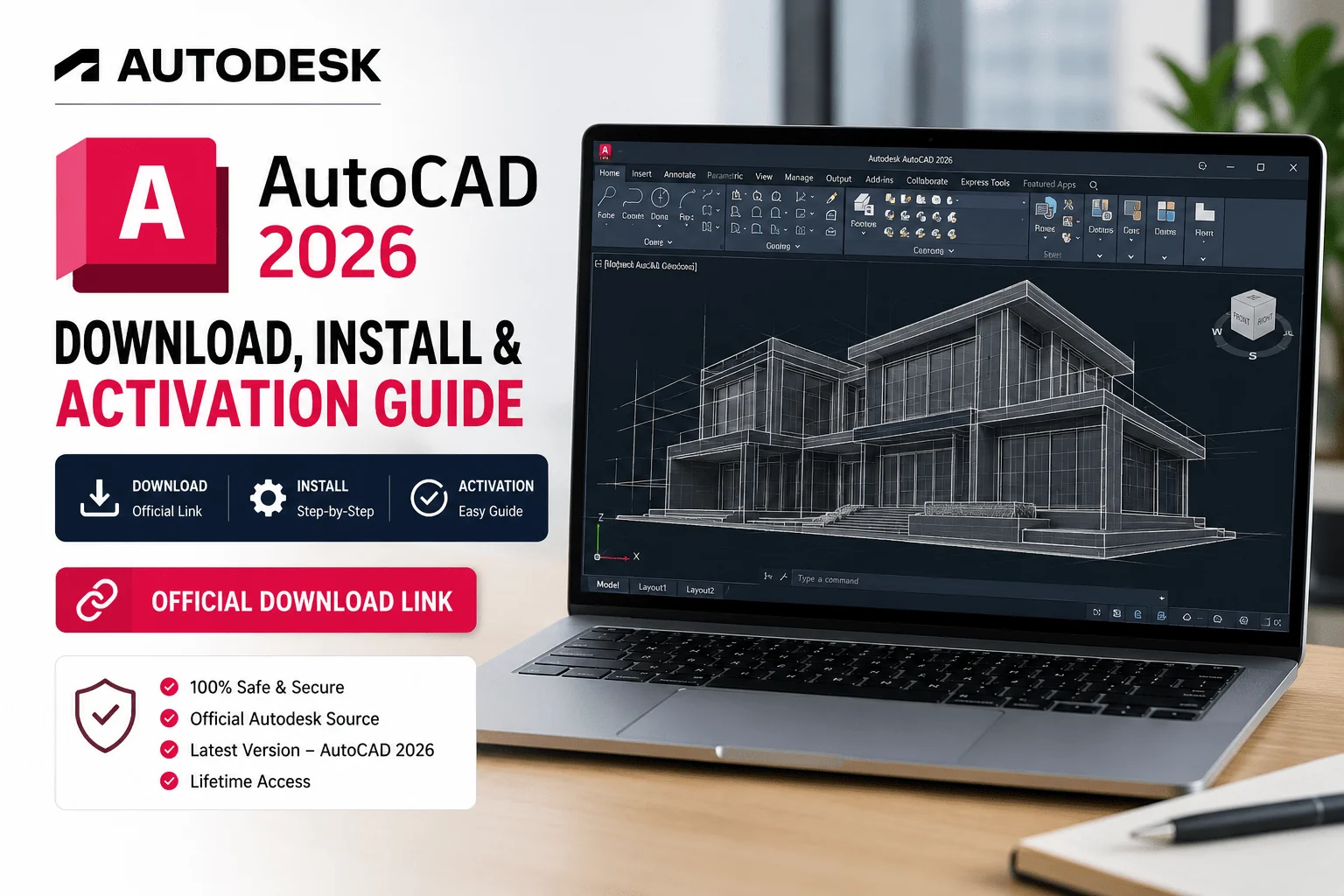
AutoCAD 2026 is Autodesk’s fastest and most intelligent release of their flagship CAD platform yet — delivering up to 11× faster file-open speeds and 4× quicker application startup compared to AutoCAD 2025, alongside major AI-powered features including Smart Blocks (BSearch), Connected Support Files for teams, improved Markup Assist, enhanced Activity Insights, and tighter integration with Autodesk Docs. Whether you’re an architect, structural engineer, MEP designer, or product drafter, this is a meaningful upgrade that will speed up every drawing session.
This guide covers everything you need to get AutoCAD 2026 running on Windows — from checking your system requirements, to downloading the official installer files, installing the software step by step, activating your licence key, and configuring AutoCAD for the first time. If you still need a genuine AutoCAD licence key, you can buy one instantly from WinCDKey — keys are delivered by email within minutes of purchase.
What’s New in AutoCAD 2026?
Before diving into the installation, here is a quick overview of the headline improvements in this release that make the upgrade worthwhile:
- Up to 11× faster file open & 4× faster startup — the single biggest quality-of-life improvement in this release, especially noticeable on large DWG files stored on network or LAN drives.
- Smart Blocks (BSearch) — AI-powered tool that automatically detects repeated geometry in your drawings and suggests converting it to blocks, saving hours of cleanup work on imported PDFs or legacy drawings.
- Connected Support Files — CAD managers can now define one shared set of project-aware support files (fonts, plot styles, hatch patterns, Xrefs) for an Autodesk Docs project, eliminating mismatched file path errors across distributed teams.
- Markup Assist enhancements — import JPG, PNG, and PDF markups directly from Autodesk Docs; improved detection of text edits, strikethroughs, and revision clouds from external PDF tools including Adobe.
- Activity Insights — “What’s Changed” — a detailed breakdown of all editing activity across collaborators during a session, with enhanced search and filter tools to find drawing history information in seconds.
- Layer Assignment Variables (complete set) — for the first time, AutoCAD 2026 lets you control which specific layer hosts each annotation type (text, dimensions, leaders, centerlines, hatches) via dedicated system variables — a long-requested feature for standardising production drawings and enforcing firm standards.
- AutoCAD Foundation — redesigned contextual learning experience with guided tips personalised to your workflow, helping new and experienced users discover features faster.
- Cross-platform access — work on DWG files across desktop, web, and mobile; AutoCAD for Mac 2026 now runs natively on Apple Silicon (M-series).
Now let’s get it installed.
AutoCAD 2026 System Requirements (Windows)
Confirm your PC meets Autodesk’s official requirements before downloading. Running AutoCAD on underpowered hardware — particularly with insufficient RAM or a slow storage drive — leads to sluggish redraws, instability, and crashes on complex drawings or point-cloud workflows.
Minimum System Requirements
| Component | Minimum Specification |
|---|---|
| Operating System | Windows 10 or Windows 11 (64-bit only) |
| Processor (CPU) | 2.5–2.9 GHz with 8 logical cores |
| Memory (RAM) | 8 GB |
| Graphics Card (GPU) | 2 GB VRAM, DirectX 11 compliant |
| Display | 1920 × 1080 resolution, True Color |
| Disk Space | 10 GB free (SSD strongly recommended) |
| .NET Runtime | .NET 8 (required) |
| Pointing Device | MS-mouse compliant device |
Recommended System Requirements
| Component | Recommended Specification |
|---|---|
| Operating System | Windows 11 (64-bit) |
| Processor (CPU) | 3.0 GHz+ base speed, 4.0 GHz+ turbo (high single-core frequency is the priority) |
| Memory (RAM) | 32 GB DDR5 (64 GB+ for point clouds or very large architectural drawing sets) |
| Graphics Card (GPU) | 8 GB VRAM, DirectX 12 (106 GB/s bandwidth); dedicated NVIDIA or AMD workstation GPU recommended |
| Display | Full HD to 4K (up to 3840 × 2160) — 4K significantly improves drafting precision on detailed drawings |
| Disk Space | NVMe SSD Gen4+ (OS/app drive); secondary NVMe SSD for active project files |
⚠️ Key performance notes:
- AutoCAD is a frequency-bound, primarily single-threaded application. A high-clock-speed consumer CPU (e.g. Intel Core Ultra 9 or AMD Ryzen 9) will outperform a many-core workstation CPU with lower boost speeds for everyday drafting tasks. Prioritise single-core turbo speed when choosing hardware.
- DirectX 12 is required to use the Fast visual styles introduced in recent AutoCAD releases. DirectX 11 is sufficient for all standard visual styles.
- .NET 8 must be installed — AutoCAD 2026 will not launch correctly without it. The installer attempts to add it automatically, but verify this manually if you encounter launch problems.
- AutoCAD 2026 is supported on both Windows 11 and Windows 10 (64-bit). Autodesk recommends Windows 11 for the best performance and full feature support. If you’re still on an older OS, consider upgrading — you can grab a Windows 11 Pro licence key from WinCDKey at a competitive price.
Before You Begin — What You’ll Need
Get the following ready before starting the download and installation process:
- ✅ A valid AutoCAD 2026 licence key — if you haven’t purchased one yet, buy your AutoCAD key from WinCDKey for instant email delivery.
- ✅ A free Autodesk account — required to complete activation at autodesk.com. Create one before you start if you don’t already have one.
- ✅ A stable broadband connection — the combined download is approximately 8–10 GB. A connection of 20 Mbps or faster is recommended.
- ✅ At least 20 GB of free disk space on your system drive (10 GB for the installed application + temporary space during extraction).
- ✅ Administrator access on the Windows PC — required to run the Autodesk installer.
Step 1 — Download the Official AutoCAD 2026 Installer Files
AutoCAD 2026 for Windows is delivered as two files that must both be downloaded to the same folder before you run the installer. The .exe file (Part 1) is the self-extracting installer; the .7z file (Part 2) contains the main installation data. Do not separate them or rename either file — the installer locates Part 2 automatically by filename.
Official AutoCAD 2026 Download Links — English, Windows 64-bit
| File | Description | Download |
|---|---|---|
| Part 1 | Self-extracting installer (.exe) — run this to begin setup | ACD_2026_english_us_win_db_001_002.exe |
| Part 2 | Installation data archive (.7z) — required by the installer; do not open separately | ACD_2026_english_us_win_db_002_002.7z |
How to download correctly:
- Create a dedicated folder on a fast local drive — for example:
C:\AutoCAD2026Setup - Download both files into that same folder. Right-click each link and choose Save link as, directing both to the same destination folder.
- Wait for both downloads to complete fully before proceeding. Verify file sizes in Windows Explorer once finished — a partial or interrupted download will cause the installer to fail.
- Do not rename either file, and do not try to open the .7z file with 7-Zip or WinRAR — the installer extracts it automatically.
💡 Tip: If your browser shows a warning about the file type when downloading, this is normal for large Autodesk SFX packages. Click Keep or Allow to proceed with the download. If you’re downloading both files simultaneously, ensure your internet connection is stable throughout — network interruptions can corrupt large files.
Step 2 — Install AutoCAD 2026 on Windows
Once both files are downloaded and confirmed in the same folder, follow these steps carefully.
Step 2a — Prepare Your System
- Temporarily disable antivirus or Windows Defender real-time protection during installation. Some security tools incorrectly flag Autodesk SFX archives and block extraction mid-way, resulting in a failed install. Re-enable protection immediately after setup is complete.
- Close all open applications — especially any other Autodesk software, browsers, and anything that may lock files on your system drive.
- Confirm at least 20 GB of free disk space remains on your C: drive. Open File Explorer → This PC to check current free space.
Step 2b — Run the Installer as Administrator
- Navigate to your download folder (
C:\AutoCAD2026Setup). - Right-click on
ACD_2026_english_us_win_db_001_002.exeand select Run as Administrator. - A Windows User Account Control (UAC) prompt will appear — click Yes to allow the installer to run with elevated privileges. Clicking No will block the installation.
- The installer will begin self-extracting files from the .7z archive automatically. This extraction phase typically takes 5–15 minutes depending on your drive speed — an NVMe SSD will be significantly faster than a standard HDD or older SATA SSD here.
Step 2c — Complete the Autodesk Installer Screens
- Once extraction completes, the Autodesk AutoCAD 2026 Setup window will launch automatically. If it does not appear after extraction finishes, check the Windows Taskbar — it may have loaded behind other windows.
- Select your preferred installation language.
- Read the Autodesk Licence and Services Agreement, tick the acceptance checkbox, then click Next.
- Select your installation type:
- Install (recommended for individual users) — installs to the default path:
C:\Program Files\Autodesk\AutoCAD 2026\ - Create Deployment — for IT administrators deploying to multiple machines on a network.
- Install (recommended for individual users) — installs to the default path:
- Optionally click Browse to change the installation directory. Always install to a fast SSD rather than an HDD for the best performance.
- Click Install to begin. Installation typically takes 15–30 minutes depending on your hardware. Do not close the installer or shut down your PC during this phase.
Step 2d — Finish the Installation
- The installer will display a progress bar as it copies files, installs .NET 8 if not already present, and registers all application components.
- When finished, an “Installation Complete” screen will appear.
- Click Launch to open AutoCAD 2026 immediately, or close the installer and launch it later from the Start Menu or Desktop shortcut.
- Re-enable your antivirus real-time protection at this point.
✅ AutoCAD 2026 is now installed. Next: activating your licence.
Step 3 — Activate AutoCAD 2026 with Your Licence Key
Autodesk uses an online licensing system tied to your Autodesk account. This means your licence travels with your account — once linked, you can reinstall and reactivate on the same machine without re-entering your serial number. Follow these steps carefully.
Step 3a — Sign In to Your Autodesk Account
- Launch AutoCAD 2026 from the Start Menu or Desktop shortcut.
- On the first launch, AutoCAD will present a sign-in screen. Enter your Autodesk account email and password, then click Sign In.
- If you don’t have an Autodesk account, click Create Account and complete the free registration. An Autodesk account is mandatory — activation cannot be completed without one.
- After signing in, AutoCAD will check for any licences already associated with your account. If a valid licence is found, you may be fully activated at this point — skip ahead to Step 3d.
Step 3b — Enter Your Serial Number and Product Key
- If AutoCAD does not automatically detect a licence, an activation screen will appear. Click “I have a serial number” or Activate.
- Open your WinCDKey order confirmation email and locate your Serial Number and Product Key. Check your spam/junk folder if you don’t see the email — it is delivered automatically within minutes of purchase.
- Copy and paste the Serial Number and Product Key exactly as shown. These values are case-sensitive — avoid typing them manually to prevent errors.
- Click Next to submit the activation request to Autodesk’s servers.
🔑 Don’t have your key yet? You can purchase a genuine AutoCAD licence key from WinCDKey and receive it instantly by email. Every key is a genuine Autodesk licence, verified by our team, and backed by post-sale support.
Step 3c — Online Activation
- With an active internet connection, AutoCAD will contact Autodesk’s licensing servers and verify your serial number automatically.
- If the key is valid and not previously activated on another machine, activation completes in seconds.
- A confirmation message will appear: “Your product has been successfully activated.” AutoCAD will then open in fully licenced mode — all features unlocked.
- If you see an activation error, make a note of the exact error code and message, then refer to the troubleshooting section below.
Step 3d — Confirm Licence in Your Autodesk Account
- In a browser, sign in to manage.autodesk.com.
- Go to Products & Services and confirm that AutoCAD 2026 appears as an active product under your account.
- This step is important — it confirms the licence is properly linked to your account, and ensures you can reinstall and reactivate AutoCAD in the future by simply signing in, without needing to re-enter your serial number.
Step 4 — First-Launch Setup and Configuration
After activation, take a few minutes to configure AutoCAD 2026 before opening any drawings. These steps prevent the most common performance and display problems users encounter after a fresh install.
1. Update Your GPU Drivers
Download the latest graphics drivers directly from NVIDIA, AMD, or Intel before working on any complex drawing. Outdated GPU drivers are the single most common cause of viewport glitches, visual artefacts, and application crashes in AutoCAD. Do not rely on Windows Update to supply graphics drivers — always get them directly from the GPU manufacturer’s website.
2. Enable Hardware Acceleration
- In AutoCAD, type
OPTIONSin the command line and press Enter (or go to Application Menu → Options). - Go to the System tab and click Graphics Performance.
- Ensure Hardware Acceleration is switched On.
- Click Apply then OK.
Hardware acceleration offloads viewport rendering to your GPU, delivering noticeably smoother zoom, pan, and orbit operations on complex drawings.
3. Configure AutoSave
- In Options, go to the Open and Save tab.
- Under File Safety Precautions, confirm Automatic Save is ticked.
- Set the interval to 10 minutes — the default 30-minute interval is too infrequent for professional drawing work.
- Click Apply then OK.
4. Choose Your Workspace
AutoCAD 2026 opens in the Drafting & Annotation workspace by default. Click the Workspace Switching icon in the bottom-right Status Bar to change it:
- Drafting & Annotation — standard 2D drafting interface (default, suits most users)
- 3D Basics — simplified 3D workspace suitable for beginners
- 3D Modeling — full 3D modelling ribbon and panels
5. Set Your Default Drawing Template
Go to Application Menu → New and select a template (.dwt file) matching your discipline and unit standard (metric or imperial). Getting this correct from the start ensures dimensions, annotation scales, and print layouts all behave as expected without manual overrides later.
6. Verify .NET 8 is Present
If AutoCAD shows component errors or crashes on first launch, open Control Panel → Programs → Programs and Features and confirm Microsoft .NET 8 is listed. If it’s missing, download and install it from Microsoft’s official website, then relaunch AutoCAD.
Troubleshooting Common AutoCAD 2026 Issues
Installation Fails, Freezes Mid-Way, or Exits Unexpectedly
- Confirm both Part 1 (.exe) and Part 2 (.7z) are in the exact same folder. The installer will silently fail to extract if it cannot find Part 2 alongside Part 1.
- Ensure neither file has been moved, renamed, or opened in an archive tool (7-Zip, WinRAR) at any point.
- Disable antivirus / Windows Defender real-time protection before running the installer — security tools frequently block Autodesk SFX extraction processes.
- Confirm the installer was launched with Run as Administrator (right-click the .exe → Run as administrator).
- Verify at least 20 GB of free space is available on your system drive.
- If the problem persists, re-download both files from scratch — do not resume a corrupted or interrupted download.
Activation Error: “Invalid Serial Number” or “Invalid Product Key”
- Copy and paste the serial number and product key directly from your WinCDKey order email — do not type them manually, as even one wrong character will cause activation to fail.
- Confirm you are activating AutoCAD 2026 specifically — your key must match the exact product and version.
- Ensure you are signed in to the correct Autodesk account associated with the purchase.
- If the key remains invalid after verifying all of the above, contact WinCDKey’s Help & Support Center immediately — our team will verify your order and resolve the issue.
Activation Error: “Maximum Activations Reached”
- Standard Autodesk retail licences permit one active machine at a time. If you’ve reinstalled Windows, replaced hardware, or previously used the licence on another PC, you may need to deactivate the old installation first.
- Sign in to manage.autodesk.com → Products & Services → locate AutoCAD 2026 → deactivate or remove the old machine.
- If you cannot access the previous machine, contact WinCDKey Support — we can assist with licence reset requests.
AutoCAD Won’t Launch or Crashes Immediately
- Update GPU drivers to the latest version directly from NVIDIA, AMD, or Intel’s website.
- Temporarily disable Hardware Acceleration (Options → System → Graphics Performance) and try launching again — this isolates whether the GPU is causing the crash.
- Confirm .NET 8 is installed (see Step 4, point 6 above).
- Run Windows Update and install any pending OS updates, restart your PC, then try again.
- For persistent crashes, check Windows Event Viewer (Start → search “Event Viewer” → Windows Logs → Application) for error entries timestamped at the moment of the crash — this gives Autodesk support or WinCDKey’s team useful diagnostic information.
AutoCAD is Slow or Laggy on Large Drawings
- Ensure Hardware Acceleration is enabled (Options → System → Graphics Performance).
- Move active project files from a network drive or HDD to a local NVMe SSD. AutoCAD’s performance is heavily dependent on storage speed — especially for XREF-heavy drawings where AutoCAD constantly reads referenced files.
- If your system has less than 16 GB of RAM, consider an upgrade — AutoCAD’s memory footprint grows exponentially with large drawing sets, multiple layouts, and stacked external references.
- Run the
PURGEcommand on problem drawings to remove unused named objects (layers, block definitions, linetypes, etc.) that inflate file size. - Follow with the
AUDITcommand to detect and repair drawing database errors that can cause sluggish performance. - Unload any external references not currently needed: right-click an XREF in the XREF Manager → Unload to temporarily remove it from memory without detaching it.
Download Links Are Not Working
- Try a different browser — Chrome or Firefox are recommended for large Autodesk file downloads. Microsoft Edge may prompt additional security confirmations.
- Try right-clicking each link and selecting Save link as rather than a direct click, which can sometimes trigger a browser security block on .exe files.
- These are official Autodesk-hosted distribution URLs. If they return a 404 or connection error, Autodesk may have updated their file server paths. Contact WinCDKey Support and we will provide the latest verified download links.
Frequently Asked Questions — AutoCAD 2026
Where do I get a genuine AutoCAD 2026 licence key?
You can purchase a genuine, instant-delivery AutoCAD licence key from WinCDKey’s Autodesk store. Keys are sent by email within minutes of payment and are verified genuine Autodesk licences. Browse all available Autodesk titles including AutoCAD for Windows and AutoCAD LT for Windows/Mac.
Do I need both download files to install AutoCAD 2026?
Yes — both files are required. Part 1 (.exe) is the self-extracting installer that initiates the setup process. Part 2 (.7z) contains the bulk of the installation data. Both files must be in the same folder before you run Part 1. The installer locates and extracts Part 2 automatically — you do not need to open the .7z file yourself with any archive software.
Can I install AutoCAD 2026 on more than one computer?
Standard Autodesk retail licences allow one active machine at a time. To transfer your licence to a new PC, sign in to manage.autodesk.com and deactivate the old machine first. For businesses requiring multiple seats, WinCDKey offers enterprise and volume licensing options — or contact us for a B2B/wholesale quote.
Does AutoCAD 2026 work on Windows 10?
Yes. AutoCAD 2026 officially supports both Windows 10 and Windows 11 (64-bit). Autodesk recommends Windows 11 for the best performance and full feature support. Upgrading to Windows 11 Pro is straightforward and worthwhile if you plan to use AutoCAD regularly.
Does AutoCAD 2026 work on Mac?
Yes — AutoCAD for Mac 2026 is a separate product supporting macOS Ventura (v13), Sonoma (v14), and Sequoia (v15) on both Intel and Apple Silicon (M-series) machines. The download links in this guide are for Windows only. Mac users should download the AutoCAD for Mac installer from autodesk.com using their Autodesk account credentials.
What is the difference between AutoCAD and AutoCAD LT?
AutoCAD LT is a lower-cost edition focused exclusively on 2D drafting. It does not include 3D modelling tools, the specialised discipline toolsets (Architecture, MEP, Mechanical, Plant 3D, Electrical, Map 3D), or advanced automation and customisation features such as AutoLISP. If your work involves any 3D design, discipline-specific workflows, or scripted automation, you need the full AutoCAD.
What if I need help after purchasing?
WinCDKey provides dedicated after-sale support via the Help & Support Center. You can also visit our FAQs page for instant answers to the most common questions, or browse the Installation & Activation Guide hub for step-by-step guides across all our software products.
More Autodesk Software at WinCDKey
WinCDKey stocks genuine, instant-delivery licence keys for the complete Autodesk portfolio. Here are our most popular Autodesk titles:
- AutoCAD for Windows — the industry-standard CAD platform for architects, engineers, and designers
- AutoCAD LT (Windows/Mac) — affordable 2D drafting for individuals and small teams
- Autodesk Revit 2025 — BIM modelling for architecture, structure, and MEP
- Autodesk Inventor Professional 2024 — mechanical design, simulation, and technical documentation
- Autodesk Civil 3D 2025 — civil engineering and infrastructure design
- Autodesk 3ds Max 2024 — 3D modelling, animation, and visualisation
Browse the complete Autodesk section at WinCDKey, or visit our full software shop for Windows, Microsoft Office, antivirus, and more. All keys are genuine licences, verified against Autodesk’s servers, and backed by our customer support team — as confirmed by thousands of verified buyer reviews on Trustpilot.
Running AutoCAD on an older version of Windows? Pair your AutoCAD 2026 licence with a Windows 11 Pro key from WinCDKey — the recommended OS for the best AutoCAD 2026 experience.


